I was up rather late last night, and I saw something on television that I had never seen before: a Google commercial. It was a little strange, really, with a theme that appeared to be all about a dad who is tracking the life of his daughter via various Google services with the intent to share them with her later. It was all very touching, but I couldn’t help feeling a little weird watching it. Since when does Google do commercials? Isn’t that Bing’s territory? Is the Microsoft marketing machine starting to get to the Mountainview folks?
Either way, the commercial did its job, because it got me to thinking: how many Google services do I actually use on a regular basis? Especially considering that I am still not convinced they aren’t the Devil.
Chrome & ChromeOS
I live in Google Chrome. Firefox (yes, even Firefox 4) is a resource hog, doesn’t have a built in web app creator, or any of the OS-like aspects of Chrome that parallel ChromeOS. I love the extensions, I love the new start page, and I love (and sometimes hate) the Chrome Web Store. I’ve noticed that all of the new features have slowed things down in Chrome a bit, especially on initial opening of the browser, but even with all of the extensions, apps, and tabs that I use regularly, Chrome still outperforms Firefox on my system. Internet Explorer 9 opens faster for me than both browsers — but I still can’t get into it. Microsoft’s browsers have annoyed me once too often as the years have gone by, I think.
ChromeOS — or Chromium OS, if you like — has been something I’ve played with off and on for over a year. I enjoy it. I like the whole “browser as your OS” concept. I don’t know if it will ever fully replace native apps for me, but my curiosity is definitely piqued. Web apps are fast approaching the power and flexibility of installed software, offline capabilities are getting better, and the integrations with cloud storage services like Dropbox are getting more and more intricate. The world is heading back toward the days of the mainframe and dumb terminal — except the mainframe is now worldwide (see: Skynet). ChromeOS is a very large step in that direction, and Google is all about it. Just think of all the ads they can serve and information they can collect if everyone does all of their computing in the cloud. Makes your eyes pop a little bit, doesn’t it?
Google Search, Maps, Images & Translate
Microsoft has done some compelling things with Bing, and their ads do raise awareness of the search engine and its other aspects like Maps, social and photo results, etc. Still, I tend to gravitate toward Google search when I am researching something. I’ve developed a high level of trust and loyalty to their search results and minimalist approach. I know there are weirdnesses and censored results for some topics, but Google search gets the job done for me, especially with the addition of Instant and Google-made Chrome extensions that allow me to block certain sites and jump directly to where my search phrase appears on the page.
Google Translate, especially when plugged directly into Google Chrome, is also incredibly useful, either as a way to translate a phrase to or from another language, or to translate entire web pages so that they can be read in your own. It’s never perfect, of course, but it’s good enough to get the job done and long ago replaced Babelfish for me despite the cool Hitchhiker’s Guide to the Galaxy reference.
Google’s social aspects of search are ok, but can be annoying as well. I’m not always that social, and don’t necessarily care what people in my network are searching for or whatever related value they give to my search. From a business perspective, where I have to consider search engine optimization and testing, these added layers can skew my research, as well, so I often need to log out of all of my Google services and social networks — or open up another browser — to make sure my search results are as vanilla as possible. I do like the real time results that pull up Twitter conversations, however.
I use Google Maps on my iPhone, my iPad, and on my computer, and I have Google Earth. I’ve never had much (regular) use for Google Earth, however. I also use Image Search regularly, as well, and I have enjoyed some of the recent interface updates that give it a slicker feel, but I really only use it because it is directly attached to the main search engine. Surprisingly, I have had very little use for Blog Search, overall.
Gmail
If I live in Chrome, then Gmail is my kitchen. This is where I do a large amount of my work and communications, and it is a large part of my current GTD task management system (in Producteev). I have several email accounts with different services, as well as domain-level accounts, and the recent upgrades to Hotmail and Yahoo Mail have brought about some very nice features, but Gmail is where it’s at for me. In fact, I use the One Inbox to Rule Them All method to bring all of my different accounts into my main Gmail account, and it works exceedingly well!
Gmail combines all of the power and flexibility I could want with an easy to use interface. It is the Mac of online email applications, especially when you add a theme, a few Labs features, tools like Rapportive (pulls in social data for people you are conversing with), and/or an extension or two to make it look a little less bare.
Google Calendar
I use Gcal regularly, in my task and project management. The lack of any Gcal integration with Evernote was once of the main reasons I started looking for alternatives for my own GTD setup in Evernote (you can always forward notes to Gmail from Evernote and use those to schedule calendar appointments, but I wanted something that integrated directly with Gcal, like Springpad or Producteev). I am not a Google Calendar power user by any means, but it gets the job done for me. I like its uncluttered interface, features, and Labs additions.
Google Reader & Google Buzz
I can’t stand to look at Google Reader. It’s ugly, its busy, and it stresses me out. However, I do use it as my main RSS feed collection and organization tool — but I do it through other apps like Feedly, Flipboard, and MobileRSS. If it wasn’t for those apps providing a look and feel that doesn’t make me want to hurl my computer or mobile device across the room, then I would never touch Google Reader.
You might be wondering why Google Buzz would be attached to the Google Reader section, especially considering that the average person has abandoned buzz to the crickets, but it has to be included because of its integration with Google Reader. Honestly, I don’t care about Buzz either, but every time I share something on Google Reader it gets shared on Buzz as well. That’s about the extent of my usage, and for some reason, people keep following me on Buzz as a result. Rather than deny those people whatever value they get from my stream (and deny myself whatever personal branding boosts I may get as a result), I leave my connection to Buzz open. Its kind of insidious the way it worms its way back into your online life…
Google Docs
I used to ignore Google Docs, but as my professional world as an online marketer and freelance writer moved more and more into the cloud for collaborations and easily sharing my work with clients, I moved more and more into Docs and the rest of Google’s online office suite. I’ve even adopted some of Josh’s ideas for using Docs as a Google Wave replacement. In fact, though I am one of those Microsoft Office power user types, I have moved away from Office almost entirely, only using it if I absolutely have to. There are some Office features you can’t get from Google Docs (or any other online office software), after all.
Google Alerts, Trends, Insights, Keyword Tools
I use both of these services to help inform me of interest levels in my own brands and the brands of my clients and their competitors. Alerts is useful for recent updates regarding what people are saying across the web on subjects of my choice. Trends, Insights, and Keyword Tools (for Adsense and Adwords) are fantastic ways to conduct keyword and phrase research for search engine optimization. The Wonder Wheel in Google search is another useful tool here.
Google Analytics & Webmaster Tools
I use Analytics and Webmaster Tools for my own sites and for all of my clients’ sites when I do SEO for them. Both tools are powerful, easy to use, and as free as air. I can’t imagine why people wouldn’t use them — barring the Devil theory and the potential privacy murkiness of Google, that is.
YouTube, Google Talk, Picasa
All three of these are fantastic tools that I should probably use more. YouTube is great for marketing, and is the platform of choice for video blogging (which I’ve been considering for some time now — I would love your thoughts on the subject). It is also arguably the second largest search engine on the web. I use it all the time as a viewer, and recommend it to clients as a marketing vehicle, but my own account is nearly empty, with only a video of my kid tap dancing like a maniac. It was too cute not to share!
I use Google Talk only periodically, due to my hatred of instant messaging as a whole. Instant messaging is a productivity killer. I much prefer the email/Facebook message/forum approach to conversation as it leaves me the choice of when to be involved, which makes for less distractions in my day. The recent call phones feature (currently free to the US and Canada) has made Gtalk a viable alternative to paying for Skype — but Skype is still better, overall, and has some nice features and add-ons that make it much easier to work with. If you are a Google Voice user, that’s another story — but Google Voice is still not perfect, and not fully available in Canada. *shakes fist*
Picasa is something I used, then abandoned, and have recently started using again only because I needed some additional free cloud storage for my photos, and it is extremely easy to get a lot of photos into the service all at once. I don’t know that I would ever use it for more than that, but it is definitely a powerful photo sharing service in its own right.
Google Goggles & Google Mobile
I also use the Google Mobile App for my iPhone and iPad, and the integrated Google Goggles has proven to be very handy while on the go. I can search for things using my camera, and can even cheat on Sudoku. It doesn’t get much better than that!
I do find the mobile app lacking, though. I like the voice search, but the fact that the other services in the app are really nothing more than links – and they require me to log in again in the browser – makes it less useful than it ought to be. Android users have a bit of a leg up here, as most of their Google apps and services have pretty deep integration into the OS.
Google Profile
I don’t really use my Google Profile for anything other than personal branding. Profiles give a snapshot of you, and are searchable, especially on Google, so it only makes sense to have one. You get one by default if you use Buzz, as well. I don’t think it would hurt me in any way to not have one, but when you are pushing yourself as a brand to get new clients, a job, or even readers on your blog, it makes sense to have one.
Abandoned Google Services
I’ve abandoned several Google services over the years, and a few of them have abandoned me (like Google Wave *shakes fist*). The ones that stand out to me, though, are as follows:
Google Wave (damnit!)
Orkut (Does anyone use this? Has anyone used this?)
Google Video (see: YouTube — Google Video was rendered relatively pointless)
Sidewiki (a nice idea, but sloppy, and web annotation services have a hard time in general)
Google Latitude (occasionally useful, but nobody needs to know where I am all the time)
Google Buzz (mostly)
Google Toolbar (resource hog with privacy issues)
Google Desktop (resource hog with privacy issues)
Google Tasks (just too ugly for me to find it useful)
Here’s That Commercial
You’ve been great! Thanks for reading along – this ended up being a mini-novel instead of the short post I was planning on. As a reward for your awesomeness, I now present you with TheGoogle Commercial In Question. Enjoy!
All said and done, I use way more Google services than I’ve stopped using, and will likely continue to, despite privacy concerns and fears of Google taking over the world. I barely even touched on Android and the way it integrates with Google’s best tools (and its rapidly growing user base). I’m an iOS user, but have hacked Android and Android facsimiles into more than one phone for testing, and those integrations certainly don’t hurt Google. Fancy new commercials aren’t going to hurt them, either. I admit it: I want a Chromebook. I don’t know how useful they will be in the long or short term, but they are pretty sweet, says my techie bone. The price isn’t terrible, either (about $400 on average).
How about you? What Google services do you use or plan to use? What ones have you abandoned? Are there any you simply don’t trust? Let’s chat about it in the comments!
I hated this app. Not because it wasn’t fun, and not because there was something wrong with it — no, no, none of that. It was because it called to me in the middle of the night, squawking at me softly, compellingly; demanding that I play it over and over again until the wee hours before the dawn. Even now, as I write this, the little red bird that promotes the game’s evil is peeking at me with his sinister cartoony eyes, poking his head around the left-most edge of my Evernote window.
I couldn’t allow it. Angry Birds for Chrome messed with my productivity mojo — and this is why the Birds had to die.
I had been avoiding the game for months. I’ve got an iPhone — and an iPad too. I follow these things. I pay attention. I know exactly how addictive Angry Birds has been for people, so I avoided it like the productivity plague that it was (and is!). But all of that ended on one fateful day when I was trolling the Chrome Web Store for new and exciting apps.
It was late, you see, and I was tired. I had been working my butt off on some freelance projects — a website redesign plan, a proposal for social media marketing, some blog posts for a new productivity blog I’m working on (ironic, I know) — and I needed to blow off some steam. That’s how they get you, see? There’s that moment of weakness, and you see their ad — and suddenly you’re installing, clicking, and watching those poor little birds get their eggs stolen by those bastard green (but cute!) pig heads. Don’t question the logic of it — it’s freaking mesmerizing!
So I tried the first level. It was easy. Too easy, like all gateway drugs are. Just a little taste, you know? A taste for free.
Free? Ha! I spent the next few hours of my life firing bird after crazy, utterly enraged bird into green-pig-head strongholds. Dozens and dozens died for the cause — it was a bleeding massacre! But I took those little piggies down, man. I got ’em one after the other, after the other. I giggled maniacally as I toppled their houses around their green little piggy ears. I shook my fist and roared after them as they ran away again and again with the eggs of my allies — and I followed them determinedly into battle after glorious battle. Who cared that I had to get up in an hour? I was rocking this game! Physics was my bitch! I — damn, was that my wife’s alarm clock? WTF time was it anyway??
So you see… It wasn’t my fault! I had to do it. I had to go back to my Google Chrome start page. I had to open the Apps section — and I had to kill that app with a single brutal blow to the head. No mercy. Damned thing was f*#^ing up my schedule.
Have you killed any angry birds lately? Tell us your story in the comments.
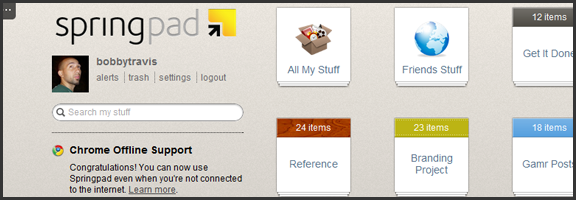
One of the things that has been a major point of contention in the ongoing Springpad vs Evernote debate (which still rages, despite the different market segments the apps target) has been the lack of a desktop app for Springpad. This was closely followed by the inability to backup and download your Springpad data, which was a strong deterrent for some of our own readers. Well, Springpad has pushed their product forward yet again, and have addressed these issues — and while offline access to the service doesn’t quite stack up to the power of a desktop version, it’s a huge step forward for the web app, and only the beginning of things to come.
Offline Access
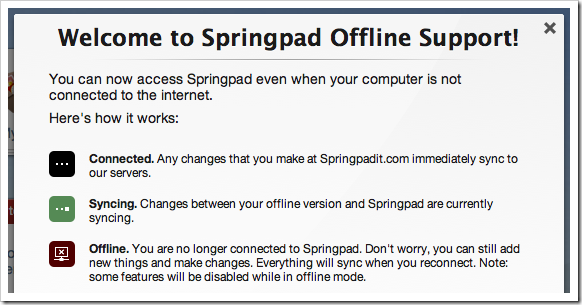
The Springpad mobile apps have had offline access for some time now, leaving their web counterpart to catch up. To do this, Springpad has used it’s integration into the Google Chrome browser to its — or, rather, our — advantage. Other browsers will be added soon enough, but for now, all that HTML5 offline goodness is locked into the native Chrome app. If you already have it installed, you will probably have to uninstall it and then grab it from the Chrome Web Store again. Then you need to pop into settings, then services, and click the button to enable offline access and start the sync. If you want to make sure everything you sync remains up to date, then leave the app open while you do other things. I suggest right-clicking on the app and then selecting “open as pinned tab” or as a new window so you can “set it and forget it.”
While the offline access is a fantastic development, there are still a few things that are lacking. Of course, you won’t have access to elements that are internet-dependent, like alerts and links to other sites, but you also won’t be able to use the Board, or the advanced sorting and filtering options. Also, you can only search by title (which is a little annoying), you have no access to the trash, and you can’t add new photos or files for later upload (among other limitations — full list here). Some of these things will be addressed in future updates, and I’m definitely not complaining — I’m happy about the offline access, and fully expect it to improve in leaps and bounds over the next while. I still have that hankering for a desktop app, though. I have no real reason for it, and I fully understand that Springpad’s dedication to the cloud and HTML5 puts them ahead of the curve, but… I want one. It’s probably just me showing my age or something…
Data Backup
I’m loving what Springpad has put together for a data backup solution. Most times, when you download a backup of an online service, it is a CSV file, or some other dump of data that is not otherwise immediately usable. Springpad has basically given you an offline website with a list of your data in HTML form. Unfortunately, it is not easily navigable without a lot of scrolling or using your browser’s Find feature, but it’s all there and it’s easy to read. I downloaded a few thousand notes and bookmarks into a 12 MB zip file (with attachments and photos in their respective folders) that I was able to open and read right away. This made me happy!
The downside of this method is that it is not really ideal for transferring your data to another service, if that is what you want to do. Perhaps Springpad should include a CSV option, but I’m thinking you would have to leave a lot of data behind that way.
In any case, you now have the ability to mitigate the potential disaster of losing all your Springpad data in a freak accident, and will be able to enjoy reading it too. Huzzah!
Springpad isn’t slacking on other fronts, either. They are a part of the Google IO Chrome Sandbox, and have updated their Android apps to support Honeycomb tablet devices. They also have released a version for the Barnes & Noble Nook Color — which is awesome for the owners of the eBook reader/tablet hybrids, considering how Springpad is able to keep track of and deliver alerts on books. I love the steady and focused flow of updates we’ve been getting from Springpad, and I can’t wait to see where they take us next. I’m hoping desktop app – but I’ll take what they give.
What are your thoughts on the latest Springpad updates?
One of Google Chrome’s best features is the Apps Dashboard. With the current push toward cloud computing, it sometimes seems that a new web app surfaces almost daily. When used in conjunction with the Chrome Web Store, it’s easy to sort through the multitudes of services out there, get a quick review, and have your favourites at your fingertips. Sometimes the buttons are nothing more than spiffy bookmarks, and others integrate with the browser, adding context menu functionality and other things that make your life easier. The ability to sync your apps between machines is an added bonus, bringing us one step closer to Google’s dream of us all living in the almighty Browser [see ChromeOS].
Unfortunately, if you are a Firefox user, even with the recent leaps forward in Firefox 4, there is no native service that offers what the Apps Dashboard does in Chrome. You could use specialized start page plugins or services and put together your favourite quick-links, but you would still be missing out on the best feature: discoverability. Unless you use Jolicloud, that is.
Jolicloud started as a specialized Linux OS for netbooks, attempting to give those small screens an easy and visual user experience. Because netbooks are small and built mostly for web browsing, it made sense for Jolicloud to focus on web apps, and while they did offer native software installs, they were much more cloud-based (hence the name). They added a social component to their OS, allowing you to connect with and share your favourite web app recommendations with other users, and you could log in on any Jolicloud machine and sync your apps over to it, too! This might sound a lot like Google ChromeOS, but Jolicloud was doing all of this actively before ChromeOS was even out of the gate.
These days, Jolicloud still exists as an OS, but has changed its name to JoliOS. What Jolicloud is now is a very pretty web app itself that functions as a dashboard that can be opened in any Firefox 4 or Safari 5 browser. It can also be opened in Google Chrome — and is actually an app in the Google Web Store. Jolicloud has built up a decent list of web apps in its directory, and though it doesn’t have the ability to integrate its apps into your browser, it does a few things that the Google Chrome App Dashboard can’t do. Like look pretty — or be multi-page.
Jolicloud has many different wallpapers that can be applied to it, and has several pages for you to organize your apps. The pages function very much like iOS in that you can drag the app icons around and move them from page to page by pushing them against the right or left edge of the screen. Combined with the fact that the apps are always in the same position you left them in, no matter what computer you open them on — as opposed to Google Chrome missing some in syncs, or occasionally reordering them on you — and you end up with a very good experience.
Another thing that actually gives Jolicloud a leg up over Chrome’s App Dashboard is the ability to add whatever site you like by URL, using the Add New App button on the bottom of the web apps category list, which you get to by pressing the big green plus button. Essentially, you could use Jolicloud as your web app library and as your speed-dial to your favourite sites — very handy! If that’s not enough for you to give it a shot, then click on the folder tab in the top left — you can actually connect Dropbox and Google Docs right into the app, with available space reports, and in-app previews and editing, which makes for all kinds of convenience.
I’ve found only two annoying things about Jolicloud:
That the site has experienced the occasional weird 400 error, and made it seem that my apps were wiped out. That can usually be fixed by restarting the browser, sometimes with a clean cache, and logging in again.
That the sync with the actual OS will bring over apps — or offer apps in the list — that are actually for installed software. Generally, these are just greyed out if you are using them in JoliOS, but there are times they can be made to work. I got Skype to launch from Jolicloud, for example.
If you want to use Jolicloud with your Firefox 4 or Safari 5 install (Opera is not supported, and IE only works — sometimes — with Chrome Frame), just head to Jolicloud.com and create an account, then click on My Jolicloud. The rest is pretty self-explanatory. Once you have your apps in place, either set Jolicloud as a pinned tab, or have it open as your start page. The are reports of the devs working to create a Firefox extension for Jolicloud to make it an even better experience for FF users. They are also apparently working on Android compatibility, and already have experimental iPad support.
If you like Jolicloud a bunch, you might want to go the whole way and install JoliOS — it can be installed and removed in Windows and configures your system for dual boot. You could also buy the cute little Jolibook computer, if you have some spare cash and are in the UK.
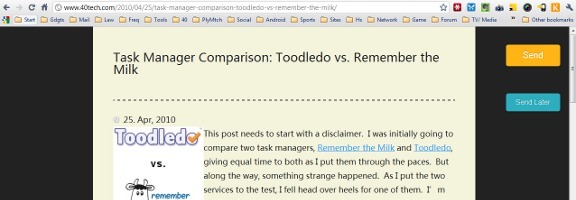
While the iPad has all the bells and whistles, I actually prefer reading on my Kindle instead of on my iPad. If you feel the same, and wish that there were a way to send individual web articles to your Kindle, check out the Send to Kindle extension for Google’s Chrome browser.






How Many Google Services Do You Use? Which Ones Have You Abandoned?
I was up rather late last night, and I saw something on television that I had never seen before: a Google commercial. It was a little strange, really, with a theme that appeared to be all about a dad who is tracking the life of his daughter via various Google services with the intent to share them with her later. It was all very touching, but I couldn’t help feeling a little weird watching it. Since when does Google do commercials? Isn’t that Bing’s territory? Is the Microsoft marketing machine starting to get to the Mountainview folks?
Either way, the commercial did its job, because it got me to thinking: how many Google services do I actually use on a regular basis? Especially considering that I am still not convinced they aren’t the Devil.
Chrome & ChromeOS
I live in Google Chrome. Firefox (yes, even Firefox 4) is a resource hog, doesn’t have a built in web app creator, or any of the OS-like aspects of Chrome that parallel ChromeOS. I love the extensions, I love the new start page, and I love (and sometimes hate) the Chrome Web Store. I’ve noticed that all of the new features have slowed things down in Chrome a bit, especially on initial opening of the browser, but even with all of the extensions, apps, and tabs that I use regularly, Chrome still outperforms Firefox on my system. Internet Explorer 9 opens faster for me than both browsers — but I still can’t get into it. Microsoft’s browsers have annoyed me once too often as the years have gone by, I think.
ChromeOS — or Chromium OS, if you like — has been something I’ve played with off and on for over a year. I enjoy it. I like the whole “browser as your OS” concept. I don’t know if it will ever fully replace native apps for me, but my curiosity is definitely piqued. Web apps are fast approaching the power and flexibility of installed software, offline capabilities are getting better, and the integrations with cloud storage services like Dropbox are getting more and more intricate. The world is heading back toward the days of the mainframe and dumb terminal — except the mainframe is now worldwide (see: Skynet). ChromeOS is a very large step in that direction, and Google is all about it. Just think of all the ads they can serve and information they can collect if everyone does all of their computing in the cloud. Makes your eyes pop a little bit, doesn’t it?
Google Search, Maps, Images & Translate
Microsoft has done some compelling things with Bing, and their ads do raise awareness of the search engine and its other aspects like Maps, social and photo results, etc. Still, I tend to gravitate toward Google search when I am researching something. I’ve developed a high level of trust and loyalty to their search results and minimalist approach. I know there are weirdnesses and censored results for some topics, but Google search gets the job done for me, especially with the addition of Instant and Google-made Chrome extensions that allow me to block certain sites and jump directly to where my search phrase appears on the page.
Google Translate, especially when plugged directly into Google Chrome, is also incredibly useful, either as a way to translate a phrase to or from another language, or to translate entire web pages so that they can be read in your own. It’s never perfect, of course, but it’s good enough to get the job done and long ago replaced Babelfish for me despite the cool Hitchhiker’s Guide to the Galaxy reference.
Google’s social aspects of search are ok, but can be annoying as well. I’m not always that social, and don’t necessarily care what people in my network are searching for or whatever related value they give to my search. From a business perspective, where I have to consider search engine optimization and testing, these added layers can skew my research, as well, so I often need to log out of all of my Google services and social networks — or open up another browser — to make sure my search results are as vanilla as possible. I do like the real time results that pull up Twitter conversations, however.
I use Google Maps on my iPhone, my iPad, and on my computer, and I have Google Earth. I’ve never had much (regular) use for Google Earth, however. I also use Image Search regularly, as well, and I have enjoyed some of the recent interface updates that give it a slicker feel, but I really only use it because it is directly attached to the main search engine. Surprisingly, I have had very little use for Blog Search, overall.
Gmail
If I live in Chrome, then Gmail is my kitchen. This is where I do a large amount of my work and communications, and it is a large part of my current GTD task management system (in Producteev). I have several email accounts with different services, as well as domain-level accounts, and the recent upgrades to Hotmail and Yahoo Mail have brought about some very nice features, but Gmail is where it’s at for me. In fact, I use the One Inbox to Rule Them All method to bring all of my different accounts into my main Gmail account, and it works exceedingly well!
Gmail combines all of the power and flexibility I could want with an easy to use interface. It is the Mac of online email applications, especially when you add a theme, a few Labs features, tools like Rapportive (pulls in social data for people you are conversing with), and/or an extension or two to make it look a little less bare.
Google Calendar
I use Gcal regularly, in my task and project management. The lack of any Gcal integration with Evernote was once of the main reasons I started looking for alternatives for my own GTD setup in Evernote (you can always forward notes to Gmail from Evernote and use those to schedule calendar appointments, but I wanted something that integrated directly with Gcal, like Springpad or Producteev). I am not a Google Calendar power user by any means, but it gets the job done for me. I like its uncluttered interface, features, and Labs additions.
Google Reader & Google Buzz
I can’t stand to look at Google Reader. It’s ugly, its busy, and it stresses me out. However, I do use it as my main RSS feed collection and organization tool — but I do it through other apps like Feedly, Flipboard, and MobileRSS. If it wasn’t for those apps providing a look and feel that doesn’t make me want to hurl my computer or mobile device across the room, then I would never touch Google Reader.
You might be wondering why Google Buzz would be attached to the Google Reader section, especially considering that the average person has abandoned buzz to the crickets, but it has to be included because of its integration with Google Reader. Honestly, I don’t care about Buzz either, but every time I share something on Google Reader it gets shared on Buzz as well. That’s about the extent of my usage, and for some reason, people keep following me on Buzz as a result. Rather than deny those people whatever value they get from my stream (and deny myself whatever personal branding boosts I may get as a result), I leave my connection to Buzz open. Its kind of insidious the way it worms its way back into your online life…
Google Docs
I used to ignore Google Docs, but as my professional world as an online marketer and freelance writer moved more and more into the cloud for collaborations and easily sharing my work with clients, I moved more and more into Docs and the rest of Google’s online office suite. I’ve even adopted some of Josh’s ideas for using Docs as a Google Wave replacement. In fact, though I am one of those Microsoft Office power user types, I have moved away from Office almost entirely, only using it if I absolutely have to. There are some Office features you can’t get from Google Docs (or any other online office software), after all.
Google Alerts, Trends, Insights, Keyword Tools
I use both of these services to help inform me of interest levels in my own brands and the brands of my clients and their competitors. Alerts is useful for recent updates regarding what people are saying across the web on subjects of my choice. Trends, Insights, and Keyword Tools (for Adsense and Adwords) are fantastic ways to conduct keyword and phrase research for search engine optimization. The Wonder Wheel in Google search is another useful tool here.
Google Analytics & Webmaster Tools
I use Analytics and Webmaster Tools for my own sites and for all of my clients’ sites when I do SEO for them. Both tools are powerful, easy to use, and as free as air. I can’t imagine why people wouldn’t use them — barring the Devil theory and the potential privacy murkiness of Google, that is.
YouTube, Google Talk, Picasa
All three of these are fantastic tools that I should probably use more. YouTube is great for marketing, and is the platform of choice for video blogging (which I’ve been considering for some time now — I would love your thoughts on the subject). It is also arguably the second largest search engine on the web. I use it all the time as a viewer, and recommend it to clients as a marketing vehicle, but my own account is nearly empty, with only a video of my kid tap dancing like a maniac. It was too cute not to share!
I use Google Talk only periodically, due to my hatred of instant messaging as a whole. Instant messaging is a productivity killer. I much prefer the email/Facebook message/forum approach to conversation as it leaves me the choice of when to be involved, which makes for less distractions in my day. The recent call phones feature (currently free to the US and Canada) has made Gtalk a viable alternative to paying for Skype — but Skype is still better, overall, and has some nice features and add-ons that make it much easier to work with. If you are a Google Voice user, that’s another story — but Google Voice is still not perfect, and not fully available in Canada. *shakes fist*
Picasa is something I used, then abandoned, and have recently started using again only because I needed some additional free cloud storage for my photos, and it is extremely easy to get a lot of photos into the service all at once. I don’t know that I would ever use it for more than that, but it is definitely a powerful photo sharing service in its own right.
Google Goggles & Google Mobile
I also use the Google Mobile App for my iPhone and iPad, and the integrated Google Goggles has proven to be very handy while on the go. I can search for things using my camera, and can even cheat on Sudoku. It doesn’t get much better than that!
I do find the mobile app lacking, though. I like the voice search, but the fact that the other services in the app are really nothing more than links – and they require me to log in again in the browser – makes it less useful than it ought to be. Android users have a bit of a leg up here, as most of their Google apps and services have pretty deep integration into the OS.
Google Profile
I don’t really use my Google Profile for anything other than personal branding. Profiles give a snapshot of you, and are searchable, especially on Google, so it only makes sense to have one. You get one by default if you use Buzz, as well. I don’t think it would hurt me in any way to not have one, but when you are pushing yourself as a brand to get new clients, a job, or even readers on your blog, it makes sense to have one.
Abandoned Google Services
I’ve abandoned several Google services over the years, and a few of them have abandoned me (like Google Wave *shakes fist*). The ones that stand out to me, though, are as follows:
Here’s That Commercial
You’ve been great! Thanks for reading along – this ended up being a mini-novel instead of the short post I was planning on. As a reward for your awesomeness, I now present you with The Google Commercial In Question. Enjoy!
All said and done, I use way more Google services than I’ve stopped using, and will likely continue to, despite privacy concerns and fears of Google taking over the world. I barely even touched on Android and the way it integrates with Google’s best tools (and its rapidly growing user base). I’m an iOS user, but have hacked Android and Android facsimiles into more than one phone for testing, and those integrations certainly don’t hurt Google. Fancy new commercials aren’t going to hurt them, either. I admit it: I want a Chromebook. I don’t know how useful they will be in the long or short term, but they are pretty sweet, says my techie bone. The price isn’t terrible, either (about $400 on average).
How about you? What Google services do you use or plan to use? What ones have you abandoned? Are there any you simply don’t trust? Let’s chat about it in the comments!