Menu Close

Category: Google (page 11 of 21)

A USB-Stick with Chrome OS Has (Almost) Replaced Windows for Me

A USB-Stick with Chrome OS Have (Almost) Replaced Windows for Me | 40Tech

Google Chrome OS has been in the works for a while now, and has captured the imaginations of techies everywhere. Most of those interested were expecting — or at least hoping — to see laptops and netbooks that were near-completely cloud-based by the latter half of 2010, and the Cr-48 notebook and research “pilot program” was finally announced on December 7th. Many people have been testing Chrome OS for some time, however using methods such as booting from a USB-stick into a custom Chrome OS (or Chromium OS) build put together by friendly genius Hexxeh. The builds, as one might expect, were fraught with problems — hardware incompatibilities, the OS itself (and its features and capabilities) still in flux — and these problems usually lead to the conclusion that Chrome OS was just not ready for the world at large.

All of that is about to change.

Over the past year or so, significant advances have been made in the Google Chrome browser, which is the basis for the Chrome OS project. The ability to sync extensions, bookmarks (sometimes), and other user data allowed for users to carry their experience from one computer to another, and the introduction of the Chrome Web Store added a whole new way to find and integrate web apps into the computing experience. These things, as well as numerous back-end improvements, have brought us must closer to living in the browser, and have improved both the usability and viability of Google’s cloud-focused OS.

Hexxeh has been busy as well, coming out with new versions of his own Chrome OS build. The most recent one, Flow, was a strong step forward, but still only truly feasible for limited testing and playing around, especially depending on your hardware. When I tried Flow, I found that it worked well enough on one of my laptops, a Toshiba Satellite A300, though I often had issues connecting to WiFi, and had problems with saving into and loading files from the lightweight Linux system the browser interface is built on. My HP DV8000 couldn’t run it at all. Hexxeh reportedly has a new build on the way called Lime, but was waiting for the Chromium OS developers to move forward, and has been busy testing out his own Cr-48.

That was months ago. With all of the improvements in the Chrome browser lately, I found myself curious to try another go ’round with the OS. I was disappointed that Hexxeh’s Lime wasn’t out yet (it is still in development as of this writing), but on a whim, I decided to try one of the crisp and clean Vanilla builds from the bleeding edge nightly section of Hexxeh’s site, a near-direct link to the mythical builders in Mountain View (I picked up Version 0.10.157.r3d7fa3a0 on February 3rd, 2011). Much to my very pleasant surprise, the OS worked on my A300 — and worked perfectly, out of the box, with much fewer usability issues than any Windows installation I’ve ever tried! I was stoked — and have since been using the speedy little USB stick to boot up my computer into ChromeOS nearly every day, with the exception of times when I needed to do work in a decent vector drawing program. There really is no HTML5 comparison for Adobe Illustrator that I know of. Photoshop, sure — but not Illustrator.

In fact, the only real issues I had, other than the fact that syncing was a little spotty (app and extension syncing missed a few, and bookmarks wouldn’t sync at all), was the lack of Netflix (no Silverlight on Linux), and figuring out the new keyboard commands for reloading and closing tabs. Why Google decided to change the familiar F5 reload to Ctrl+R is beyond me, but once I figured out the quirks I was rolling along smoothly. Downloading and uploading files worked working well, too, though there should really be a direct path to the folder, rather than having to search through the Linux file system. While I’m throwing things out there, I would also like to see some built in social features like Rockmelt.

I have yet to try it on my DV8000, but I’ve found that this recent Vanilla build of Chrome OS has been a pleasure to work with, overall. When I don’t want to go through a long Windows boot cycle just to go online and do some work on the internet, I just plug in the USB stick and go. I’m up and running in just a few minutes. I hope that Hexxeh figures a way to do a dual boot on my actual laptop hard drive — one that can access more space for storage, and maybe other files in the Windows part of the drive would be ideal, of course. I don’t see that happening, but hey, a guy can hope, right?

If you want to try out the Vanilla builds of Chrome OS, or even the somewhat deprecated but known-to-be-stable Flow, grab a flash drive and check out Hexxeh’s website. Things are easy to find, and instructions are very clear. If you want updates on Hexxeh’s builds and the Chrome OS project in general, follow @hexxeh on Twitter.

Let us know your thoughts and experiences in the comments!


Google’s Cloud Connect Syncs MS Office with Google Docs

Google’s Cloud Connect Syncs MS Office with Google Docs | 40Tech

There are several ways to sync Microsoft Office documents to the cloud (we covered three here), but until now, not one of them was made by Google. Whether that statement sparks feelings of warm and fuzzy quality in you, or makes you shudder in fear as Google officially digs its fingers into your Office docs, Google Cloud Connect has taken off the training wheels and been released to the world at large. Besides, if you are of the latter persuasion, chances are you haven’t bothered with the Google account that the service requires.

Cloud Connect adds a toolbar to the Microsoft Office interface that effectively accomplishes two things:

  1. Giving MS Office the online capabilities of Google Docs — and this is a good thing, as Microsoft’s cut-down web offering of Office can be somewhat unwieldy by comparison.
  2. Finally gives Google Docs the offline capability it has always needed to make it truly relevant in today’s workplace, which is still a few years away from going fully to the cloud.

Google Cloud Connect works on Windows XP, Vista, and Windows 7, and is available for Office 2003, 2007, and 2010. Check out the video below for more information on its capabilities.

http://www.youtube.com/watch?v=H12teRzulW0

New Ways to Experience Better Collaboration with Google Apps [Google Blog]


Block Sites From Search Results with the Personal Block List Extension [Chrome]

Block Sites From Search Results with the Personal Block List Extension [Chrome] | 40Tech

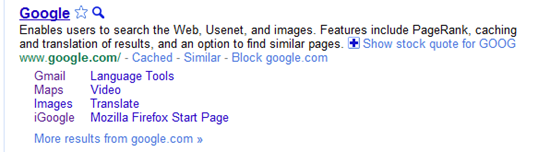
A new and incredibly useful extension has popped up on the Chrome Web Store: Personal Block List (by Google). If you have ever searched for something and been plagued by useless links that wiggle past Google’s algorithm — and odds are you have — then this extension is your friend. Personal Block List adds a handy little “Block [URL]” button to the right of the “Cached” and “Similar” links in Google’s search results. Once clicked, that site is omitted from your search results until you decide otherwise.

Block Sites from Search Results with Personal Block List Extension for Google Chrome, Rockmelt | 40Tech

Neat, huh? Of course, it should be mentioned that this extension will transmit information to Google regarding the sites you have blocked, including patterns that you create as you block or unblock sites. Google promises to only use this information for good and to improve their products. Actually, there are no promises. They just say that you “agree that Google may freely use this information to improve [their] products and services.” Considering all of the things out there that already track browsing habits — including Google — this sort of tracking may actually be a step forward.

In any case, the extension does its job well. In a few of the coding-related searches I have been conducting lately, looking for help on a particular area of menu design, I repeatedly found myself directed, via several different domains, to the same annoying website trying to sell me their tool that was apparently supposed to make my life easier. My annoyance in this regard is no more. The Personal Block List extension for Google Chrome (as well as Chromium, and Rockmelt) works!

If I were to have any issues with the extension, they would be that it does not work from the searchbar, only from the actual Google site, and that it doesn’t appear to have a master list in the cloud. That last surprised me, and meant that I had to block the same site twice, once in Rockmelt, and once in Chrome. Still, it did the job. I can see that there will be many more sites that will end up being forcibly removed from my search results soon.

Try it out the Personal Block List (by Google) Chrome extension here.


Meet Rockmelt, Your New Social Browser

RockMelt | Social Browser for Google Chrome

Okay, so hands up if you’ve heard of RockMelt.

If you are one of the people who put up your hand — stop that. This is text and I can’t see you. Know, however, that you are quite possibly more connected and in tune with the techieverse than your now shame-faced tech-writer. Somehow, for reasons unknown to all but the almighty Goog itself, my keenly developed tech senses missed this wonder entirely! But, that’s all behind me, now. I’ve seen the light, got an invite, and have been playing with the world’s latest, greatest — and Google Chrome based — social browser for several days now.

Here’s what I’ve discovered:

RockMelt does for Chrome what Flock did for Firefox, but where I found Flock a bit overwhelming in its attempt to integrate social elements into the browser, RockMelt has what feels like it might be just the right mix. One almost has to wonder why Google didn’t think to do this in the first place. If they had integrated Sidewiki and Google Buzz in with the configurable social elements that RockMelt has brought into play, making them a part of the Chrome browser (and by extension, the OS) itself, both of those tools might have seen a much stronger and longer term user base.

In any case, RockMelt, which is still in beta, has a lot of good going for it. There are still a few hiccups, as is to be expected, but even so, the social Chrome is pretty appealing. This is a good thing — it means that Netscape founder Marc Andreesen’s money has been well spent.


Key Features of RockMelt

Collapsible Sidebars

Rockmelt Chrome-Based Social Browser | 40Tech

The primary difference between RockMelt and Chrome, aside from the fact that you have to log into Facebook to use the browser, is the left and right sidebars. Both are collapsible, about a centimetre in width and contain pretty buttons, often full of people’s faces. On the left, is the Facebook chat column, which shows you which of your Facebook friends are online, allows you to view their latest activity with a hover or a click, chat with them, send them a message, or post on their wall. You can also set up a favourites list in this column, and switch between it and the general tab with a single click.

All of this Facebooking takes place just below a miniature of your own profile picture (top left), which, when clicked, allows you to toggle your Facebook Chat availability, as well as update your social network status — including multiple Twitter accounts, if you decide to add them.

On the right edge of the page, you really get to dig in and configure RockMelt to suit both your browsing and social networking needs. Facebook and Twitter buttons give you access to both of those services, showing your feeds in real time. You can interact with items in the feeds as you would expect to be able to, liking, commenting, retweeting, etc. In Twitter, you can access all of your lists and your @messages, but I didn’t see anything for saved searches or DM’s. Also, if you have a lot of lists, you currently are not able to scroll to the ones that get cut off at the bottom of the page. The Facebook button gives access to people in both your main and custom profile lists, and your profile button right below it gives access to your notifications, photos and wall. I found the limited nature of the Facebook access — no pages, message centre, groups, or places — a bit surprising, but it will likely improve as the browser gets closer to official launch.

RockMelt Facebook Integration in Google Chrome | 40Tech

The right sidebar also serves two other important functions, it has a few other already integrated networks, like YouTube, and it allows you to add custom feeds so you can keep track of your favourite websites — it even makes suggestions based on the sites you visit most — and it is the home of your Chrome extensions. I like the way RockMelt handles extensions much better than the way Google does it. For one, I can decide on optimal placement of my extensions — and they will stay that way. Google’s insistence in making things rearrange themselves based on their perceptions of my usage has always driven me crazy. I also like the fact that the sidebar is collapsible, and it doesn’t shrink the size of the URL bar. Finally, If I am not using an extension that often, but don’t want to uninstall or disable it, it is simple to just remove it from the column/dock.

The main problem with RockMelt at the moment, especially if you have a lot of Facebook friends in your favourites, or a lot of extensions, is that the sidebars don’t scroll. Any more than 15 items, total, in either sidebar, and the ones furthest down can not be accessed. Also, the floating window that appears when most extension buttons are clicked is a fixed width element. This causes a problem with some extensions that are too wide for RockMelt. Hopefully these are things that will be rectified in a near-future update.

RockMelt also shares most other major features of Google Chrome, such as the new web apps area and browser synchronization. The apps are not as thoroughly integrated as they are with Chrome, being little more than just shortcuts, and browser sync is only available between other RockMelt implementations. It was a little bit annoying having to search out and re-add all of my apps and extensions, but wasn’t that difficult.

Social Sharing

Sharing what you find while surfing in RockMelt is an extremely easy process. There is a giant button to the immediate right of the URL bar, and it allows for Facebook and Twitter sharing with ridiculous ease. I wish there were a send by email button, though, then I could drop the Shareaholic extension; free up some space. Speaking of email, there is what looks like an email button on the top right of the browser. Don’t be fooled. It is not for your email at all. It is really just a suggestion list of who to send your invites to. I find this choice on RockMelt’s part to be kind of confusing.

Conclusions

RockMelt is a fantastic spin on the Google Chrome browser, packing in most of Chrome’s features and all of its speed. The collapsible social features are a fantastic addition, considering you spend most of your internet time in the browser, and most people spend most browser time on a social network or two. It just makes sense, you know? There are still a few odd issues like the lack of sidebar scrolling, and the fact that, at least for me, embedded flash videos show up as blank spaces, but these issues are the sort of thing you expect in a beta test. RockMelt still has time to make things perfect, and I think it very likely that I will keep using it as it matures.

http://www.youtube.com/watch?v=bAPKPhoTqFY&feature=player_embedded

Tell us what you think of RockMelt.


Enter Your Young Einstein in the Google Science Fair For a Chance At a $50,000 Scholarship

Google Science Fair.jpg

When you were young, did you participate in a school science fair? I remember my paper mache volcano – seemingly a popular choice for kids – into which I mixed vinegar, baking soda, and food coloring. We now live in a global community, and, fittingly, Google is hosting a global science fair. If your child is between 13-18 years of age, he or she is eligible to enter the contest.

Read more