I was up rather late last night, and I saw something on television that I had never seen before: a Google commercial. It was a little strange, really, with a theme that appeared to be all about a dad who is tracking the life of his daughter via various Google services with the intent to share them with her later. It was all very touching, but I couldn’t help feeling a little weird watching it. Since when does Google do commercials? Isn’t that Bing’s territory? Is the Microsoft marketing machine starting to get to the Mountainview folks?
Either way, the commercial did its job, because it got me to thinking: how many Google services do I actually use on a regular basis? Especially considering that I am still not convinced they aren’t the Devil.
Chrome & ChromeOS
I live in Google Chrome. Firefox (yes, even Firefox 4) is a resource hog, doesn’t have a built in web app creator, or any of the OS-like aspects of Chrome that parallel ChromeOS. I love the extensions, I love the new start page, and I love (and sometimes hate) the Chrome Web Store. I’ve noticed that all of the new features have slowed things down in Chrome a bit, especially on initial opening of the browser, but even with all of the extensions, apps, and tabs that I use regularly, Chrome still outperforms Firefox on my system. Internet Explorer 9 opens faster for me than both browsers — but I still can’t get into it. Microsoft’s browsers have annoyed me once too often as the years have gone by, I think.
ChromeOS — or Chromium OS, if you like — has been something I’ve played with off and on for over a year. I enjoy it. I like the whole “browser as your OS” concept. I don’t know if it will ever fully replace native apps for me, but my curiosity is definitely piqued. Web apps are fast approaching the power and flexibility of installed software, offline capabilities are getting better, and the integrations with cloud storage services like Dropbox are getting more and more intricate. The world is heading back toward the days of the mainframe and dumb terminal — except the mainframe is now worldwide (see: Skynet). ChromeOS is a very large step in that direction, and Google is all about it. Just think of all the ads they can serve and information they can collect if everyone does all of their computing in the cloud. Makes your eyes pop a little bit, doesn’t it?
Google Search, Maps, Images & Translate
Microsoft has done some compelling things with Bing, and their ads do raise awareness of the search engine and its other aspects like Maps, social and photo results, etc. Still, I tend to gravitate toward Google search when I am researching something. I’ve developed a high level of trust and loyalty to their search results and minimalist approach. I know there are weirdnesses and censored results for some topics, but Google search gets the job done for me, especially with the addition of Instant and Google-made Chrome extensions that allow me to block certain sites and jump directly to where my search phrase appears on the page.
Google Translate, especially when plugged directly into Google Chrome, is also incredibly useful, either as a way to translate a phrase to or from another language, or to translate entire web pages so that they can be read in your own. It’s never perfect, of course, but it’s good enough to get the job done and long ago replaced Babelfish for me despite the cool Hitchhiker’s Guide to the Galaxy reference.
Google’s social aspects of search are ok, but can be annoying as well. I’m not always that social, and don’t necessarily care what people in my network are searching for or whatever related value they give to my search. From a business perspective, where I have to consider search engine optimization and testing, these added layers can skew my research, as well, so I often need to log out of all of my Google services and social networks — or open up another browser — to make sure my search results are as vanilla as possible. I do like the real time results that pull up Twitter conversations, however.
I use Google Maps on my iPhone, my iPad, and on my computer, and I have Google Earth. I’ve never had much (regular) use for Google Earth, however. I also use Image Search regularly, as well, and I have enjoyed some of the recent interface updates that give it a slicker feel, but I really only use it because it is directly attached to the main search engine. Surprisingly, I have had very little use for Blog Search, overall.
Gmail
If I live in Chrome, then Gmail is my kitchen. This is where I do a large amount of my work and communications, and it is a large part of my current GTD task management system (in Producteev). I have several email accounts with different services, as well as domain-level accounts, and the recent upgrades to Hotmail and Yahoo Mail have brought about some very nice features, but Gmail is where it’s at for me. In fact, I use the One Inbox to Rule Them All method to bring all of my different accounts into my main Gmail account, and it works exceedingly well!
Gmail combines all of the power and flexibility I could want with an easy to use interface. It is the Mac of online email applications, especially when you add a theme, a few Labs features, tools like Rapportive (pulls in social data for people you are conversing with), and/or an extension or two to make it look a little less bare.
Google Calendar
I use Gcal regularly, in my task and project management. The lack of any Gcal integration with Evernote was once of the main reasons I started looking for alternatives for my own GTD setup in Evernote (you can always forward notes to Gmail from Evernote and use those to schedule calendar appointments, but I wanted something that integrated directly with Gcal, like Springpad or Producteev). I am not a Google Calendar power user by any means, but it gets the job done for me. I like its uncluttered interface, features, and Labs additions.
Google Reader & Google Buzz
I can’t stand to look at Google Reader. It’s ugly, its busy, and it stresses me out. However, I do use it as my main RSS feed collection and organization tool — but I do it through other apps like Feedly, Flipboard, and MobileRSS. If it wasn’t for those apps providing a look and feel that doesn’t make me want to hurl my computer or mobile device across the room, then I would never touch Google Reader.
You might be wondering why Google Buzz would be attached to the Google Reader section, especially considering that the average person has abandoned buzz to the crickets, but it has to be included because of its integration with Google Reader. Honestly, I don’t care about Buzz either, but every time I share something on Google Reader it gets shared on Buzz as well. That’s about the extent of my usage, and for some reason, people keep following me on Buzz as a result. Rather than deny those people whatever value they get from my stream (and deny myself whatever personal branding boosts I may get as a result), I leave my connection to Buzz open. Its kind of insidious the way it worms its way back into your online life…
Google Docs
I used to ignore Google Docs, but as my professional world as an online marketer and freelance writer moved more and more into the cloud for collaborations and easily sharing my work with clients, I moved more and more into Docs and the rest of Google’s online office suite. I’ve even adopted some of Josh’s ideas for using Docs as a Google Wave replacement. In fact, though I am one of those Microsoft Office power user types, I have moved away from Office almost entirely, only using it if I absolutely have to. There are some Office features you can’t get from Google Docs (or any other online office software), after all.
Google Alerts, Trends, Insights, Keyword Tools
I use both of these services to help inform me of interest levels in my own brands and the brands of my clients and their competitors. Alerts is useful for recent updates regarding what people are saying across the web on subjects of my choice. Trends, Insights, and Keyword Tools (for Adsense and Adwords) are fantastic ways to conduct keyword and phrase research for search engine optimization. The Wonder Wheel in Google search is another useful tool here.
Google Analytics & Webmaster Tools
I use Analytics and Webmaster Tools for my own sites and for all of my clients’ sites when I do SEO for them. Both tools are powerful, easy to use, and as free as air. I can’t imagine why people wouldn’t use them — barring the Devil theory and the potential privacy murkiness of Google, that is.
YouTube, Google Talk, Picasa
All three of these are fantastic tools that I should probably use more. YouTube is great for marketing, and is the platform of choice for video blogging (which I’ve been considering for some time now — I would love your thoughts on the subject). It is also arguably the second largest search engine on the web. I use it all the time as a viewer, and recommend it to clients as a marketing vehicle, but my own account is nearly empty, with only a video of my kid tap dancing like a maniac. It was too cute not to share!
I use Google Talk only periodically, due to my hatred of instant messaging as a whole. Instant messaging is a productivity killer. I much prefer the email/Facebook message/forum approach to conversation as it leaves me the choice of when to be involved, which makes for less distractions in my day. The recent call phones feature (currently free to the US and Canada) has made Gtalk a viable alternative to paying for Skype — but Skype is still better, overall, and has some nice features and add-ons that make it much easier to work with. If you are a Google Voice user, that’s another story — but Google Voice is still not perfect, and not fully available in Canada. *shakes fist*
Picasa is something I used, then abandoned, and have recently started using again only because I needed some additional free cloud storage for my photos, and it is extremely easy to get a lot of photos into the service all at once. I don’t know that I would ever use it for more than that, but it is definitely a powerful photo sharing service in its own right.
Google Goggles & Google Mobile
I also use the Google Mobile App for my iPhone and iPad, and the integrated Google Goggles has proven to be very handy while on the go. I can search for things using my camera, and can even cheat on Sudoku. It doesn’t get much better than that!
I do find the mobile app lacking, though. I like the voice search, but the fact that the other services in the app are really nothing more than links – and they require me to log in again in the browser – makes it less useful than it ought to be. Android users have a bit of a leg up here, as most of their Google apps and services have pretty deep integration into the OS.
Google Profile
I don’t really use my Google Profile for anything other than personal branding. Profiles give a snapshot of you, and are searchable, especially on Google, so it only makes sense to have one. You get one by default if you use Buzz, as well. I don’t think it would hurt me in any way to not have one, but when you are pushing yourself as a brand to get new clients, a job, or even readers on your blog, it makes sense to have one.
Abandoned Google Services
I’ve abandoned several Google services over the years, and a few of them have abandoned me (like Google Wave *shakes fist*). The ones that stand out to me, though, are as follows:
Google Wave (damnit!)
Orkut (Does anyone use this? Has anyone used this?)
Google Video (see: YouTube — Google Video was rendered relatively pointless)
Sidewiki (a nice idea, but sloppy, and web annotation services have a hard time in general)
Google Latitude (occasionally useful, but nobody needs to know where I am all the time)
Google Buzz (mostly)
Google Toolbar (resource hog with privacy issues)
Google Desktop (resource hog with privacy issues)
Google Tasks (just too ugly for me to find it useful)
Here’s That Commercial
You’ve been great! Thanks for reading along – this ended up being a mini-novel instead of the short post I was planning on. As a reward for your awesomeness, I now present you with TheGoogle Commercial In Question. Enjoy!
All said and done, I use way more Google services than I’ve stopped using, and will likely continue to, despite privacy concerns and fears of Google taking over the world. I barely even touched on Android and the way it integrates with Google’s best tools (and its rapidly growing user base). I’m an iOS user, but have hacked Android and Android facsimiles into more than one phone for testing, and those integrations certainly don’t hurt Google. Fancy new commercials aren’t going to hurt them, either. I admit it: I want a Chromebook. I don’t know how useful they will be in the long or short term, but they are pretty sweet, says my techie bone. The price isn’t terrible, either (about $400 on average).
How about you? What Google services do you use or plan to use? What ones have you abandoned? Are there any you simply don’t trust? Let’s chat about it in the comments!
There are several ways to sync Microsoft Office documents to the cloud (we covered three here), but until now, not one of them was made by Google. Whether that statement sparks feelings of warm and fuzzy quality in you, or makes you shudder in fear as Google officially digs its fingers into your Office docs, Google Cloud Connect has taken off the training wheels and been released to the world at large. Besides, if you are of the latter persuasion, chances are you haven’t bothered with the Google account that the service requires.
Cloud Connect adds a toolbar to the Microsoft Office interface that effectively accomplishes two things:
Giving MS Office the online capabilities of Google Docs — and this is a good thing, as Microsoft’s cut-down web offering of Office can be somewhat unwieldy by comparison.
Finally gives Google Docs the offline capability it has always needed to make it truly relevant in today’s workplace, which is still a few years away from going fully to the cloud.
Google Cloud Connect works on Windows XP, Vista, and Windows 7, and is available for Office 2003, 2007, and 2010. Check out the video below for more information on its capabilities.
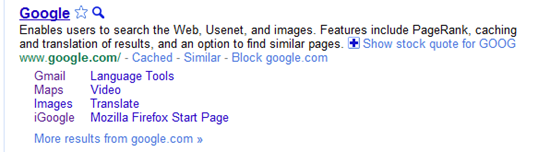
A new and incredibly useful extension has popped up on the Chrome Web Store: Personal Block List (by Google). If you have ever searched for something and been plagued by useless links that wiggle past Google’s algorithm — and odds are you have — then this extension is your friend. Personal Block List adds a handy little “Block [URL]” button to the right of the “Cached” and “Similar” links in Google’s search results. Once clicked, that site is omitted from your search results until you decide otherwise.
Neat, huh? Of course, it should be mentioned that this extension will transmit information to Google regarding the sites you have blocked, including patterns that you create as you block or unblock sites. Google promises to only use this information for good and to improve their products. Actually, there are no promises. They just say that you “agree that Google may freely use this information to improve [their] products and services.” Considering all of the things out there that already track browsing habits — including Google — this sort of tracking may actually be a step forward.
In any case, the extension does its job well. In a few of the coding-related searches I have been conducting lately, looking for help on a particular area of menu design, I repeatedly found myself directed, via several different domains, to the same annoying website trying to sell me their tool that was apparently supposed to make my life easier. My annoyance in this regard is no more. The Personal Block List extension for Google Chrome (as well as Chromium, and Rockmelt) works!
If I were to have any issues with the extension, they would be that it does not work from the searchbar, only from the actual Google site, and that it doesn’t appear to have a master list in the cloud. That last surprised me, and meant that I had to block the same site twice, once in Rockmelt, and once in Chrome. Still, it did the job. I can see that there will be many more sites that will end up being forcibly removed from my search results soon.
Try it out the Personal Block List (by Google) Chrome extension here.
When you were young, did you participate in a school science fair? I remember my paper mache volcano – seemingly a popular choice for kids – into which I mixed vinegar, baking soda, and food coloring. We now live in a global community, and, fittingly, Google is hosting a global science fair. If your child is between 13-18 years of age, he or she is eligible to enter the contest.
In December of 2010, Google announced that it was planning to make “copyright work better online.” One of those steps was to remove “terms that are closely associated with piracy” from autocompletes, making it slightly more difficult for those looking for ways to find less than legit files to use their service. It seems that Google has made good on its promise, removing several search terms — and portions of search terms — from both autocomplete and Google Instant.
While some may cheer this move on Google’s part, there are several parties who are finding this censorship to be unfair. 40Tech has taken an anti-piracy stance on more than one occasion, but we are also not fans of censorship. Companies like RapidShare, Megaupload, and BitTorrent are most definitely used by those participating in shady file-sharing, but they are also used for legitimate, and often useful, purposes, yet these sites can no longer be found via Google’s autocomplete or Instant features. Is it fair that they be given selective treatment when, as a representative of RapidShare states: “A search engine’s results should reflect the users’ interests and not Google’s or anybody else’s?”
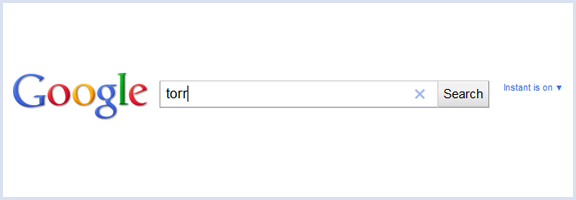
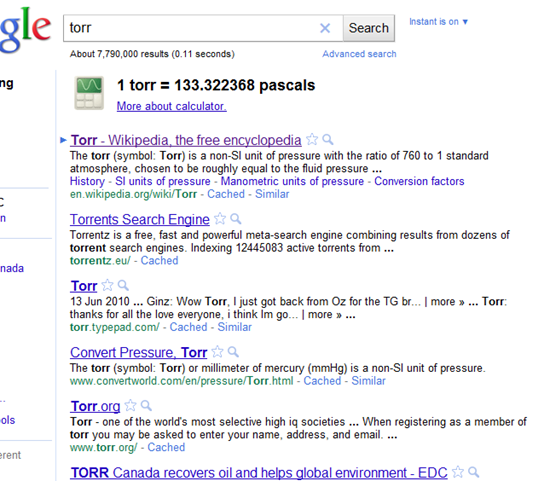
The selection of banned terms seems to be arbitrary, as not all well-known torrent sites are affected — you can still find The Pirate Bay, for instance. Anything using the search term “torr,” however, has been removed, along with several other terms and bits of terms. This is unfortunate for anyone doing some quick research on the torr symbol (a non-SI unit of pressure), or the high-IQ society Torr.org, or Torr the thin film and nanotechnology company, or anyone with the last name of Torr — which shows that Google’s approach is somewhat less than perfect.
Image from TorrentFreak
At this point, only autocomplete and Instant are affected. You can still find whatever you might be looking for when you press enter — but good luck if you are looking for something legitimate that incorporates one of Google’s banned terms and are hoping for some suggested results.
What do you think of Google’s approach here? Is it a good thing — or is it yet another form of relatively pointless censorship? Will making torrents a little bit harder to search for on Google actually have any impact on piracy at all? Let us know in the comments.


![Block Sites From Search Results with the Personal Block List Extension [Chrome] | 40Tech](https://www.40tech.com/wp-content/uploads/2011/02/image7.png "Block Sites From Search Results with the Personal Block List Extension [Chrome] | 40Tech")



How Many Google Services Do You Use? Which Ones Have You Abandoned?
I was up rather late last night, and I saw something on television that I had never seen before: a Google commercial. It was a little strange, really, with a theme that appeared to be all about a dad who is tracking the life of his daughter via various Google services with the intent to share them with her later. It was all very touching, but I couldn’t help feeling a little weird watching it. Since when does Google do commercials? Isn’t that Bing’s territory? Is the Microsoft marketing machine starting to get to the Mountainview folks?
Either way, the commercial did its job, because it got me to thinking: how many Google services do I actually use on a regular basis? Especially considering that I am still not convinced they aren’t the Devil.
Chrome & ChromeOS
I live in Google Chrome. Firefox (yes, even Firefox 4) is a resource hog, doesn’t have a built in web app creator, or any of the OS-like aspects of Chrome that parallel ChromeOS. I love the extensions, I love the new start page, and I love (and sometimes hate) the Chrome Web Store. I’ve noticed that all of the new features have slowed things down in Chrome a bit, especially on initial opening of the browser, but even with all of the extensions, apps, and tabs that I use regularly, Chrome still outperforms Firefox on my system. Internet Explorer 9 opens faster for me than both browsers — but I still can’t get into it. Microsoft’s browsers have annoyed me once too often as the years have gone by, I think.
ChromeOS — or Chromium OS, if you like — has been something I’ve played with off and on for over a year. I enjoy it. I like the whole “browser as your OS” concept. I don’t know if it will ever fully replace native apps for me, but my curiosity is definitely piqued. Web apps are fast approaching the power and flexibility of installed software, offline capabilities are getting better, and the integrations with cloud storage services like Dropbox are getting more and more intricate. The world is heading back toward the days of the mainframe and dumb terminal — except the mainframe is now worldwide (see: Skynet). ChromeOS is a very large step in that direction, and Google is all about it. Just think of all the ads they can serve and information they can collect if everyone does all of their computing in the cloud. Makes your eyes pop a little bit, doesn’t it?
Google Search, Maps, Images & Translate
Microsoft has done some compelling things with Bing, and their ads do raise awareness of the search engine and its other aspects like Maps, social and photo results, etc. Still, I tend to gravitate toward Google search when I am researching something. I’ve developed a high level of trust and loyalty to their search results and minimalist approach. I know there are weirdnesses and censored results for some topics, but Google search gets the job done for me, especially with the addition of Instant and Google-made Chrome extensions that allow me to block certain sites and jump directly to where my search phrase appears on the page.
Google Translate, especially when plugged directly into Google Chrome, is also incredibly useful, either as a way to translate a phrase to or from another language, or to translate entire web pages so that they can be read in your own. It’s never perfect, of course, but it’s good enough to get the job done and long ago replaced Babelfish for me despite the cool Hitchhiker’s Guide to the Galaxy reference.
Google’s social aspects of search are ok, but can be annoying as well. I’m not always that social, and don’t necessarily care what people in my network are searching for or whatever related value they give to my search. From a business perspective, where I have to consider search engine optimization and testing, these added layers can skew my research, as well, so I often need to log out of all of my Google services and social networks — or open up another browser — to make sure my search results are as vanilla as possible. I do like the real time results that pull up Twitter conversations, however.
I use Google Maps on my iPhone, my iPad, and on my computer, and I have Google Earth. I’ve never had much (regular) use for Google Earth, however. I also use Image Search regularly, as well, and I have enjoyed some of the recent interface updates that give it a slicker feel, but I really only use it because it is directly attached to the main search engine. Surprisingly, I have had very little use for Blog Search, overall.
Gmail
If I live in Chrome, then Gmail is my kitchen. This is where I do a large amount of my work and communications, and it is a large part of my current GTD task management system (in Producteev). I have several email accounts with different services, as well as domain-level accounts, and the recent upgrades to Hotmail and Yahoo Mail have brought about some very nice features, but Gmail is where it’s at for me. In fact, I use the One Inbox to Rule Them All method to bring all of my different accounts into my main Gmail account, and it works exceedingly well!
Gmail combines all of the power and flexibility I could want with an easy to use interface. It is the Mac of online email applications, especially when you add a theme, a few Labs features, tools like Rapportive (pulls in social data for people you are conversing with), and/or an extension or two to make it look a little less bare.
Google Calendar
I use Gcal regularly, in my task and project management. The lack of any Gcal integration with Evernote was once of the main reasons I started looking for alternatives for my own GTD setup in Evernote (you can always forward notes to Gmail from Evernote and use those to schedule calendar appointments, but I wanted something that integrated directly with Gcal, like Springpad or Producteev). I am not a Google Calendar power user by any means, but it gets the job done for me. I like its uncluttered interface, features, and Labs additions.
Google Reader & Google Buzz
I can’t stand to look at Google Reader. It’s ugly, its busy, and it stresses me out. However, I do use it as my main RSS feed collection and organization tool — but I do it through other apps like Feedly, Flipboard, and MobileRSS. If it wasn’t for those apps providing a look and feel that doesn’t make me want to hurl my computer or mobile device across the room, then I would never touch Google Reader.
You might be wondering why Google Buzz would be attached to the Google Reader section, especially considering that the average person has abandoned buzz to the crickets, but it has to be included because of its integration with Google Reader. Honestly, I don’t care about Buzz either, but every time I share something on Google Reader it gets shared on Buzz as well. That’s about the extent of my usage, and for some reason, people keep following me on Buzz as a result. Rather than deny those people whatever value they get from my stream (and deny myself whatever personal branding boosts I may get as a result), I leave my connection to Buzz open. Its kind of insidious the way it worms its way back into your online life…
Google Docs
I used to ignore Google Docs, but as my professional world as an online marketer and freelance writer moved more and more into the cloud for collaborations and easily sharing my work with clients, I moved more and more into Docs and the rest of Google’s online office suite. I’ve even adopted some of Josh’s ideas for using Docs as a Google Wave replacement. In fact, though I am one of those Microsoft Office power user types, I have moved away from Office almost entirely, only using it if I absolutely have to. There are some Office features you can’t get from Google Docs (or any other online office software), after all.
Google Alerts, Trends, Insights, Keyword Tools
I use both of these services to help inform me of interest levels in my own brands and the brands of my clients and their competitors. Alerts is useful for recent updates regarding what people are saying across the web on subjects of my choice. Trends, Insights, and Keyword Tools (for Adsense and Adwords) are fantastic ways to conduct keyword and phrase research for search engine optimization. The Wonder Wheel in Google search is another useful tool here.
Google Analytics & Webmaster Tools
I use Analytics and Webmaster Tools for my own sites and for all of my clients’ sites when I do SEO for them. Both tools are powerful, easy to use, and as free as air. I can’t imagine why people wouldn’t use them — barring the Devil theory and the potential privacy murkiness of Google, that is.
YouTube, Google Talk, Picasa
All three of these are fantastic tools that I should probably use more. YouTube is great for marketing, and is the platform of choice for video blogging (which I’ve been considering for some time now — I would love your thoughts on the subject). It is also arguably the second largest search engine on the web. I use it all the time as a viewer, and recommend it to clients as a marketing vehicle, but my own account is nearly empty, with only a video of my kid tap dancing like a maniac. It was too cute not to share!
I use Google Talk only periodically, due to my hatred of instant messaging as a whole. Instant messaging is a productivity killer. I much prefer the email/Facebook message/forum approach to conversation as it leaves me the choice of when to be involved, which makes for less distractions in my day. The recent call phones feature (currently free to the US and Canada) has made Gtalk a viable alternative to paying for Skype — but Skype is still better, overall, and has some nice features and add-ons that make it much easier to work with. If you are a Google Voice user, that’s another story — but Google Voice is still not perfect, and not fully available in Canada. *shakes fist*
Picasa is something I used, then abandoned, and have recently started using again only because I needed some additional free cloud storage for my photos, and it is extremely easy to get a lot of photos into the service all at once. I don’t know that I would ever use it for more than that, but it is definitely a powerful photo sharing service in its own right.
Google Goggles & Google Mobile
I also use the Google Mobile App for my iPhone and iPad, and the integrated Google Goggles has proven to be very handy while on the go. I can search for things using my camera, and can even cheat on Sudoku. It doesn’t get much better than that!
I do find the mobile app lacking, though. I like the voice search, but the fact that the other services in the app are really nothing more than links – and they require me to log in again in the browser – makes it less useful than it ought to be. Android users have a bit of a leg up here, as most of their Google apps and services have pretty deep integration into the OS.
Google Profile
I don’t really use my Google Profile for anything other than personal branding. Profiles give a snapshot of you, and are searchable, especially on Google, so it only makes sense to have one. You get one by default if you use Buzz, as well. I don’t think it would hurt me in any way to not have one, but when you are pushing yourself as a brand to get new clients, a job, or even readers on your blog, it makes sense to have one.
Abandoned Google Services
I’ve abandoned several Google services over the years, and a few of them have abandoned me (like Google Wave *shakes fist*). The ones that stand out to me, though, are as follows:
Here’s That Commercial
You’ve been great! Thanks for reading along – this ended up being a mini-novel instead of the short post I was planning on. As a reward for your awesomeness, I now present you with The Google Commercial In Question. Enjoy!
All said and done, I use way more Google services than I’ve stopped using, and will likely continue to, despite privacy concerns and fears of Google taking over the world. I barely even touched on Android and the way it integrates with Google’s best tools (and its rapidly growing user base). I’m an iOS user, but have hacked Android and Android facsimiles into more than one phone for testing, and those integrations certainly don’t hurt Google. Fancy new commercials aren’t going to hurt them, either. I admit it: I want a Chromebook. I don’t know how useful they will be in the long or short term, but they are pretty sweet, says my techie bone. The price isn’t terrible, either (about $400 on average).
How about you? What Google services do you use or plan to use? What ones have you abandoned? Are there any you simply don’t trust? Let’s chat about it in the comments!