Menu Close

Category: Productivity (page 8 of 15)

GTD On the Go With Awesome Note and Evernote [Reader Workflow]

Mobile GTD With Awesome Note and Evernote | 40Tech

40Tech has a serious interest in productivity technology, especially as related to GTD (Getting Things Done). We love talking about workflows with our readers, sharing our own techniques as well as learning how you use technology to keep your life on track. As we’ve come to expect, grown-up geeks are fonts of information, and you’ve inspired us to invite you to post your genius here on 40Tech. The first to step up was Chase Mann with his combination of OneNote, Evernote, and Outlook for GTD, and now we are pleased to bring you the first of three posts by Nina Kefer. Nina is often mobile, and has put together three systems that she has tested extensively, using some of the prettier iPhone and web apps out there as her GTD hub.

First up: GTD in Awesome Note with a side of Evernote!


Beauty and Brains: Getting Things Done™ In Style

I have always been a firm believer in the principle of “Form Follows Function”. However, I do not believe that “Ornament is Crime”, as is often extrapolated by proponents of FFF. As long as eye candy isn’t at the expense of functionality I can’t see anything wrong with it. On the contrary, it actually helps me to Get Things Done because a pretty user interface makes me want to look at my to-dos and makes taking care of them fun. If my to-dos look bland or, God forbid, ugly, I avoid looking at them until I forget that they even exist. Thus began my quest to find a to-do system that is as beautiful as it is powerful. As a frequent international traveller, I often rely on my smartphone to keep my life organised, so I needed a system that was built around an iPhone app that stays in sync with the web and/or desktop of my netbook.


Part 1: Awesome Note

The first app I explored was Awesome Note, a note-taking-cum-to-do app that syncs with Evernote and Google docs. Notes created with Awesome Note are designed to look like real life paper notes that are kept in colourful manila folders. By default, the app randomly assigns one of fifteen available background patterns and a default font to each new note, but backgrounds and fonts are customisable, as are the colour, icon and default theme of each folder. You are limited to five folders per screen, but you can create as many folders as you like, arrange them in whatever order suits you best and then simply swipe through them from screen to screen. It’s a pity that GTD doesn’t offer more opportunities to sample the neat animation, like “turning pages” while browsing from note to note within a folder.

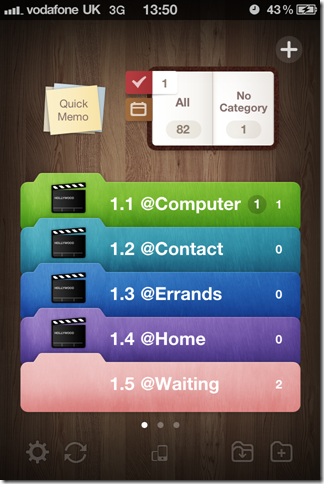
Being an Evernote front-end, Awesome Note’s functions, are very flexible. Every note can be transformed into a to-do, a check list, a calendar item, a page in a diary or photo album, or a birthday or anniversary reminder, simply by changing the view or type of note or by assigning a due date. You can also tag your notes and to-dos and use the built-in search function to look up tags or keywords. To help you keep on top of all the notes inside your folders, there’s a little notebook at the top of each screen that shows how many notes there are in total, how many to-dos are due today and if there are any unassigned notes waiting to be processed. Next to it, there’s a quick memo pad where you can jot down ideas, via keyboard or handwriting input, or draw a sketch. Lastly, you can share your notes and to-dos via SMS or email, send them to a compatible printer or lock your folders with a passcode. This may sound a bit overwhelming, but everything can be done with just a few quick taps.
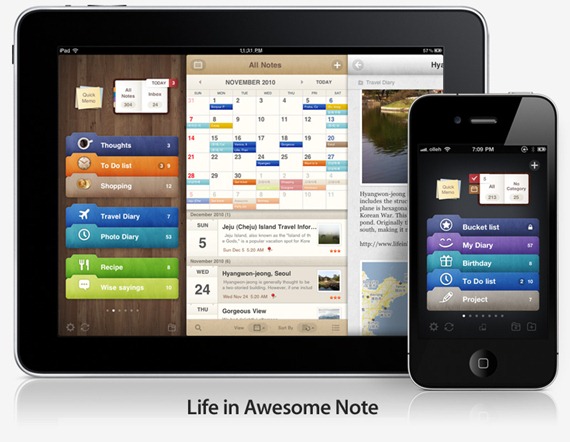
Awesome Note by Bridworks - Brilliant Idea

GTD Setup in Awesome Note

Awesome Note comes with pre-installed folders, but they can easily be renamed or replaced and new ones can be created as necessary. For my GTD setup I created ten folders, five for each screen. Since the sync of tags between Awesome Note and Evernote is limited (more on that in a moment), I combined Next Action and Context to create five Action folders that I review daily. I placed those on the first screen, so I can see them as soon as I open the app:

  • 1.1 @Computer
  • 1.2 @Contact
  • 1.3 @Errands
  • 1.4 @Home
  • 1.5 @Waiting

On the second screen I placed the folders I review weekly or less often:

  • 2.1 Projects
  • 2.2 Someday
  • 2.3 Goals
  • 2.4 Reference
  • 2.5 Wishlist

GTD in Awesome Note with Evernote | 40Tech

Working With Evernote

As my back-end I chose Evernote because it has both web and desktop versions and is generally more versatile than Google docs. Sync between the apps is speedy, but due to their different functionalities not really tight enough to use phone, web and desktop interchangeably. For example, Awesome Note’s folders appear in Evernote as notebooks that are easily identifiable by the prefix [aNote], but while Awesome Note allows you to arrange the folders in whatever order you want, Evernote automatically puts the notebooks in alphabetical order.

You can attach up to nine pictures to a note, but they will only sync from Awesome Note to Evernote, not vice versa, and due dates, status, font and background formatting don’t sync at all.

Finally, although both apps use tags, tags added in Evernote don’t sync to Awesome Note and tags added in Awesome Note are merely included as a footnote in Evernote. Fortunately, the powerful Evernote search finds them there, so there’s no need to double-tag. Since I do most of my GTD in Awesome Note and use Evernote web and desktop only for convenient text entry and backup, none of the above was a deal breaker for me. I just numbered my folders so they would appear in the same order on all three platforms and didn’t worry too much about the order of the notes inside.


The “No Category” Inbox

The “No Category” folder at the top of the screen is my inbox where I collect emails, tasks and ideas that come to me during the day, things that I need to buy or adverts I see on my way to work and want to follow up later. This is easy since notes that aren’t assigned to a specific folder automatically get dumped in there, no matter what screen you are in when the note is created.

Emails and URLs can be copied/pasted into the body of a note, photos can be attached from the camera roll or taken from within the app, and Google maps can be added. Alternatively, you can forward emails to Evernote and then sync with Awesome Note. Making a note read-only makes URLs, email addresses and phone numbers clickable, but unfortunately there is no option to link notes to contacts in the iPhone’s address book, so they have to be copied over manually. Quick memos that are saved as notes also end up in “No Category” (whatever you scribble down on the memo pad stays there until you either save or clear it). These are great for basic drawing. For example, you can ask someone how to get from A to B and then take the sketch with you or email it to a friend.

I review my inbox daily and process its contents according to David Allen’s GTD methodology:

  • If a task takes less than 2 minutes, I do it right away
  • If it takes longer or I can’t do it where I am I move it to the appropriate Next Action folder
  • If it takes more than two steps to complete I move it to Projects and create a to-do for the Next Action in the appropriate folder

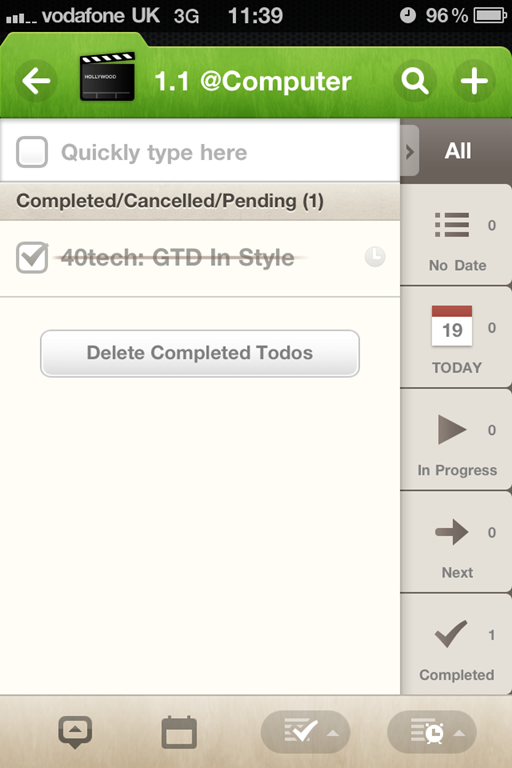
Time sensitive to-dos can be assigned alarms. Awesome Notes uses local alarms, so you will be reminded even if data roaming is disabled or the phone is in airplane mode. If a task should be delegated to someone else it goes into @Waiting with a review date to remind me to check up on and, if necessary, chase the person I have delegated the task to. Lastly, things I may want to do at some point in the future are parked in Someday and anything that doesn’t require action is either archived in Reference or deleted. If a note is moved into one of the Next Action folders it is converted to a to-do and, if possible, assigned a due date. Additionally, while Awesome Note doesn’t sync with any third party calendar, every folder, including “All”, has a calendar view that displays the to-dos within that folder, marked with the folder’s colour.
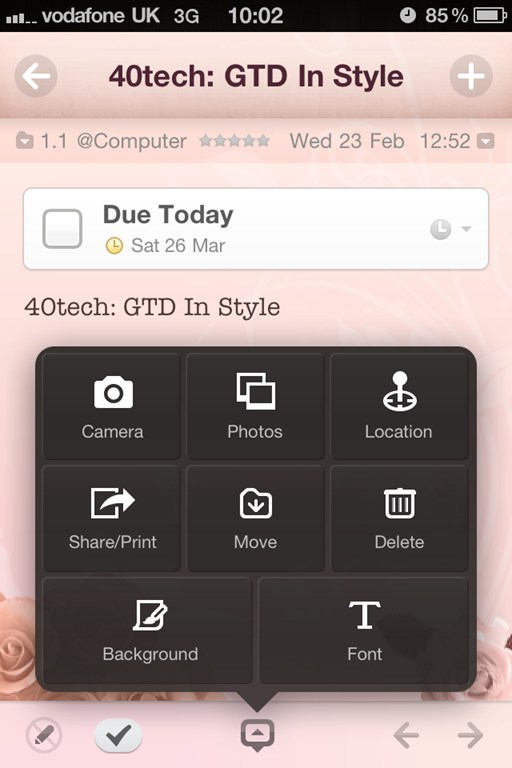
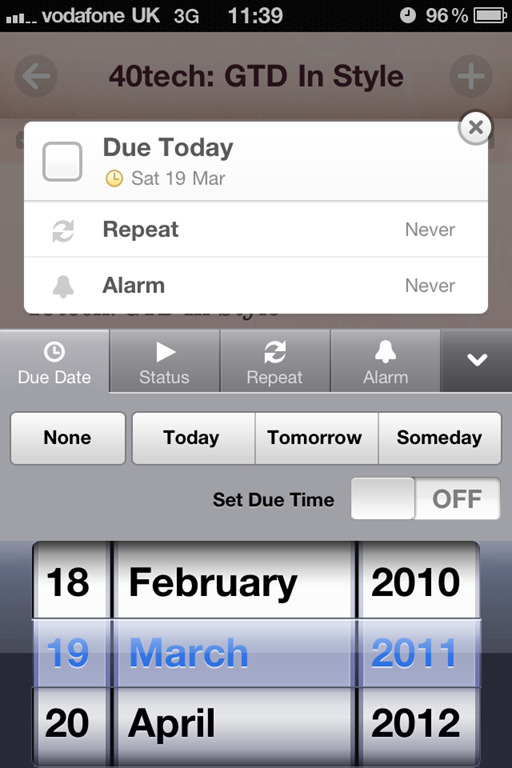
GTD in Awesome Note | 40Tech GTD in Awesome Note To Do Alarm | 40Tech Awesome Note GTD with Evernote Sync | 40Tech

Next Actions

Next Actions that have been assigned a due date pop up automatically as they become due. A red badge on the app icon shows how many to-dos are due or overdue; within the app this is shown next to the red tick box at the top of the screen. Additionally, I check the Next Action folders whenever I have a spare moment. For example, when I sit down at my PC I check if there’s anything else I could do while I’m at it.

In order to make my tags more prominent in Evernote, I start the title of a to-do that I want to be searchable with the appropriate place, person or project name. This has the added benefit of being able to search tasks alphabetically in Awesome Note. Usually I sort by due date, but if I’m going to contact person ABC I can alpha-sort the to-dos in my @Contact folder to make sure I cover everything “tagged” ABC. One tag per to-do is usually enough for me – a place tag for to-dos in @Errands, a person tag for @Contact, a project tag for @Computer and so on – and it only takes two taps to sort. Awesome Note does have a search function for both tags and keywords, but no saved searches, so this doubles as a quick-and-dirty search.

The project folder is reviewed weekly, or more often if I have extra time. Awesome Note doesn’t support sub-tasks or checklists, so I list the sub-tasks of each project in the body of the parent note, e.g. Project XYZ, and then cut/paste them into individual to-dos as I work through that project. I do the same for checklists or shopping lists. Alternatively, if you want to be able to check off each item individually, you can make a dedicated folder and create a to-do for each item.


Awesome Note may have been created primarily as a note taking app, but its to-do capabilities are powerful and lend themselves well to GTD. The limited sync with Evernote forces me to keep my setup simple and fuss-free and the cheerful design makes Getting Things Done fun. I just wish that tags would sync properly with Evernote, as they do with Egretlist, and that tasks would sync with the iPhone calendar.

Let me know what you think of Awesome Note’s GTD capabilities in the comments!

Nina lives in the UK and works in Financial Services. A frequent international traveller, she has extensive experience of managing life on the go. A trip to Japan opened her eyes to the possibilities of mobile phone technology and she has been attempting to achieve a similar level of connectivity ever since. This is her first technology article.

Nina’s next iPhone GTD setup: GTD with 2Do and Toodledo.


Simplify Your Desktop for Peaceful Productivity

image

This post continues our Personalize Your Windows 7 Experience series, but much of what’s in here can be applied to any PC operating system.

Lately, I’ve been upping my productivity game. I love GTD, and I’ve been pretty successful at making tech like Evernote, Springpad, and Producteev work for me, but I still find that I have a tendency to get bogged down by clutter and distraction. A cluttered desktop doesn’t support a creative or efficient mindset very well, so I spent a little time sorting hiding the clutter with a tool Evan introduced to me called Fences. That helped, but something was missing — and I had absolutely no idea what that was. I tweaked, I fiddled, and messed about with different settings, but nothing seemed ring that proverbial gong for me. Nothing, that is, until I discovered Minimal Wall.

Minimal Wall is the ultimate place to begin simplifying your desktop experience. It’s  more than just a collection of minimalist wallpapers, though. They actually help you to get set up for the optimal desktop in just a few steps. You start out by losing the clutter and icons on your desktop, and you end by choosing a very cool background, but the most intriguing thing about their set up process is the Grid Wallpaper.

Minimal Wall | Simplify Your Desktop

The Grid Wallpaper uses simple graphic design principles to help you set up your windows for a better — and uncluttered — user experience. All you do is set the Grid as your desktop background, and then align your most commonly used windows to the yellow borders. When I first did it, I wasn’t quite sure what to expect, but I was surprised at how looking at my new desktop made me feel. It resonated with me. I was more relaxed, and I found it much easier to focus, even with several windows open at once.

After your windows are aligned, start looking at Minimal Wall’s wallpapers. I have no doubt that you’ll find them very easy on the eyes. I chose some of the Mindful Words backgrounds; nice reminders to move on to my next action, and keep focused. I even created one of my own in Photoshop — my little girl’s name –using their work as a base. It reminds me why I am sitting at the computer in the first place, and why I need to get off it again as soon as I can.

Lifehacker has a great post featuring a Minimal Wall based desktop, combined with Rainmeter, Launchy, and Rocketdock with some nice icons. Personally, I find Rainmeter to be annoying to set up and modify, so I won’t put you all through that. I did use some of the other ideas, however, such as installing Launchy (which I find I rarely use) and Rocketdock. Rocketdock, especially with the nice iconset, provides an easy to look at quick-launch that fits the theme. I won’t go to far into customizing Rocketdock here, but if you try it out and have trouble getting it to do what you want, hit me up in the comments and I’ll do my best to help you out.

So here’s the process so far:

  • I gathered all of my clutter into Fences — then I double-clicked the desktop to make the Fences hide themselves. Another double-click brings them back when you need them.
  • I used the Grid Wallpaper to line up and size my windows (and the Fences as well).
  • I selected the four wallpapers I wanted to use and put them in a folder to create a desktop slideshow (go to Control Panel, choose “Change desktop background” under Appearance and Personalization, then browse to the folder and select the images, configuring how they should change — I shuffle them every hour).
  • I installed and configured RocketDock with the new icons (add the folder of new icons into the Icons folder in Program Files (x86), then right-click on the dock and choose Icon Settings, then the icon set).

I also moved my Windows taskbar to the top of the screen and set it to auto-hide. I had originally used a tool called Taskbar Eliminator to make the taskbar vanish altogether, but I found that it was unreliable, and discovered that — since I was now rarely working in full screen — having the taskbar hidden at the top was actually quite useful for quick access to its functions.

Finally, I right clicked on the desktop and went to Personalize and saved my wallpapers as a custom theme. Doing this makes it so you can reclaim your desktop slideshow with a click, should you change it to something else and find you want it back again. To round everything out, I changed my logon screen to match the theme. Here’s how you do that:

Here’s a Few Shots of the End Result

wall-actionwall-focuswall-windowswall-windows-2wall-fences

Since adopting this new look and feel for my desktop and workflow, I’ve found that I’m more focused, productive, and generally more relaxed while I work. The basic setup took me less than a half-hour to implement, and it’s paid that time back in spades. Hell, I was so inspired that I added a customized version of the wallpapers to my iPad, too, and then hunted down and killed my next big PC distraction: keeping Gmail open in my browser while I work. If you want a little more peace and productivity while you’re sitting in front of the multi-task machine, give this a try — I sincerely hope it helps you as much as it has me!

Let me know your thoughts in the comments!


Reader Workflow in Action: GTD for Freelancers & Managing Multiple Projects

image

We like useful tech here at 40Tech, and spend a fair amount of time talking about productivity related apps. We’ve written more than a few posts talking about ways we’ve used tech to make our busy lives a little more sane, and a little while back, we asked people to show us their own workflows. We wanted to see how our readers integrate tech into their daily lives to keep them productive. We received some comments on the post, some notes on Twitter and Facebook, and even had a few email conversations with folks, and have decided to feature a couple of the more involved methods.

Today’s feature, by freelance graphics and web designer Chase Mann, involves a GTD process that includes Evernote, Outlook, Microsoft’s OneNote, and a few other choice bits of technology:


Getting Things Done (GTD) with Evernote, Outlook and OneNote

I’m a freelance graphics & web designer that uses a tablet pc. In short, these are the tools that I’ve found work best for me:

  • Moleskin notebook & pen, Smartphone with Evernote app.
  • Dropbox to automatically sync all client files and research folders.
  • Outlook for Contacts, Calendar & Tasks. (connected with Gmail).
  • OneNote as my written-note capture and Working space (on my tablet-pc) with a GTD Notebook for current Projects.
  • Evernote as my magic, portable filing cabinet & reference library.

Reference Material:

I then tweaked all these programs and setups to better fit my workflow needs.


The GTD Workflow

I begin my GTD workflow by keeping my Moleskin notebook and Android phone as my immediate capture devices, which I then process into my Evernote Inbox notebook. Because I have design software on both my desktop and my tablet pc, and I’m constantly making changes to client files and gathering research resources, I use Dropbox to have the most updated client files and research folders automatically synced between all of my devices.

My projects tend to be mostly digital so I rely heavily on email communications (and some telephone conversations), but I tell all my clients that I prefer email so we both have documented project conversations. Outlook has quickly become my main communications & scheduling hub. Once I am referred a potential client, I setup a meeting to discuss project needs via whatever medium they prefer. I always take notes during the conversation and then email a copy to the client as my first follow-up step. If the client chooses me for the project, then I make new notebooks in both Evernote and OneNote specifically for that client and that project.

As I have time to sort through my inboxes, I’m able to organize and set tasks up as Projects. All Projects get their own notebook created in OneNote. I also attach that notebook to all possible related contacts in Outlook.

Why the heck would I use Outlook? I love the integration of Outlook and OneNote (2010 versions). I like being able to take an email about a client meeting and actually turn it into a task AND an appointment on my Calendar. I love being able to set reminders on tasks and calendar items too. It’s my tickler system. Easy.

As I process emails, they either get turned into scheduled tasks, flagged with a reminder tickler, sent to Evernote as reference, or sent to OneNote for current working projects. A major benefit of sending an email from Outlook to OneNote is that any attachments on the email show up as attached files in OneNote. How cool is that?!


Using Evernote

From the beginning, I had decided that Evernote would be my magical, brain-dump, inbox, filing cabinet. My very own research and records department that I can conveniently carry around in my pocket and access via a variety of mobile options. I setup Evernote using Bobby’s article with some tweaks to better suit my workflow.

Since Evernote came out with sub-notebooks, I find it easier to use those on my Android phone. I created a “Clients” notebook with sub-notebooks for each client by name. “Inbox” is my default notebook and “References” notebook, because I like moving items out of the Inbox notebook as part of my review process. I also created a “Coffee” notebook because I’m heavily involved in the coffee industry.

For all of my own personal projects, I create “@Project-name” tags to easily find them and I created a “!clients” tag for quickly marking items for later processing into the actual client’s sub-notebook.  Since I really don’t use Evernote for my GTD (I prefer Outlook and OneNote for that), the only other tags I used were Bobby’s suggestion of Reference Materials, with a “folder” tag for each letter of the alphabet … which I further break down into actual tags. So A, would also have Apple, Art, Amphibians, etcetera … whatever tags make the most sense to me when I capture the item.

I do most of my project research via the internet and send pages, selections and images to Evernote with the !clients tag into my Inbox notebook for later sorting. Next I sort through my research materials and send selected items over to the project’s notebook in OneNote and create a mood-board page so I can mix and match items organically and scribble notes wherever I feel like it.


OneNote

OneNote is my working desktop so I try to keep it tidy by not using it as a reference tool, even though I could. The reason I prefer OneNote over Evernote for projects is because with a tablet PC I have the freedom to scribble hand-written notes anywhere I like in OneNote — then I can right click them and convert them into typed text. I also keep a section called “Scribbles” in each Client’s section group so that I can scribble notes and ideas as they hit me, then I convert them into tasks or reference material during my daily review of projects. I try my best to stay organized as I go so I have less processing to do during reviews.

One extra thing I did with OneNote was to setup a Clients Notebook where I created a section-group for each client with a Projects section that has pages and sub-pages for each active project I have with that client. I have an All Projects section in my GTD Notebook that lists all my currently active projects which has a wiki-style link to the Client’s section-group, and the specific Projects section for that client (and vice versa). This way I’m able to move around quickly within OneNote. I have To Do lists in each Client section-group and have those wiki-linked to a main To Do list in my GTD Notebook. I also set up an Archives section in each of the Client’s section-groups where I send the individual projects when they are totally complete. This way I only have current working projects in the active Projects section of both my GTD Notebook and my Clients Notebook.

Another reason I prefer to keep Evernote for reference and OneNote as my Projects organizer is so I can use the power of tags in each program respectively. I like being able to list all my tags across all notebooks in OneNote and know that they are project-related.

When I’m looking for a reference item, I know to just search by tags in Evernote and copy/paste only the necessary bits I need (instead of entire articles or web pages) over into OneNote.


Reviewing

I do a daily review each morning so I can make new daily lists, and I do a Sunday morning weekly review. I do mine in the mornings so that I’ve not got a lot on my mind when I’m trying to go to sleep at night.

So that’s my current workflow – thought it is still developing and being refined. I’m curious if someone has done something similar, but with Google apps or other free apps?


Chase Mann is the owner of Aim It Media, a creative design and marketing company for entrepreneurs and small businesses. You can connect with him via his many comments on 40Tech, or catch him on Twitter as @AimItMedia, @MyCoffeePro, or @Creativarty


GTD in Springpad

GTD in Springpad | 40Tech | Bobby Travis

I’m a GTD enthusiast. Rather, I’m a make-tech-work-for-GTD enthusiast, as is evidenced by previous posts showing how to incorporate GTD in Evernote and GTD in Producteev. Springpad always seemed like a good candidate for the GTD treatment as well, but, truth be told, the concept was a bit daunting. Springpad is a powerful tool. Over the last several months, the service has honed its user interface and focused its purpose, but there is still a lot going on under that pretty exterior. As such, a GTD in Springpad method required a certain level of commitment. Time, testing, that sort of thing. Don’t be scared, though — it’s the sort of commitment that tends to lead to really good things.

GTD Basics

For those of you unfamiliar with the particulars of GTD, the GTD in Evernote post gives a very thorough breakdown of the concepts and how to use them. I won’t leave you hanging completely, though. If you need or want a quick rundown of GTD basics, read the next two paragraphs. If you already know everything you need to and want to jump right into the Springpad method, skip down a bit to the Springpad Setup section.

David Allen’s GTD — Getting Things Done — methodology is essentially the process of collecting the information that is thrown at you throughout your day and shoving it in a box so you can ignore it until a scheduled processing time. This maximizes your in-the-moment effectiveness. At processing time, everything that takes longer than two minutes to accomplish is broken down into an actionable next step. If an item requires more than one step, it becomes a project, is added to your projects list, and the next reasonable step goes into your next action lists.

Next actions are where GTD actually happens, as they are broken down into contexts that relate to where you are and what you need to do — @home, @work, @computer, @errands, @meetings, @calls, etc. These contexts allow you to “set it and forget it,” freeing your mind to focus on what you are doing now, not what you need to do later. Anything that is not a next action is either something you are waiting for, something that you need to be tickled about at a later date, a reference item, a someday/maybe, or useless junk that should be expunged from your reality. Following these concepts with a little discipline, and a weekly review to check the status of your projects and tie up loose ends, can potentially bring your entire life into a smooth, much less stressful sort of harmony.


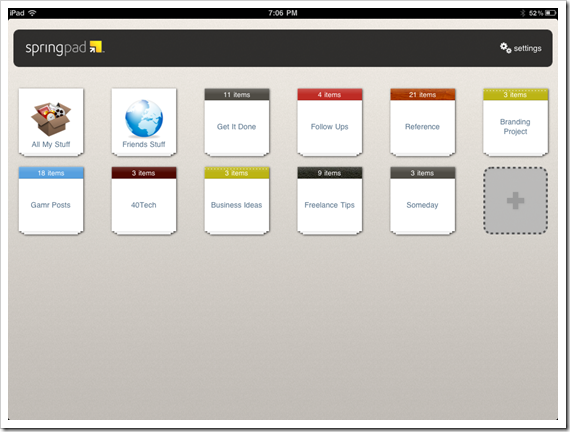
Springpad iPad

Springpad Setup

Now that the background’s out of the way, we get into the meat of how to make GTD work in Springpad. Depending on how you work best, there are several ways you could go about adapting the service to suit you. Daniel Gold, a frequent and very helpful commenter here at 40Tech, put together a system that does most of the processing right in the “All My Stuff” area of Springpad, utilizing the built in task items and their categories, as well as flags to highlight his next actions — check it out on his blog. He’s also written a Springpad E-Book [affiliate link]. Another system, by Marcel Chaudron, takes Dan’s method and expands upon it, opening several notebooks to get a clearer visual of where items need to go. Both systems are viable and will work well, depending on your needs and the way you process information.

I had to take things in a slightly different direction for four reasons:

  1. A lot of what I need to get done comes in from various sources, including the camera on my iPhone, the web clipper bookmarklet/extension, manual entry, and especially email.
  2. There is currently no way to change a type (note, task, event, bookmark, etc.) in Springpad.
  3. Springpad does not allow filtering by the categories functionality built into the task item.
  4. I use Springpad, at times, for many different things that I’m interested in or researching, and find that too many things in the All My Stuff area is overwhelming. For me, any system that involves visual overwhelm is a system that I conveniently forget about — in a hurry.

GTD Notebooks & Context Tags

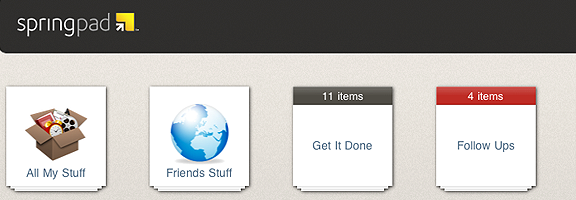
To solve these problems, I opened four notebooks: Get It Done, Follow Ups, Reference, and Someday. I then did away with task categories completely and started to creatively use the nuances of Springpad’s dynamic tagging system.

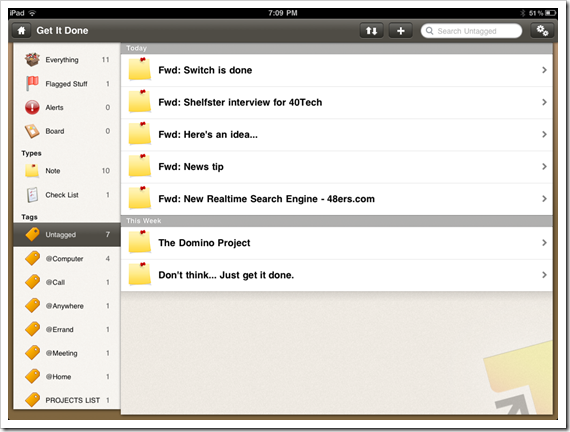
Tags start out in alphabetical order, but the ones with the largest number of items bubble up to the top of the list. This makes any sort of alphabetic reference system impossible — but when the tags are used for contexts, you suddenly have a means to see, at a glance, which context has the most tasks, and therefore requires the most attention! It also helps that, aside from in the All My Stuff area, tags only appear in the notebook(s) that the tagged item belongs to. The downside of this is that you have to be careful when attaching items to multiple notebooks.

Once your notebooks are created, open up Get It Done (or whatever you decide to call it) and create the contexts that best suit your particular needs (mine were @home, @computer (the equivalent of @work for me), @anywhere, @call, @meeting, @errand). The Get It Done notebook will serve as both your inbox and next action area.

Note: If there is nothing in a tag, the tag ceases to exist. To create a list of tags that never dies, use a dummy item in your notebook — I chose one with an inspirational message — and add every tag that you plan to use to that one note.

Getting the information into the Get It Done inbox is as easy as the click of a button in most cases; sending by email is currently the exception, as all emails go directly to All My Stuff. This will change in the next couple weeks, when Springpad adds the ability to set type and notebook (and possibly tags) when you send an email into the web app. In the meantime, take advantage of the “sort by date added” feature in All My Stuff.

Springpad GTD iPad | 40Tech | Bobby Travis

This next step is completely optional, but I recommend it if you are like me and freak out when you see long task lists. Create a tag called something like [untagged] and attach it to all incoming items. This will allow one-click access to sort your GTD notebook into inbox only items. This step works well for me because I like things in one spot as much as possible. If that’s not your thing, create a separate notebook for next actions, using the tags, and create one that is just meant to be an inbox. Springpad makes it very easy to move items from notebook to notebook, so the extra step will hardly be noticeable.

Everything Else

As you process your items into their respective contexts, you will to use some of the other functions of Springpad:

  • Reminders – Great way to set up an alert for a time-sensitive item. These can be configured to send to multiple email addresses and SMS. At this time, however, reminders can only be set in the web app, and on Android devices.
  • Events – Events allow you to sync an item from your Springpad to Google Calendar. You can’t change item types, so events will need to be created from scratch as you process the items in your inbox.
  • Tasks – In this GTD system, everything added to a context tag is treated as a task, so the Task item is somewhat redundant. If you like the task item’s format, and the ability to check a big checkbox when you are done makes you happy, then add tasks as you see fit. They will likely need to be created from scratch until Springpad implements type-switching (no ETA).
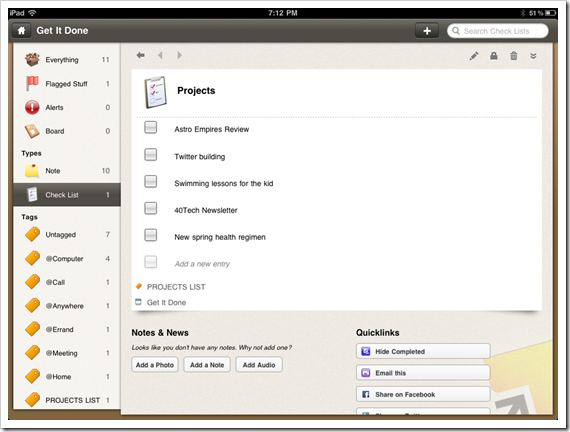
  • Checklists – Another way to satisfy the need to check off check boxes, checklists are a great way to maintain your projects list. As your small and large projects are completed, check them off. Remember, anything that takes more than one step to accomplish is considered a project. Checklists are also a good place to track your goals and other listable things.
  • Flagged Stuff – Clicking the little flag button in the web app (the command is in the upper right dropdown menu on the iPad and iPhone) will add the item to the Flagged Stuff area. This is a perfect way to highlight those next actions that need special attention.

Springpad GTD | 40Tech | Bobby Travis

If an item doesn’t fit any of the contexts, it will either go into the Follow Ups notebook, which has tags for Waiting For and Tickler items, the Someday notebook (tag it as suits you), be deleted entirely, or sent to the Reference notebook. In the GTD in Evernote post, Evernote had a tag set up that used tags for every letter of the alphabet. This doesn’t work in Springpad due to the dynamic nature of the tags. If you plan to keep reference notes and items in Springpad then I suggest you use category tags to group those items. You can also use specific keywords in subject lines or elsewhere and take advantage of Springpad’s search function. Notebooks that are specific to subjects or large projects are also a good idea. In fact, I encourage you to keep notebooks for large projects, as you can have next actions that ride in more than one notebook. This allows you to not only keep track of next actions that are specific to large projects, but also gives you use of the Board for those items, which may help you in your planning processes.

GTD in Springpad | 40Tech | Bobby Travis

Another option for reference items is to export them individually by email. You could send them to whatever email-enabled organization tool you have, including Evernote and your email client. Each email contains a link back to the original Springpad item, making it easy to get right to it, and it also has a link for people to spring it into their own Springpad account. That last is fantastic for collaboration and backup purposes — though you can also collaborate by sending out a share link, or simply making the item or notebook public and sharing it on Facebook and Twitter.


Conclusions

The strength of Springpad as a GTD system is its flexibility. It is so easy to get information into Springpad and to change an item from one context or GTD state to another, including jumping around from notebook to notebook or even keeping one item in multiple notebooks. Combine that with the ability to access the app offline from all platforms, to bulk-edit items, enhance information on items that are related to products (mostly in the US at this point), and add events to Google Calendar — one place where Springpad will always have it over Evernote for me — and you can create and use a very solid GTD system.

I do wish that Springpad allowed for changing types, as that would cut out a step at times and just make things easier. I also wish that the iOS apps had the ability to add and edit reminders — Android does, as I understand it. With the way Springpad has been updating lately, though, I’m sure these features are only a matter of time.

UPDATE: Springpad adds autosave, backup, and export features! You can also add Types, Notebooks, and Tags directly to subject lines when sending in items via email. Oh, and viewing Springpad via RSS readers and full API access are also available. Check out the Springpad Blog for details!

Tell us about your experiences with GTD in Springpad.


8 Time-Saving Firefox Extensions

8 Time-Saving Firefox Extensions | 40Tech

Today, 40Tech is pleased to present a guest post by Neil Jones.

My Father has a saying; if you’re paid by the hour, take your time.  Sadly I’m not paid by the hour and I can’t afford to take my time. I guess I’m like most folks and every minute is precious – especially if you are in a job like mine where you are only paid on results, so the more you can get done in a day the better your wage will look at the end of the week. Automation and generally trying to increase your productivity throughout your working day is something that none of us can now overlook, and if any part of your job involves using the web, then, for a start, Firefox is a must .

Make no mistake Firefox will help you get more done, save time and generally help to remove or at least automate any mundane repetitive jobs you have to do. It can’t do it on its own though, it needs the help of these plugins:

Imacros: If you only ever add one plugin to Firefox then add this one, it can fill forms, auto-click buttons and do pretty much whatever else you need it to. I can’t stress enough how good this plugin is, but to help I’ll give you an example. The first thing that most people who own a website do when they sit down to start work is check their analytics for the previous day, I know it’s a little anal but I counted the amount of clicks and the time it takes, and you are talking between 4 and 5 clicks and 30 seconds to get to where you want to go. Imacros can do this for you while you go make a coffee. This is only one example of how this plugin helps and I know 30 seconds doesn’t sound like much, but they all add up!

Autocopy:  As the name suggests this little plugin will automatically copy any highlighted text on a web page, with no longer a need for CTRL+C one hand is now freed to drink more coffee!

URL Fixer: If you’re a typo demon, this plugin will help you whenever you misspell a TLD ( Top Level Domain) like when you type .cm instead of .com. Maybe not a huge time saver but it definitely helps and saves on the number of clicks.

Adblockers: Though there are countless available they all do pretty much do the same thing, they prevent any flash banners or ads from being displayed, this saves on load time and it also removes any distractions from the page. GreaseMonkey in particular has some of the best adblockers.

For the addictive websites that you find you spend too much time on (mine is PassiveAggressiveNotes.com just can’t get enough)  there are plugins that will either block the site completely during certain times (LeechBlock) or if you just want a friendly reminder of the amount of time you have spent on a certain site then use Procrastato. It can be scary to realize how much time can be wasted just on one site alone.

Following on from the idea of the addictive websites there are a couple of plugins that allow you to save a page so you can read when you have more time, the best is probably Read It Later. Essentially, it works in the same way as the bookmarking services but it’s quicker and stores the addresses locally.

Finally, Morning Coffee keeps track of the most visited sites on your browser, giving you quick and easy access to your most popular pages.

If you are looking for your working day to be revolutionized, where you will find yourself with all your work done and an hour to spare every evening, then maybe you are reading the wrong post (start looking for a Virtual Assistant…) but if  you want things to work a little smoother, a little smarter, and a little faster, then any of these plugins are a pretty good place to start.

What are some of your favourite time saving plugins for your browser?