Menu Close

Category: Productivity (page 9 of 15)

Springpad Gets Even Better — Again

image

Less than two months after our last update on Springpad — one of our hottest topics on 40Tech — the tool to save and organize pretty much anything has sent out another press release full of updated goodness. Goodness to the tune of more than 250,000 new users in the month of January alone, 4 million new bookmarks via the Delicious bookmark importer, new saved-search filters, delete and archive support, and an overhaul to what was already one of the better Google Chrome extensions out there.

From the press release:

Faster Ways to Get Organized with Springpad on the Web

  • New Filters: Springpad structures the data you save to make it easy for you to search and filter through your items. Search through your recipes or restaurants by cuisine; filter your movies by actor or genre. Once you’ve created your filters, you can easily save them to make the next search faster than ever.
  • Delete and Archive Support: Springpad now has a “trash” button on the home screen so you can quickly recover an item you may have archived or inadvertently deleted.

Enhanced Springpad Extension

Springpad’s upgraded Chrome Browser Extension makes it fast and easy to add a note, create a task or look up something without leaving the site you’re browsing. When you use the extension to clip content, the new item is automatically categorized (recipe, movie, restaurant, book, etc.) and you can create or select a notebook for more efficient organization. To install the extension, click here.

Springpad has been moving in leaps and bounds lately, and its progress is impressive. If you’re looking for a tool to help you organize your life on the web, you should check it out. You can get a feel for the product here, check out their massive overhaul update here (with promo video, if you don’t feel like reading), and get all kinds of tips on how best to use Springpad from the Springpad Blog.

How are you liking the new Springpad?

Springpad Ends Record-Breaking Month with Over 250,000 New Subscribers [CEO Jeff Janer’s Springpad]


AirDropper: An Easy Way to Request Files — and Have Them Sent Straight to Your Dropbox

AirDropper: An Easy Way to Request Files -- and Have Them Sent Straight to Your Dropbox | 40Tech

Recently, we talked a bit about Ge.tt, an extraordinarily easy way to send files to people without having to talk them through how to receive them. But what if you are the one who needs a file sent to you, and you want to make it as easy as possible to get that request taken care of? You could explain Ge.tt to people (it really is easy), or you could be a bit more direct and use the tool that one of our readers brought to our attention: AirDropper. After all, when you need something from someone, the best way to get it is to require the fewest steps possible — and to sweeten the deal, AirDropper uses your Dropbox folder, so you will be able to access the file(s) from anywhere.

Getting set up with AirDropper is pretty straightforward. You head to www.airdropper.com and click START. You will then be redirected to Dropbox to authenticate the AirDropper service, which will add an AirDropper folder in your Dropbox folder. Once that’s done, you will head back to AirDropper, and will be presented with a form that allows you to send an email (from your email address of choice) to multiple recipients to request files. The email contains your message, and a large, friendly button that says Upload and brings the user to an even friendlier ADD FILES interface. The file or files — AirDropper has supported multiple file sends since about September of 2010 — will then be sent directly to your Dropbox with no fuss, no muss, and not a worry except for your storage limit.

Note: If you are sending sensitive files, be sure to have a look over the AirDropper terms of service first.

AirDropper is free while in beta, but will likely charge for some of their service in the future, which will likely include tiered pricing for things like the size of the transfer(s), etc. Either way, it is definitely a useful tool!

Thanks to Martin for bringing it to our attention!


Ge.tt: File Sharing for the Technology-Challenged

Ge.tt: File Sharing for the Technology-Challenged | 40Tech

How many of you have had that moment in time when you need to share a file (big or small) with someone who just shuts down when introduced to new technology? Tools like Dropbox, while they make obvious sense to anyone who traffics in such things, will, in many cases, be responsible for blank stares, open derision, and comments like “can’t you just mail me a CD?” Alas, not everyone has made it to our little techie corner of the world.

Ge.tt is going to solve that little problem for us all.

The last time I faced this issue was a month or so ago, and in looking for a solution, I happened across a post by our friend from Digitzd, David Pierce. David outlined several other file sharing services he’d tried, like YouSendIt, FileDropper, Dropbox, and Box.net. His findings with these other options were much the same as my own; which is to say that they were either too complex for the tech-challenged (or uninterested), or were unreliable. He thought pretty highly of Ge.tt, though, so I gave it a try.

Ge.tt, as David said, is “stupid simple.” The website is a white-space filled, single-big-button experience that allows you to quickly and easily find a file, upload it, and then share the link via email, Twitter, or Facebook. Any file type you want is just fine, drag and drop is supported in modern browsers, and you can even add multiple files at a time. No logins are required, but you can set up an account if you want a few additional features, like live download stats, or adding/removing files at a later date.

The Best Way to Share Files | Ge.tt

Download files while uploading with Ge.tt | 40Tech

The best thing about Ge.tt, however, is the near real-time download capability. The person or persons you are sharing the files with don’t have to wait until the upload is completed to start downloading — they can actually start as soon as you do, receiving every byte you upload as it goes up on the Ge.tt servers. Sharing large files no longer has to be an all day event — and I can’t express to you how much I dig that! To top it off, the download process is as easy as the upload. Users click the link you give them, find the file they want and download away with just a click. If the recipient has difficulty with that — which is still possible, if unlikely — then the process will still be extremely simple to talk him or her through.

Easily download shared files with Ge.tt | 40Tech

Things to watch for:

  • The obvious — don’t upload anything you don’t own the rights to, or may otherwise be construed as illegal or relating to an illegal act. Big Brother is watching, boys and girls.
  • Shares only last for 30 days from upload, or 30 days from the last download. You can increase this to three months by signing up for a free account. Don’t use this service as a backup tool…
  • There is a 2 GB upload limit, at least according to the terms of service. David was able to upload a 4 GB file with no problems, but the terms may have been updated since then.
  • There is an ad on the receiver’s page, and at least one of the advertisers has an ad with a big download button on it. You may want to warn the people you send the link to to avoid any confusion.
  • Depending on your browser, images may open in a new window, and may require right-click to save actions.
  • Ge.tt is in beta. It seems stable, and I haven’t heard of any problems, but beta is their insurance. Also, their terms of service indicate that they will very likely be implementing paid services at some point, which may add to their current free services, or may reduce their free offerings. Get it while its hot.

What services do you use to share files simply (especially large ones)?

Ge.tt: The Best Way to Share Big Files (or Small Ones) [Digitizd]


Show Us Your Workflow! How Do You Make Tech Work for You?

Show Us Your Workflow | 40Tech

We write and converse a lot about productivity tools here on 40Tech, and the Grown-Up Geeks who frequent our small but fertile domain (that would be you) have always given us much to think about in terms of alternative methods and technologies. With that in mind, we’d love the opportunity to learn even more from you! We want to know your workflow; the tried and tested methods that you, personally, have found to get things done using tech.

Image by zemanta

Post in the comments, or send us an email, whatever works best for you. We’d be really interested in selecting a few and working with you to turn them into posts. Maybe we can even discover some sort of uber-workflow within them all that will better all of our lives.

Yeah, that last bit may sound like a stretch, but don’t hold the cheesy wording against me – it could happen!

So what’s your workflow?


Evernote 4 — and Now 4.1 — is a Giant Leap Forward in Note Taking Goodness

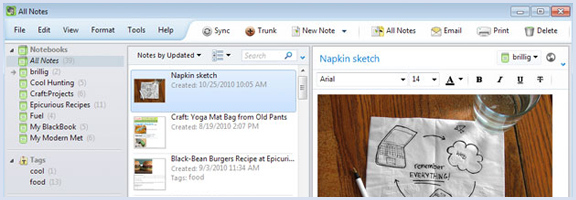
Evernote 4 and 4.1 update

Last week, Evernote 4.1 for Windows was released for general consumption. 4.1 takes the giant leap forward that was Evernote 4 and makes it even better, adding more notebooks, notebook stacks, an improved note info panel, and more. If you’re not yet familiar with Evernote 4, it takes all the good of Evernote 3.5 — which took getting used to for some — and makes significant improvements to the user interface and overall functionality of our beloved notes tool. Some of the highlights include a more economical (and prettier) layout that suits Windows 7, a significant boost in load time and decrease in memory usage, better editing features, and more Windows 7 integrations like jump lists and geo-location.

I’m also happy to report that new windows once again automatically open when you start a new notes, which was a feature I, personally, missed (though the entire client still opens behind it for some reason). The new version also adds support for your local font files, makes it easier to hide things you don’t need to see, and improved clipping support.

For those looking for such things, there is still no social sharing capabilities, so don’t get too excited. All is not lost, however — you can always use Springpad for that.

For more detail on Evernote 4, look here

For more detail on the 4.1 update, look here

What are your thoughts on the newest release of Evernote for Windows?