Menu Close

Category: Productivity (page 7 of 15)

App of the Week: Noteshelf Handwriting App for iPad

App of the Week: Noteshelf Handwriting App for iPad | 40Tech

When I got my iPad back in December, I mostly used it as a means to surf the web, watch Netflix, read, and play the occasional game. Oh, I blogged on it a bit, too, and I figured it would be great for taking notes and the like, but I quickly found that extended typing on the glass surface led to aching fingertips. Besides, when trying to work things out and get creative, there is something very powerful about the old fashioned pen and paper approach. Determined to see if I could get the same power out of my iPad, I started researching handwriting apps.

After going through several, I was largely disappointed by what was out there — until I discovered Noteshelf.

Now, to be fair, I originally went with Penultimate, which has an excellent natural feel when you write — and gets extra awesome points for it’s freeness. However, I still felt like I was missing something. So, when my friend and colleague Daniel Gold recommended Noteshelf to me, I grudgingly gave it a shot, despite it’s $4.99 price tag. I’m cheap when it comes to app purchases, but I figured I could hold him responsible if it sucked.

It didn’t.

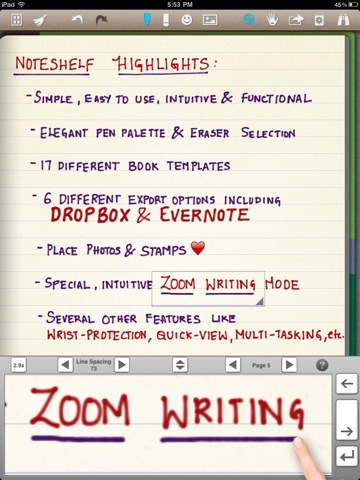
In fact, it rocked so much that I use it all the time, even though my handwriting is absolutely atrocious. Noteshelf has all of the features I could want or need:

  • Excellent natural feel when writing
  • Different pen sizes and colours
  • Wrist protection that works
  • Zoom writing
  • Just as functional in landscape mode as portrait mode
  • Unlimited undo and redo (until you leave the page, anyway)
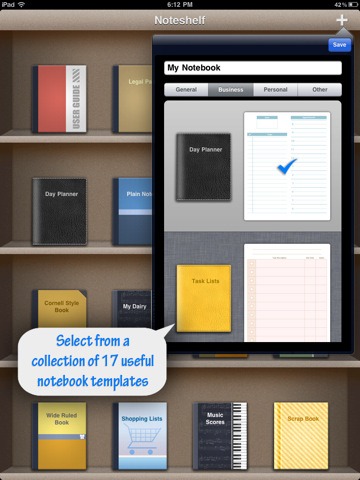
  • Notebook templates for writing, drawing, task and day planning, meeting notes, shopping lists, journal writing, graphing, and music
  • A bookshelf view to easily organize notebooks
  • Dynamic line-sizing for easy and clean jumps to the next line on a page
  • Photo embedding and annotation
  • Backup and restore functionality

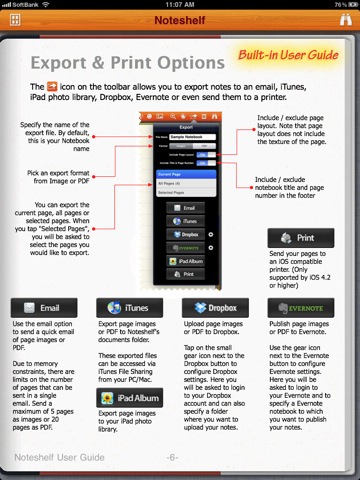
The kicker, though, is Noteshelf’s sharing capabilities. You can print and export notes as .jpegs and .pdfs, configuring by page or as an entire notebook — by email, iTunes, your iPad photo album, and (Yay!!) Dropbox and Evernote! That’s all kinds of awesome, right there! Nothing quite like being able to quickly scrawl down several pages worth of ideas, and then send them to your out-of-brain-brain for easy searching with Evernote’s OCR. Even writing as bad as mine gets picked up. Mostly…

Noteshelf Natural Handwriting App for iPadNoteshelf Notebook Templates Noteshelf Export to Dropbox, Evernote

I can’t say enough that’s good about Noteshelf. If you have an iPad, and have a want or need to use it as a notebook that will get you on the path to being well and truly paperless, you need to go and get it. Right now.

What’s your favourite handwriting app for tablets?


How to Sync Your Text Expansion Snippets Between Windows and Mac

breevy and textexpander.jpg

Yesterday we covered five ways to boost your productivity using a text expansion program. If we’ve sold you on the value of a text expansion program, your next question may concern which program to get. We previously mentioned how to use text expansion for free on Windows using Texter, an app that we identified as one of five tech tools to increase your productivity in a non-tech job. Texter was the first text expander that I used. When I added a Mac to my repertoire, though, one problem that I ran into was that Texter is a Windows-only app. I started using TypeIt4Me on the Mac, but then I had to manually enter my expansion snippets to keep them in sync between Mac and Windows. Recently I discovered a better solution – two separate apps (one on each platform) that can use the same snippet file, synchronized over Dropbox. I’ve been in text expansion heaven ever since.

Read more


Five Ways to Increase Your Productivity Using Text Expansion Software

text expansion productivity.jpg

We love apps that can make you more productive, and help you get things done. One type of app that can give a tremendous boost to your productivity is text expansion software, such as Texter and Phrase Express on Windows, and TypeIt4Me and TextExpander on the Mac. With text expansion software, you create snippets of text, and then set up abbreviations to trigger the typing of those snippets. If you’re not sure how you can fit text expansion software into your workflow, read on for some examples of how to use it.

Try before you buy! And see what we have to say tomorrow, when we’ll look at our favorite text expansion app for Windows, and our favorite on the Mac, and how to get them to sync with each other so that you don’t have to manually recreate your snippets in each app.

Read more


Producteev Adds Google Tasks Sync, Outlook Plugin, with Native Mac, Windows, Android Apps On the Way

Producteev Adds Google Tasks Sync, Outlook Plugin, with Native Mac, Windows, Android Apps On the Way | 40Tech

Producteev won me over a while back with the smooth way they integrate into your already established workflow. The pretty helped too — pretty is a necessity for me when looking at a task list — but it was the Google Calendar integration, and the ability to interact with and create tasks from email, IM, and more that clinched it for me. As a Gmail user, I have access to a nifty widget, and Google Apps users get even tighter integration.

Enough about me and my Google services, though! We’re here to talk about you — and did you know that Producteev has just launched an Outlook plugin that let’s you single-click emails directly to tasks? And that’s not all… they’ve also announced a two-way sync with Google Tasks, and have some native apps on the way! You like? Read on for details!


Outlook Plugin

Outlook is powerful software, but it lacks mobility, which is a tough thing when you use it as your main task manager in this day and age. Producteev makes Outlook tasks portable by allowing you to take them to the cloud by way of a tightly integrated Outlook plugin. With the plugin, you can add emails to tasks in Producteev with a single click of the flag button, and with the integrated Producteev tab, you can assign it to others, add priority stars, etc. The plugin only allows you to sync with one workspace at a time, but you can choose for the sync to be two-way, Outlook to Producteev, or Producteev to Outlook only, and you can change workspaces right from Outlook, as well.

Here’s a link to the Producteev Outlook plugin screencast.


Google Tasks

I was honestly under the impression that people cared about Google Tasks about as much as they do about Buzz, Wave and Sidewiki. Or Orkut. Apparently, I was gravely mistaken, as Google is invested enough in Tasks that they went through the trouble of launching a Tasks API at Google I/O this month. Producteev was right there with them, and has created a two-way revolving door with the in-Gmail task manager.

It’s a pretty cool integration, actually. It allows you to create tasks in Google and have them sync to your Producteev workspace where they will have their own label (the list’s name) automatically assigned. It also works the other way, bringing your workspace’s tasks into Google where you can quickly check on them and interact with them without leaving your email. Yayy efficiency!

Check out the quick screencast on the integration, below:

http://www.youtube.com/watch?v=1yesX1I_KeI&feature=player_embedded

I advise you to be careful when using Google Tasks sync, however. It is, at this point, only designed to handle a connection from one Producteev workspace. If you use several workspaces concurrently, like I do in my Producteeev GTD setup, and you, say, I don’t know… connect them all… at once —  well, let’s just say you will end up with an ever-growing and duplicating list of tasks as the workspaces sync them, and then re-sync them, one after the other, after the other, after the other. *grins*  Thankfully, they all show up under one label and so were easy to delete.

If you do use multiple workspaces in your productivity setup, I recommend using only your most important workspace in Google Tasks sync. You could also use it for a priority tasks list, or to keep your Projects workspace handy at a glance.


Native Apps

Producteev hasn’t forgotten about the users out there who prefer native apps. They have had them in the works for some time now, and that awesome little tree is about to bear its fruit. A Mac app is due to hit the mainstream by the end of this month, and Windows will get a native app in mid-June. That’s straight out of the mouth (well… email) of Producteev founder Ilan Abehassera, so doubt me at your peril! Ilan also said that a fancy new Android app will be available in early June, as well.

Here’s a look at the Mac app (from the Producteev Blog):

Producteed Native App | Producteev Mac App

What do you think of Producteev’s new integrations?


GTD With 2Do and Toodledo [Reader Workflow]

GTD With 2Do and Toodledo [Reader Workflow] | 40Tech

Continuing with our Reader Workflow showcase, we’re proud to present Nina Kefer’s second post in her GTD experiments series, Beauty and Brains: Getting Things Done™ In Style. In her last article, she showed us a particularly awesome GTD setup with Awesome Note and Evernote; focused on the iPhone, overall. This time around, she delves into a mobile frontend for Toodledo. Read on for Nina’s GTD workflow with the iPhone app, 2Do.

For an additional take on Toodledo and GTD, also check out our post on Getting Things Done with Toodledo using pseudo-GTD methodologies.


Beauty & Brains: Getting Things Done™ In Style, Part 2 – 2Do

In my last article I described my GTD system for Awesome Note synced with Evernote. If you prefer a tighter sync between front and back end, however, you’ll want to give 2Do a try. 2Do is an award winning productivity app that syncs with the task management website Toodledo as well as iCal and Outlook (via a sync helper). I use a PC, so iCal is not an option and I don’t use Outlook because it doesn’t doesn’t play well with Gmail, so unfortunately I had to make do without a desktop client.

The sync with Toodledo is pretty tight, albeit with some peculiarities. 2Do’s interface is designed to look like a colourful Filofax and comes with several pre-installed “calendars” or tabs, which are basically to-dos, projects and check lists that are pulled together in the “Today” and “All” tabs. 2Do’s tabs appear in Toodledo as folders and, as with Awesome Note, they can be easily renamed or replaced to suit GTD. They can also be moved up or down and assigned custom colours – I basically think of them as dividers in a lever arch file or personal organiser.

While Toodledo supports contexts, 2Do doesn’t out of the box, but this can easily be set up by creating tags for each context and then searching for each tag using the excellent built-in search function. These searches can be saved as tabs which will then sync to Toodledo as folders. Just like “normal” tabs, they can be moved up or down to whichever position fits best with your GTD setup. Note that tags cannot be created from scratch; you first need to create a task, then you can create the tags to tag it with.


The Setup

For my to-do system I use a similar setup as in Awesome Note. Since 2Do doesn’t have a dedicated inbox, I first created a new tab called Inbox. I then created a Next Action tab as well as saved searches for all my context tags. That way I can collect all next actions in one tab, but filter them by context using the saved searches. Since these are the folders I check most often I moved them to the top of the list, so they are immediately visible on my screen when I open the app. Alternatively, you can create a dedicated “normal” tab for each context. Finally, I created Project, Someday and Reference tabs and moved all tabs in an order that suited me best. I then manually arranged the corresponding folders in Toodledo in the same order:

  • Inbox
  • @PC
  • @Contact
  • @Errands
  • @Home
  • @Waiting (these appear as tags in Toodledo)
  • Next Action
  • Projects
  • Someday
  • Reference

Setup GTD in 2Do for iPhone | 40Tech


Using 2Do

2Do offers an almost bewildering array of features, but they are elegantly tucked away in hidden menus, so the interface never looks cluttered. When creating your tasks you have the choice between three different types – to-do, checklist and project – that can be assigned six different actions: call, SMS, email, browse, visit and Google. Call, SMS, email and visit actions can be linked to the contacts in the iPhone’s address book and a tap on a task containing such an action will bring up the contact’s phone number or email address or show the postal address in Google maps. You can then call, text or email them directly from within the app.

A long tap on a task brings up a menu that shows what you can do with that particular task: mark as done, defer to another day, copy, share (via email, SMS or Twitter), delete, add note, take or attach a photo, record and attach an audio file or assign a due date and alarm. There is a choice between email alerts and local alerts, i.e. a notification on the phone lock screen that works even if data roaming is disabled or the phone is in airplane mode. For local alerts, you can choose between receiving a push message only or a message plus sound, with a choice of different alarm sounds. A red badge on the app icon shows how many to-dos are due or overdue and within the app overdue tasks appear in red font instead of black.

2Do uses two types of tags – word tags and people tags, the latter linked to contacts in the iPhone’s phone book – which make tasks easily traceable via the search function. You can also search by key word and date range, and searches you do frequently can again be saved as new calendar tabs, so in the future you only have to tap on the tab to bring up a search result.

Tasks can be sorted by status, priority (none, low, medium, high, star), due date, note, URL, alphabetical or manually. As in Awesome Note, you can sort each folder in a different way. The Today tab shows all tasks due today and additionally there is a focus button that can filter out to-dos that don’t fulfil certain requirements, e.g. due date or level of priority. Individual tasks can be moved from one tab to another with a few quick taps. Switching to landscape view in any tab brings up a calendar showing all tasks that are due in the current month. Finally, there is a nearby tab that alerts you when you approach a location connected with your task, but I don’t use it since it uses GPS and therefore guzzles battery.

2Do for iPhone, iPad, iOS | Task Management App


Tasks, Subtasks, and Sync with Toodledo

I Get Things Done in 2Do in pretty much the same way as in Awesome Note: my Inbox and Next Action (and context) tabs are reviewed daily and Project tab weekly. As with Evernote, you send emails to Toodledo to create a task; you can specify folder, priority, due date and time, tag, repeat, and attach the body of the email as a note.

2Do supports subtasks, so there is no need for workaround like there is in Awesome Note. Each subtask can be given its own tag, due date, alarm, action and attachment and can be moved out of the project and into the appropriate Next Action folder, right from within the main task menu (parent and subtask can’t be in different folders). Alternatively, if you have created contexts tabs from saved searches, adding the appropriate context tag (@PC, @Contact, @Errands and so on) will make the subtask appear in that tab, with the project and folder name still visible. Finally, if you assign a due date, the task will eventually pop up in the Today tab. However, be aware that subtasks are a premium feature in Toodledo and in order for them to sync between 2Do and Toodledo together with their parent task you need a (paid) Pro account. In free accounts, subtasks sync separately from the parent task.

Tags, due dates and notes sync to Toodledo, but photos, location maps and audio files remain locally in 2Do as Toodledo only supports notes. However, this has the advantage that these files are available for offline use on the iPhone.


There is a reason why 2Do was voted Best iPhone Productivity app: in combination with Toodledo it offers pretty much everything one could wish for, except the option to sync your tasks with the iPhone calendar. It is quick and easy enough that you barely have to use the web, yet the sync with Toodledo is tight enough to be able to use both apps more or less interchangeably. Don’t be put off by Toodledo’s less than slick appearance either. It is a powerful and highly customisable task manager and there are a number of Stylish and Greasemonkey themes to pretty it up.

What are your thoughts on GTD in 2Do and Toodledo?

Nina lives in the UK and works in Financial Services. A frequent international traveller, she has extensive experience of managing life on the go. A trip to Japan opened her eyes to the possibilities of mobile phone technology and she has been attempting to achieve a similar level of connectivity ever since. This is her first technology article.

Up Next: Part 3 – Springpad