Menu Close

Category: Android (page 9 of 11)

Easily Root Your Android Phone – From Your Phone – With z4root

z4root root for android.jpg

Last week, we looked at how to install non-Market apps onto your Android device. That’s only half the fun, though. One way to get even more functionality out of your Android device is by rooting it. If you root your device you can install additional apps, set up wireless tethering, and even install custom ROMs that change the way your device operates. Rooting can be frightening, though, as you can potentially brick your device. If you want an easy way to root your phone, check out z4root.

z4root differs from other rooting options in that it is an app that is installed on your phone, and run from there. Other rooting options typically require you to hook your device to a computer, and run the root via the computer. So, the first step is to get z4root onto your device. If need be, you can use the Sideload Wonder Machine to do so. Once installed, start the app on your device, hit the “root” button, and wait for the process to complete. When you’re done, reboot your device.

My experience with z4root wasn’t perfect – my device never gave me a confirmation message, and seemed stuck on the same screen. After 15 minutes, I finally just rebooted the phone, and, to my pleasant surprise, I had the Superuser account (an icon in my app list) on my phone, meaning that the root had worked.

Have you rooted your Android device? What method did you use?

z4root [via xdadevelopers forum]


Install Non-Market Apps on Your Android Phone With the Sideload Wonder Machine

android sideload wonder machine

The primary method of installing apps on your Android phone is via the Android Market.  Last week, we talked about AppBrain, an app that helps you discover new Market apps.  There’s a whole world outside the Market, though. How do you get those apps onto your phone, if your Android device doesn’t directly support the loading of non-Market apps?  Enter the Sideload Wonder Machine. Read more


Use AppBrain to Find and Share Great Android Apps

AppBrain 576x200

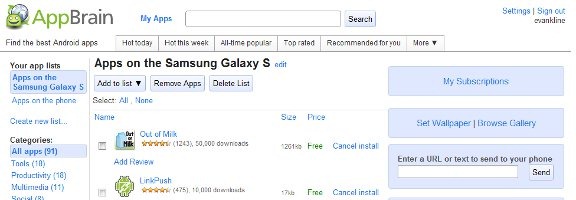
At first blush, the easiest way to find apps and get them onto your Android device is via the Android Market, which can be accessed via an app on your phone.  If you want a great way to find apps, and keep track of them, there is another method.  Check out AppBrain, a web service and Android app that lets you keep track of not only the apps that you have installed, but also to see what apps your friends are using.

Read more


Got To Do vs. Ultimate To Do List: Comparison of Toodledo Apps on Android

Got To Do versus Ultimate To Do List

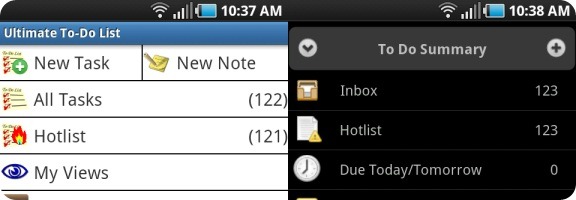
If you can find an app in the iPhone app store, chances are that you can find an equivalent app for your Android device.  Sometimes, though, an official app isn’t available, so you have to look a bit harder.  That’s the case if you’re a user of Toodledo, a task manager that we’ve raved about before here at 40Tech.  Fortunately, Android developers are a resourceful bunch, and, as a result, third party alternatives have sprung up that bring Toodledo to your Android device. Two of the best are Ultimate To Do List and Got To Do.

Read more


How to Avoid Scammy Android Apps

How to Avoid Scammy Android Apps | 40Tech

The beautiful thing about Android OS, over iOS,  is the open platform. The annoying (and potentially dangerous) thing about Android OS, over iOS, is… wait for it… the open platform. It’s a double-edged sword. Say what you want about Apple’s proprietary madness, but the likelihood of a scam or malware app making it through to the iOS App Store is pretty slim — at least in comparison to Google’s Android Market. Does this mean you should never buy Android and jump headfirst into Apple products? By no means! According to the learned fellows over at Tested.com, with a little common sense, some permissions checking, and a dose of healthy skepticism, you can avoid the sneaky apps. Here are the main points:

Check the user reviews on Android Market. Go deeper than the first page. Read them — if there are a ton of positive reviews and they have the same sort of feel to them (like they were written by the same person, for instance), there is probably something up. If there are a ton of negative reviews, there is probably a reason — no matter who wrote them.

View the other apps submitted to the Market by the developer. If there are a string of oddities and things that make you raise a brow or two, you might want to avoid the app you are researching.

Check the developer’s website and support site. If the sites leave you feeling uneasy or that the developer lacks professionalism, you may wish to think twice before purchasing anything by them.

Check the app permissions. This is the big one. If an app has the ability to modify/delete SD card contents, to send a text message or MMS, or to access the internet all willy-nilly and you don’t know why, treat it in the same way you would a Windows application that is trying to do things that don’t make sense: don’t install/remove it, research it, and find out exactly what it’s doing. If the developer isn’t completely clear and forthcoming, get rid of it.

You can research permissions before you install an app by going to the app’s Market page and selecting menu, then security. Once an app is installed, check the permissions in Manage Application Settings.

There are more details of what you can look for via the link below.

How do you keep yourself safe from malware apps and scams on the Android Market?

How to Spot Scams and Malware Apps on Android [Tested]