Bobby isn't 40-something, but is a strong supporter of the Grown-up Geek kind. He's a loving husband and father first, but is also a freelance writer, productivity nut, operatically trained singer, and (not-so) closet geek.
Mobile Safari has it’s good points, but there are several places where it leaves a lot to be desired. There are speed issues when loading, the lack of any real multitasking (resulting in windows constantly reloading when you exit the app and return), no background tab or window loading, etc., etc., etc. To compound these issues, the last few iPad versions of Safari (including the current one) are unstable at the best of times, their regular crashes making browsing a chore.
There are several Safari alternatives for iOS, all if them trying to overcome the shortcomings of the stock iPhone and iPad browser. The best of the lot, however, considering features, usability, and price, is Atomic Web Browser.
Atomic Web Browser has been around since December of 2009 and while it has floated back and forth between $0.99 and $1.99, it has held steady at $0.99 for nearly a year. It also has a Lite version which has nearly all of the same features, but for $0.99, getting niceties like the ability to set a homepage isn’t a bad deal. Anyone who’s read my work on 40Tech before knows that’s high praise, too. It takes a lot to get me to shell out money if I don’t have to, and I’ve found it to be completely worth my while so far.
Features
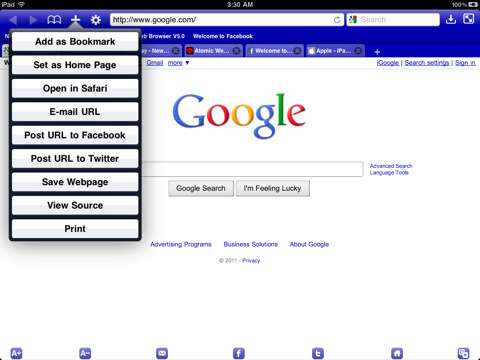
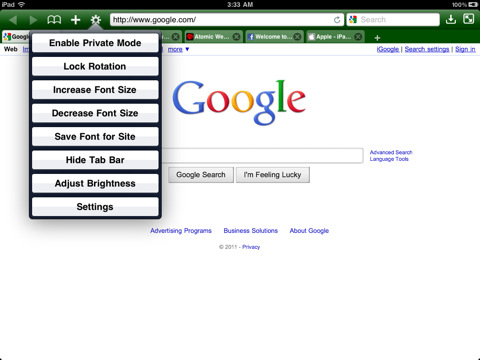
It used to be that Atomic and other mobile Safari alternatives were sought after for real tabbed browsing and the ability to switch User Agents and view mobile pages as if they were served on a full-sized computer. Those are minor features these days, and Atomic has become useful for so much more. Here are the highlights(go here for the full list):
Load tabs in background
True multitasking
Add JavaScript as bookmarks
Share links on Facebook and Twitter
Configurable swipe and tap gestures
Save pages for offline viewing
Download manager with Dropbox, iTunes and email support
Import/Export bookmarks
Jump to top/bottom of web pages
Change and lock font-size for specific sites
Full-screen browsing with configurable buttons
Launch homepage, last session, or last viewed
Bookmarklet that sends pages to Atomic Web Browser from Safari
There are a ton of other features as well, such as setting the colour of the browser, ad block, private mode, air print, web compression (for faster browsing), search engine plugins, on-page search, view page source code, and more.
There are a few other browsers that compare with Atomic, the closest in both price and features being Mercury Browser, which I have been using on my iPhone for the past while. Mercury Browser is almost identical in features and has a few interesting possibilities like a library of common bookmarklets that can be installed (which is a bit buggy), a bookmarks springboard, and speed-dial-like dashboard for your favourite sites.
Mercury Browser’s extra features are great, and combine well with an interesting and pretty interface to make for fantastic browser, but I find that Atomic is easier to navigate. The Atomic Web Browser’s look and feel is more minimalist and straightforward in its approach, and for me — and more importantly, my wife — that translates into a better overall experience. Both have free and very functional Lite versions, though, so you should give them a try to see what suits you better.
I just spent the last few days rearranging my house, moving my mother, and then rearranging and cleaning my house some more. Naturally, that got me thinking about robots.
As it turns out, there are no robots out there that can do all of those things for us yet (boooo!), but there have been some great strides in the general direction, as well as in artificial intelligence in general. Check out some of the videos that I found:
This video is in Japanese, but it is a nice showcase of Toshiba’s ApriPoco and Tokyo University’s robots. These are robots that can control your electronics with IR and voice commands, help you do the dishes, and help you get around. I’m not sure as to how capable these robots are of actually learning beyond what they are specifically programmed for, however. They could be more complicated software than actual AI — but they are still cool. And cute. It’s always good to be cute.
Domo
Domo is a robot out of MIT (Massachusetts Institute of Technology), created by Aaron Edsinger, and shows off some impressive voice recognition and visual tracking. It is only a torso, and is definitely a work in progress, but the most important thing about Domo is that it learns. Big, friendly eyes and sensors that respond to human touch aside, this robot can figure out the best place to grab something before it picks it up — which may sound easy, but is incredibly hard to program. And yes, it is named after the Styx song. Hit the link to enjoy that little piece of the 80’s for yourself.
STAIR, Cool Helicopter Tricks & the Future of Robotics
STAIR is short for STanford Artificial Intelligence Robot, created by roboticist Andrew Ng, who, after several years of trying to improve on robot AI through increasingly complex programming and mathematics, has now changed his angle to a more simplified approach. Apparently, the brain runs on a very simple learning program that neuroscience has proven to be the same for each of our senses. Ng and his team have put that concept to good use and have had some impressive results. STAIR is able to differentiate between different objects, find what it is looking for and pick it up, without a 3D model or any specific programming — all it needs is a little one on one instruction. Once it has been shown how, STAIR can figure out the rest on its own, even though every object is not exactly the same.
Before focusing on the machine learning aspects of STAIR, Ng’s robot was about 88% reliable in finding and picking up objects. Since the shift in thinking, however, accuracy has jumped up to 97% — which is pretty amazing! Ng and his team also used this technology on a small helicopter, making it autonomous. This helicopter was not only able fly itself, but, after observing a human doing the same, it taught itself how to do some crazy stunts as well, like flying upside down and other aerial acrobatics.
There is no YouTube video for STAIR, but you can find links to videos on this page. If you want to see the very cool helicopter, see the video below. The one following that is a presentation (about 16 minutes) by Andrew Ng talking about the future of robotics and showing how he came to the machine learning methodology he now uses, and why it works.
Aiko Android
Trung Le’s android Aiko has been both regaled and called a hoax. Many people thought, from the initial videos, that the robot, which looks very much like a pretty Japanese woman, was a trick of computer graphics. To dispel this, Trung Le — who made Aiko in his basement — brought his android to the Ontario Science centre, so people could talk to it, poke it, and see that Aiko can both interact with humans and, apparently, feel. It’s all very impressive and interesting, really, if a little creepy. At least I find it creepy. I like my humans-looking-things to be actually human, if at all possible. Also, I’m not entirely sure why a robot needs to simulate anger and tell people to stop touching its breasts, but there are all kinds of weirdoes out there, I suppose. Androids are people too, right? They have the right to not be pawed at and otherwise groped.
I’m saddened that there are no robots out there yet that can help me avoid three days of exhausting work — but things are looking promising for the future, no? If you have any links to other robot videos, or happen to know more about any of the above (including pointing out any possible errors or updates), please post in the comments!
I was up rather late last night, and I saw something on television that I had never seen before: a Google commercial. It was a little strange, really, with a theme that appeared to be all about a dad who is tracking the life of his daughter via various Google services with the intent to share them with her later. It was all very touching, but I couldn’t help feeling a little weird watching it. Since when does Google do commercials? Isn’t that Bing’s territory? Is the Microsoft marketing machine starting to get to the Mountainview folks?
Either way, the commercial did its job, because it got me to thinking: how many Google services do I actually use on a regular basis? Especially considering that I am still not convinced they aren’t the Devil.
Chrome & ChromeOS
I live in Google Chrome. Firefox (yes, even Firefox 4) is a resource hog, doesn’t have a built in web app creator, or any of the OS-like aspects of Chrome that parallel ChromeOS. I love the extensions, I love the new start page, and I love (and sometimes hate) the Chrome Web Store. I’ve noticed that all of the new features have slowed things down in Chrome a bit, especially on initial opening of the browser, but even with all of the extensions, apps, and tabs that I use regularly, Chrome still outperforms Firefox on my system. Internet Explorer 9 opens faster for me than both browsers — but I still can’t get into it. Microsoft’s browsers have annoyed me once too often as the years have gone by, I think.
ChromeOS — or Chromium OS, if you like — has been something I’ve played with off and on for over a year. I enjoy it. I like the whole “browser as your OS” concept. I don’t know if it will ever fully replace native apps for me, but my curiosity is definitely piqued. Web apps are fast approaching the power and flexibility of installed software, offline capabilities are getting better, and the integrations with cloud storage services like Dropbox are getting more and more intricate. The world is heading back toward the days of the mainframe and dumb terminal — except the mainframe is now worldwide (see: Skynet). ChromeOS is a very large step in that direction, and Google is all about it. Just think of all the ads they can serve and information they can collect if everyone does all of their computing in the cloud. Makes your eyes pop a little bit, doesn’t it?
Google Search, Maps, Images & Translate
Microsoft has done some compelling things with Bing, and their ads do raise awareness of the search engine and its other aspects like Maps, social and photo results, etc. Still, I tend to gravitate toward Google search when I am researching something. I’ve developed a high level of trust and loyalty to their search results and minimalist approach. I know there are weirdnesses and censored results for some topics, but Google search gets the job done for me, especially with the addition of Instant and Google-made Chrome extensions that allow me to block certain sites and jump directly to where my search phrase appears on the page.
Google Translate, especially when plugged directly into Google Chrome, is also incredibly useful, either as a way to translate a phrase to or from another language, or to translate entire web pages so that they can be read in your own. It’s never perfect, of course, but it’s good enough to get the job done and long ago replaced Babelfish for me despite the cool Hitchhiker’s Guide to the Galaxy reference.
Google’s social aspects of search are ok, but can be annoying as well. I’m not always that social, and don’t necessarily care what people in my network are searching for or whatever related value they give to my search. From a business perspective, where I have to consider search engine optimization and testing, these added layers can skew my research, as well, so I often need to log out of all of my Google services and social networks — or open up another browser — to make sure my search results are as vanilla as possible. I do like the real time results that pull up Twitter conversations, however.
I use Google Maps on my iPhone, my iPad, and on my computer, and I have Google Earth. I’ve never had much (regular) use for Google Earth, however. I also use Image Search regularly, as well, and I have enjoyed some of the recent interface updates that give it a slicker feel, but I really only use it because it is directly attached to the main search engine. Surprisingly, I have had very little use for Blog Search, overall.
Gmail
If I live in Chrome, then Gmail is my kitchen. This is where I do a large amount of my work and communications, and it is a large part of my current GTD task management system (in Producteev). I have several email accounts with different services, as well as domain-level accounts, and the recent upgrades to Hotmail and Yahoo Mail have brought about some very nice features, but Gmail is where it’s at for me. In fact, I use the One Inbox to Rule Them All method to bring all of my different accounts into my main Gmail account, and it works exceedingly well!
Gmail combines all of the power and flexibility I could want with an easy to use interface. It is the Mac of online email applications, especially when you add a theme, a few Labs features, tools like Rapportive (pulls in social data for people you are conversing with), and/or an extension or two to make it look a little less bare.
Google Calendar
I use Gcal regularly, in my task and project management. The lack of any Gcal integration with Evernote was once of the main reasons I started looking for alternatives for my own GTD setup in Evernote (you can always forward notes to Gmail from Evernote and use those to schedule calendar appointments, but I wanted something that integrated directly with Gcal, like Springpad or Producteev). I am not a Google Calendar power user by any means, but it gets the job done for me. I like its uncluttered interface, features, and Labs additions.
Google Reader & Google Buzz
I can’t stand to look at Google Reader. It’s ugly, its busy, and it stresses me out. However, I do use it as my main RSS feed collection and organization tool — but I do it through other apps like Feedly, Flipboard, and MobileRSS. If it wasn’t for those apps providing a look and feel that doesn’t make me want to hurl my computer or mobile device across the room, then I would never touch Google Reader.
You might be wondering why Google Buzz would be attached to the Google Reader section, especially considering that the average person has abandoned buzz to the crickets, but it has to be included because of its integration with Google Reader. Honestly, I don’t care about Buzz either, but every time I share something on Google Reader it gets shared on Buzz as well. That’s about the extent of my usage, and for some reason, people keep following me on Buzz as a result. Rather than deny those people whatever value they get from my stream (and deny myself whatever personal branding boosts I may get as a result), I leave my connection to Buzz open. Its kind of insidious the way it worms its way back into your online life…
Google Docs
I used to ignore Google Docs, but as my professional world as an online marketer and freelance writer moved more and more into the cloud for collaborations and easily sharing my work with clients, I moved more and more into Docs and the rest of Google’s online office suite. I’ve even adopted some of Josh’s ideas for using Docs as a Google Wave replacement. In fact, though I am one of those Microsoft Office power user types, I have moved away from Office almost entirely, only using it if I absolutely have to. There are some Office features you can’t get from Google Docs (or any other online office software), after all.
Google Alerts, Trends, Insights, Keyword Tools
I use both of these services to help inform me of interest levels in my own brands and the brands of my clients and their competitors. Alerts is useful for recent updates regarding what people are saying across the web on subjects of my choice. Trends, Insights, and Keyword Tools (for Adsense and Adwords) are fantastic ways to conduct keyword and phrase research for search engine optimization. The Wonder Wheel in Google search is another useful tool here.
Google Analytics & Webmaster Tools
I use Analytics and Webmaster Tools for my own sites and for all of my clients’ sites when I do SEO for them. Both tools are powerful, easy to use, and as free as air. I can’t imagine why people wouldn’t use them — barring the Devil theory and the potential privacy murkiness of Google, that is.
YouTube, Google Talk, Picasa
All three of these are fantastic tools that I should probably use more. YouTube is great for marketing, and is the platform of choice for video blogging (which I’ve been considering for some time now — I would love your thoughts on the subject). It is also arguably the second largest search engine on the web. I use it all the time as a viewer, and recommend it to clients as a marketing vehicle, but my own account is nearly empty, with only a video of my kid tap dancing like a maniac. It was too cute not to share!
I use Google Talk only periodically, due to my hatred of instant messaging as a whole. Instant messaging is a productivity killer. I much prefer the email/Facebook message/forum approach to conversation as it leaves me the choice of when to be involved, which makes for less distractions in my day. The recent call phones feature (currently free to the US and Canada) has made Gtalk a viable alternative to paying for Skype — but Skype is still better, overall, and has some nice features and add-ons that make it much easier to work with. If you are a Google Voice user, that’s another story — but Google Voice is still not perfect, and not fully available in Canada. *shakes fist*
Picasa is something I used, then abandoned, and have recently started using again only because I needed some additional free cloud storage for my photos, and it is extremely easy to get a lot of photos into the service all at once. I don’t know that I would ever use it for more than that, but it is definitely a powerful photo sharing service in its own right.
Google Goggles & Google Mobile
I also use the Google Mobile App for my iPhone and iPad, and the integrated Google Goggles has proven to be very handy while on the go. I can search for things using my camera, and can even cheat on Sudoku. It doesn’t get much better than that!
I do find the mobile app lacking, though. I like the voice search, but the fact that the other services in the app are really nothing more than links – and they require me to log in again in the browser – makes it less useful than it ought to be. Android users have a bit of a leg up here, as most of their Google apps and services have pretty deep integration into the OS.
Google Profile
I don’t really use my Google Profile for anything other than personal branding. Profiles give a snapshot of you, and are searchable, especially on Google, so it only makes sense to have one. You get one by default if you use Buzz, as well. I don’t think it would hurt me in any way to not have one, but when you are pushing yourself as a brand to get new clients, a job, or even readers on your blog, it makes sense to have one.
Abandoned Google Services
I’ve abandoned several Google services over the years, and a few of them have abandoned me (like Google Wave *shakes fist*). The ones that stand out to me, though, are as follows:
Google Wave (damnit!)
Orkut (Does anyone use this? Has anyone used this?)
Google Video (see: YouTube — Google Video was rendered relatively pointless)
Sidewiki (a nice idea, but sloppy, and web annotation services have a hard time in general)
Google Latitude (occasionally useful, but nobody needs to know where I am all the time)
Google Buzz (mostly)
Google Toolbar (resource hog with privacy issues)
Google Desktop (resource hog with privacy issues)
Google Tasks (just too ugly for me to find it useful)
Here’s That Commercial
You’ve been great! Thanks for reading along – this ended up being a mini-novel instead of the short post I was planning on. As a reward for your awesomeness, I now present you with TheGoogle Commercial In Question. Enjoy!
All said and done, I use way more Google services than I’ve stopped using, and will likely continue to, despite privacy concerns and fears of Google taking over the world. I barely even touched on Android and the way it integrates with Google’s best tools (and its rapidly growing user base). I’m an iOS user, but have hacked Android and Android facsimiles into more than one phone for testing, and those integrations certainly don’t hurt Google. Fancy new commercials aren’t going to hurt them, either. I admit it: I want a Chromebook. I don’t know how useful they will be in the long or short term, but they are pretty sweet, says my techie bone. The price isn’t terrible, either (about $400 on average).
How about you? What Google services do you use or plan to use? What ones have you abandoned? Are there any you simply don’t trust? Let’s chat about it in the comments!
For some of our posts, we do like Lifehacker and other sites, finding articles about tech that interests us and then creating a summary post that links to the original article — replete with our own opinions, of course. :) One of my favourite sites is Web.AppStorm.net, which is part of the Envato network, and a great resource for web app reviews and articles. For this particular Web AppStorm-related summary post, I’m going to talk about Extragram, a fantastic web app interface for social photo-sharing service Instagram.
So why did I bother with that odd intro? Well, this time around, I have the pleasure of linking to none other than… well… me! My first article went live on Web AppStorm on Monday, and I didn’t want you guys to miss out. Read on for a summary of the sweetness that is Extragram!
If you’ve had the chance to use Instagram at all, you will have noticed that it is more than just another photo-app that has a few fancy filters. It not only makes your pictures look cool, it also has its own very Twitter-like social network. You can follow users’ photo-streams, they can follow yours, there’s commenting, conversation, @mentions, the whole deal. You can even share your photos on the big social networks and microblog sites. What you can’t do with Instagram is view or interact with your social account — or even your own photos — outside of your mobile device. That changed rather quickly once Instagram released its API in February.
Since then, there have been several web apps that have popped up with the sole purpose of creating a comparable, or even better user experience on a screen that doesn’t fit into the palm of your hand. Some other notables are Gramfeed, Instgre.at, and Webstagram, but for a slick and fully-featured user experience, the web app you want is Extragram.
Extragram stands out from the other web apps by doing two things: getting out of its own way, and adding extra features that compliment the Instagram experience.
Here are the highlights:
Content-focused, consistent user experience
Easy commenting and photo liking
Navigation with mouse or keyboard
Grid and Filmstrip views
Map View to discover great photos and users near to you or anywhere in the world
Tag-based and “what’s hot” discovery
Sharing your own photos on Twitter, Facebook, Flickr, and Tumblr
Allowing other users to share your photos (opt-in, configurable)
The keyboard navigation is a nice touch, and works reasonably well — though it could be a bit tighter, overall. Other than that, Extragram is a great all ’round experience and the perfect compliment to Instagram. I highly recommend giving it a shot.
I’ll be writing for Web AppStorm fairly regularly over the next while, and am considering doing more summary posts here on 40Tech to make sure the readers here don’t miss out on the cool web apps I’ll be talking about. Before I commit to that, though, I would love some opinions from you about it. Let me know in the comments or send me a message via my contact form, Twitter, LinkedIn, or my personal site.
Forget the internet. Forget a fancy new smartphone or crazy new tablet. I want a rocket. You read me right. A rocket. Apparently civilian spaceflight is all the rage these days and I want in!
The latest development in firing regular folks into space happened Friday afternoon at about 3PM Danish time, as the non-profit, OPEN SOURCE group, Copenhagen Suborbitals launched a rocket into space. There was nobody in it — this time — but there could have been, and they are now one giant leap closer to that day.
The launch wasn’t all roses. They had some engine problems in the beginning, and some parachute problems at the end — overall, though, it was a huge success. Read on for a few images and a video of the launch.
Launch Video
The video drags a bit, as most of the conversation is in what I presume to be Danish, and you lose visual on the rocket early on. I have to say though, when that thing accelerates to supersonic — it’s pretty frickin’ cool!
All said and done, it’s not as fancy as the Virgin feathering-spaceship, but the fact that Copenhagen Suborbitals did all this on what was comparatively a shoestring budget hints at good things in the near future.









How Many Google Services Do You Use? Which Ones Have You Abandoned?
I was up rather late last night, and I saw something on television that I had never seen before: a Google commercial. It was a little strange, really, with a theme that appeared to be all about a dad who is tracking the life of his daughter via various Google services with the intent to share them with her later. It was all very touching, but I couldn’t help feeling a little weird watching it. Since when does Google do commercials? Isn’t that Bing’s territory? Is the Microsoft marketing machine starting to get to the Mountainview folks?
Either way, the commercial did its job, because it got me to thinking: how many Google services do I actually use on a regular basis? Especially considering that I am still not convinced they aren’t the Devil.
Chrome & ChromeOS
I live in Google Chrome. Firefox (yes, even Firefox 4) is a resource hog, doesn’t have a built in web app creator, or any of the OS-like aspects of Chrome that parallel ChromeOS. I love the extensions, I love the new start page, and I love (and sometimes hate) the Chrome Web Store. I’ve noticed that all of the new features have slowed things down in Chrome a bit, especially on initial opening of the browser, but even with all of the extensions, apps, and tabs that I use regularly, Chrome still outperforms Firefox on my system. Internet Explorer 9 opens faster for me than both browsers — but I still can’t get into it. Microsoft’s browsers have annoyed me once too often as the years have gone by, I think.
ChromeOS — or Chromium OS, if you like — has been something I’ve played with off and on for over a year. I enjoy it. I like the whole “browser as your OS” concept. I don’t know if it will ever fully replace native apps for me, but my curiosity is definitely piqued. Web apps are fast approaching the power and flexibility of installed software, offline capabilities are getting better, and the integrations with cloud storage services like Dropbox are getting more and more intricate. The world is heading back toward the days of the mainframe and dumb terminal — except the mainframe is now worldwide (see: Skynet). ChromeOS is a very large step in that direction, and Google is all about it. Just think of all the ads they can serve and information they can collect if everyone does all of their computing in the cloud. Makes your eyes pop a little bit, doesn’t it?
Google Search, Maps, Images & Translate
Microsoft has done some compelling things with Bing, and their ads do raise awareness of the search engine and its other aspects like Maps, social and photo results, etc. Still, I tend to gravitate toward Google search when I am researching something. I’ve developed a high level of trust and loyalty to their search results and minimalist approach. I know there are weirdnesses and censored results for some topics, but Google search gets the job done for me, especially with the addition of Instant and Google-made Chrome extensions that allow me to block certain sites and jump directly to where my search phrase appears on the page.
Google Translate, especially when plugged directly into Google Chrome, is also incredibly useful, either as a way to translate a phrase to or from another language, or to translate entire web pages so that they can be read in your own. It’s never perfect, of course, but it’s good enough to get the job done and long ago replaced Babelfish for me despite the cool Hitchhiker’s Guide to the Galaxy reference.
Google’s social aspects of search are ok, but can be annoying as well. I’m not always that social, and don’t necessarily care what people in my network are searching for or whatever related value they give to my search. From a business perspective, where I have to consider search engine optimization and testing, these added layers can skew my research, as well, so I often need to log out of all of my Google services and social networks — or open up another browser — to make sure my search results are as vanilla as possible. I do like the real time results that pull up Twitter conversations, however.
I use Google Maps on my iPhone, my iPad, and on my computer, and I have Google Earth. I’ve never had much (regular) use for Google Earth, however. I also use Image Search regularly, as well, and I have enjoyed some of the recent interface updates that give it a slicker feel, but I really only use it because it is directly attached to the main search engine. Surprisingly, I have had very little use for Blog Search, overall.
Gmail
If I live in Chrome, then Gmail is my kitchen. This is where I do a large amount of my work and communications, and it is a large part of my current GTD task management system (in Producteev). I have several email accounts with different services, as well as domain-level accounts, and the recent upgrades to Hotmail and Yahoo Mail have brought about some very nice features, but Gmail is where it’s at for me. In fact, I use the One Inbox to Rule Them All method to bring all of my different accounts into my main Gmail account, and it works exceedingly well!
Gmail combines all of the power and flexibility I could want with an easy to use interface. It is the Mac of online email applications, especially when you add a theme, a few Labs features, tools like Rapportive (pulls in social data for people you are conversing with), and/or an extension or two to make it look a little less bare.
Google Calendar
I use Gcal regularly, in my task and project management. The lack of any Gcal integration with Evernote was once of the main reasons I started looking for alternatives for my own GTD setup in Evernote (you can always forward notes to Gmail from Evernote and use those to schedule calendar appointments, but I wanted something that integrated directly with Gcal, like Springpad or Producteev). I am not a Google Calendar power user by any means, but it gets the job done for me. I like its uncluttered interface, features, and Labs additions.
Google Reader & Google Buzz
I can’t stand to look at Google Reader. It’s ugly, its busy, and it stresses me out. However, I do use it as my main RSS feed collection and organization tool — but I do it through other apps like Feedly, Flipboard, and MobileRSS. If it wasn’t for those apps providing a look and feel that doesn’t make me want to hurl my computer or mobile device across the room, then I would never touch Google Reader.
You might be wondering why Google Buzz would be attached to the Google Reader section, especially considering that the average person has abandoned buzz to the crickets, but it has to be included because of its integration with Google Reader. Honestly, I don’t care about Buzz either, but every time I share something on Google Reader it gets shared on Buzz as well. That’s about the extent of my usage, and for some reason, people keep following me on Buzz as a result. Rather than deny those people whatever value they get from my stream (and deny myself whatever personal branding boosts I may get as a result), I leave my connection to Buzz open. Its kind of insidious the way it worms its way back into your online life…
Google Docs
I used to ignore Google Docs, but as my professional world as an online marketer and freelance writer moved more and more into the cloud for collaborations and easily sharing my work with clients, I moved more and more into Docs and the rest of Google’s online office suite. I’ve even adopted some of Josh’s ideas for using Docs as a Google Wave replacement. In fact, though I am one of those Microsoft Office power user types, I have moved away from Office almost entirely, only using it if I absolutely have to. There are some Office features you can’t get from Google Docs (or any other online office software), after all.
Google Alerts, Trends, Insights, Keyword Tools
I use both of these services to help inform me of interest levels in my own brands and the brands of my clients and their competitors. Alerts is useful for recent updates regarding what people are saying across the web on subjects of my choice. Trends, Insights, and Keyword Tools (for Adsense and Adwords) are fantastic ways to conduct keyword and phrase research for search engine optimization. The Wonder Wheel in Google search is another useful tool here.
Google Analytics & Webmaster Tools
I use Analytics and Webmaster Tools for my own sites and for all of my clients’ sites when I do SEO for them. Both tools are powerful, easy to use, and as free as air. I can’t imagine why people wouldn’t use them — barring the Devil theory and the potential privacy murkiness of Google, that is.
YouTube, Google Talk, Picasa
All three of these are fantastic tools that I should probably use more. YouTube is great for marketing, and is the platform of choice for video blogging (which I’ve been considering for some time now — I would love your thoughts on the subject). It is also arguably the second largest search engine on the web. I use it all the time as a viewer, and recommend it to clients as a marketing vehicle, but my own account is nearly empty, with only a video of my kid tap dancing like a maniac. It was too cute not to share!
I use Google Talk only periodically, due to my hatred of instant messaging as a whole. Instant messaging is a productivity killer. I much prefer the email/Facebook message/forum approach to conversation as it leaves me the choice of when to be involved, which makes for less distractions in my day. The recent call phones feature (currently free to the US and Canada) has made Gtalk a viable alternative to paying for Skype — but Skype is still better, overall, and has some nice features and add-ons that make it much easier to work with. If you are a Google Voice user, that’s another story — but Google Voice is still not perfect, and not fully available in Canada. *shakes fist*
Picasa is something I used, then abandoned, and have recently started using again only because I needed some additional free cloud storage for my photos, and it is extremely easy to get a lot of photos into the service all at once. I don’t know that I would ever use it for more than that, but it is definitely a powerful photo sharing service in its own right.
Google Goggles & Google Mobile
I also use the Google Mobile App for my iPhone and iPad, and the integrated Google Goggles has proven to be very handy while on the go. I can search for things using my camera, and can even cheat on Sudoku. It doesn’t get much better than that!
I do find the mobile app lacking, though. I like the voice search, but the fact that the other services in the app are really nothing more than links – and they require me to log in again in the browser – makes it less useful than it ought to be. Android users have a bit of a leg up here, as most of their Google apps and services have pretty deep integration into the OS.
Google Profile
I don’t really use my Google Profile for anything other than personal branding. Profiles give a snapshot of you, and are searchable, especially on Google, so it only makes sense to have one. You get one by default if you use Buzz, as well. I don’t think it would hurt me in any way to not have one, but when you are pushing yourself as a brand to get new clients, a job, or even readers on your blog, it makes sense to have one.
Abandoned Google Services
I’ve abandoned several Google services over the years, and a few of them have abandoned me (like Google Wave *shakes fist*). The ones that stand out to me, though, are as follows:
Here’s That Commercial
You’ve been great! Thanks for reading along – this ended up being a mini-novel instead of the short post I was planning on. As a reward for your awesomeness, I now present you with The Google Commercial In Question. Enjoy!
All said and done, I use way more Google services than I’ve stopped using, and will likely continue to, despite privacy concerns and fears of Google taking over the world. I barely even touched on Android and the way it integrates with Google’s best tools (and its rapidly growing user base). I’m an iOS user, but have hacked Android and Android facsimiles into more than one phone for testing, and those integrations certainly don’t hurt Google. Fancy new commercials aren’t going to hurt them, either. I admit it: I want a Chromebook. I don’t know how useful they will be in the long or short term, but they are pretty sweet, says my techie bone. The price isn’t terrible, either (about $400 on average).
How about you? What Google services do you use or plan to use? What ones have you abandoned? Are there any you simply don’t trust? Let’s chat about it in the comments!