Menu Close

Author: Bobby Travis (page 16 of 51)

Bobby isn't 40-something, but is a strong supporter of the Grown-up Geek kind. He's a loving husband and father first, but is also a freelance writer, productivity nut, operatically trained singer, and (not-so) closet geek.

Check out his random thoughts, wackiness, and Instagram pics on Tumblr, Twitter, or Google+-- or just head over to bobby-travis.com.

App of the Week: Noteshelf Handwriting App for iPad

App of the Week: Noteshelf Handwriting App for iPad | 40Tech

When I got my iPad back in December, I mostly used it as a means to surf the web, watch Netflix, read, and play the occasional game. Oh, I blogged on it a bit, too, and I figured it would be great for taking notes and the like, but I quickly found that extended typing on the glass surface led to aching fingertips. Besides, when trying to work things out and get creative, there is something very powerful about the old fashioned pen and paper approach. Determined to see if I could get the same power out of my iPad, I started researching handwriting apps.

After going through several, I was largely disappointed by what was out there — until I discovered Noteshelf.

Now, to be fair, I originally went with Penultimate, which has an excellent natural feel when you write — and gets extra awesome points for it’s freeness. However, I still felt like I was missing something. So, when my friend and colleague Daniel Gold recommended Noteshelf to me, I grudgingly gave it a shot, despite it’s $4.99 price tag. I’m cheap when it comes to app purchases, but I figured I could hold him responsible if it sucked.

It didn’t.

In fact, it rocked so much that I use it all the time, even though my handwriting is absolutely atrocious. Noteshelf has all of the features I could want or need:

  • Excellent natural feel when writing
  • Different pen sizes and colours
  • Wrist protection that works
  • Zoom writing
  • Just as functional in landscape mode as portrait mode
  • Unlimited undo and redo (until you leave the page, anyway)
  • Notebook templates for writing, drawing, task and day planning, meeting notes, shopping lists, journal writing, graphing, and music
  • A bookshelf view to easily organize notebooks
  • Dynamic line-sizing for easy and clean jumps to the next line on a page
  • Photo embedding and annotation
  • Backup and restore functionality

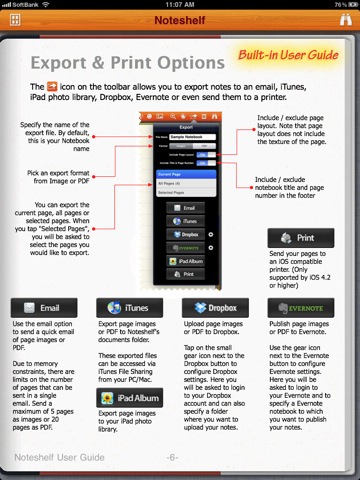
The kicker, though, is Noteshelf’s sharing capabilities. You can print and export notes as .jpegs and .pdfs, configuring by page or as an entire notebook — by email, iTunes, your iPad photo album, and (Yay!!) Dropbox and Evernote! That’s all kinds of awesome, right there! Nothing quite like being able to quickly scrawl down several pages worth of ideas, and then send them to your out-of-brain-brain for easy searching with Evernote’s OCR. Even writing as bad as mine gets picked up. Mostly…
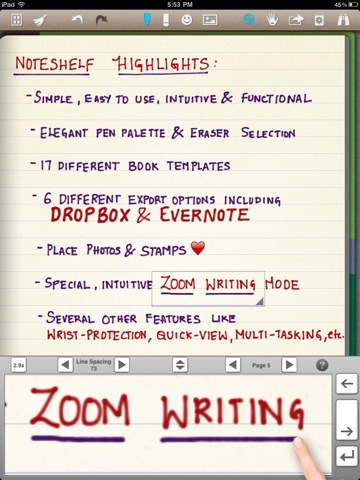
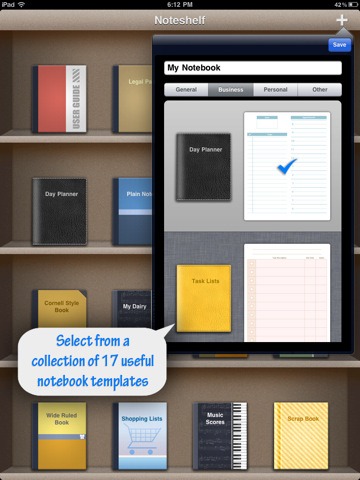
Noteshelf Natural Handwriting App for iPadNoteshelf Notebook Templates Noteshelf Export to Dropbox, Evernote

I can’t say enough that’s good about Noteshelf. If you have an iPad, and have a want or need to use it as a notebook that will get you on the path to being well and truly paperless, you need to go and get it. Right now.

What’s your favourite handwriting app for tablets?


The Top Five Web Apps I Use the Most — What Are Yours?

The Top Five Web Apps I Use the Most -- What Are Yours? | 40Tech

The more I work on the computer, the more I realize that Google is probably right about the Cloud being our future. In fact, other than Photoshop and friends, the occasional game, and the desktop version of Evernote, I pretty much live in Web App Land. Outside of the obvious like Facebook, Twitter (plus related apps), and Gmail, there are approximately 30 web apps that I use or visit on a semi-regular basis — and that’s not including the Chrome extensions that are direct links to yet other web apps.

Here are the five that I use the most:


Producteev, Springpad, and Evernote

Okay, so I’m actually cheating a little bit and making my first web app a combination of three. If you’ve read 40Tech before, and especially if you’ve read me, you already know that these three apps are a huge part of my personal productivity system. I had to include them in my list, but I didn’t want them to take up more than half of it! Besides, all three are practically indispensable to me: Evernote for writing and quick ideas, Springpad for bookmarking and research, and Producteev for GTD task management and overall organization. I could do (and have done) all of those things with each one of those apps, but decided to play to their strengths and combine them for the best results.

Feedly

This is another app I’ve covered before. Feedly is probably the best RSS/Google Reader client that I have ever used. The visual presentation of all of my feeds in a magazine format that learns what I like is utterly fantastic. I love it!

Netflix

I don’t get a lot of time to watch TV or movies, but when I do sneak some in, I usually wind up on Netflix. The streaming movie and TV show catalogue is not nearly as well-stocked up here in Canada, but there is still a lot of great content, especially for $8/month.

Mint

Since Mint.com merged with Intuit and finally started offering its finance management awesome in Canada, it has lived in my browser. There’s still a lot of work I need to do with it to get the most out of the array of tools and resources it offers, but Mint is definitely a web app that is here to stay for me.

Dropbox

Dropbox is my main cloud storage service. I also use SugarSync, Box.net, iDrive Backup, MiMedia, and a few others, but Dropbox is the most developed — or at least the most supported by other services. I use it to backup files, to get them on to my iPhone and iPad easily, and to share files with friends, family, and business colleagues. That’s hard to beat.


There are, as I mentioned, a multitude of other apps that I use, and there are even a few that are threatening the hold of some of my current list. I’ll be reviewing those few soon, so stay tuned!

Now it’s your turn: what are your top five web apps?


Find Updates, Files, Connections Quickly: Search Your Personal Cloud with Greplin

Greplin: Find Updates, Files, Connections Quickly: Search Your Personal Cloud | 40Tech

With all of the information, files and, well… stuff we have stored online, it can be a bit complicated to sift through it all when you need to go back and find something. Greplin makes that sort of search a whole lot easier. It indexes several of your online accounts, not the least of which are Facebook, Dropbox, and Gmail, and works like your own personal Google.

Greplin Using the Twitter Search Filter | 40Tech

Greplin has been around since the latter part of 2010, and entered public beta in February of this year. Since then, they have been adding more and more services, and have even developed a Chrome extension that plugs them right into your Gmail — for a search experience that is arguably better than Google’s built in functionality.

Greplin is free to use for the most part, indexing up to 10GB worth of data from services like Twitter, Gmail, and other personal Google services like Gcal, Docs and Contacts, as well as Facebook, LinkedIn, and Dropbox. If you want to index accounts like Evernote, Google Apps, and business-related services like Basecamp and Salesforce, however, you will need a premium subscription — which is only $4.99 per month ($49.99/year). There are also a few services that are unlockable via recommendations to friends, such as Tumblr, Google Reader, and Del.icio.us.

Greplin Indexes, Searches Gmail, Facebook, Twitter, Dropbox, and More | 40Tech

If you have a need to search through your online files and life in general, it doesn’t get better than Greplin. The interface is fantastic, the instant search feature saves time, and it actually performs better and faster than Google even in the search giant’s own services. The Chrome extension is a nice touch, as well, as it also plugs into the Omnibar, allowing you to search your data by simply typing the letter g, followed by a space and your search term.

Check it out here.

Want to help me unlock the unlockables? Get Greplin via this link.

What do you think of Greplin?


Timer Tab Turns Your Browser Into a Simple and Beautiful Timer, Alarm Clock, and Stopwatch

Timer Tab Turns Your Browser Into a Simple and Beautiful Timer, Alarm Clock, and Stopwatch | 40Tech

Chrome’s Web Store houses all manner of apps — but they don’t have to be complex to be effective. Timer Tab is really nothing more than a simple countdown timer, alarm, and stopwatch built into a web page (accessible in any browser, including mobile Safari) — but the integration it enjoys with Google Chrome makes it incredibly useful. Time is a commodity that we’re all a little short on, and Timer Tab helps you manage it simply and easily.

The interface of Timer Tab is a minimalist’s dream. It’s uncluttered, functional, and oddly pretty as it basks in its own emptiness. The functionality speaks for itself: enter a time to count down, or an alarm time, and press the start button. The stopwatch doesn’t require any entry at all, just a press of the button, followed by a click on the pause/resume button as needed. Even the options are simple — there are only three, and you get to them by rolling the mouse over the the “more” link on the bottom of the page.

Timer Browser StopwatchTimer Tab Browser Alarm Clock

Timer Tab’s Chrome integrations allow for two important functions: desktop notifications and the flashing of the mini-version of the time that hangs out in the title area of the browser tab. This is a fantastic way to make sure your attention is brought to the alarm you set, and is especially helpful if you are trying to keep track of how much time you spend doing something on your computer, or to remind yourself to take a break. Notifications can be enabled or disabled with a single click in the options area, and if you want to, you can add a link to an image or a YouTube video as your alarm.

Theoretically, you should be able to add a YouTube video at a particular time index by adding something like &t=2m18s to the end of the link. Unfortunately, I haven’t been able to get that to work properly. If you have better luck, let me know!

Timer Tab is a simple, effective, and completely free/good looking way to keep track of time sensitivities when you are in the browser or just on the computer — which is often for so many of us these days. I recommend using it with any browser, but install it in Chrome to get the most out of it.

Timer Tab was created by Romuald Brillout, who also made Time Tab (a minimalist clock and calendar app), dooity.com (a light and simple list manager), and inboxn.com (a light hub for social communications).

What do you think of Timer Tab?


Father’s Day Tech-and-Stuff: Gimme!

Father’s Day Tech-and-Stuff: Gimme! | 40Tech

Ladies and gentlemen, it is upon us once again! You know what I mean… that one day a year when those of us who are fathers are shown the respect we so richly deserve — and are showered with gifts and free dinners. Well, gifts, anyway.

Sure, the gifts are often things like ties and aftershave and the like, but at 40Tech, we believe in the power of dreams! We believe that if we can imagine it – and most especially: if we can geek on it – that it just might become a reality some day. That may be nothing more than pie in the sky, and possibly even farcical – but we care not! This is a tech-blog dammit! And for our Father’s Day we demand (see: dream about/hope for) TECH!!!

So what really cool gadget do you hope you get this Father’s Day? Not a daddy? *eyes you* Well then tell us what cool little tech thingy you’re getting for your dad, instead!

Here’s my list:


The Millennium Falcon

Yeah, yeah, I know that it’s not real – but a guy can dream, right? In the meantime, I’ll take the toys. I miss the full-sized Falcon I had back in the day – and not just for the crazy amount it’s worth these days…

Millennium Falcon | HasbroMillennium Falcon Toy | Hasbro


Battalion 101 X8100-U3 Gaming Laptop

This little (OK, so not so little) beauty will play most any game you can think of, and will do it in style.

imageimage


A Real Life Transformer

I don’t know what’s really going on here, but I want one. It doesn’t really transform into anything, that I can tell – but it sings! It’s a crooner, in fact. And… I want one!!


Let’s be clear: I don’t actually expect to get any of these things. Nor do I expect to get the more accessible iPad2 or anything other than a nice hug and possibly a home made card from my cute little girl – and I will love and cherish those much simpler things until the end of days and beyond.

But a guy can dream, dammit!


Your turn!