Menu Close

Author: Evan Kline (page 131 of 164)

Hello, I'm Evan. I write about tech from my perspective – that of the average tech geek, sometimes with my lawyer glasses on. You can also find me on Twitter and at my real-life job as a lawyer.    MORE ABOUT ME.

Are the Days of Remote Access Software Numbered?

cloud killing remote access software

Are we approaching the day where remote access software will be meeting its grim reaper – the cloud?  A few months ago, we compared LogMeIn and Teamviewer, two popular choices for accessing your PC when away from home or the office.  How often do you need to access your PC remotely, though?  Futurelawyer discussed this recently, pointing out that we now live in a cloud-based world, where we let third parties manage our data.

That got me to thinking about my usage of remote access software.  While I’ve never been a heavy user, there once was a time where I would connect to my home PC about once a week, often to retrieve a file.  Aside from playing with different remote access options, though, I can’t remember the last time I connected remotely.  Thanks to my comprehensive backup solution, my documents get synced to Google Docs, and my files are backed up online to Carbonite.  I can always reach them.  Both my work and personal email are accessible via web apps.

Some people worry about the security and reliability of their information in the cloud.  We’ve previously addressed these concerns as well.  The bottom line – if you use a service that makes sure that you have local copies, your information will always be available to you.  And, no offense, but if you’re not dedicated to keeping your system secure, your data is more secure in the hands of many online services than it is on your PC.

How has your usage of remote access tools changed over time?

Will Cloud Computing Make Remote Access Software Obsolete? [Futurelawyer]


A Search Engine For Finding Similar Sites

similar site search

If you wish that there were an easy way to find sites that you like, then SimilarSiteSearch might just be what you’re looking for.  SimilarSiteSearch allows you to input the URL of a site, and then view a list of sites similar to that site.  Think of it as AlternativeTo, but for web sites.

You won’t get results right away for every site you enter.  For lesser known sites, SimilarSiteSearch will queue the query, perform its magic, and then add the site to its database.  If you return a few minutes later, you should then be able to run the search again and see the results.

When reviewing search results, you can give a site a thumbs up or thumbs down to indicate whether it is in fact similar to the site that you input.  Future searches for that site will then take the rating into account.

similar site search results

After getting results, you can fine tune your search by specifying tags that you want the search to include or omit.  You can also rate sites, and see a list of similar sites recommended by other users.

For another search engine that does much the same thing, also check out SimilarSites.  Do you know of any others?

SimilarSiteSearch [via MakeUseOf]


Use Your Email to Set Reminders

followupthen1

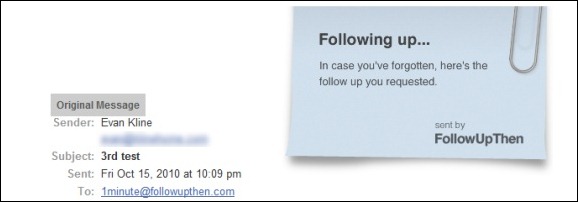
If you want to set a reminder for yourself, you could do it the hard way by manually adding a reminder to your calendar.  You could also do it the easy way, by using FollowUpThen.  FollowUpThen is a service that allows you to schedule follow-up reminders by simply adding a special email address to the TO:,CC:, or BCC: line of an email message.  This makes it particularly handy as a tool for getting reminders to follow-up with your email recipient, but it also can be used to set normal reminders.

The best way to illustrate how to use FollowUpThen is with an example.  If I email a question to Bobby, and I want to receive a reminder in one day to follow-up with him, I would send an email to Bobby’s address, and add 1day@followupthen to the TO:, CC:, or BCC: line.  In one day, I would then receive a reminder, consisting of my original message along with a “following up . . .” note.  Bobby would also get that reminder, if I used the CC: option when sending the message.

The timing of the reminder can be set with several options.  You can set the reminder by time elapsed (1minute, 3hours, 2days, etc., all followed by @followupthen.com) and day of the week (tuesday@followupthen.com).  You can also set reminders using some natural language words (tomorrow@followupthen.com, nextmonth@followupthen.com, etc.), and by using specific dates or times (mar30@followupthen.com, 9amTomorrow@followupthen.com).  You can even set up recurring reminders, such as everyweds@followupthen.com.  To see a list of all of your reminders, along with links to cancel reminders, send an email to pending@followupthen.com.

For messages sent to followupthen.com using a CC:, both you and the recipient will receive a reminder if your reciepient has not responded by the scheduled time.  In order for the reminder to be canceled, your recipient must use “reply to all” so that the reply is also sent to FollowUpThen.  If you send your email using BCC:, then only you will receive a followup, regardless of any reply by your recipient.  If you just use the “TO:” field, then you will get a reminder after the time interval that you specify.

A service like FollowUpThen does raise some privacy issues, as a third party is receiving your email message.  FollowUpThen claims that it doesn’t share your information with third parties, and that it automatically deletes your email contents, and your recipient’s address, once the follow-up has been sent

For a service that is similar to FollowUpThen, check out FollowUp.cc.  FollowUp.cc has additional features, like a web interface with a calendar, and a clickable link in your reminder email to postpone a reminder.

FollowUpThen [via Cybernetnews]


Are You Reading E-Books Yet? You Will Be.

ebooks full

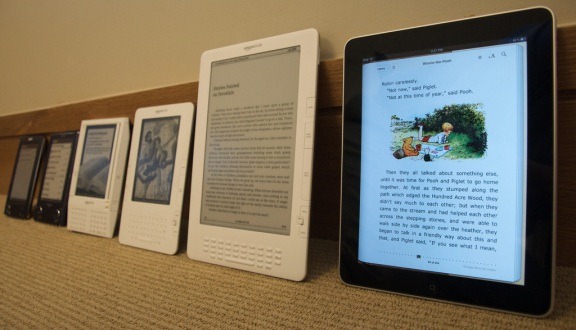
The Association of American Publishers has released some startling statistics, showing the hockey stick growth of e-book sales.  E-book sales for the period of January through August 2010 totaled $263 million, compared with $89.8 million for the same period last year.  That’s an increase of 193%.  By comparison, total book sales (presumably print and electronic) tracked by the AAP were up 3.4 percent from the prior year.  E-books now comprise 9.03% of total book sales, compared with 3.31% last year.

It’s pretty easy to speculate as to two of the reasons for this dramatic growth of electronic book sales: the success of the iPad, and the maturation and low price of the Kindle.  It isn’t too difficult to imagine a world in which e-books eventually eclipse their dead tree brethren.

Many people still prefer holding a physical book in their hands, however, and some people like to collect books.  Could you see yourself making the switch to e-books?  Or are you already there?

AAP Reports Publisher Book Sales for August [via ReadWroteWeb]

Photo by John Blyberg


Log In to Windows – With Your Face

log in to Windows with your face

If you have a webcam, you can make logging in to your Windows PC super easy.  Blink! lets you log into your account by simply looking into your webcam.  You have to install Blink! on your system, and then it will load with Windows at startup.  From there, it requires no action on your part.  Sit in front of your computer, and Blink! uses facial recognition to verify your identity, and log you in.

Photo by Justin Moore.

While we had no way to test their claims, the developers of Blink! say that the app has no false positives.  Still, if you place a premium on security, you may want to think twice before using it.

Blink does save your login history, so you can see a snapshot of everyone who successfully logs in to your PC.  That alone makes it pretty handy.

blink login full

Blink! is a free program that works on Windows 7 and Windows Vista.  If you have a 64 bit system, make sure you follow the link on the Blink! site to the 64 bit version.

Would you trust a program like this?

Blink! [Luxand]