Menu Close

Author: Evan Kline (page 130 of 164)

Hello, I'm Evan. I write about tech from my perspective – that of the average tech geek, sometimes with my lawyer glasses on. You can also find me on Twitter and at my real-life job as a lawyer.    MORE ABOUT ME.

Cook Up a Killer Domain Name with Bust A Name

bustaname domain name generator

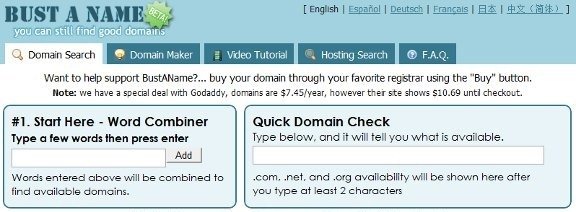
Finding the perfect domain name for your site can be challenge.  With a gazillion sites out there, the obvious choices are all taken.  Bust a Name can help you come up with something clever, when your brain fails you.

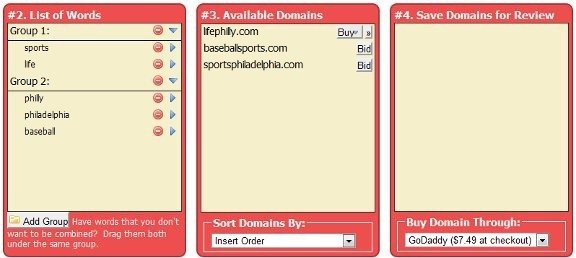
To use Bust A Name, you input words into what Bust A Name calls a “word combiner.”  You will then be presented with a list of available domains made up of combinations of the words that you input.  You also can organize your words into groups, so that only certain words are combined.  For example, when I started 40Tech back in 2009, I put “40” and “forty” in one group, and several geek-related words (tech, geek, etc.) in another group.  That ensured that I wouldn’t get results like 40forty.com.

bustaname domain name creator

Bust A Name also allows you to save the domains that you like for review, and to save your session to return to it later.  If you want to buy a domain, you can select the registrar from a dropdown list, and go right to the registrar’s site.

What tools do you use when you need to cook up a domain name?

Bust A Name


4 Ways to Backup Your WordPress Blog and Avoid Catastrophe


sinking ship

If you have a website or blog, you probably have the same worry that most blog owners share – what would happen if the unthinkable would happen, and all your data would be lost?  Would that be the end of your blog?  You can reduce the risk of disaster if you have a backup plan in place.  Here are a few methods for backing up your site, along with a few pointers as well.

Photo from Ibrahim Iujaz


What Are You Backing Up?

The first decision that you need to make involves figuring out exactly what you need to back up.  Your backup typically should involve two types of data: your site files, and your site database.

When I back up 40Tech’s site files, using the methods discussed below, I don’t take any chances.  I back up ALL site files.  Some files on the server, such as cache files, probably aren’t needed, but I’d rather be safe than sorry.

Your database typically will be backed up into one file, so there’s not much to think about there.  Again, I backup the entire database, and don’t omit any tables.  The only complicating factor is if you’re using a plugin or an outside service that creates its own database.  I don’t know of any WordPress examples, but in Drupal, the CiviCRM plugin requires its own database.  If you’re using something similar, make sure that you back up that database as well.


Redundancy, Redundancy, Redundancy

We’ll cover a few different methods below, but don’t rely upon just one backup method.  You don’t want to find yourself in the situation of needing your backup, and finding that your sole backup method wasn’t working as well as you thought.  Always have more than one backup method.


Backup Methods

As noted, you will want to use more than one backup method.  Here are a few possible ways to backup your files and databases:


1.  Pick a Host With a Reliable Backup Solution

Although you will want your own backup as well, many web hosts also have backup solutions of their own.  40Tech is hosted by Hawk Host, which uses a backup solution by R1Soft that allows me to browse a week’s worth of backups (1 for each day).  I can browse my site’s directory structure from within the backup, and selectively restore files.

Hawk Host also backs up my database, although restoring that requires me to contact the support team.  Hawk Host can restore any parts of my database, down to individual tables. Hawk Host has been a dream since I started using it as my primary host when 40Tech was born (after using a big name host for other sites for several years).  If you sign up with Hawk Host using the above link, you’ll be supporting 40Tech via our affiliate link (which, as always, we only use for products that we use ourselves, and recommend).

Given how long it can take to restore a backup from your local drive, it can be comforting to know that your host is looking out for you.


2.  Use a WordPress Plugin to Backup Your Database (and Maybe Your Files)

WordPress plugins make many actions easier, and backing up your database is no exception.  I use the WordPress Database Backup plugin to have a backup of my database emailed to me every day.  I have it sent to a Yahoo mail account, which has unlimited storage.  I make sure to periodically visit that account to clean out older backups.

Another promising solution is the Automatic WordPress Backup plugin, which I recently stumbled upon and haven’t installed yet.  AWB backs up everything – your entire site and your database – to the Amazon S3 servers, which provide cheap storage and bandwidth.


3.  Backup Your Files With a Backup Program

You’ll also want to have a local backup of all of your site files.  I use a program called SyncBack SE to perform nightly backups of 40Tech.  SyncBack SE is a commercial program, but there is a free version that loses some features compared to the paid versions. SyncBack allows you to input the FTP settings for your site, and set a schedule for the backup.  Every night at the same time, SyncBack starts up, logs in to 40Tech via FTP, and compares the files there with the files that I have hosted locally.  Any new or changed files are then downloaded.

The safest way to perform a backup like this would be to rotate backups, so that you’re not always overwriting your files.  For example, you could have a different backup for each day of the week, along with a different backup for each week, and each month.

If you want to get really technical, perform a Google search for backing up a  site via rsync. Rsync is a file transfer/mirroring program that some website owners use to mirror their sites to another site, in the event of an outage.  It also makes for a good backup solution, if you can figure it out.


4.  Backup Your Site Manually

Almost all web hosts give you the ability to backup your site files and database manually.  You should do this occasionally, so that you’re not at the mercy of the whims of an automated system.  I typically perform such a backup whenever I’m making changes to 40Tech, such as when we debuted our new theme several months ago.

A manual backup could be as simple as copying all of your files to your local drive, by using an FTP program like Filezilla.  If your host offers cPanel, you can also log in and get a compressed version of your site, in a single download.

With respect to your database, you can typically download that via cPanel as well.  phpMyAdmin is another service that most hosts offer.  With that, you can select all of the tables of your database, and export them into a zip file for download.


If you combine two or more of the above methods, so that you have more than one backup method for both your database and your site files, you should be in good shape in the event of any trouble.  How do you backup your site?


And They’re Off! Compare Website Loading Times With Whichloadsfaster

whichloadsfaster 576x200

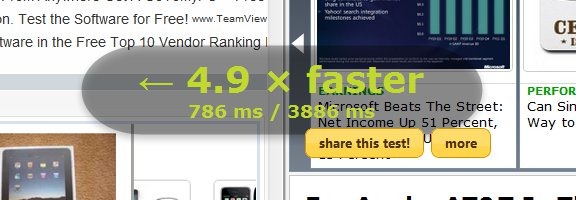
If you’re a blog owner, or just curious by nature, you may be curious about how the loading time of one website stacks up against another.  You can see two sites square off at whichloadsfaster.  Whichloadsfaster couldn’t be easier – input one site in the box at the top left of the screen, and another site in the box at the top right, hit the “Go” button, and sit back to watch the results.

whichloadsfaster site speed comparison

The service has some other features as well, such as a repeat feature, which lets you specify how many times you want the faceoff to be run.  This can give you a better idea as to which site truly is faster, since load speeds on any given visit can vary due to traffic and other factors.  There is also a “race” feature, that allows you to list up to three sites in one column, three in another column, and have the two groups square off against each other.  It sounds silly . . . but don’t knock it until you try it, I guess.  That can be said for whichloadsfaster in general – it may sound whimsical, but it is oddly addicting.

What tools do you use to measure the speed of your site?  Coming soon, we’ll take a look at a tool we use here at 40Tech to help improve site speed.

Try out whichloadsfaster


How to Protect Your Computer – And Your Work – From Your Children

kid-key-lock

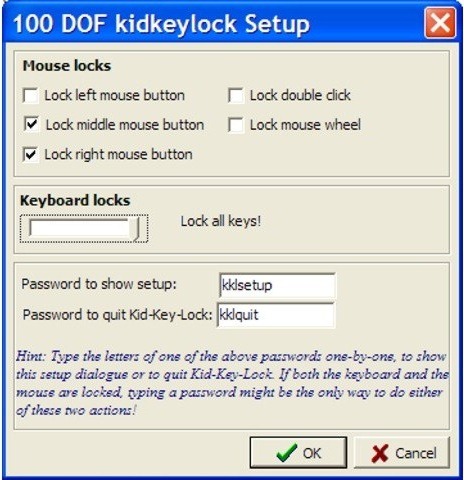
Has this happened to you?  You’re in the middle of working on that important document for work, when you step away from the keyboard for a break.  You return an hour later . . . to find that your little bundle of joy has hammered away on your keyboard.  If you’re lucky, your document is now only a mess, and not lost.  To prevent situations like this, check out two free Windows programs, Kid-Key-Lock, and Toddler Keys, which were both covered in the Lost in Technology blog.

kid key lock

Both programs work similarly, allowing you to lock down your keyboard and mouse.  Kid-Key-Lock allows you to specify exactly what you want to lock out.  For example, you can allow just numbers, letters, and spaces, while locking other keys, like system commands.  This can be handy if you want to allow your toddler to use your keyboard to work on typing.

Toddler Keys allows you to lock your keyboard, mouse, and CD drive door, and even the power off button in Windows XP.  It will play a sound every time a key is pressed, and you can even select which images and sounds to play.  You can set a time period, after which the app kicks in and the lock is set.

Head on over to Lost in Technology for a look at the two apps.  Do you have other ways you protect your work from your kids?

Kid-Key-Lock and Toddler Keys [via Lost in Technology]


5 Methods (and 12 Tools) for Making Websites More Readable

squint at monitor 576

Whether due to failing eyesight or website clutter, some websites can be difficult to read.  If you find yourself in that situation, here are some tools and methods for making a site easier to read.  Some of these tools work by stripping away extraneous material, others make the text of a site larger, and some do a combination of the two.


1. Magnify the Text, With Either Your Hardware or a Browser Extension

The most obvious way to make a site easier to read is to magnify the text on the site.  One way to do this in Windows is by holding down the CTRL keying, and then rotating your mouse wheel.  You need to do this for any site where you want a larger font.  For a more permanent solution, across all sites, you can try a browser extension, like No Squint for Firefox, or Zoomy for Chrome.

Tools:


2.  Reformat the Page with a Bookmarklet

A bookmarklet is a bookmark that, instead of loading a web site, runs some javascript.  A few competing services offer bookmarklets that will reformat pages for you.  Place the bookmarklet on your bookmarks bar, click on it, and a site will be reformatted, with ads and extraneous text removed, margins altered, and fonts made more readable.  We love Readability, which we use to send formatted pages right into Evernote with one click, but there are a few other choices out there.

Tools:


3. Reformat the Page With a Browser Extension

If you don’t want to mess with a javascript bookmarklet, you can achieve the same results by using one of a few browser extensions.  We’ve previously professed our love for iReader, an extension for Firefox and Chrome. iReader installs a button in your browser’s address bar that appears when you are on an article-style page of a website.  When you click this button, iReader strips out all of the ads and other extraneous layout elements of the web page, re-displaying it in a lightbox-style overlay that is incredibly easy to read.  iReader also presents additional interaction buttons in the overlay.  These buttons give you the option to tweet about the page, send it to Facebook, remove images completely, change the background opacity, and more.

If you’re a Readability or TidyRead fan, and don’t want to install one of the bookmarklets mentioned above, you can install a browser extension instead.

Tool:


4. Selectively Remove Objects or Selections from a Page

There are some situations where you don’t want to reformat an entire page, but only hide objects that are interfering with your ability to enjoy the page.  Nuke Everything Enhanced is a Firefox add-on that allows you hide almost anything on a page via a context menu that allows you to select “Remove Object” or “Remove Selection.”  You also can select text or an object, and choose “Remove everything else” from the context menu.  This leaves behind only your selection.  This is especially handy when you only want to print part of a page.

Tool


5. Use Safari Reader

If you like using Safari, Apple’s web browser, then you don’t need to bother with any of the above-mentioned tools.  As of Safari 5, Safari comes with the built-in ability to make sites more readable.  This works much the same way that a tool like Readability works.  After a page loads, click the “Reader” button in the address bar, and the page will be formatted and displayed in a lightbox-style overlay.

Tool:


Do you have any tools to suggest, that you use to make sites easier to read?