
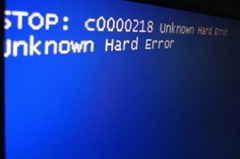
 You’ve heard the repeated warnings: "Backup!" You know you should do it. But are you? Are you backing up your computer’s data? And if you are backing up your data, is your backup solution reliable? Here are four steps you can take to provide yourself with a comprehensive backup solution, along with a few recommendations of products that I’ve been using. Using these tools together should also provide you with some redundancy, so that you can have piece of mind that you’re not putting all of your eggs in one basket.
Photo by Justin Marty
1. Local Backup (SyncBack)
 You will first want to make sure you backup important files locally, so that they are easily accessible. SyncBack is one of several tools that allows you to automate the backup of files on a regular schedule. In fact, you can use SyncBack to backup files to a drive on your computer, to another drive on your network, or even to a remote drive to which you connect via FTP. I use SyncBack to backup all of my important documents and files on each of the computers on my network, to one of the other computers on the network. SyncBack also has other features. For example, I use SyncBack to make backups of the 40Tech web site. Syncback has three different versions, but the free version should be sufficient for most people. The paid versions ($30 for SE, and $49.95 for Pro) add additional features, such as secure FTP connections using SSL/TLS, and more options to trigger backups for certain conditions.
2. Automated Remote Backup (Carbonite)
 In addition to having a local backup, it is a good idea to have a remote backup to protect your data against the unthinkable, such as a fire that destroys your home. Carbonite, which costs $55.00 per year for unlimited backup, is ideal for this. After you install a small application on your computer, Carbonite runs in the background, sensing any changes to the folders that you decide to monitor. Those changes will then be uploaded to the Carbonite servers. Carbonite will only perform uploads when your computer is not using its connection, and therefore doesn’t interfere with tasks such as web browsing. Be warned, though, that your initial upload after you subscribe could take several days. Your files are then available to you if you ever need to restore them. If you delete a file from your computer, it will remain on Carbonite’s servers for one month. Carbonite is available for Windows XP and Vista, as well as Intel-based Macs running Tiger or Leopard.
3. Drive Imaging (Acronis True Image / DriveImageXML)
 Another tool for your backup arsenal is software that will create an image of your hard drive. When I get a new computer, I get it set up exactly how I want it, with all of my favorite programs installed, and then make an image of the hard drive. An imaging program allows you to, in essence, clone your hard drive. This makes it much easier to restore your system after a catastrophic failure, or after you’ve been hit by malware. I’ve used the imaging features of Acronis True Image for the last couple of years on my main computer, and most recently used a free program, DriveImageXML on my netbook. True Image currently costs $49.99.
4. Document Backup/Syncing (Syncplicity)
 I was introduced to Syncplicity over on The 2.0 Life. Syncplicity has several features, but I use it to keep my Google Docs account synced with my computer. With Syncplicity, you designate a folder to sync with Google Docs. Thereafter, any document that you create in that folder will appear in your Google Docs account, and vice versa, while changes will be synced between the two locations. While using Syncplicity might be overkill if you’re using the other methods discussed above, it is convenient to be able to access your documents anywhere there is an internet connection.
Regardless of whether you use these tools, or different tools, make sure that you regularly backup your important data. I have used SyncBack and Acronis Truimage for more than two years, and Carbonite for over a year. A few minutes ago, after writing the draft of this article, I applied for affiliate accounts with those companies. If approved, that would mean that I would make a percentage of every sale that funnels through the above links. While there are countless other products out there offering affiliate opportunities (many geared towards similar functionality) I have settled on these products, as I have personally used them well before I even conceived of starting this site, and am willing to place my credibility behind them.
What are your experiences with backup tools? Are there any in which you place your confidence?

Bobby says:
Honestly, I am bad with the backups… I did do a full image backup with Acronis TrueImage when I upgraded to the Windows 7RC from Vista and XP though. It was easy to use and seemed effective.
…haven’t had the occasion to do a restore though.
September 22, 2009 — 11:24 pm
Evan Kline says:
Shame on you! ;) At the very least, you should really take a look at the free version of Syncback if you have anything of importance on your computer, and just sync it to an external drive. I guess I’m paranoid, which is why I have Carbonite as well.
One thing I didn’t discuss are some free tools that allow two people to use each other as a sync destination. The programs encrypt your data, and then sync it over the internet to someone else’s machine, and they do the same. I haven’t tried anything like that, because Carbonite works so well for under $5 a month.
.-= Evan Kline´s last blog ..4 Steps for a Comprehensive Backup Solution =-.
September 23, 2009 — 10:14 am
Kosmo @ The Casual Observer says:
I back up manually. I have an external hard drive on the main computer, and try to copy stuff there on a regular basis. I also back up critical stuff (photos of my daughter, for example) to DVD on a regular basis. I keep the DVDs in a drawer at work (thus, an “off site backup”)
I noticed that you added CommentLuv – very cool!
.-= Kosmo @ The Casual Observer´s last blog ..The Creative Process =-.
September 23, 2009 — 9:55 am
Evan Kline says:
It sounds like you are much more disciplined than I am. If I tried to do it manually, I’d invariably forget and lose something important. For a couple of years, I was doing some modding for a game that involved hours of work at a time, so I made sure I automated backing that up because it would have been a disaster if I lost any of it, and sometimes I worked on it several evenings in a row.
.-= Evan Kline´s last blog ..4 Steps for a Comprehensive Backup Solution =-.
September 23, 2009 — 10:17 am
Tony says:
CrashPlan for local backup to external hard drive and their online servers. Otherwise, Windows Home Server, done!
November 21, 2009 — 9:51 am
Evan Kline says:
CrashPlan looks interesting. It looks like you backup to a friend or family member’s computer (or your own, if you have a second computer elsewhere), if I understand their site right? Do they have an option where they provide storage?
November 21, 2009 — 1:44 pm