
 One of the big differences between Evernote on the Windows and Mac platforms is that Mac users have the ability to clip web pages from Safari, and send those pages into Evernote as PDF files. Windows users can clip pages to Evernote, but those pages aren’t sent as PDF files. As a result, the pages often lose important formatting in the transition.
Firefox users on Windows can get similar functionality to their Mac counterparts by installing the PDF Download add-on, and then, when downloading a page as a PDF, selecting Evernote as the default program to open the file. Read on for more detailed instructions.
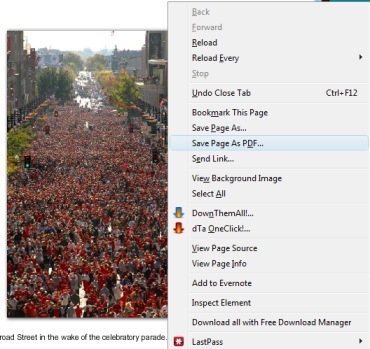
After installing the PDF Download plugin, right-click on the page you want to export to Evernote, and choose the “Save Page as PDF” option:
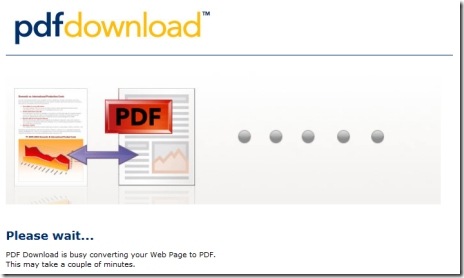
You will then get a status window, and need to wait for a few seconds.
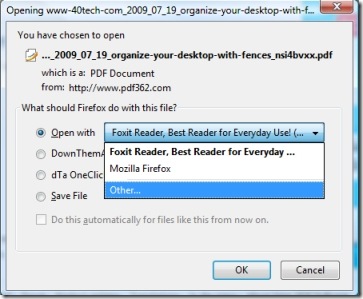
A dialog window will pop up when the page has been formatted. Select “Open with.” If Evernote is not one of the default options, you will need to click on “Other . . . ” and select Evernote from the list, and possibly browse to the location of the Evernote .exe file in the installation directory. Click “OK” twice, and your web page will be sent to Evernote.
One way to permanently add Evernote to the list of “Other . . .” programs, is to right-click on any PDF file on your desktop, select “Open With” and then select “Choose Default Program.” Browse to and select the Evernote .exe file, making sure not to check the “Always use the selected program to open this kind of file.”
This process of clipping PDF files into Evernote isn’t too speedy, so I only plan to use it for important pages that I need to save without formatting issues. As an alternative to clipping directly into Evernote, the PDF Download add-on also gives you the option to email the PDF. If you configure the add-on to use your Evernote address, the PDF will be sent to your account. I found there to be a bit of a delay before the file appeared in my account, though, and the email file had a header, complete with an advertisement. The email option would be handy to use, though, on a machine that you use regularly but on which you won’t be installing Evernote.
I also tried a few other Firefox PDF add-ons, but they allowed only saving as a PDF, not opening as a PDF which is required for this process to work. Of course, you could always use one of those add-ons, like PrintPDF, to save a page and then just drag the resulting PDF file into Evernote, or you could set up Evernote to monitor a folder of saved PDFs (and couple it with a “Send To” menu trick when right-clicking on PDFs).
If you have any suggestions for other easy ways to get PDFs of websites into Evernote, let us know in the comments.

Klaus @ TechPatio says:
A bit complicated – like much else on Windows… sorry, couldn’t help myself :)
But the important part is that it’s *possible* to add as PDF files without too much hassle.
I never clip as PDF on my Mac though, I just click the elephant icon in my firefox/safari toolbar and the page – or the text I selected – goes into Evernote. Usually the formatting isn’t too important to me, I’m more about the content.
But in some cases I “print” a PDF file and drag that one into Evernote.
PS: May I suggest you add the WordPress plugin “Subscribe To Comments”, so it’s possible for commentors to get an e-mail if/when you reply to comments or if somebody else comments on your posts :)
August 9, 2009 — 1:01 pm
Evan Kline says:
@Klaus – Ah, thanks for the heads up about subscribing. I had been using Disqus, but had to disable that due to errors on the site and a complete lack of support on their part. I’ve used Subscribe to Comments elsewhere, and will go get it for here.
August 9, 2009 — 1:53 pm
Bobby says:
I have never really used pdf files with evernote. Not that I wouldn;t, I just haven’t gotten around to it yet — great tutorial, Evan! I am sure I will be reading it again when the time comes.
One major issue I have always had with evernote is their clipping functionality. I find it counter-intuitive at times and best suited only to web clips, and that via plugin. Using the clipping shortcut from the desktop app has only lead to frustration and, as such, I have kept One Note installed just for their clipping feature (often, I need to clip something quickly to copy it into photoshop and asimple windows+s button combo brings up an overlay that allows me to drag over anything visible on my screen).
Oh, and continuing the sidenotes here, Evan, you may want to test out Intense Debate. Many people seem to prefer it over DIsqus.
August 9, 2009 — 4:21 pm
Evan Kline says:
I hear you on Evernote clipping. It does OK for me, but I don’t use it much, which is why I may start going the PDF route (especially now that Evernote added PDF search for Premium accounts).
I’ll take a look at Intense Debate when I get a chance. Thanks.
August 9, 2009 — 4:34 pm
Evan Kline says:
I checked out Intense Debate, and liked it quite a bit. The problem is that the link on a user’s name does not go to the user’s blog, but to the user’s Intense Debate profile on their site. I have a request in the forums there to see if this can be changed, but as of a few months ago there was a post indicating it could not. We’ll see if I get a response.
August 9, 2009 — 8:24 pm
Tom Murphy says:
I like the idea and want to implement it.. but when I go to the link about the SendTo I see a lot of Java code.. how do I make that into a bookmarklet?? Unfortunately when I do open SendTo… Evernote is not one of the options and I can’t figure out how to make it one.
Tom
August 19, 2009 — 1:23 pm
Tee says:
Like Klaus, I just click Print and Save as PDF on Mac. There’s a script that will automatically import your files into Evernote. You just save them to the designated folder. I’m going to try the bookmarklet that combines Readability and the Evernote clipper. By preserving the original formatting, pages are just easier to read and skim through in my opinion.
March 23, 2010 — 6:56 pm
Evan Kline says:
Ah, you Mac guys . . . just rub it in why don’t ya. :)
March 23, 2010 — 7:56 pm