While the iPad has all the bells and whistles, I actually prefer reading on my Kindle instead of on my iPad. If you feel the same, and wish that there were a way to send individual web articles to your Kindle, check out the Send to Kindle extension for Google’s Chrome browser.
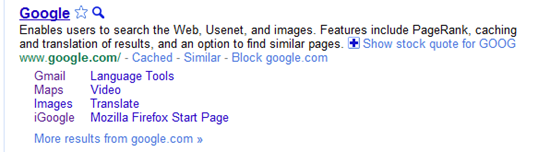
A new and incredibly useful extension has popped up on the Chrome Web Store: Personal Block List (by Google). If you have ever searched for something and been plagued by useless links that wiggle past Google’s algorithm — and odds are you have — then this extension is your friend. Personal Block List adds a handy little “Block [URL]” button to the right of the “Cached” and “Similar” links in Google’s search results. Once clicked, that site is omitted from your search results until you decide otherwise.
Neat, huh? Of course, it should be mentioned that this extension will transmit information to Google regarding the sites you have blocked, including patterns that you create as you block or unblock sites. Google promises to only use this information for good and to improve their products. Actually, there are no promises. They just say that you “agree that Google may freely use this information to improve [their] products and services.” Considering all of the things out there that already track browsing habits — including Google — this sort of tracking may actually be a step forward.
In any case, the extension does its job well. In a few of the coding-related searches I have been conducting lately, looking for help on a particular area of menu design, I repeatedly found myself directed, via several different domains, to the same annoying website trying to sell me their tool that was apparently supposed to make my life easier. My annoyance in this regard is no more. The Personal Block List extension for Google Chrome (as well as Chromium, and Rockmelt) works!
If I were to have any issues with the extension, they would be that it does not work from the searchbar, only from the actual Google site, and that it doesn’t appear to have a master list in the cloud. That last surprised me, and meant that I had to block the same site twice, once in Rockmelt, and once in Chrome. Still, it did the job. I can see that there will be many more sites that will end up being forcibly removed from my search results soon.
Try it out the Personal Block List (by Google) Chrome extension here.
If you are one of the people who put up your hand — stop that. This is text and I can’t see you. Know, however, that you are quite possibly more connected and in tune with the techieverse than your now shame-faced tech-writer. Somehow, for reasons unknown to all but the almighty Goog itself, my keenly developed tech senses missed this wonder entirely! But, that’s all behind me, now. I’ve seen the light, got an invite, and have been playing with the world’s latest, greatest — and Google Chrome based — social browser for several days now.
Here’s what I’ve discovered:
RockMelt does for Chrome what Flock did for Firefox, but where I found Flock a bit overwhelming in its attempt to integrate social elements into the browser, RockMelt has what feels like it might be just the right mix. One almost has to wonder why Google didn’t think to do this in the first place. If they had integrated Sidewiki and Google Buzz in with the configurable social elements that RockMelt has brought into play, making them a part of the Chrome browser (and by extension, the OS) itself, both of those tools might have seen a much stronger and longer term user base.
In any case, RockMelt, which is still in beta, has a lot of good going for it. There are still a few hiccups, as is to be expected, but even so, the social Chrome is pretty appealing. This is a good thing — it means that Netscape founder Marc Andreesen’s money has been well spent.
Key Features of RockMelt
Collapsible Sidebars
The primary difference between RockMelt and Chrome, aside from the fact that you have to log into Facebook to use the browser, is the left and right sidebars. Both are collapsible, about a centimetre in width and contain pretty buttons, often full of people’s faces. On the left, is the Facebook chat column, which shows you which of your Facebook friends are online, allows you to view their latest activity with a hover or a click, chat with them, send them a message, or post on their wall. You can also set up a favourites list in this column, and switch between it and the general tab with a single click.
All of this Facebooking takes place just below a miniature of your own profile picture (top left), which, when clicked, allows you to toggle your Facebook Chat availability, as well as update your social network status — including multiple Twitter accounts, if you decide to add them.
On the right edge of the page, you really get to dig in and configure RockMelt to suit both your browsing and social networking needs. Facebook and Twitter buttons give you access to both of those services, showing your feeds in real time. You can interact with items in the feeds as you would expect to be able to, liking, commenting, retweeting, etc. In Twitter, you can access all of your lists and your @messages, but I didn’t see anything for saved searches or DM’s. Also, if you have a lot of lists, you currently are not able to scroll to the ones that get cut off at the bottom of the page. The Facebook button gives access to people in both your main and custom profile lists, and your profile button right below it gives access to your notifications, photos and wall. I found the limited nature of the Facebook access — no pages, message centre, groups, or places — a bit surprising, but it will likely improve as the browser gets closer to official launch.
The right sidebar also serves two other important functions, it has a few other already integrated networks, like YouTube, and it allows you to add custom feeds so you can keep track of your favourite websites — it even makes suggestions based on the sites you visit most — and it is the home of your Chrome extensions. I like the way RockMelt handles extensions much better than the way Google does it. For one, I can decide on optimal placement of my extensions — and they will stay that way. Google’s insistence in making things rearrange themselves based on their perceptions of my usage has always driven me crazy. I also like the fact that the sidebar is collapsible, and it doesn’t shrink the size of the URL bar. Finally, If I am not using an extension that often, but don’t want to uninstall or disable it, it is simple to just remove it from the column/dock.
The main problem with RockMelt at the moment, especially if you have a lot of Facebook friends in your favourites, or a lot of extensions, is that the sidebars don’t scroll. Any more than 15 items, total, in either sidebar, and the ones furthest down can not be accessed. Also, the floating window that appears when most extension buttons are clicked is a fixed width element. This causes a problem with some extensions that are too wide for RockMelt. Hopefully these are things that will be rectified in a near-future update.
RockMelt also shares most other major features of Google Chrome, such as the new web apps area and browser synchronization. The apps are not as thoroughly integrated as they are with Chrome, being little more than just shortcuts, and browser sync is only available between other RockMelt implementations. It was a little bit annoying having to search out and re-add all of my apps and extensions, but wasn’t that difficult.
Social Sharing
Sharing what you find while surfing in RockMelt is an extremely easy process. There is a giant button to the immediate right of the URL bar, and it allows for Facebook and Twitter sharing with ridiculous ease. I wish there were a send by email button, though, then I could drop the Shareaholic extension; free up some space. Speaking of email, there is what looks like an email button on the top right of the browser. Don’t be fooled. It is not for your email at all. It is really just a suggestion list of who to send your invites to. I find this choice on RockMelt’s part to be kind of confusing.
Conclusions
RockMelt is a fantastic spin on the Google Chrome browser, packing in most of Chrome’s features and all of its speed. The collapsible social features are a fantastic addition, considering you spend most of your internet time in the browser, and most people spend most browser time on a social network or two. It just makes sense, you know? There are still a few odd issues like the lack of sidebar scrolling, and the fact that, at least for me, embedded flash videos show up as blank spaces, but these issues are the sort of thing you expect in a beta test. RockMelt still has time to make things perfect, and I think it very likely that I will keep using it as it matures.
Cookies. We have a love hate relationship with them. They track what we do and report all kinds of information back to the site that generated them — and to third parties as well, in many cases. But they also often provide a better user experience, keeping track of our preferences and removing small annoyances like having to sign in to a website every single time we open it up. Unfortunately, as is the case with most things on the internet regarding your privacy and security, the only completely effective way to protect yourself is to simply turn the potential problem off. The only problem with this course of action is that turning off cookies also has the effect of making a huge part of the web practically unusable.
So what to do about it? Well, if you use Google Chrome, try out Disconnect.
Disconnect, which was created by a former Google employee, is a Google Chrome Extension that helps you to keep your personal data safe while still maintaining the ability to work effectively with sites like Gmail, Facebook, Twitter, and others. You may run into a few issues now and again, but overall, the experience is fairly seamless. All you need to do is install the Disconnect extension in your Google Chrome browser, make sure the extension is turned on, then watch as the tally of daily attempted intrusions upon your privacy climbs. The basic functionality, and much of the more advanced uses, of the webapps should work without problems, helping you to do what you like, and search for what you like, without passing along any personally identifiable data. If you have need to unblock a service, say to do something like play Facebook games, it’s a simple matter of a click on the extension’s dropdown menu (which includes Facebook, Twitter, Digg, Yahoo, and Google).
There’s been a lot of buzz surrounding Springpad lately, both here at 40Tech and around the web. For good reason, too. The app’s new features and interface improvements have put it strongly in the running for one of the best save-everything-and-get-organized apps out there. People are loving it! According to CEO Jeff Janer, the new Springpad has seen a huge spike in usage. After playing with it for a while, I can see why.
When I first reviewed Springpad, back in April of this year, I compared it directly to Evernote, and pointed out why some of Springpad’s features were actually superior to our favorite note-taking app. The downside of Springpad was that there was simply too much going on, and that some of the different functions, like the internal apps, didn’t always play seamlessly with one another. Springpad’s development team listened to their users, and the new interface appears to have brought about feelings of peace, harmony, and general bliss amongst the Springpadians.
There have been several major updates to Springpad in the past months, the most notable taking place in September, November, and on Tuesday.
If you’re new to Springpad and don’t want to read my (very large) previous post, or just want a quick overview of some of the new features, watch the video at the bottom of this post.
September: Mobile Alerts, Chrome Extension
September brought about custom reminders and mobile alerts that helped to keep you aware of things on the go, like price drops and coupons for items you saved to your Springpad. It also brought about their most excellent Google Chrome extension.
November: All New Interface, Notebooks and the Board
November saw a huge shift in the interface, paring it down, making it easier to navigate, and generally making it prettier. Along with the new look and feel, better tagging functionality, and bulk editing capability, a lot of potential clutter and confusion was removed by taking all of the internal apps (for GTD, blog planning, and many other things) and giving them their own playground. Users that really wanted to keep the information stored in those apps tied in a neat bundle in the main Springpad app were given the option to port the notes into what is likely the most significant improvement to the service: new, easy to add and use notebooks.
Adding notebooks to Springpad has done a marvelous job of giving you control over how you organize your information. It used to be in one big list, that could be broken down over the large lot of internal apps — which was good in theory, but overwhelming in practice. Now, you have full control over what buckets you want to dump your saved information into, and it is nicely black-boxed in a very clean new interface that looks and feels like a desktop app. To make things even better, each notebook can have it’s own theme, which you can customize with personal images and photos, if you like.
The final hurrah for November was the introduction of the Board. The Board is an awesome use of HTML5, and there is one in every notebook. It gives you a visual approach to organizing your information that works like an old fashioned cork board, or laying out flashcards and sticky notes on a table. For the visual among us, myself included, this was a sweet miracle! The gift that keeps on giving, the Board also automatically adds items with address information to a handy, interactive Google map that can also be moved about. The Board is especially cool on the iPad, which allows you to move the items about with a finger, adding a tactile element that only improves upon the experience.
December: Chrome Web Store, Drag & Drop File Attachments, Keyboard Shortcuts and More
As if all that wasn’t enough, December’s updates brought about several more nice additions to Springpad, including the ability to drag and drop outside files onto the Board as file attachments. This is a fantastic improvement to on the other way to add files to Springpad which is to add a note, then add a ‘note to the note’ that has an attachment. You can even add multiple files at once (10mb/file).
The file-dropping feature only works in Google Chrome, which Springpad has entered into a nice marriage with. The web app was even featured in the launch of the Google Chrome Web Store on Tuesday. Chrome users can now install a shortcut of the Springpad app right into their start page, as well as sign up or login with Google’s OpenID, which allows easy access to the app. Once installed, you can open Springpad in a new tab, as a pinned tab, in full screen (which really makes it feel like a desktop app), and — if you use a Google Chrome developer version — as it’s own application. When combined with the Chrome extension, the installed Springpad is an information saving and organizing powerhouse. In my installation, and I’m not sure if it is a result of the extension or using a developer version of Chrome, I can even save a page to Springpad simply by right clicking and selecting the option from my context menu (if you happen to know which is the proper reason, let me know in the comments).
The final additions in the barrage of new features are keyboard shortcuts, like the ability to Shift+Tab between notebooks (see the complete list below), a search box and alert notifications on the home-screen, and the ability to share private items via a link (public items can already be shared to a gazillion services).
What’s to Come
The single thing that most longtime Springpad users were hoping for would be a desktop app. Unfortunately, that’s still a ways out, but I give Springpad credit for focusing on making their service a hell of a lot more functional on the web side of things first, before committing themselves to a desktop undertaking. According to Jeff, the desktop app will probably come in a windows flavour, first, but he didn’t have a date for me. What he could tell me, thought, was that the web version will make use of HTML5 to enable offline access to Springpad in and around the first quarter of next year. This is something the mobile versions of Springpad already do, and with the new web interface it will likely be almost as good as a desktop app by itself.
Some other pending features include the Board on the iPhone, as well as on Android OS (once it supports tables), and some interesting Facebook and other integrations that will enable you to do things like pull friends’ likes into the recommendation engine and filter them by subject. They are also looking into the possibility of a universal app for Facebook, and potentially, .doc and .PDF scanning.
In just a few months, Springpad has moved in leaps and bounds that blue tights-wearing, red-underwear-on-the-outside super beings might be jealous of. I am thoroughly impressed and actively considering new ways to implement the service into my day to day workflows. I actually did research and planned this post in Springpad. It was a good process. I’m also using it to track potential Christmas gift ideas for family members, and I can see the Board and me becoming great friends — especially if Springpad adds some connectors and other customization features to it in the near future. To be perfectly honest, though, they had me at “HTML5 offline access!”
What do you think of Springpad’s new features? How Will they affect how you use the app?


![Block Sites From Search Results with the Personal Block List Extension [Chrome] | 40Tech](https://www.40tech.com/wp-content/uploads/2011/02/image7.png "Block Sites From Search Results with the Personal Block List Extension [Chrome] | 40Tech")