Menu Close

Tag: Evernote (page 5 of 10)

GTD On the Go With Awesome Note and Evernote [Reader Workflow]

Mobile GTD With Awesome Note and Evernote | 40Tech

40Tech has a serious interest in productivity technology, especially as related to GTD (Getting Things Done). We love talking about workflows with our readers, sharing our own techniques as well as learning how you use technology to keep your life on track. As we’ve come to expect, grown-up geeks are fonts of information, and you’ve inspired us to invite you to post your genius here on 40Tech. The first to step up was Chase Mann with his combination of OneNote, Evernote, and Outlook for GTD, and now we are pleased to bring you the first of three posts by Nina Kefer. Nina is often mobile, and has put together three systems that she has tested extensively, using some of the prettier iPhone and web apps out there as her GTD hub.

First up: GTD in Awesome Note with a side of Evernote!


Beauty and Brains: Getting Things Done™ In Style

I have always been a firm believer in the principle of “Form Follows Function”. However, I do not believe that “Ornament is Crime”, as is often extrapolated by proponents of FFF. As long as eye candy isn’t at the expense of functionality I can’t see anything wrong with it. On the contrary, it actually helps me to Get Things Done because a pretty user interface makes me want to look at my to-dos and makes taking care of them fun. If my to-dos look bland or, God forbid, ugly, I avoid looking at them until I forget that they even exist. Thus began my quest to find a to-do system that is as beautiful as it is powerful. As a frequent international traveller, I often rely on my smartphone to keep my life organised, so I needed a system that was built around an iPhone app that stays in sync with the web and/or desktop of my netbook.


Part 1: Awesome Note

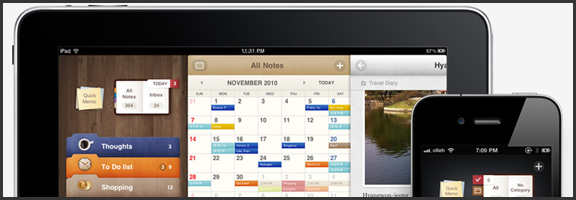
The first app I explored was Awesome Note, a note-taking-cum-to-do app that syncs with Evernote and Google docs. Notes created with Awesome Note are designed to look like real life paper notes that are kept in colourful manila folders. By default, the app randomly assigns one of fifteen available background patterns and a default font to each new note, but backgrounds and fonts are customisable, as are the colour, icon and default theme of each folder. You are limited to five folders per screen, but you can create as many folders as you like, arrange them in whatever order suits you best and then simply swipe through them from screen to screen. It’s a pity that GTD doesn’t offer more opportunities to sample the neat animation, like “turning pages” while browsing from note to note within a folder.

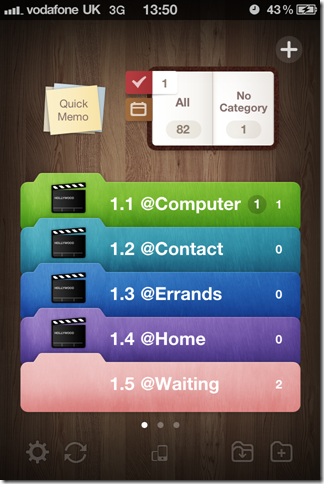
Being an Evernote front-end, Awesome Note’s functions, are very flexible. Every note can be transformed into a to-do, a check list, a calendar item, a page in a diary or photo album, or a birthday or anniversary reminder, simply by changing the view or type of note or by assigning a due date. You can also tag your notes and to-dos and use the built-in search function to look up tags or keywords. To help you keep on top of all the notes inside your folders, there’s a little notebook at the top of each screen that shows how many notes there are in total, how many to-dos are due today and if there are any unassigned notes waiting to be processed. Next to it, there’s a quick memo pad where you can jot down ideas, via keyboard or handwriting input, or draw a sketch. Lastly, you can share your notes and to-dos via SMS or email, send them to a compatible printer or lock your folders with a passcode. This may sound a bit overwhelming, but everything can be done with just a few quick taps.
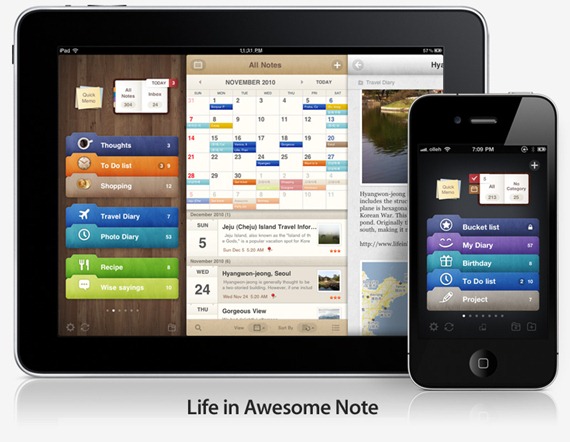
Awesome Note by Bridworks - Brilliant Idea

GTD Setup in Awesome Note

Awesome Note comes with pre-installed folders, but they can easily be renamed or replaced and new ones can be created as necessary. For my GTD setup I created ten folders, five for each screen. Since the sync of tags between Awesome Note and Evernote is limited (more on that in a moment), I combined Next Action and Context to create five Action folders that I review daily. I placed those on the first screen, so I can see them as soon as I open the app:

  • 1.1 @Computer
  • 1.2 @Contact
  • 1.3 @Errands
  • 1.4 @Home
  • 1.5 @Waiting

On the second screen I placed the folders I review weekly or less often:

  • 2.1 Projects
  • 2.2 Someday
  • 2.3 Goals
  • 2.4 Reference
  • 2.5 Wishlist

GTD in Awesome Note with Evernote | 40Tech

Working With Evernote

As my back-end I chose Evernote because it has both web and desktop versions and is generally more versatile than Google docs. Sync between the apps is speedy, but due to their different functionalities not really tight enough to use phone, web and desktop interchangeably. For example, Awesome Note’s folders appear in Evernote as notebooks that are easily identifiable by the prefix [aNote], but while Awesome Note allows you to arrange the folders in whatever order you want, Evernote automatically puts the notebooks in alphabetical order.

You can attach up to nine pictures to a note, but they will only sync from Awesome Note to Evernote, not vice versa, and due dates, status, font and background formatting don’t sync at all.

Finally, although both apps use tags, tags added in Evernote don’t sync to Awesome Note and tags added in Awesome Note are merely included as a footnote in Evernote. Fortunately, the powerful Evernote search finds them there, so there’s no need to double-tag. Since I do most of my GTD in Awesome Note and use Evernote web and desktop only for convenient text entry and backup, none of the above was a deal breaker for me. I just numbered my folders so they would appear in the same order on all three platforms and didn’t worry too much about the order of the notes inside.


The “No Category” Inbox

The “No Category” folder at the top of the screen is my inbox where I collect emails, tasks and ideas that come to me during the day, things that I need to buy or adverts I see on my way to work and want to follow up later. This is easy since notes that aren’t assigned to a specific folder automatically get dumped in there, no matter what screen you are in when the note is created.

Emails and URLs can be copied/pasted into the body of a note, photos can be attached from the camera roll or taken from within the app, and Google maps can be added. Alternatively, you can forward emails to Evernote and then sync with Awesome Note. Making a note read-only makes URLs, email addresses and phone numbers clickable, but unfortunately there is no option to link notes to contacts in the iPhone’s address book, so they have to be copied over manually. Quick memos that are saved as notes also end up in “No Category” (whatever you scribble down on the memo pad stays there until you either save or clear it). These are great for basic drawing. For example, you can ask someone how to get from A to B and then take the sketch with you or email it to a friend.

I review my inbox daily and process its contents according to David Allen’s GTD methodology:

  • If a task takes less than 2 minutes, I do it right away
  • If it takes longer or I can’t do it where I am I move it to the appropriate Next Action folder
  • If it takes more than two steps to complete I move it to Projects and create a to-do for the Next Action in the appropriate folder

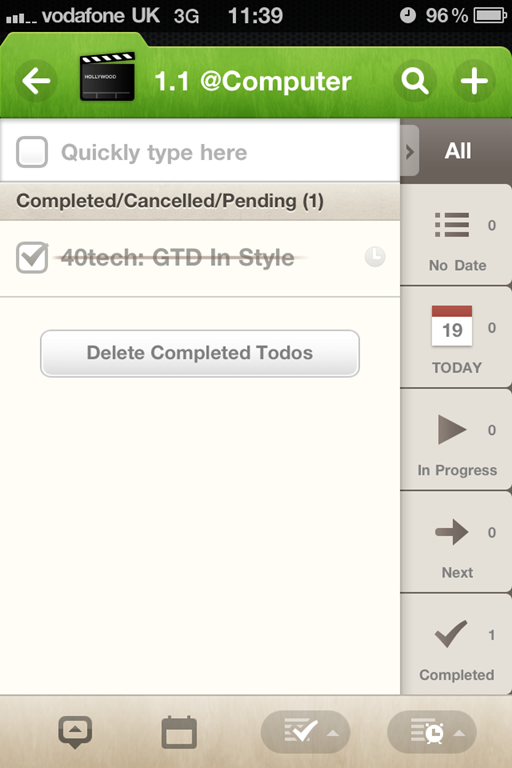
Time sensitive to-dos can be assigned alarms. Awesome Notes uses local alarms, so you will be reminded even if data roaming is disabled or the phone is in airplane mode. If a task should be delegated to someone else it goes into @Waiting with a review date to remind me to check up on and, if necessary, chase the person I have delegated the task to. Lastly, things I may want to do at some point in the future are parked in Someday and anything that doesn’t require action is either archived in Reference or deleted. If a note is moved into one of the Next Action folders it is converted to a to-do and, if possible, assigned a due date. Additionally, while Awesome Note doesn’t sync with any third party calendar, every folder, including “All”, has a calendar view that displays the to-dos within that folder, marked with the folder’s colour.
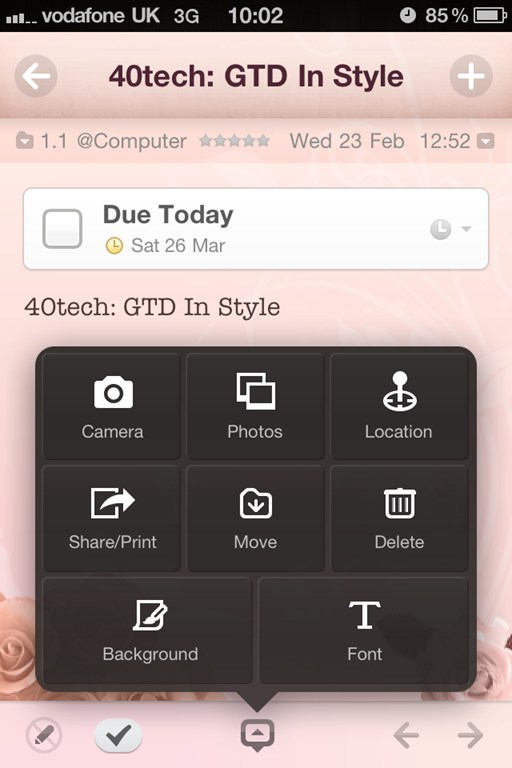
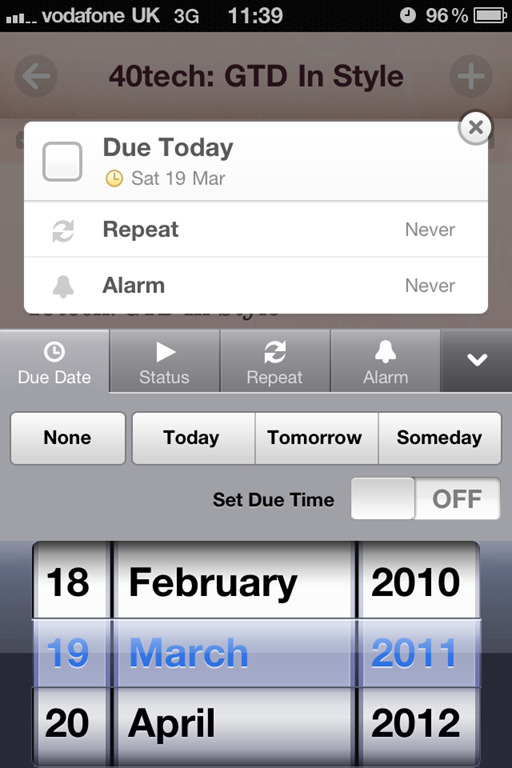
GTD in Awesome Note | 40Tech GTD in Awesome Note To Do Alarm | 40Tech Awesome Note GTD with Evernote Sync | 40Tech

Next Actions

Next Actions that have been assigned a due date pop up automatically as they become due. A red badge on the app icon shows how many to-dos are due or overdue; within the app this is shown next to the red tick box at the top of the screen. Additionally, I check the Next Action folders whenever I have a spare moment. For example, when I sit down at my PC I check if there’s anything else I could do while I’m at it.

In order to make my tags more prominent in Evernote, I start the title of a to-do that I want to be searchable with the appropriate place, person or project name. This has the added benefit of being able to search tasks alphabetically in Awesome Note. Usually I sort by due date, but if I’m going to contact person ABC I can alpha-sort the to-dos in my @Contact folder to make sure I cover everything “tagged” ABC. One tag per to-do is usually enough for me – a place tag for to-dos in @Errands, a person tag for @Contact, a project tag for @Computer and so on – and it only takes two taps to sort. Awesome Note does have a search function for both tags and keywords, but no saved searches, so this doubles as a quick-and-dirty search.

The project folder is reviewed weekly, or more often if I have extra time. Awesome Note doesn’t support sub-tasks or checklists, so I list the sub-tasks of each project in the body of the parent note, e.g. Project XYZ, and then cut/paste them into individual to-dos as I work through that project. I do the same for checklists or shopping lists. Alternatively, if you want to be able to check off each item individually, you can make a dedicated folder and create a to-do for each item.


Awesome Note may have been created primarily as a note taking app, but its to-do capabilities are powerful and lend themselves well to GTD. The limited sync with Evernote forces me to keep my setup simple and fuss-free and the cheerful design makes Getting Things Done fun. I just wish that tags would sync properly with Evernote, as they do with Egretlist, and that tasks would sync with the iPhone calendar.

Let me know what you think of Awesome Note’s GTD capabilities in the comments!

Nina lives in the UK and works in Financial Services. A frequent international traveller, she has extensive experience of managing life on the go. A trip to Japan opened her eyes to the possibilities of mobile phone technology and she has been attempting to achieve a similar level of connectivity ever since. This is her first technology article.

Nina’s next iPhone GTD setup: GTD with 2Do and Toodledo.
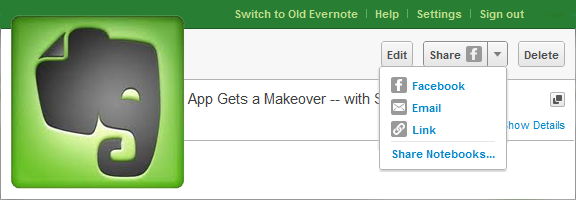

Evernote Web App Gets a Makeover–Adds Social Sharing

Evernote Web App Gets a Makeover–Adds Social Sharing | 40Tech

Normally I try to avoid doing Evernote posts every week, but this latest update is too big to pass up! It marks an end to Evernote’s stoic insistence that its service is strictly for capturing information, not sharing it — and if that wasn’t huge enough, the overhaul to the web app makes Evernote a pleasure to use on machines and OS’s without a desktop version. Excited yet? If you’re an Evernote fan, you know you are! See below for details.

UPDATE: The recent pre-release version of Evernote Desktop for Windows (4.3.0.4293) has added social sharing features, including Twitter, which is not yet included in the web app. Word and character counts have also been added, along with a few other niceties and bug fixes.

The first thing you will notice when you log into the web app is that the new interface refreshingly familiar, adopting a three-panel approach that is very much like the desktop version. Notebook stacks are also included, as well as snippet view — which provides a preview of the note’s content to speed up browsing — and the ability to CTRL/CMD + click multiple notes and drag them to notebooks, tags, or trash. The easy to use updated interface also includes a handy toggle to control auto-save — a handy feature when writing in shared notebooks.

Evernote Web App Makeover | Evernote Blog

While the update is impressive, it’s not perfect yet. For example, some of the more advanced functionality, like filtering, printing, attaching files, viewing note history, and creating saved searches, is still only available in the older version of the web app. If you want or need any of these features, you will need to switch back to the archaic mode for the time being.

I love the work that Evernote put into the new version of the web app, but am absolutely thrilled by their decision to include some social sharing capability! Until now, I honestly thought that the only way to share notes I collected would be using tools like Springpad and Shelfster, but Evernote’s inclusion of Facebook sharing, with plans to add Twitter in the near future, gives users the added freedom they need in today’s social web. It would be nice to see them open up sharing to the same extent that Springpad has, but baby-steps, yes? Sharing to Facebook, (soon) Twitter, via email, or by adding a link into your social platform of choice will have to be enough for now. You can also revoke shares at your discretion, which is handy. The Evernote blog promises that the new sharing features will find their way into their other apps in future updates.

So how excited are you about Evernote’s foray into the modern web — and its revitalized web app too, of course?


Evernote Pre-release Enables Notebook Sharing from Desktop [Windows]

Evernote Pre-release Enables Notebook Sharing from Desktop [Windows] | 40Tech

One of my biggest beefs with Evernote has always been the lack of an efficient way to share notes and notebooks. In fact, the lack of convenient sharing features was one of the reasons I considered a move to Springpad. Notebook sharing was a step in the right direction, and has been available in the web app for a while now, and even appeared in the Mac beta back in December. Unfortunately, Evernote’s excellent Windows desktop version has been sadly lacking — a source of niggling frustration for many users. It appears that that is about to change!

Evernote Windows Notebook Sharing Feature | 40Tech

If you want to the ability to access and update shared Evernote notebooks right from your Windows desktop app, all you have to do is click on the tools button, select options, and then check the little empty check-box under the General tab that says “Update to pre-release version when available.” Once that’s done, just click ok and then head over to the Help menu button and select “Check for updates.” Follow the prompts and upgrade Evernote.

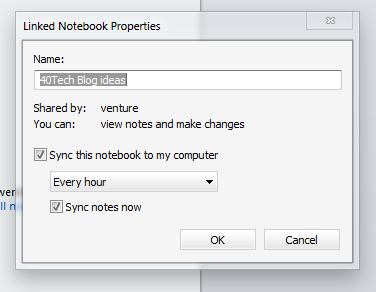
Once you are upgraded (current pre-release version is 4.3.0.4167), you will see that your Notebooks area with have two buttons: Account and Shared. Selecting the Shared tab will show you your shared notebooks, but you will probably not find any information in them. To fix that, simply click on the notebook and the properties window will pop up. Once there, adjust your sync time-frame, make sure that “Sync notes now” is selected, and click OK to update your local Evernote database with the shared notes! Do this for each shared notebook that you want to be able to access locally.

Share Notebooks from Evernote Desktop for Windows | 40Tech

If you want to start sharing notebooks — or modify permissions, or stop sharing — click the Manage Sharing button. The Notebook Sharing page inside the desktop application is easy to look at, and easy to navigate.

Evernote note sharing is nearly complete! The only things left to do would be to add this new Notebook Sharing functionality to the Evernote mobile and tablet apps — and hopefully, one day, offer up a way to share individual notes by more than just email.

How excited are you by Evernote for Windows’ new Notebook Sharing feature? Will you update to the pre-release?

Thanks to 40Tech reader Daniel Gold for the tip!


Reader Workflow in Action: GTD for Freelancers & Managing Multiple Projects

image

We like useful tech here at 40Tech, and spend a fair amount of time talking about productivity related apps. We’ve written more than a few posts talking about ways we’ve used tech to make our busy lives a little more sane, and a little while back, we asked people to show us their own workflows. We wanted to see how our readers integrate tech into their daily lives to keep them productive. We received some comments on the post, some notes on Twitter and Facebook, and even had a few email conversations with folks, and have decided to feature a couple of the more involved methods.

Today’s feature, by freelance graphics and web designer Chase Mann, involves a GTD process that includes Evernote, Outlook, Microsoft’s OneNote, and a few other choice bits of technology:


Getting Things Done (GTD) with Evernote, Outlook and OneNote

I’m a freelance graphics & web designer that uses a tablet pc. In short, these are the tools that I’ve found work best for me:

  • Moleskin notebook & pen, Smartphone with Evernote app.
  • Dropbox to automatically sync all client files and research folders.
  • Outlook for Contacts, Calendar & Tasks. (connected with Gmail).
  • OneNote as my written-note capture and Working space (on my tablet-pc) with a GTD Notebook for current Projects.
  • Evernote as my magic, portable filing cabinet & reference library.

Reference Material:

I then tweaked all these programs and setups to better fit my workflow needs.


The GTD Workflow

I begin my GTD workflow by keeping my Moleskin notebook and Android phone as my immediate capture devices, which I then process into my Evernote Inbox notebook. Because I have design software on both my desktop and my tablet pc, and I’m constantly making changes to client files and gathering research resources, I use Dropbox to have the most updated client files and research folders automatically synced between all of my devices.

My projects tend to be mostly digital so I rely heavily on email communications (and some telephone conversations), but I tell all my clients that I prefer email so we both have documented project conversations. Outlook has quickly become my main communications & scheduling hub. Once I am referred a potential client, I setup a meeting to discuss project needs via whatever medium they prefer. I always take notes during the conversation and then email a copy to the client as my first follow-up step. If the client chooses me for the project, then I make new notebooks in both Evernote and OneNote specifically for that client and that project.

As I have time to sort through my inboxes, I’m able to organize and set tasks up as Projects. All Projects get their own notebook created in OneNote. I also attach that notebook to all possible related contacts in Outlook.

Why the heck would I use Outlook? I love the integration of Outlook and OneNote (2010 versions). I like being able to take an email about a client meeting and actually turn it into a task AND an appointment on my Calendar. I love being able to set reminders on tasks and calendar items too. It’s my tickler system. Easy.

As I process emails, they either get turned into scheduled tasks, flagged with a reminder tickler, sent to Evernote as reference, or sent to OneNote for current working projects. A major benefit of sending an email from Outlook to OneNote is that any attachments on the email show up as attached files in OneNote. How cool is that?!


Using Evernote

From the beginning, I had decided that Evernote would be my magical, brain-dump, inbox, filing cabinet. My very own research and records department that I can conveniently carry around in my pocket and access via a variety of mobile options. I setup Evernote using Bobby’s article with some tweaks to better suit my workflow.

Since Evernote came out with sub-notebooks, I find it easier to use those on my Android phone. I created a “Clients” notebook with sub-notebooks for each client by name. “Inbox” is my default notebook and “References” notebook, because I like moving items out of the Inbox notebook as part of my review process. I also created a “Coffee” notebook because I’m heavily involved in the coffee industry.

For all of my own personal projects, I create “@Project-name” tags to easily find them and I created a “!clients” tag for quickly marking items for later processing into the actual client’s sub-notebook.  Since I really don’t use Evernote for my GTD (I prefer Outlook and OneNote for that), the only other tags I used were Bobby’s suggestion of Reference Materials, with a “folder” tag for each letter of the alphabet … which I further break down into actual tags. So A, would also have Apple, Art, Amphibians, etcetera … whatever tags make the most sense to me when I capture the item.

I do most of my project research via the internet and send pages, selections and images to Evernote with the !clients tag into my Inbox notebook for later sorting. Next I sort through my research materials and send selected items over to the project’s notebook in OneNote and create a mood-board page so I can mix and match items organically and scribble notes wherever I feel like it.


OneNote

OneNote is my working desktop so I try to keep it tidy by not using it as a reference tool, even though I could. The reason I prefer OneNote over Evernote for projects is because with a tablet PC I have the freedom to scribble hand-written notes anywhere I like in OneNote — then I can right click them and convert them into typed text. I also keep a section called “Scribbles” in each Client’s section group so that I can scribble notes and ideas as they hit me, then I convert them into tasks or reference material during my daily review of projects. I try my best to stay organized as I go so I have less processing to do during reviews.

One extra thing I did with OneNote was to setup a Clients Notebook where I created a section-group for each client with a Projects section that has pages and sub-pages for each active project I have with that client. I have an All Projects section in my GTD Notebook that lists all my currently active projects which has a wiki-style link to the Client’s section-group, and the specific Projects section for that client (and vice versa). This way I’m able to move around quickly within OneNote. I have To Do lists in each Client section-group and have those wiki-linked to a main To Do list in my GTD Notebook. I also set up an Archives section in each of the Client’s section-groups where I send the individual projects when they are totally complete. This way I only have current working projects in the active Projects section of both my GTD Notebook and my Clients Notebook.

Another reason I prefer to keep Evernote for reference and OneNote as my Projects organizer is so I can use the power of tags in each program respectively. I like being able to list all my tags across all notebooks in OneNote and know that they are project-related.

When I’m looking for a reference item, I know to just search by tags in Evernote and copy/paste only the necessary bits I need (instead of entire articles or web pages) over into OneNote.


Reviewing

I do a daily review each morning so I can make new daily lists, and I do a Sunday morning weekly review. I do mine in the mornings so that I’ve not got a lot on my mind when I’m trying to go to sleep at night.

So that’s my current workflow – thought it is still developing and being refined. I’m curious if someone has done something similar, but with Google apps or other free apps?


Chase Mann is the owner of Aim It Media, a creative design and marketing company for entrepreneurs and small businesses. You can connect with him via his many comments on 40Tech, or catch him on Twitter as @AimItMedia, @MyCoffeePro, or @Creativarty


Poll Results – The #1 Freemium App Is . . .

first place

We recently asked our readers to vote for the freemium app that is most worth paying for, and the results are in. 12 different apps received votes, with Evernote coming out on top. Dropbox and Lastpass were the other two apps that received double digits in votes. Here are the full results:

Read more