If you don’t want to plug or unplug your headset, you typically need to go through a multistep process to switch your computer’s audio output from your speakers to your headset, or vice versa. There’s a quicker way, though, using a free software solution. This is great for those times when you want to listen to audio over your speakers, but quickly switch to your headset to make a Skype call.
Soundswitch is a free program that allows you to set a hotkey to switch between audio output devices. Soundswitch is pretty simple. After you download the file and extract its contents to a location of your choosing, you then open up an .ini file (sound_switch.ini) to configure the program. The configuration step is important – if you don’t do it, Soundswitch won’t work (unless your device setup happens to mirror the app developer’s setup).
To configure the .ini file, open your audio properties by right-clicking on the speaker icon in your system tray and selecting “Playback Devices.” You then need to count the order in which your audio devices appear in the listings. For example, in the image below, my headset (the “Speakers” device described as “C-Media USB Audio Device”) is device #1, and my external speakers (“High Definition Audio Device”) are device #2. Before ascertaining your device order, make sure that you’ve right-clicked anywhere in the window, and chosen to show disabled and disconnected devices.

Once you have a number for each device, take those numbers and plug them into the .ini file. My .ini file ended up as depicted in the image below, and happened to match the default settings. The two entries under “Sound Devices” are my headset and my speakers, respectively.

Once you’ve set up the configuration file and saved it, you’re all set. The default hotkey combo to switch audio devices is CTRL-ALT-F12, although you can change this in the configuration file. Soundswitch offers some other features as well. You can set hotkeys to scroll between devices, to hide the tray icon, to switch your currently selected device between two different speaker configurations, and to terminate the program.
Soundswitch’s developer (who we can thank for generously providing this program for free) has tested it in Windows 7 64 bit, and Vista 32 bit. I’m using it in Windows 7 64, and it works fine. There’s also an older version that works in Windows XP.
If easy audio switching entices you, head on over to the developer’s site to grab Soundswitch, and to read his configuration instructions.
Soundswitch [via Contriving]
Headset photo by Stephan Ridgway

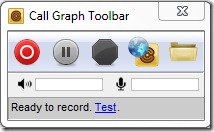 There are a few reasons that you might need to record your Skype audio calls. Perhaps you want to cherish and save all those calls that you make with loved ones, or maybe you conduct interviews for a podcast. Whatever the reason, CallGraph provides a quick and easy way to record your Skype audio conversations.