Menu Close

Tag: Applications (page 12 of 19)

Check Your Windows Apps For Updates in One Fell Swoop

FileHippo App Updater

One nice feature of Ubuntu, a slick Linux build, is the way that it handles application updates with a unified app.  For a similar experience in Windows, try out FileHippo Update Checker.  Once you install it, you can direct FileHippo Update Checker to scan your system, and return a list of apps on your system that need an update.  It runs in seconds, and requires the Microsoft .NET Framework 2.0 (which it will download for you, if you don’t have it).

Update Checker isn’t quite as slick as Ubuntu’s solution, as it downloads each update separately, and requires you to install them.  Ubuntu does this in a unified manner, with downloads and installs occurring right in the update app.  Still, Update Checker can save you considerable time, as you won’t have to open multiple apps or check multiple sites for updates.  Update Checker’s site does warn that it doesn’t check ALL apps, which is understandable considering the nearly endless number of Windows apps out there.

When I decided to hunt for a unified app updater, I did check out a couple of other alternatives, SUMo and Update Notifier.  I scratched Update Notifier off of my list, as, best I can tell, its database doesn’t seem to be up to date.  It told me that all the apps on my system were up to date, when they were not.  I didn’t get past the installation screen of SUMo, as I noticed that it asked to install a “marketing research” app during the installation process.  You can decline to install this app, but if you’re not paying attention, it would be easy to end up with some spyware on your system.

For these reasons, FileHippo’s app was the winner for me.  If you know of any other solutions, let us know in the comments.

FileHippo Update Checker


Analyze Your RAM For Free

Today, 40Tech is pleased to present a guest post by Keith from Computer Repair Calgary.

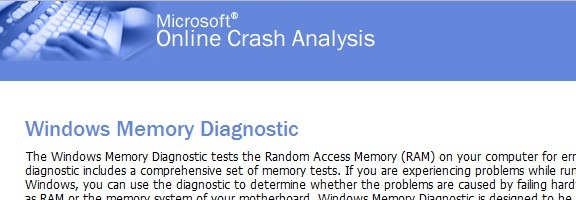
Microsoft memory test

The modern computer workstation is made up of a wide variety of parts. Unfortunately,
when any one of these parts runs into problems you, the computer user, are likely to feel
the negative consequences.


When RAM Goes Bad

RAM, the shorthand for random access memory, (a form of computer short term
memory), is no exception. When your RAM starts misbehaving you will notice certain
signals. What are the likely signals, you may be asking yourself? Well, bad random
access memory generally causes a computer to become somewhat unstable. In other
words, you may be working on a word document, or loading up a picture when suddenly
your PC suddenly quits the application or decides to restart entirely (often giving you
some kind of error). The biggest problem here is that your computer is not wise enough
to tell you exactly what is happening. It doesn’t come right out and say, you know what;
your memory is no good. Rather, it will typically give you an archaic error message
which is generally of little help. As a result, it is up to you, the computer user, to figure
out where the problem truly lies. Consequently, you have two choices. You can either
attempt to determine the problem yourself, or you can send your machine into your local
computer repair shop.

If your system is becoming increasingly erratic, one way you can test your computer’ s
RAM is through the use of a free Microsoft designed product known as Microsoft
Memory Diagnostic. As its name suggests, this particular application is solely designed to
diagnose your RAM. In layman’s terms, it will tell you if it believes that your memory is
good or bad (and in need of replacement).


Testing your RAM with Memory Diagnostic

So how does one go about using Microsoft Memory Diagnostic then? Luckily, the
procedure is fairly easy; especially if you take your time to work through it.

1) Head over to the Microsoft Memory Diagnostic webpage and download the program.
2) Run the program and choose to create a CD Image
3) Burn this CD Image onto a CD (you can find a wide range of free programs online
which allow you to burn a CD Image – also known as an ISO – onto a CD)
4) Put the CD into your CD drive
5) Reboot your computer and choose to boot from your CD (take a look on Google if you
are unsure how to boot from a CD – trust us, it’s not that hard once you take the time to
learn how).
6) Let Microsoft Memory Diagnostic run for at least 1 pass
7) If there are error messages at the bottom of the screen then some of your memory is
likely bad. If there are no error messages then there is a reasonable chance that everything
is ok.
8) Restart your computer when done.


That’s all there is to it!

Bio: Computer Repair Calgary is a computer repair blog hosted by Keith. On his site, he gives various computer tips and tricks, including how to test RAM.


How to Protect Your Computer – And Your Work – From Your Children

kid-key-lock

Has this happened to you?  You’re in the middle of working on that important document for work, when you step away from the keyboard for a break.  You return an hour later . . . to find that your little bundle of joy has hammered away on your keyboard.  If you’re lucky, your document is now only a mess, and not lost.  To prevent situations like this, check out two free Windows programs, Kid-Key-Lock, and Toddler Keys, which were both covered in the Lost in Technology blog.

kid key lock

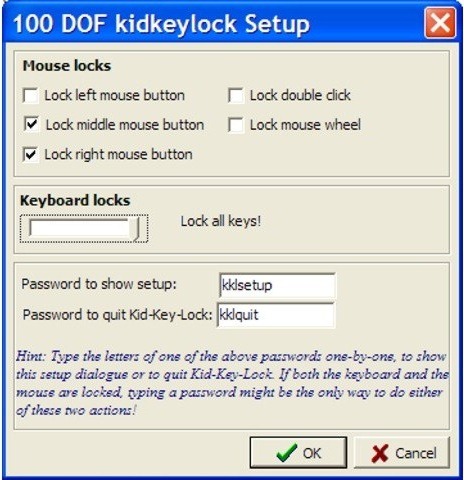
Both programs work similarly, allowing you to lock down your keyboard and mouse.  Kid-Key-Lock allows you to specify exactly what you want to lock out.  For example, you can allow just numbers, letters, and spaces, while locking other keys, like system commands.  This can be handy if you want to allow your toddler to use your keyboard to work on typing.

Toddler Keys allows you to lock your keyboard, mouse, and CD drive door, and even the power off button in Windows XP.  It will play a sound every time a key is pressed, and you can even select which images and sounds to play.  You can set a time period, after which the app kicks in and the lock is set.

Head on over to Lost in Technology for a look at the two apps.  Do you have other ways you protect your work from your kids?

Kid-Key-Lock and Toddler Keys [via Lost in Technology]


5 Methods (and 12 Tools) for Making Websites More Readable

squint at monitor 576

Whether due to failing eyesight or website clutter, some websites can be difficult to read.  If you find yourself in that situation, here are some tools and methods for making a site easier to read.  Some of these tools work by stripping away extraneous material, others make the text of a site larger, and some do a combination of the two.


1. Magnify the Text, With Either Your Hardware or a Browser Extension

The most obvious way to make a site easier to read is to magnify the text on the site.  One way to do this in Windows is by holding down the CTRL keying, and then rotating your mouse wheel.  You need to do this for any site where you want a larger font.  For a more permanent solution, across all sites, you can try a browser extension, like No Squint for Firefox, or Zoomy for Chrome.

Tools:


2.  Reformat the Page with a Bookmarklet

A bookmarklet is a bookmark that, instead of loading a web site, runs some javascript.  A few competing services offer bookmarklets that will reformat pages for you.  Place the bookmarklet on your bookmarks bar, click on it, and a site will be reformatted, with ads and extraneous text removed, margins altered, and fonts made more readable.  We love Readability, which we use to send formatted pages right into Evernote with one click, but there are a few other choices out there.

Tools:


3. Reformat the Page With a Browser Extension

If you don’t want to mess with a javascript bookmarklet, you can achieve the same results by using one of a few browser extensions.  We’ve previously professed our love for iReader, an extension for Firefox and Chrome. iReader installs a button in your browser’s address bar that appears when you are on an article-style page of a website.  When you click this button, iReader strips out all of the ads and other extraneous layout elements of the web page, re-displaying it in a lightbox-style overlay that is incredibly easy to read.  iReader also presents additional interaction buttons in the overlay.  These buttons give you the option to tweet about the page, send it to Facebook, remove images completely, change the background opacity, and more.

If you’re a Readability or TidyRead fan, and don’t want to install one of the bookmarklets mentioned above, you can install a browser extension instead.

Tool:


4. Selectively Remove Objects or Selections from a Page

There are some situations where you don’t want to reformat an entire page, but only hide objects that are interfering with your ability to enjoy the page.  Nuke Everything Enhanced is a Firefox add-on that allows you hide almost anything on a page via a context menu that allows you to select “Remove Object” or “Remove Selection.”  You also can select text or an object, and choose “Remove everything else” from the context menu.  This leaves behind only your selection.  This is especially handy when you only want to print part of a page.

Tool


5. Use Safari Reader

If you like using Safari, Apple’s web browser, then you don’t need to bother with any of the above-mentioned tools.  As of Safari 5, Safari comes with the built-in ability to make sites more readable.  This works much the same way that a tool like Readability works.  After a page loads, click the “Reader” button in the address bar, and the page will be formatted and displayed in a lightbox-style overlay.

Tool:


Do you have any tools to suggest, that you use to make sites easier to read?


Log In to Windows – With Your Face

log in to Windows with your face

If you have a webcam, you can make logging in to your Windows PC super easy.  Blink! lets you log into your account by simply looking into your webcam.  You have to install Blink! on your system, and then it will load with Windows at startup.  From there, it requires no action on your part.  Sit in front of your computer, and Blink! uses facial recognition to verify your identity, and log you in.

Photo by Justin Moore.

While we had no way to test their claims, the developers of Blink! say that the app has no false positives.  Still, if you place a premium on security, you may want to think twice before using it.

Blink does save your login history, so you can see a snapshot of everyone who successfully logs in to your PC.  That alone makes it pretty handy.

blink login full

Blink! is a free program that works on Windows 7 and Windows Vista.  If you have a 64 bit system, make sure you follow the link on the Blink! site to the 64 bit version.

Would you trust a program like this?

Blink! [Luxand]