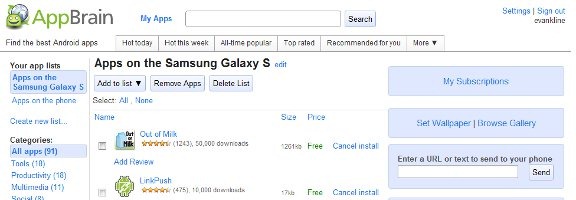
At first blush, the easiest way to find apps and get them onto your Android device is via the Android Market, which can be accessed via an app on your phone. If you want a great way to find apps, and keep track of them, there is another method. Check out AppBrain, a web service and Android app that lets you keep track of not only the apps that you have installed, but also to see what apps your friends are using.
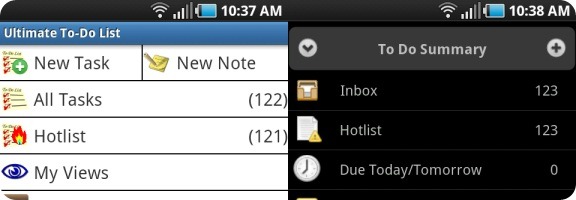
If you can find an app in the iPhone app store, chances are that you can find an equivalent app for your Android device. Sometimes, though, an official app isn’t available, so you have to look a bit harder. That’s the case if you’re a user of Toodledo, a task manager that we’ve raved about before here at 40Tech. Fortunately, Android developers are a resourceful bunch, and, as a result, third party alternatives have sprung up that bring Toodledo to your Android device. Two of the best are Ultimate To Do List and Got To Do.
There’s been a lot of buzz surrounding Springpad lately, both here at 40Tech and around the web. For good reason, too. The app’s new features and interface improvements have put it strongly in the running for one of the best save-everything-and-get-organized apps out there. People are loving it! According to CEO Jeff Janer, the new Springpad has seen a huge spike in usage. After playing with it for a while, I can see why.
When I first reviewed Springpad, back in April of this year, I compared it directly to Evernote, and pointed out why some of Springpad’s features were actually superior to our favorite note-taking app. The downside of Springpad was that there was simply too much going on, and that some of the different functions, like the internal apps, didn’t always play seamlessly with one another. Springpad’s development team listened to their users, and the new interface appears to have brought about feelings of peace, harmony, and general bliss amongst the Springpadians.
There have been several major updates to Springpad in the past months, the most notable taking place in September, November, and on Tuesday.
If you’re new to Springpad and don’t want to read my (very large) previous post, or just want a quick overview of some of the new features, watch the video at the bottom of this post.
September: Mobile Alerts, Chrome Extension
September brought about custom reminders and mobile alerts that helped to keep you aware of things on the go, like price drops and coupons for items you saved to your Springpad. It also brought about their most excellent Google Chrome extension.
November: All New Interface, Notebooks and the Board
November saw a huge shift in the interface, paring it down, making it easier to navigate, and generally making it prettier. Along with the new look and feel, better tagging functionality, and bulk editing capability, a lot of potential clutter and confusion was removed by taking all of the internal apps (for GTD, blog planning, and many other things) and giving them their own playground. Users that really wanted to keep the information stored in those apps tied in a neat bundle in the main Springpad app were given the option to port the notes into what is likely the most significant improvement to the service: new, easy to add and use notebooks.
Adding notebooks to Springpad has done a marvelous job of giving you control over how you organize your information. It used to be in one big list, that could be broken down over the large lot of internal apps — which was good in theory, but overwhelming in practice. Now, you have full control over what buckets you want to dump your saved information into, and it is nicely black-boxed in a very clean new interface that looks and feels like a desktop app. To make things even better, each notebook can have it’s own theme, which you can customize with personal images and photos, if you like.
The final hurrah for November was the introduction of the Board. The Board is an awesome use of HTML5, and there is one in every notebook. It gives you a visual approach to organizing your information that works like an old fashioned cork board, or laying out flashcards and sticky notes on a table. For the visual among us, myself included, this was a sweet miracle! The gift that keeps on giving, the Board also automatically adds items with address information to a handy, interactive Google map that can also be moved about. The Board is especially cool on the iPad, which allows you to move the items about with a finger, adding a tactile element that only improves upon the experience.
December: Chrome Web Store, Drag & Drop File Attachments, Keyboard Shortcuts and More
As if all that wasn’t enough, December’s updates brought about several more nice additions to Springpad, including the ability to drag and drop outside files onto the Board as file attachments. This is a fantastic improvement to on the other way to add files to Springpad which is to add a note, then add a ‘note to the note’ that has an attachment. You can even add multiple files at once (10mb/file).
The file-dropping feature only works in Google Chrome, which Springpad has entered into a nice marriage with. The web app was even featured in the launch of the Google Chrome Web Store on Tuesday. Chrome users can now install a shortcut of the Springpad app right into their start page, as well as sign up or login with Google’s OpenID, which allows easy access to the app. Once installed, you can open Springpad in a new tab, as a pinned tab, in full screen (which really makes it feel like a desktop app), and — if you use a Google Chrome developer version — as it’s own application. When combined with the Chrome extension, the installed Springpad is an information saving and organizing powerhouse. In my installation, and I’m not sure if it is a result of the extension or using a developer version of Chrome, I can even save a page to Springpad simply by right clicking and selecting the option from my context menu (if you happen to know which is the proper reason, let me know in the comments).
The final additions in the barrage of new features are keyboard shortcuts, like the ability to Shift+Tab between notebooks (see the complete list below), a search box and alert notifications on the home-screen, and the ability to share private items via a link (public items can already be shared to a gazillion services).
What’s to Come
The single thing that most longtime Springpad users were hoping for would be a desktop app. Unfortunately, that’s still a ways out, but I give Springpad credit for focusing on making their service a hell of a lot more functional on the web side of things first, before committing themselves to a desktop undertaking. According to Jeff, the desktop app will probably come in a windows flavour, first, but he didn’t have a date for me. What he could tell me, thought, was that the web version will make use of HTML5 to enable offline access to Springpad in and around the first quarter of next year. This is something the mobile versions of Springpad already do, and with the new web interface it will likely be almost as good as a desktop app by itself.
Some other pending features include the Board on the iPhone, as well as on Android OS (once it supports tables), and some interesting Facebook and other integrations that will enable you to do things like pull friends’ likes into the recommendation engine and filter them by subject. They are also looking into the possibility of a universal app for Facebook, and potentially, .doc and .PDF scanning.
In just a few months, Springpad has moved in leaps and bounds that blue tights-wearing, red-underwear-on-the-outside super beings might be jealous of. I am thoroughly impressed and actively considering new ways to implement the service into my day to day workflows. I actually did research and planned this post in Springpad. It was a good process. I’m also using it to track potential Christmas gift ideas for family members, and I can see the Board and me becoming great friends — especially if Springpad adds some connectors and other customization features to it in the near future. To be perfectly honest, though, they had me at “HTML5 offline access!”
What do you think of Springpad’s new features? How Will they affect how you use the app?
The beautiful thing about Android OS, over iOS, is the open platform. The annoying (and potentially dangerous) thing about Android OS, over iOS, is… wait for it… the open platform. It’s a double-edged sword. Say what you want about Apple’s proprietary madness, but the likelihood of a scam or malware app making it through to the iOS App Store is pretty slim — at least in comparison to Google’s Android Market. Does this mean you should never buy Android and jump headfirst into Apple products? By no means! According to the learned fellows over at Tested.com, with a little common sense, some permissions checking, and a dose of healthy skepticism, you can avoid the sneaky apps. Here are the main points:
Check the user reviews on Android Market. Go deeper than the first page. Read them — if there are a ton of positive reviews and they have the same sort of feel to them (like they were written by the same person, for instance), there is probably something up. If there are a ton of negative reviews, there is probably a reason — no matter who wrote them.
View the other apps submitted to the Market by the developer. If there are a string of oddities and things that make you raise a brow or two, you might want to avoid the app you are researching.
Check the developer’s website and support site. If the sites leave you feeling uneasy or that the developer lacks professionalism, you may wish to think twice before purchasing anything by them.
Check the app permissions. This is the big one. If an app has the ability to modify/delete SD card contents, to send a text message or MMS, or to access the internet all willy-nilly and you don’t know why, treat it in the same way you would a Windows application that is trying to do things that don’t make sense: don’t install/remove it, research it, and find out exactly what it’s doing. If the developer isn’t completely clear and forthcoming, get rid of it.
You can research permissions before you install an app by going to the app’s Market page and selecting menu, then security. Once an app is installed, check the permissions in Manage Application Settings.
There are more details of what you can look for via the link below.
How do you keep yourself safe from malware apps and scams on the Android Market?
The tech community seems to be almost overwhelmingly positive about the new Samsung Galaxy Tab. Some of that is because the tech community tends to love the openness of Android, and some of that is because the Tab is a shiny new toy — but much of it appears to be because Samsung’s new tablet is actually pretty cool.
Check out the video, below, from Stuff.tv. It’s one of many reviews and unboxings that I’ve come across that sings a balanced tune about the Tab’s goodness. Some highlights are as follows:
The smaller size of the Tab is a good thing, as it can fit in a (large) pocket and is easier to type on than an iPad (for people focused on thumb-typing).
Having Flash on a tablet is awesome and it appears to work pretty well, even on 3G.
Samsung and Carriers have pre-loaded “helpful” software (or bloatware) onto the device.
The interface, while infinitely more configurable, is not a slick as the iPad — but it does the job.
People will like it, no matter what Steve Jobs thinks.
My last two highlight points, above, were mentioned in every single positive review I read, watched, or skimmed, and though there are a few negative reviews out there, many of them come of as Apple fanboys doing what Apple fanboys love to do: trashing things that are not Apple. There are a some reasonable points to take away from the negative reviews, however, such as the difficulty that first time users of the Tab can have with finding the “on” button, and the fact that Android 2.2 was simply not built for tablets (just like Google said it wasn’t) and that leads to the occasional performance hiccup.
Overall, it seems that the Samsung Galaxy Tab will be a reasonable alternative to the iPad, even if it will never quite achieve the elitist notoriety of an Apple product. What do you think?