
Menu Close

Category: Cloud (page 13 of 32)

Memolane Finds Elusive Social Updates From Your Past

Memolane Finds Elusive Social Updates From Your Past | 40Tech

Have you ever tried looking backwards in Twitter or Facebook? It’s not easy. There was that funny conversation, link, or photo that one time that you suddenly feet the need to take a look at again, but when you tried to find it, you were faced with over a year’s worth of scrolling, waiting, scrolling, waiting, and then yet more scrolling? That’s one of the downsides of a world run by micro-updates — there are a lot of them. You could try using the built in search, or even Google, but it’ll probably be a chilly day down south before you find that elusive memory. That’s where Memolane comes in.

Memolane is a new web app that allows you to view content from multiple social media services in a single timeline that is easy on the eyes, and easy to search through. The timeline is scrollable and broken down into days, with the tweets, photos, updates, et al, that you posted online each day listed vertically in expandable memo bubbles. You can connect Facebook, Twitter, Flickr, YouTube, Last.fm, Trip.it, and more — and you can even add in RSS feeds to pull in custom content. I found that I was able to access Twitter updates as far back as February 2010, and Facebook updates, especially photos, all the way back to 2007. Clicking the timeline bar on the bottom of the window made for quick trips to the dates I was looking for, and the search is actually pretty powerful, so long as you don’t enter hash-tag symbols (#).
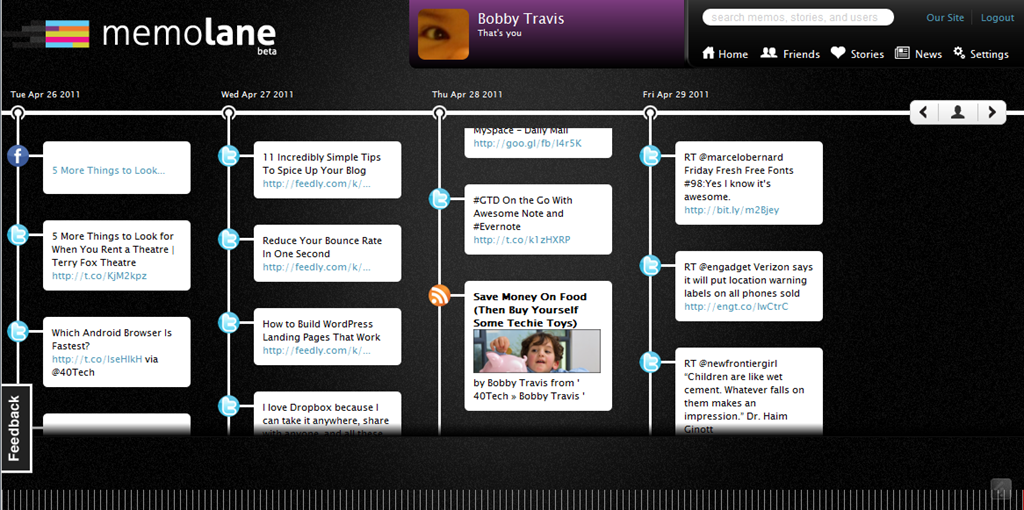
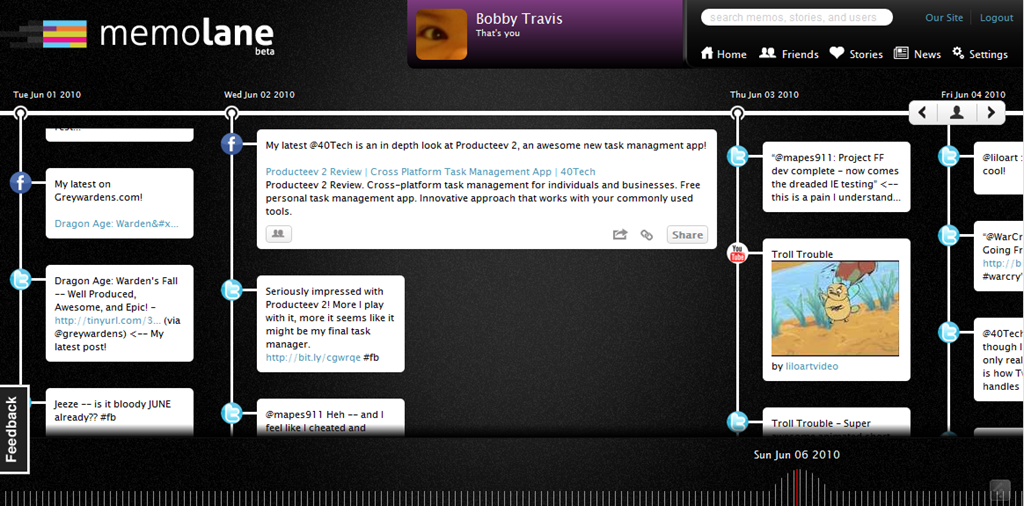
Memolane | Scrapbook for Online Life - 40Tech Memolane - Expanded | 40Tech

An easy way to find your old online memories isn’t all that Memolane is good for, however. You can also embed lanes into web pages (see it in action below), and connect with friends to create stories together around shared experiences. It’s a bit like an online scrapbook, really. In fact, Memolane may be adding a print aspect that will allow for real scrapbooking — digital life making it full circle back to the real world.

I like Memolane. It’s easy to set up and use, it allows me to find things that I may have never found otherwise, and it has per-memo and per-service privacy settings that make the sharing bit worry-free. I did find that, the further I went back in time, the more sparse the updates became, but it is entirely possible that that has more to do with the connected services than with Memolane itself. Also, it’s free — and awesome. That’s a good combination in my books.

http://vimeo.com/16474788

What do you think of Memolane?


Save Money On Food (Then Buy Yourself Some Techie Toys)

Save Money On Food (Then Buy Yourself Some Techie Toys) | 40Tech

There’s really not enough money to go around these days, what with the economic crashes and the rise in prices of, well… everything. Yes, this would be the perfect opportunity to complain about the price of gas, but this is a technology blog, so I’m going to complain about the price of food instead — wait… what? Yep, you read me right: Food. The prices are climbing toward the ridiculous for the essentials, and frankly, I’m more than a little put out about it!

Thankfully, the always vigilant folk over at Wise Bread have taken the time to scour the technology world (see, I brought it back…) for online tools that are made to help you save a bit of your hard earned cash without having to tighten up your belt.

Wise Bread breaks the tools they showcase into three categories: Menu-Planning, Coupon Resources, and Price Comparison. Menu planning takes a bit of time and dedication, but it beats the hockey sticks out of the customary North American (or , at least, my) pastime of pouring money into an active garburator. As the author, Sarah Winfrey, says — and I’m paraphrasing here — you’ll spend less, waste less, and leave the impulse buys in the past.

The menu-planning tool I liked the best was Kitchen Monki. You can get some good recipes from the site, or add your own, and there is a shopping list which can be scaled to suit your plan’s needs. The shopping list can be printed or sent to your phone, which is also handy, and the site has an active community and blog. The other two tools in this category were MealsMatter, which focuses on eating healthy, and Relish! — which costs 7 bucks a month. I’m not a fan of Relish! for the reason that I am interested in saving money, not spending it, but mostly I liked Kitchen Monki because of the site’s friendly layout and monkey mascot.

image

Some of the other featured resources were coupon sites CouponMom and Redplum, and price comparison site Pricible, all of which are worth a look if you are in the US.

These online tools and services are a great way to keep your cash where it should be: saving itself until it grows big enough to buy you a fancy new tech toy. Or on your kid’s college fund, but you know — whatever. Kids can get jobs…

What are your favourite money saving tools/apps/services, for food or otherwise?

Save Money On Groceries With These Online Tools [Wise Bread]


Learn the Basics of Programming, Interactively In Your Browser

Try Ruby header

Do you wish you knew how to program? I sure do. Even though I had a programming class or two in college, I know only enough to muddle through some code to get a rough idea about what is happening. When I’ve looked into learning how to program, I’ve seen only boring tutorials in print or online. Until now. Try Ruby is an online interactive tutorial, based on Ruby, that walks you through some of the basics of programming in Ruby. Read more


What Are Your Go-To Tech Sites?

What Are Your Go-To Tech Sites? | 40Tech

Way back in the wilds of 2009, Evan wrote a post naming his top five tech sites for every geek. But 2009 is ancient history in the world of the web — that was way back before I even started writing for 40Tech! My kid was only barely a one year old, and Twitter was still a novelty that allowed people to talk about their lunch. Ancient times, I tell you!

This vast expanse of time and change got me to wondering: what are your top tech sites in this new — and obviously technologically superior — decade? Where do you go these days for all of your tech-related news, reviews, and tips? I’m looking for a top 10 here, ordered or not, so hit the comments, Twitter, Facebook or email, and get the word out!

Here’s my list to get us started:

Lifehacker These guys cover everything, even things I had no idea I could be interested in. Their feature posts are helpful and informative, and their short posts have lead me to some other very cool blogs.

Mashable I’m a nut about the social web, both due to my work and my geeky curiosity and need to consume new techy info. I’m also fascinated by the way Mashable has managed to infiltrate and influence mainstream news, including local, national, and even worldwide television stories.

ReadWriteWeb Some of the topics on this site can be a bit heady or politically charged, but the quality of the work and the range of interesting topics keep me coming back. I’ve found a lot of really great information here, some of which I’ve linked to from 40Tech.

Make MagazineThis site continuously blows me away with the stuff people cobble together. Some crazy DIY and experimental tech (and other things) here!

Twitter Specifically, my Twitter account (@bobby_travis). This may seem like an odd choice, but I get a lot of my tech news and info from here. Some of it is from the sites in this list — but I get it from Twitter before I ever hit the site — and much of it is from other sites that are linked in the posts of those I follow and retweet or otherwise share.

40Tech Yeah, I know, I’m biased because I write here, but this site remains one of my most frequent reads — and not due to vanity. The fact is, I was a reader, like you, before I started contributing to the site. The information I get from Evan and our commenters, not to mention guest posters, is, and always has been of the best quality.

MakeUseOf I like MakeUseOf because of the huge amount of how-to posts, general tips, and guides that I’ve found there. It’s a great place to find everything from how to build your own PC, to how to jailbreak your iPhone, and find out how to shop better online. Something for everybody, really.

Joystiq This is probably where I get most of my gaming info. I could have said Facebook, I suppose, because that’s where I often start before I get to the site, but that is only because I liked their page and have been interested enough that I haven’t muted them.

Web.AppStorm In a world focused on/obsessed with cloud computing, getting all the goods on the new and fancy web apps is a necessity. WebAppStorm is one of the best places to learn all that you could ever want to know and more, and there are several other AppStorm sites attached to it. It’s not bad to look at either. Downright pretty, even!

Digitizd Formerly known as The 2.0 Life, Digitizd is the baby and brainchild of David Pierce (Assistant Editor of PC Mag Digital Networks and 40Tech reader). The site broadcasts thoughts, tips, news, and neatness related to the digital world and living in it, and is an all around good read.

There are several other sites that I read regularly which are also tech-related, such as a multitude of other gaming sites, social media and business sites, and more, but these are the ones that I probably end up at the most.

Now it’s your turn!

Hopefully, this conversation will bring out a few gems people have never heard of, as well as a sense of what our world in general finds to be the cream of the geeky crop. And please don’t feel pressured to rank 40Tech up high on your list. We are very much aware of and comfortable with our smallish stature among the tech-site juggernauts. We still know we’re awesome — because you all keep telling us so! Thanks for that, by the way… You’re awesome too! :D


Use Jolicloud for a Web App Dashboard in Firefox, Safari (or Chrome)

Use Jolicloud for a Web App Dashboard in Firefox, Safari (or Chrome) | 40Tech

One of Google Chrome’s best features is the Apps Dashboard. With the current push toward cloud computing, it sometimes seems that a new web app surfaces almost daily. When used in conjunction with the Chrome Web Store, it’s easy to sort through the multitudes of services out there, get a quick review, and have your favourites at your fingertips. Sometimes the buttons are nothing more than spiffy bookmarks, and others integrate with the browser, adding context menu functionality and other things that make your life easier. The ability to sync your apps between machines is an added bonus, bringing us one step closer to Google’s dream of us all living in the almighty Browser [see ChromeOS].

Unfortunately, if you are a Firefox user, even with the recent leaps forward in Firefox 4, there is no native service that offers what the Apps Dashboard does in Chrome. You could use specialized start page plugins or services and put together your favourite quick-links, but you would still be missing out on the best feature: discoverability. Unless you use Jolicloud, that is.

Jolicloud Web App Dashboard, App Desktop in Firefox | 40Tech

Jolicloud started as a specialized Linux OS for netbooks, attempting to give those small screens an easy and visual user experience. Because netbooks are small and built mostly for web browsing, it made sense for Jolicloud to focus on web apps, and while they did offer native software installs, they were much more cloud-based (hence the name). They added a social component to their OS, allowing you to connect with and share your favourite web app recommendations with other users, and you could log in on any Jolicloud machine and sync your apps over to it, too! This might sound a lot like Google ChromeOS, but Jolicloud was doing all of this actively before ChromeOS was even out of the gate.

These days, Jolicloud still exists as an OS, but has changed its name to JoliOS. What Jolicloud is now is a very pretty web app itself that functions as a dashboard that can be opened in any Firefox 4 or Safari 5 browser. It can also be opened in Google Chrome — and is actually an app in the Google Web Store. Jolicloud has built up a decent list of web apps in its directory, and though it doesn’t have the ability to integrate its apps into your browser, it does a few things that the Google Chrome App Dashboard can’t do. Like look pretty — or be multi-page.

Jolicloud Install Web Apps List | 40Tech

Jolicloud has many different wallpapers that can be applied to it, and has several pages for you to organize your apps. The pages function very much like iOS in that you can drag the app icons around and move them from page to page by pushing them against the right or left edge of the screen. Combined with the fact that the apps are always in the same position you left them in, no matter what computer you open them on — as opposed to Google Chrome missing some in syncs, or occasionally reordering them on you — and you end up with a very good experience.

Another thing that actually gives Jolicloud a leg up over Chrome’s App Dashboard is the ability to add whatever site you like by URL, using the Add New App button on the bottom of the web apps category list, which you get to by pressing the big green plus button. Essentially, you could use Jolicloud as your web app library and as your speed-dial to your favourite sites — very handy! If that’s not enough for you to give it a shot, then click on the folder tab in the top left — you can actually connect Dropbox and Google Docs right into the app, with available space reports, and in-app previews and editing, which makes for all kinds of convenience.

Jolicloud Connects to Dropbox, Google Docs

I’ve found only two annoying things about Jolicloud:

  1. That the site has experienced the occasional weird 400 error, and made it seem that my apps were wiped out. That can usually be fixed by restarting the browser, sometimes with a clean cache, and logging in again.
  2. That the sync with the actual OS will bring over apps — or offer apps in the list — that are actually for installed software. Generally, these are just greyed out if you are using them in JoliOS, but there are times they can be made to work. I got Skype to launch from Jolicloud, for example.

If you want to use Jolicloud with your Firefox 4 or Safari 5 install (Opera is not supported, and IE only works — sometimes — with Chrome Frame), just head to Jolicloud.com and create an account, then click on My Jolicloud. The rest is pretty self-explanatory. Once you have your apps in place, either set Jolicloud as a pinned tab, or have it open as your start page. The are reports of the devs working to create a Firefox extension for Jolicloud to make it an even better experience for FF users. They are also apparently working on Android compatibility, and already have experimental iPad support.

If you like Jolicloud a bunch, you might want to go the whole way and install JoliOS — it can be installed and removed in Windows and configures your system for dual boot. You could also buy the cute little Jolibook computer, if you have some spare cash and are in the UK.

Have you tried Jolicloud? What did you think?