Menu Close

Category: Cloud (page 12 of 32)

Springpad Web App Adds Offline Access, Data Backup

Springpad Web App Adds Offline Access, Data Backup | 40Tech

One of the things that has been a major point of contention in the ongoing Springpad vs Evernote debate (which still rages, despite the different market segments the apps target) has been the lack of a desktop app for Springpad. This was closely followed by the inability to backup and download your Springpad data, which was a strong deterrent for some of our own readers. Well, Springpad has pushed their product forward yet again, and have addressed these issues — and while offline access to the service doesn’t quite stack up to the power of a desktop version, it’s a huge step forward for the web app, and only the beginning of things to come.

Offline Access

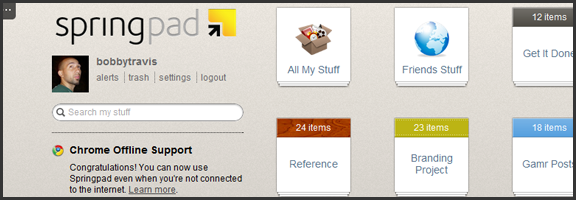
The Springpad mobile apps have had offline access for some time now, leaving their web counterpart to catch up. To do this, Springpad has used it’s integration into the Google Chrome browser to its — or, rather, our — advantage. Other browsers will be added soon enough, but for now, all that HTML5 offline goodness is locked into the native Chrome app. If you already have it installed, you will probably have to uninstall it and then grab it from the Chrome Web Store again. Then you need to pop into settings, then services, and click the button to enable offline access and start the sync. If you want to make sure everything you sync remains up to date, then leave the app open while you do other things. I suggest right-clicking on the app and then selecting “open as pinned tab” or as a new window so you can “set it and forget it.”
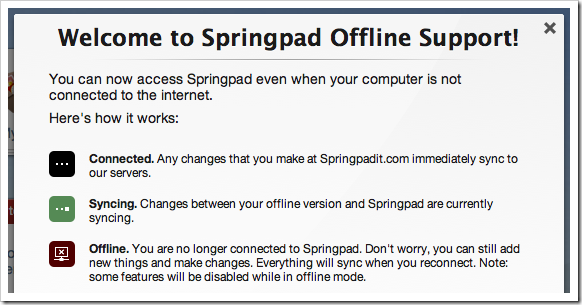
Springpad Offline Mode Syncs Data for Offline Access

While the offline access is a fantastic development, there are still a few things that are lacking. Of course, you won’t have access to elements that are internet-dependent, like alerts and links to other sites, but you also won’t be able to use the Board, or the advanced sorting and filtering options. Also, you can only search by title (which is a little annoying), you have no access to the trash, and you can’t add new photos or files for later upload (among other limitations — full list here). Some of these things will be addressed in future updates, and I’m definitely not complaining — I’m happy about the offline access, and fully expect it to improve in leaps and bounds over the next while. I still have that hankering for a desktop app, though. I have no real reason for it, and I fully understand that Springpad’s dedication to the cloud and HTML5 puts them ahead of the curve, but… I want one. It’s probably just me showing my age or something…

Data Backup

I’m loving what Springpad has put together for a data backup solution. Most times, when you download a backup of an online service, it is a CSV file, or some other dump of data that is not otherwise immediately usable. Springpad has basically given you an offline website with a list of your data in HTML form. Unfortunately, it is not easily navigable without a lot of scrolling or using your browser’s Find feature, but it’s all there and it’s easy to read. I downloaded a few thousand notes and bookmarks into a 12 MB zip file (with attachments and photos in their respective folders) that I was able to open and read right away. This made me happy!

Springpad Offline Access, Data Backup Features | 40Tech

The downside of this method is that it is not really ideal for transferring your data to another service, if that is what you want to do. Perhaps Springpad should include a CSV option, but I’m thinking you would have to leave a lot of data behind that way.

In any case, you now have the ability to mitigate the potential disaster of losing all your Springpad data in a freak accident, and will be able to enjoy reading it too. Huzzah!

Springpad isn’t slacking on other fronts, either. They are a part of the Google IO Chrome Sandbox, and have updated their Android apps to support Honeycomb tablet devices. They also have released a version for the Barnes & Noble Nook Color — which is awesome for the owners of the eBook reader/tablet hybrids, considering how Springpad is able to keep track of and deliver alerts on books. I love the steady and focused flow of updates we’ve been getting from Springpad, and I can’t wait to see where they take us next. I’m hoping desktop app – but I’ll take what they give.

What are your thoughts on the latest Springpad updates?


LastPass Hit By Potential Security Breach (and Some Quick Tips On Creating a Strong, Memorable Password)

LastPass Hit By Potential Security Breach (and Some Quick Tips On Creating a Strong, Memorable Password) | 40Tech

With all of the crazy outages and hacking going on in the digital world over the past week or two, the fact that LastPass has an issue (as of May 3rd), probably shouldn’t come as a surprise. Still, it is a bit of a shock to the system to be reminded that the “last password you’ll have to remember” is potentially as vulnerable as any other. Before panic sets in among LastPass users (of which I am one), know that the company is on it, and that those with strong, non-dictionary based passwords should be fine in any case. LastPass also admits that they may even be overreacting, but prefer to err on the side of caution when it comes to keeping your data safe — a policy that I am 100% behind.

Without getting into the technical aspects behind it all, what basically happened is that LastPass discovered at least two network traffic anomalies in their systems that they couldn’t explain. One occurred in a “non-critical machine” and the other came from one of their databases. The second matched with the first and involved information exiting the LastPass environment. The company reported in their blog post that the outgoing amount of data was large enough to have contained email addresses, password hashes, and “server salt,” but not enough to have “pulled many users’ encrypted data blobs.”

While LastPass doesn’t feel that the issue is a large one, they recognize the potential for brute force hacking on the passwords of any users that may have been compromised. This is most likely to affect those who have a master password that is lacking in strength and/or dictionary-based, which is still incredibly common, even today. To protect the integrity of their systems, and their users’ data, LastPass is requiring all users to change their master password. They are also looking for email validation from you if you happen to be logging in from an IP address that is outside your usual set. This is an added security measure, just in case your password does get compromised before it is changed.

Don’t rush off and change your password right away, however. The sheer volume of password change requests is slowing down LastPass as a whole, which is causing server connectivity problems across the board. The company has beefed up the email verification protection as a result, and are confident that there should be little risk in waiting a day or two before changing your master password. You will have to do it eventually, however.


Creating a Strong – But Easy to Remember – Password

When you do change your password, strength should be your primary focus — but there is no reason you have to put together something that is impossible for you to remember. That may seem a bold statement, considering that strong passwords need to have combinations of numbers, symbols, and both uppercase and lowercase letters — and should avoid dictionary words — but a great post by Gina Trapani (Lifehacker) back in 2006 essentially solves that problem.

Gina advises that you use a single rule set as the basis for all of your passwords. You start with a base password that you create from something like a favourite acronym, letter/number combination, or nonsense word that you will never forget. Pad that with some symbols for extra safety, if you want, and store it somewhere offline, just in case you forget it. Once the base of the password is set, the rest comes as a result of the service you are signing up for.

For example, you could set your base password using your initials (including middle) or even your favourite pet’s initials, combined with your favourite number. In this case, you are the proud owner of Fluffy Cattington, and have a love for the number 86. Your base password could be something like FC86, or FfyCt86, etc. Add a few things to that for extra strength and you could have this: &*FfyCt86!, or #(FC86)^^. Already, we are well on our way to a secure password.

The next step is to add a standard code for the service you are using. Initials or the first few letters of the service name are good here as well. If this were to be your LastPass master password, for example, you could have something like this: &*FfyCt86!LP, or #(FC86)^^Las. Just try to make sure your password is at least eight characters long and that you are using numbers and letters. Using symbols and uppercase/lowercase letters is even better, but not all services will allow this in their passwords, so you may have to adjust for that. LastPass does, so no worries there.

Check out the Lifehacker post for even more ideas on how to choose your base password.

If you are interested in alternatives to LastPass, check out Evan’s post on eWallet vs Keypass vs LastPass. I like LastPass, though, and am pleased by the lengths they go through to protect their service and users. Evan also makes a great case for LastPass here.

What are your thoughts on choosing and remembering strong passwords?


App of the Week: Feedly [iOS, Android, Web]

Feedly RSS Reader for iPad, iPhone, Android, Tablet, Web | 40Tech App of the Week

We’ve covered Feedly before (and we thought it was great!) but the RSS feed reader to smack all others is now much-improved. The web app has seen several updates in functionality and sharing features, and the recently released and updated mobile apps have been generating a lot of positive attention. And why not? The experience is nearly identical on both iOS and Android phones and tablets, and Feedly Mobile 2.0 easily competes with the likes of Pulse, Flipboard, and Zite. With an update or two, it might even blow those apps away completely.

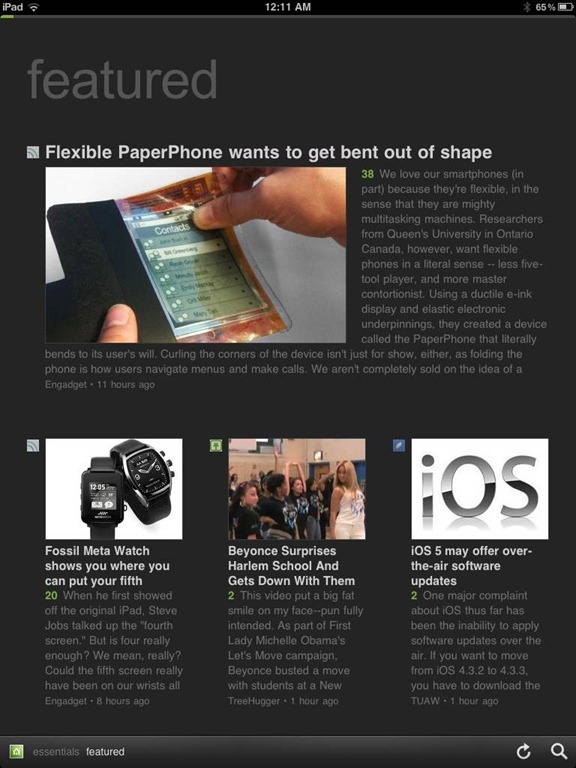
Feedly’s minimalist magazine design focuses on the content, presenting it in an easy to read format that is complemented by the app’s simplistic navigation. The mobile apps are especially barebones, keeping the effects to a minimum, and the overall presentation is extremely appealing. The toolbar on the bottom of the screen allows you to like (on Google Reader), bookmark, email, and share articles on Twitter. You can also enable saving to Instapaper and Read It Later. The web app has several more options for sharing content, but the basics are available in Feedly Mobile 2.0, with the exception of one service: Facebook. That seemed like a bit of an oversight to me (and that’s me understating the obvious), but the developers assure us that Facebook functionality will be available in version 3.

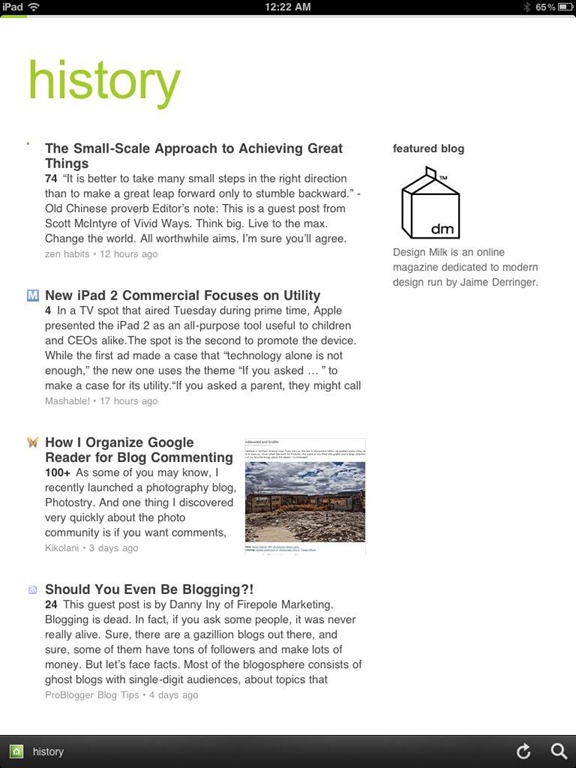
Feedly Mobile 2.0 iPad RSS Reader | 40TechFeedly Mobile 2.0 | Google Reader Magazine | 40TechFeedly Mobile 2.0 | Find Already Read Posts in History | 40Tech

One of the best things about Feedly is its learning algorithm. While you read, the app learns about the topics that interest you most, and does a great job configuring your personal magazine around those interests, bringing your favourite types of content to the forefront. You can always go through your sources one at a time, if you like, but taking advantage of Feedly’s different sections — each one tailored just for you — really helps to keep your reading moving and you engaged. Feedly also offers suggestions, periodically, of other sites that may suit your interests, which is helpful.

If you don’t feel like connecting with Google Reader, Feedly does have a host of content already available for you to sort through, but it works best when you are logged in.

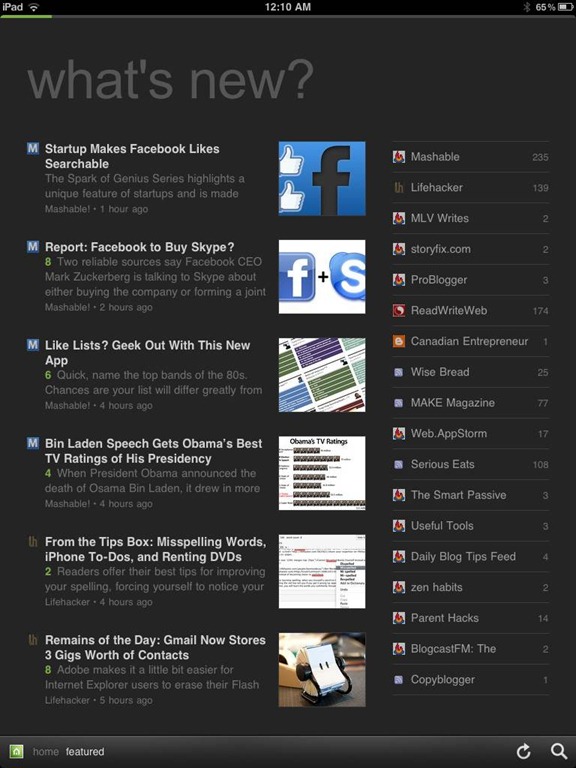
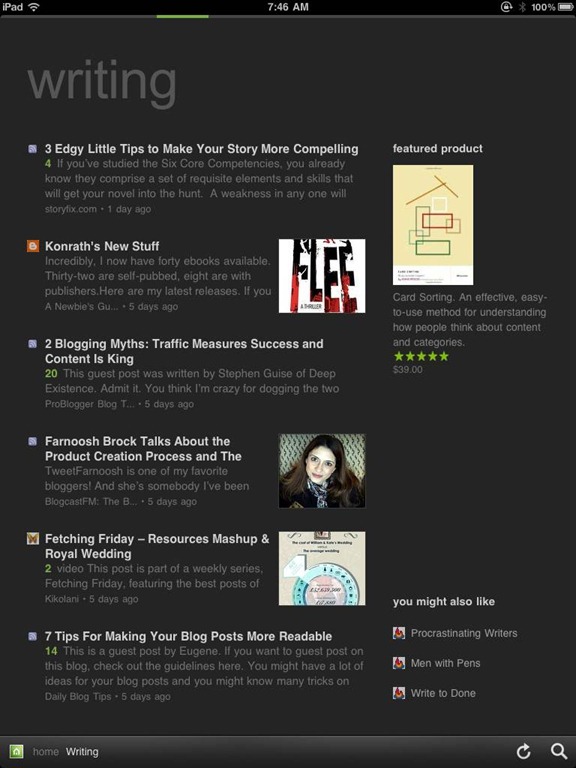
Feedly Mobile 2.0 Dark Theme | 40TechFeedly Mobile 2.0 iPad RSS Reader Magazine | 40TechFeedly Mobile 2.0 RSS Feed Reader | 40Tech

Feedly Mobile 2.0 is every bit as fantastic as the web app. It’s incredibly responsive, and is beautiful to look at on all platforms, including iPhones and Android phones, the iPad, and Android tablets of different sizes (both 7″ and 10″). There are a few niceties packed into the HTML5 goodness, as well, such as an instant search bar, a black or white theme (which helps with night reading and can be changed with a shake), a history section, and the ability to start on the magazine layout or category of your choice. There are still a few kinks that need to be ironed out of the mobile apps, however, such as the lack of Facebook sharing, and that the app only works in portrait mode. Hopefully these issues will be resolved in an update or two. I’d also like to see some of the additional sharing options in the web app find their way to mobile as well, especially sharing on LinkedIn and Evernote.

Feedly is free, and it kicks butt. Get it.

Now you know I love it — what about you?


The Amazon Crash and Burn, And How It Affected an Ordinary Blogger

Amazon crash and burn.jpeg

What a week for the cloud. On April 19, Sony took down the PlayStation Network in the face of hacker attacks that compromised the network. Two days later, large portions of Amazon Web Services crashed and burned, due to technical glitches. Amazon has since recovered, but the PlayStation Network is still offline. Much has been reported about the effect of the Amazon outage on major sites like Quora, reddit, and Foursquare. But many “ordinary” bloggers use Amazon services as well. How did it affect them? We spoke to a blogger whose sites were taken offline by the outage, and learned a few things.


Read more


How To Mount Inexpensive Amazon S3 Storage As a Local Drive, Using Transmit [Mac]

Amazon S3 as local storage.jpeg

Now might not be the time to tout the benefits of Amazon S3, given the recent Amazon cloud storage outage. Still, it is hard to beat Amazon S3 prices. Amazon offers storage at 14 cents per gigabyte for the first terrabyte of storage, and additional charges for transfer in and out. You can get easy access to that storage using a modern FTP client, such as Transmit on the Mac, and even make your S3 storage space show up as a drive on your computer. Here’s how.

Read more