
Menu Close

Category: Apple (page 9 of 38)

Apple Releases Employee Starter Guides for Mac and iOS

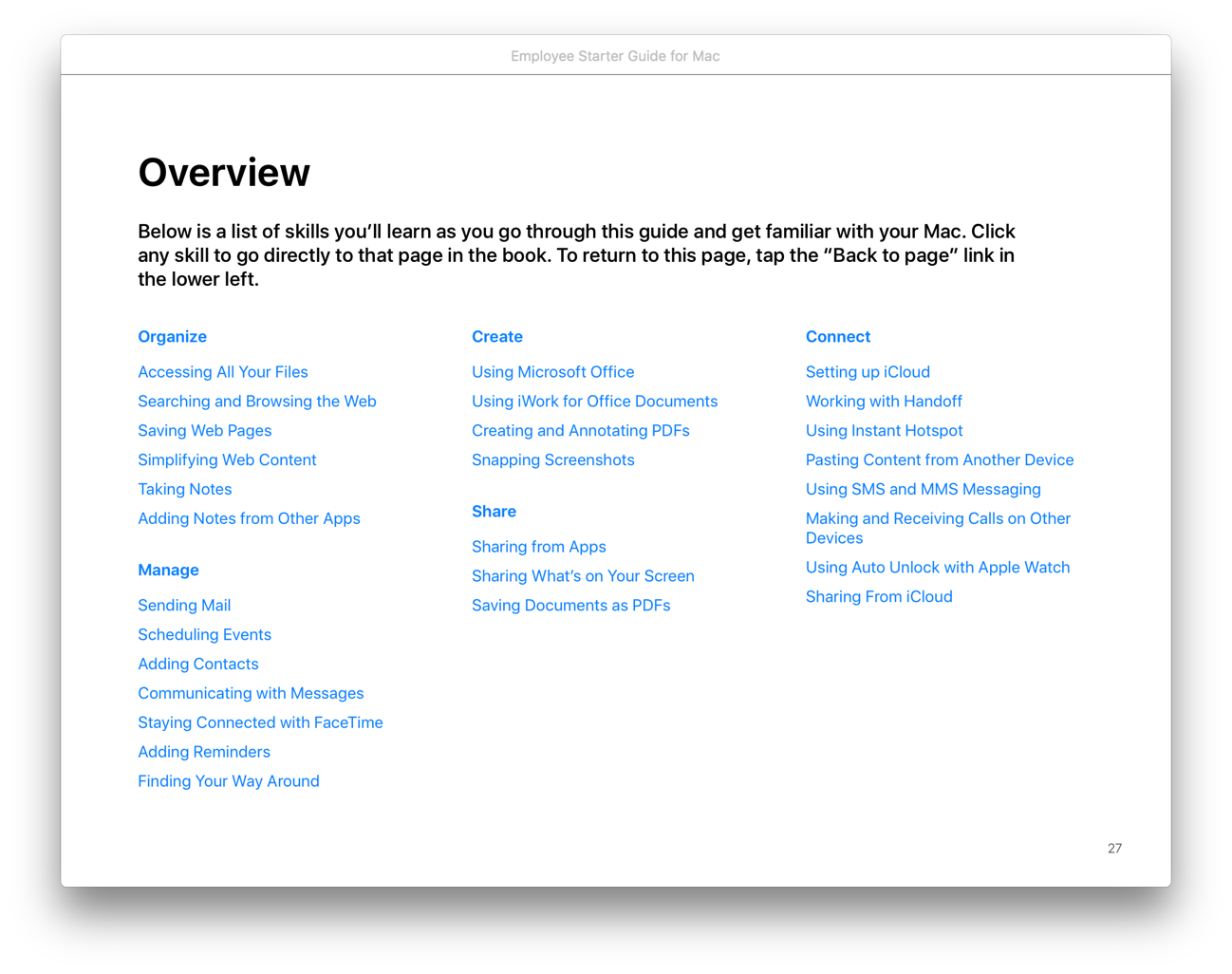
If you’re trying to get coworkers up to speed on Mac or iOS, Apple has recently released two books to help: Employee Starter Guide for Mac and Employee Starter Guide for iOS. I’ve just started going through them, but they seem to start at the ground level, and build from there.
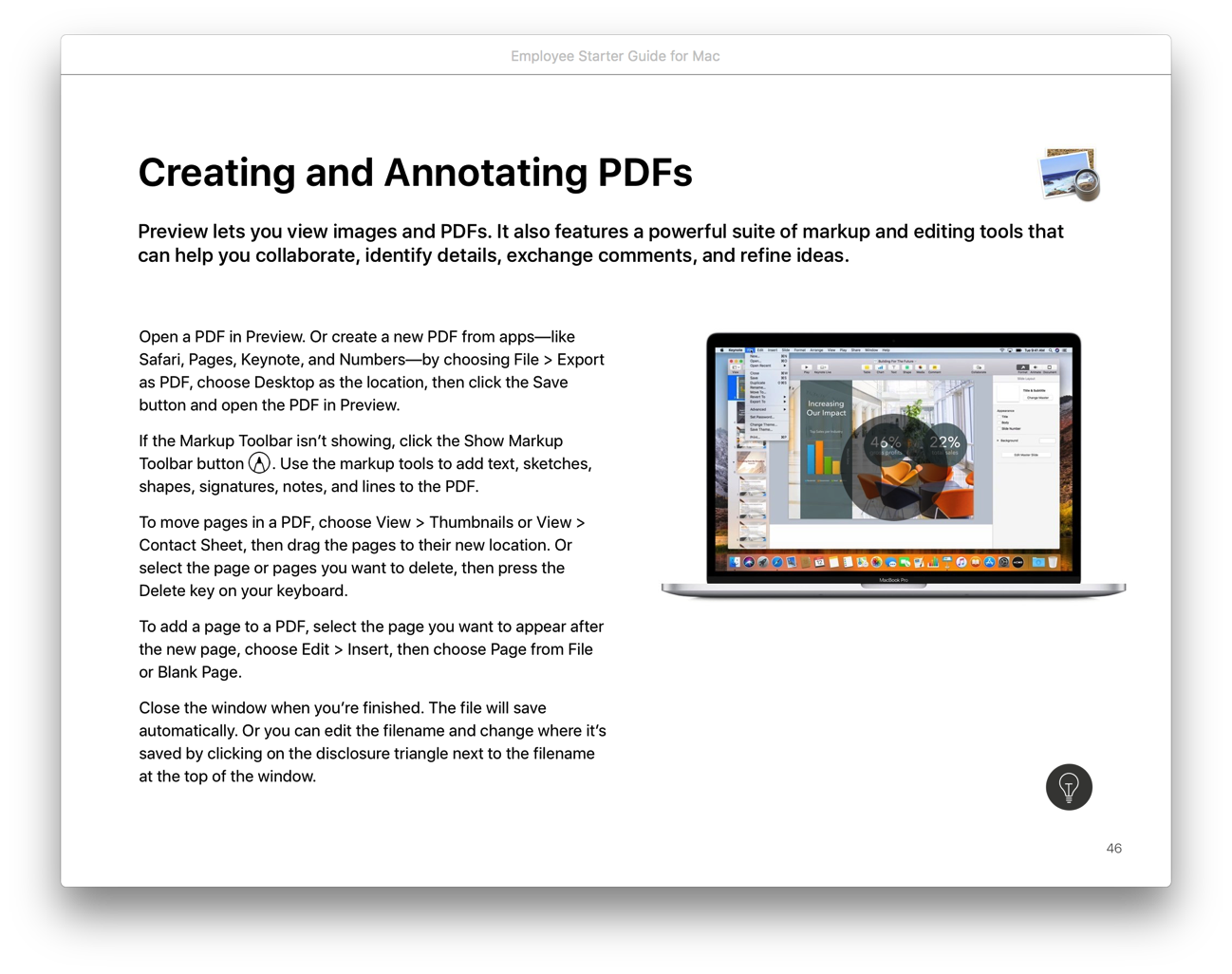
Employee Starter Guide for Mac

Both books are broken into four sections: Learning the Basics, Next Steps in Working with Mac/iOS, Extending Productivity Further, and Support for Mac/iOS. Each section is broken into subsections that go into detail about using a Mac/iOS device for different aspects of work, such as for collaboration.
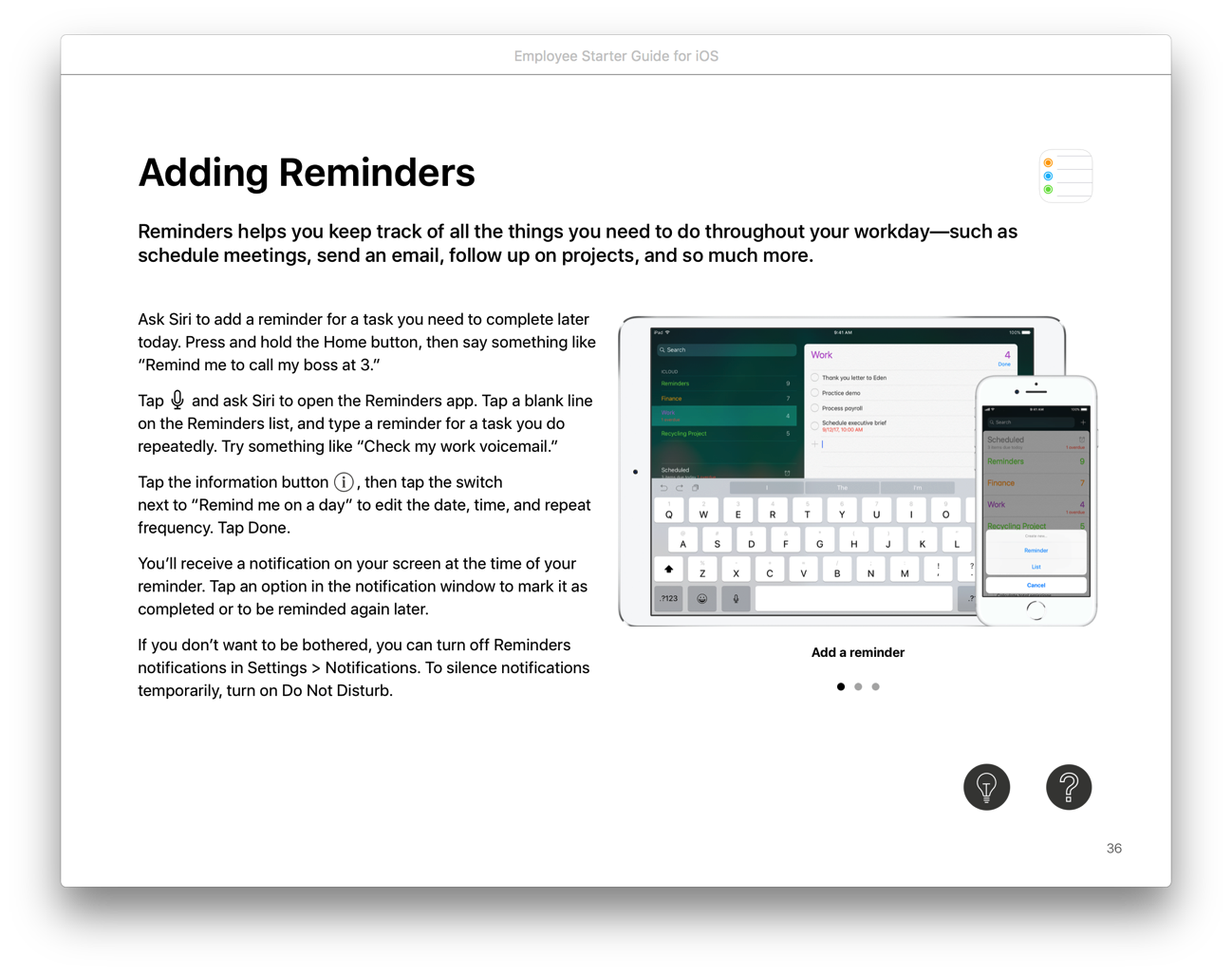
Employee Starter Guide for iOS

Employee Starter Guide for Mac sample subsections

The books include recommendations for third party apps where appropriate. For example, the iOS book recommends PDF Expert and three other apps in the “Annotating PDFs and Forms” section.

Tech geeks are accustomed to finding answers and help online, but these books might be helpful to “normal” users who are just getting started with Mac or iOS. If you are looking for reference materials for your employees, or even for yourself, check these out.

Hat tip to Dave Marra, who mentioned this on Twitter.


Apple Receives FCC Approval for HomePod, Suggesting a Launch Could Come Soon →

Juli Clover, writing for MacRumors:

Ahead of the promised “early 2018” launch of the HomePod, Apple has received official FCC approval for the smart speaker. Now that FCC approval has been obtained, Apple is free to begin selling the device at any time.

We’ll see if Apple is too late to the game on this one. Amazon looks to have the biggest lead, and CES was filled with smart assistants from other manufacturers this year. Also, the type of person that might get a HomePod for audio, as opposed to for its smart assistant features, seems to me to be the type of person already immersed in the Sonos ecosystem. Count me in that camp. I’m still on the fence with the HomePod – the reviews will go a long way toward my decision.


How to Make the MacBook Pro’s Touch Bar Useful

All of the good ones are taken.

That’s how I feel when it comes to keyboard shortcuts on my Mac. Between Keyboard Maestro and app shortcuts in System Preferences, I have used up all of the easy to remember shortcuts. Enter the MacBook Pro and the Touch Bar. When used with BetterTouchTool and Keyboard Maestro, some commonly used shortcuts are just a tap away.

BetterTouchTool allows you to configure the TouchBar on a per app basis, and also globally. You can configure TouchBar buttons to execute certain system commands, and also to type keystrokes. That last part – typing keystrokes – is huge. If you trigger a Keyboard Maestro macro with a keystroke combination, you can map that keystroke combination to a Touch Bar button via BetterTouchTool.

For example, check out my “End Call” Touch Bar Action in the screenshot below:

You can see I’ve mapped my “End Call” Touch Bar Action to the Option-Command-H keyboard shortcut. Over in Keyboard Maestro I’ve set up a macro that is triggered by that same keyboard command. The macro hangs up the VOIP software phone on my Mac, so I don’t have to hunt down the VOIP application to end a call.1 With the combination of the BetterTouchTool Action and the Keyboard Maestro macro, I press a nice red phone button on the Touch Bar, and the call ends. I have a similar Touch Bar button set up for answering calls.

In future posts, I’ll break down some more Touch Bar layouts to show what I’ve done with the Touch Bar, such as adding Markdown bold and italics buttons for use in my firm’s case management system, and more.

BetterTouchTool currently is sold under a “Pay What You Want” model, with a minimum price of $4.99 and a suggested price of $8.99. It’s sold directly from the developer’s website.

BetterTouchTool

  1. Even on my iMac, I typically keep apps spread between several Spaces. I didn’t want to have to hunt down the VOIP app, or tab between open apps, to go to the app and end a call.

Add Your Favorite Mac Mail Client to the PDF Print Menu

On the Mac, you can email a PDF of almost any webpage, photo, or other document, by selecting the print command and picking “Mail PDF” from the dropdown menu at the bottom of the dialog box that pops up. This automatically opens Apple Mail, regardless of what you’ve set as the default mail client on your Mac. What if you want to mail the PDF using a third party mail client?

Read more


BetterSnapTool for Better Screencast Resolution

If you embed screen recordings (i.e., screencasts) into a Keynote or PowerPoint presentation, rule #1 is that your audience has to be able to see your screencast for it to be effective. If you are recording from a device with a Retina display, you might find that application windows sometimes become unreadable when later displayed with lower-resolution projectors. Images and text just become too small. While you can fix this by adjusting your monitor’s resolution either in settings or with third party apps1, my preferred solution is to use a Mac app called BetterSnapTool.

Read more