Bobby isn't 40-something, but is a strong supporter of the Grown-up Geek kind. He's a loving husband and father first, but is also a freelance writer, productivity nut, operatically trained singer, and (not-so) closet geek.
Every once in a while, there is a shining light in the multitude of promotions and solicitations we receive at 40Tech — something that we feel is definitely worthy of being passed on to our readers. This is one of those times — at least we hope so. We want you to tell us.
So here’s what we’re going to do: We’re going to give you a link to some free stuff(that only works until Nov. 6th, so get on it now), and offer up some license codes to more free stuff. You can try them out — and keep them — and then let us know what you think. We’ll combine your feedback into a “multi-author” blog post, and let you tell the world if the WinX HD Video Converter Deluxe and WinX Blu-ray Decrypter software is worth their time.
WinX HD Video Converter Deluxe, according to the promo email, is:
…your must-have for enjoying an unforgettable Halloween and the upcoming holiday season. If you have family videos shot by camcorders or interesting movies downloaded from the Internet, you can then, with the help of this software, burn those videos to DVDs or put them on your iPhone/4S, iPad, iPod, PSP, PS3, Xbox, Android, Blackberry for playback on the go!”
You can get this for free (normally $50), without any sort of weirdness or hoops to jump through, by heading to the WinX DVD Giveaway Page. Again, the giveaway ends on November 6th, 2011, so don’t wait on it. Do it now. The activation code is right there on the page. Just don’t forget to activate it before November 10th, 2011.
For the WinX Blu-ray Decrypter, we only have 10 license codes, so we have to default to the old “be the first 10 to comment and ask for it”model. First come, first served, no exceptions. If you like the idea of backing up your Blu-ray discs, then jump in and let us know. Oh, and the software needs to be activated before November 15th, 2011, for the code to be accepted.
Once you’ve tried the software out, please do send us an email or add a comment to this post, and tell us about your experience. You can also hit us up on Twitter or Facebook, or chat up Bobby and Evan on Google+.
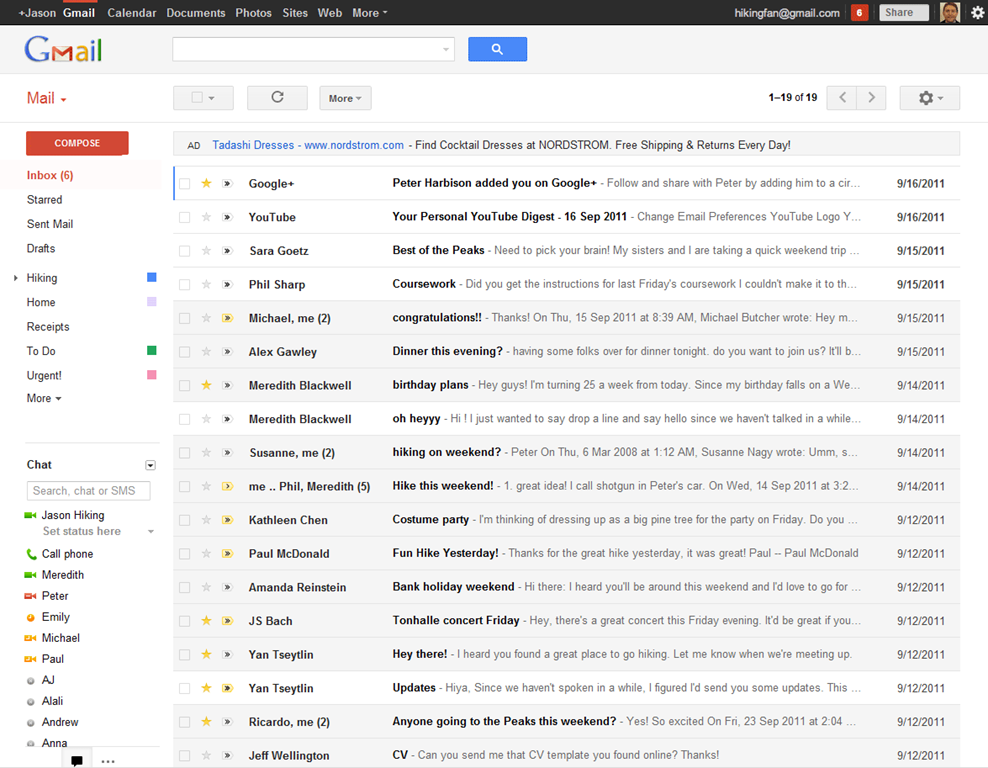
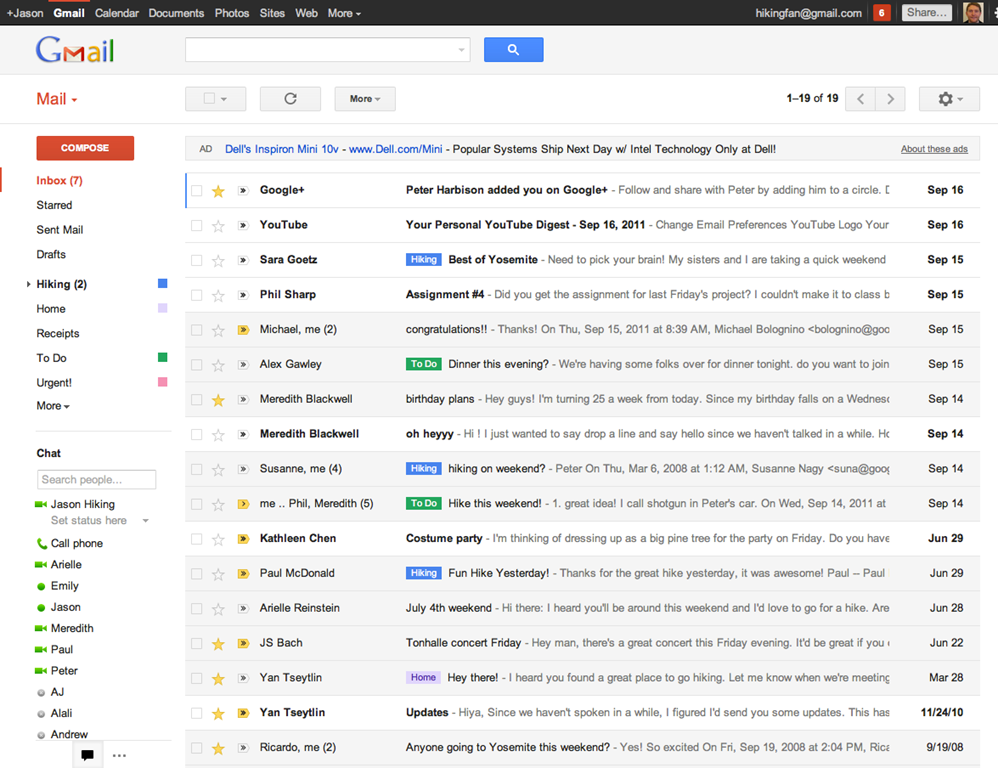
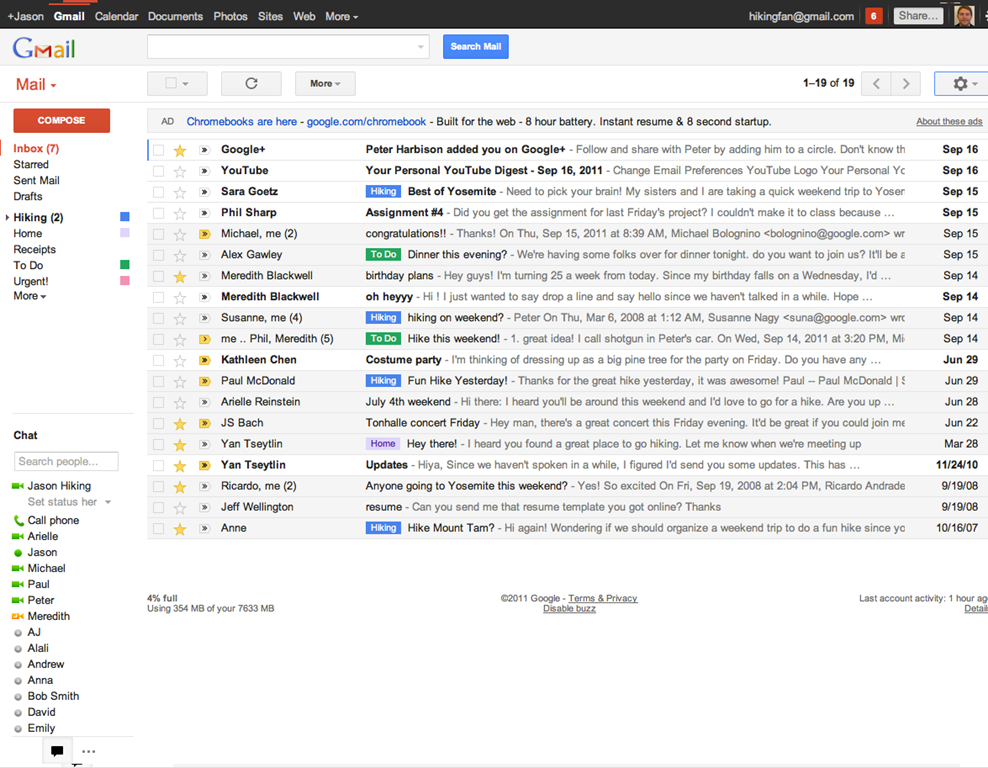
In keeping with their Big Push, Google released a new version of Gmail with a major facelift, as well as released — and then pulled — their long-awaited native Gmail app for iOS.
The new Gmail look, as is to be expected, has a few minor annoyances to accompany some great new features, and the app is actually very cool, but was pulled due to a notification system problem.
Check out the feature-list for both below.
New Gmail Web App
The new web app has a look and feel that fits in with Google’s updated branding. It’s “cleaner, more modern” and is very similar to the preview theme that the Gmail team released a while back. I’ve been using that theme for a few months and I love it, but I’m not terribly fond of the dynamic “Display Density” feature.
Display Density allows you to control the default amount of whitespace for each email message in your inbox (Comfortable, Cozy, or Compact), but whill actually change dynamically depending on the size of your browser window. This may seem like a good idea, but if you use Minimal Wall’s guidelines for window sizes, it displays as Compact, no matter what, which clashes with your zen by slapping you about with tiny little squished up emails. Google should add a feature that allows you to force the display of your favourite Density, no matter the size of your window.
What is awesome about the new Gmail is the sweet new toolbar, the much-improved search dialogue — I always hated the in-field search commands — new themes, and the improved look of threaded conversations. I also like the additional control settings, the ability to drag the size of the chat window, and the awesome little buttons in the sidebar that can make the chat, gadgets, and other annoying sidebar items vanish until you want them.
Give the new Gmail a try, and let us know what you think. If you don’t love it, you can always revert back — at least for now. Check out the video for details on the upgrade:
Native Gmail App for iOS
Once Google gets a handle on the notifications errors (apparently just a silly little mistake on their part, so it shouldn’t be long), the new iOS app will probably kill the iOS mail app for me. I only use the thing because I hate waiting for Safari to load, and the new app looks like it will finally allow me to do what I’ve always wanted to from my iPhone and iPad: reply to emails with the email address that they were sent to.
This is a huge deal for me, because I use a multitude of different email addresses for different things, and they all come through Gmail. I don’t necessarily want to answer my 40Tech email or my work email with my main email address, which I’ve had forever, but might not always come off with the… professionalism… I need.
Unfortunately, you still can’t compose new email in the app and choose what email you want to send from. Baby steps, though, I suppose — and it’s still better than the iOS emai app.
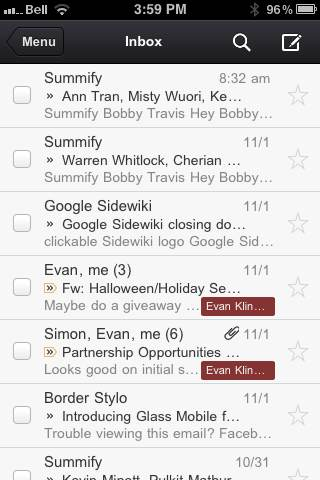
The new Gmail for iOS app is nearly a full-featured Gmail experience. There is universal search, auto-complete from both Gmail contacts and iPhone addressbook, attachment upload (which is basically photos, of course), threaded conversations, priority inbox, easy archiving, labelling, starring, deleting, and spam reporting.
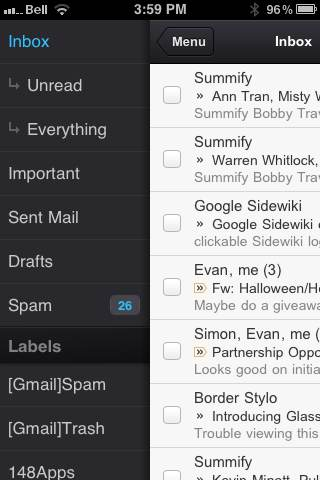
On iPhone/iPod Touch, the Gmail app gets out of its own way, focusing on the content, with a nice expandable sidebar to sort through your labels. On the iPad, you get the standard two-paned view, which makes for easy viewing and navigating on the larger screen.
The only other things to note are that, at the moment, the app doesn’t have offline support, and doesn’t do multiple Gmail accounts, and that swipe gestures — while good for the most part — sometimes feel a bit awkward.
What are your thoughts on the new look for Gmail? And when you get a chance to check it out, tell us what you think of the iOS app, as well!
We all love Evernote here. Evernote related posts are some of the most popular on the site. And it’s no wonder… Evernote is awesome! Well, the deal-giving giants over at AppSumo agree with us, and have decided to raffle off 10 — count ’em: 10! — free-for-life Evernote Premium accounts with all the trimmings. You read me right: Evernote Premium — Free. For. Life. Save yourself $45 per year, forever.
AppSumo will require you to give them an email address, of course. They’re not doing this for nothing. Even if you don’t win, though, the weekly email deals they’ll send you are pretty awesome, and there’s a nice sprinkling of seriously great free stuff as well. Once you enter, you can get additional entries by sharing on Twitter and Facebook, or by sending people your AppSumo link to the contest. If other people sign up via your shares, you get extra contest entries. You can also Like them on Facebook for other ways to win, and you should follow them on Twitter, as that is one of the ways to find out if you win.
The contest ends October 30th and 11:59PM CST, so get your ballots in now. You can get there by this link: http://appsumo.com/~hqPz. Yeah, clicking the link will give me additional chances to win, as well, but it’s all love, right? If you don’t want to help me out, that’s cool — a pox! a pox, I say!!! :P — then just head over to the AppSumo website and start from there.
So what are you waiting for? It’s Evernote Premium. Free. For life! Get clicking, people!
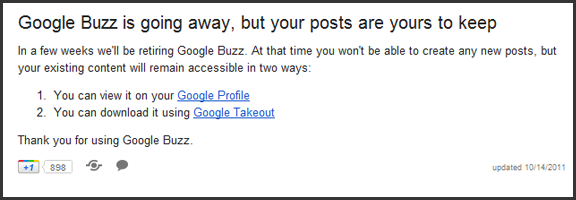
Google Buzz is going the way of the dinosaur — or maybe the Dodo is a better analogy. Either way, as of November 14th, the hopeful attempt at getting in on some of that Twitter juice will simply fade away. Google’s on to bigger things now — like trying to get a piece of that Facebook pie, with some Twitter a la mode. Sounds nummy, right? Or maybe I’m just getting hungry…
Google officially announced the retirement of the Gmail-integrated Buzz on October 14th, but some of you may only now be getting the little pop-up notification in your Inbox. I got mine yesterday and I realized that, in a weird way, I’ll miss the service. It seemed like it had so much potential, at first. We even wrote about why we figured it wouldn’t flop – oh, wait… that was Wave. What can I say… we’re optimists. In any case, the integration of Buzz was handled badly, the “bubble up” experience was annoying (to say the least), and the UI design was the former and most unfortunate Google Ugly.
Thankfully, Google+ not only cannibalized some of the best that Buzz had to offer, but it also was designed with the understanding that minimalist can be pretty, too. The jury’s still out on whether or not Google’s latest social offering will see long-term development, but the Magic 8 Ball — and my never-ending, aforementioned optimism — tells me that chances are good…
So, anyway… If you want to view or keep your Google Buzz content, you can still see it on your Google Profile, and you can download it via Google Takeout — a very handy service, I might add.
On a final note, does anyone else find it funny that the “Google Buzz is going away…” post in the Big G’s Gmail Help pages can be actually shared on Buzz — and that there is a button to open up Sidewiki as well? Just me…?
Usually, I like to pull out new apps for the App of the Week. Every once in a while, though, one of my favourites releases something so cool that I have no choice but to add the “extra-special” label. For the second time this week, Springpad pushes itself into the 40Tech stream, first with a slick integration into the iOS 5 notifications system, and now by adding yet another level of personalization and social value to their service.
Springpad vs Evernote is a thing of the past. With every new update, Springpad moves farther away from being just a note-taking/remember everything app, and gets closer to being the definitive service for collecting, sorting through, and acting on what interests you. Their latest leaps into this arena bring you three things:
Customize Your Notebooks
Note:Notebook customizations show up in the most recent versions of the mobile apps: iOS 2.6+, and Android 2.4+.
The ability to easily customize your notebooks so that you see only what you want in the sidebar, and cut the extra steps out of the Quick Add process.
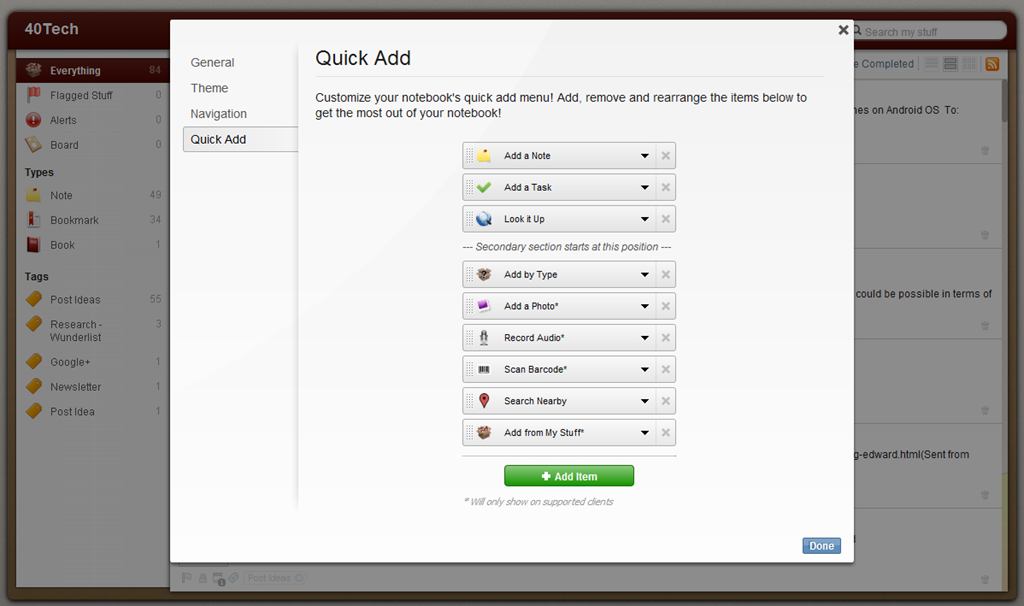
Customizing your Springpad notebooks is easy. All you need to do is hover over the notebook (or the open notebook’s title bar) until you see the little wrench appear by the name, click said wrench, and head to either the Navigation or Quick Add button that appears in the pop up settings dialogue.
Navigation
Click and drag the navigation items to reposition them or delete them completely.
Change the item-type without moving anything (change Everything to Board, for example).
Change the way notes are sorted when you open that navigation item (by Added, Modified, Tag, etc.).
Change the Starting View for that navigation item to default as title-only, title-with-description, or grid.
Different navigation types will have different options, depending on their function. For example, the Types Section and Tags Section also allow you to decide how many of their items to show in the sidebar, as well as to decide if you want to sort by note count or name. That last bit, alone, will make life easier for those who use GTD in Springpad, and the other features won’t hurt either.
Quick Add
This is where things get fun. The best thing an app like Springpad can do is make it as fast and easy as possible for you to get things into it. Springpad was already pretty good at this, especially via their mobile apps, but sometimes it was a bit of a pain to select notebook, then select item type (or change item type, if Springpad’s auto-select got it wrong), etc., etc. Now you have the ability to make sure that the notebook only shows the options that you need to see.
You can select by the standard add a Note, Task, By Type, Look It Up, et al, as well as by Recipe, Book, Movie, and more. You can also choose client-specific options. This is fantastic if you do most of your collecting for that notebook by mobile, as you can then set it to collect only by Photo, Audio Recording, Barcode, or Search Nearby. Please note that Android devices currently do not allow adding alarms, contacts, or events, and mobile devices in general do not allow adding from My Stuff. Quick Add can be used to filter these items out.
Save, Share, and Download New Notebook Templates
The ability to save your new notebooks as a template for other notebooks, share it with others, or easily adopt their shared templates.
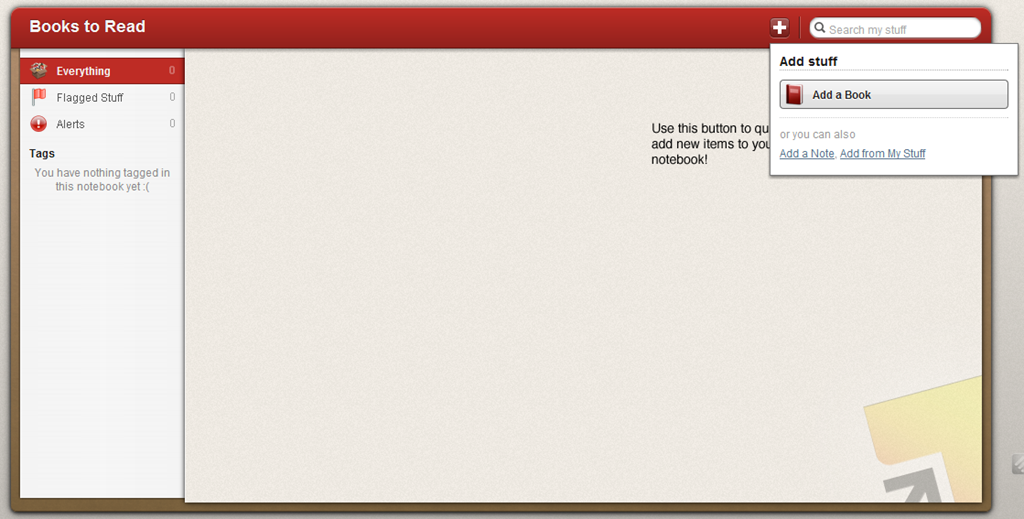
Once your notebook is customized just how you like it, you can use it as a template for new notebooks by selecting it from the “Choose template for this notebook” dropdown menu (in the same place you name the new notebook).
Unfortunately, this only applies to new notebooks — there is no option to apply a template to a notebook you already have. If this annoys you, don’t worry, there’s an easy fix:
Create a new notebook
Add the desired template
Open the old notebook
Click Edit in the top left of the notes area
Click the checkbox to select all or use the dropdowns to filter and select (or just use a saved filter and Edit/checkbox)
Use the Notebooks dropdown to add the new notebook
Delete the old notebook
Sharing Notebook Templates
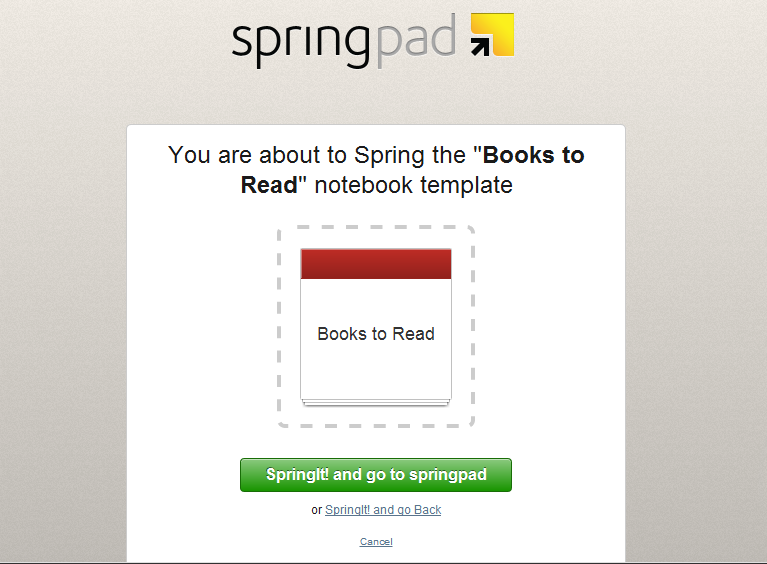
All you have to do here is open up the settings, and click where it tells you to get the share link. None of your notes are shared, or any other private information, only the template. the link will lead to a page that allows people to Spring and install the theme. Add it wherever you like to add links: Twitter, Facebook, Google+, your blog, a public Springpad notebook just for templates — wherever.
Springpad already has a few templates available on their blog that can get you started, complete with ideas on how to make the most of them on the web and on the go. Check them out, and follow the prompts to install them: Gift Ideas template, Recipe Book template, Books to Read template.
Share your custom notebook templates in the comments!
Friends Stuff + Facebook = More Awesome
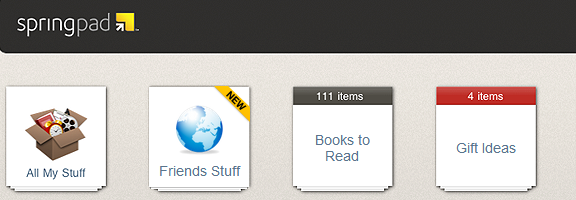
In case you haven’t heard, Springpad has integrated Facebook into Friends Stuff, so you can easily check out and add your friends’ Likes and Check-ins. We’re talkin’ movies, books, TV shows, music, places, and the like that your real-life friends recommend; easily viewable and sortable in your Springpad app, and easy to add to your own notebooks for later access.
The Friends Stuff Facebook integration is in beta, but if you click the link in the Homecreen’s sidebar and authenticate with Facebook, you should be able to get connected. At the very least, you will be put on the list and Springpad will send you an email to let you know when you can access the new feature.
Check out the Friends Stuff + Facebook video:
So yeah… That’s a lot of Springpad awesome for one day. Kudos to CEO Jeff Janer and the entire Springpad crew for continually thinking of and adding new ways to make their service useful and unique. I can’t wait to see what they do next!
What do you think about Springpad’s new additions?