This is the second in a series of articles evaluating potential alternatives to Google Wave, which Google is discontinuing. Check out Part I (Shareflow) and Part III (Socialwok).
For those of you who have never used Google Wave, sorry, you’ve missed your chance. As you may have heard, Google announced recently that it won't be developing Wave any further as a standalone product, although Google will keep it open at least through the end of the year. This is pretty unfortunate, because Wave filled a unique niche by providing a great platform for real-time team collaboration and discussion.
So, here at 40Tech we’ve begun a search for a replacement for Wave. Last week we reviewed Zenbe Shareflow as a possible replacement for those of you who used and came to love Google Wave. Today we offer a second suggestion. This suggestion isn’t a collaboration site so much as a system to replace Wave.
The system to replace Wave is based on using the full-range of Google’s other products. One of the main advantages that Wave shares with the other products in our "Wave Replacement" series, is that it brings all communications and documents into one platform. While using several web products is undeniably a bit more complicated and messy than a single website, it also offers some advantages as well. For example, it provides you with several layers of flexibility, and new features to allow you to adapt the system to how you and your group prefer to work.
The idea of using Google’s full suite of products to replace Wave started with the realization that we likely will see new features rolled out to Google products, based on features that got their start in Wave (real-time email communications perhaps?). Google said as much in their blog post announcing the end of Wave. We then realized that many of the best aspects of Wave are already available across Google’s other offerings, if you use those applications to their full potential.
First, we'll look at why you should consider using Google’s other services to coordinate efforts and communications in real-time with a group. Second, we’ll look at what specific services you should use, and the aspects of the communications for which they're best used. And finally we’ll look at how you can manage all of those services.
Why use Google’s suite of products to replace Google Wave?
Anyone who has used the internet to do anything (i.e., everyone) has probably at some point become concerned about the amount of information that Google possesses about them. Add to this concern Google’s recent stance on net neutrality, and there is a valid question as to why someone would rely on Google even more. Put simply, tens of millions of people continue using Google’s products every day because they are just so good.
When I see a website with that light blue and white color scheme that is simple and powerful, I know that I’m using a Google product. Almost every product that Google offers is available across all platforms, with many of those products available offline. Almost all of them have very simple ways to archive, import and export your information, and they are so widely used that there are tons of add-ons, plug-ins, gadgets and tie-ins to complement what are already great products.
Google has had problems with some server availability, but my experience has been that those problems are exceedingly rare and are very quickly fixed. Many of Google's products have automatic save functions to eliminate the dread of losing something you just spent hours working on, like what I experience every time Microsoft Word crashes on my work computer. There are tons of keystroke shortcuts to speed up your work, and of course the search functions within Google's products can’t be beat. Google offers HTTPS access to many of its services for secure access, and all of its products are available free of charge.
There are of course other services that offer a full-range of products that are similar to Google’s products; Yahoo, Zoho and Microsoft come to mind, but all in all I have found that Google gives you the most powerful and flexible set of tools to coordinate your full range of communications. Perhaps most importantly, I already use at least one Google product every day. As a result, the learning curve is much shallower for me to get up to speed on a Google product’s capabilities.
For this post, I’ll assume that you have a Google account, and a working knowledge of the Google tools. If you don’t have an account, then you may want to sign up. It only takes a second, and if you need more background knowledge you can go to the main page of each service (links are provided below). To pull all of these services together I’ll be using iGoogle and One Number, an extension developed for Chrome by Dan Bugglin. However, if you would like a desktop-based application that is a much richer experience, then check out Google Desktop and add gadgets for the services I’ll discuss. Desktop has enough capabilities that at some point I’ll probably write a post just on it.
On to the system!
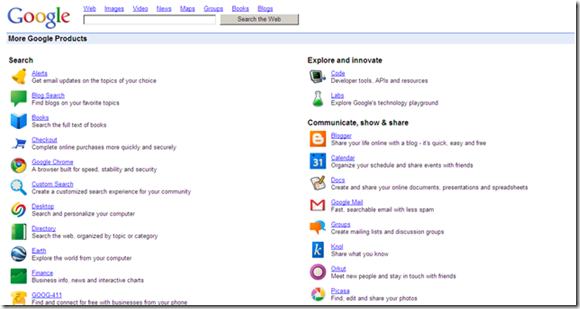
If you click through Google’s main page to its full listing of services, it can be overwhelming. Google offers 24 different services under search alone! However, you don’t need every service. You can more than compensate for the loss of Wave through the use of Gmail and Chat for communications, Docs for editing emails and real-time collaboration, GCal for calendaring functions, Tasks for the obvious tracking of tasks, and iGoogle or One Number to pull it all together and display the other services in one place. I’ll give a brief description of the high points of each, but if you’d like to hear more about how I’ve used these services to replace Wave feel, free to contact me or ask your questions in the comments, below.
Communications: Gmail and Google Chat
 One of the most important aspects of coordinating any team is coordinating communications. Because of Gmail’s use of collapsible email chains (tied to the subject of the email), it is easily the best way to communicate with a group. It provides a permanent record of communications that is easy to follow and get out of the way when you have finished reading it.
For more real-time communications right inside of Gmail you have the option of using Chat. If your account is set-up for it, Google will even archive your chats and make them searchable from within Gmail, again to maintain a record of communications. Using a combination of Gmail and Chat will usually suffice for discussion purposes, but it offers some additional advantages over Wave, including ease of use (even my grandmom knows how to use email), a permanent record of conversations that can’t be altered, and the ability to turn an email into an event or or task by exporting them to Calendar and Tasks (both of which I’ll discuss below).
Wave has a major advantage over email and chat in that it provides a platform for a group to develop ideas because, as you surely know, you can’t go back and edit an email to develop an idea further. However, Google has provided this ability through a combination of email and Docs
.
Real-time Group Writing: Docs
 Docs is probably one of Google’s least used offerings, besides the obvious exception of Wave, which is presumably why they are shutting Wave down. Docs allows for real-time collaboration on documents, presentations, spreadsheets, and even drawings. It has hundreds of searchable templates and the ability to create your own templates for later use if you choose to do so.
You can create shareable folders which will automatically modify the permissions of any document that is placed into that folder to match those of the folder. As an example of why this is useful, I created a folder that gives Evan and Bobby full permissions. As a result, I can dump any document regarding 40Tech into that folder, and Evan and Booby will be able to review, edit and comment on it. At the same time, they won’t be able to access the folder that I have set-up for my wife and I to coordinate our vacation plans.
Another useful feature of Docs is the ability to import Gmail messages into Docs. Once a Gmail message is imported into Docs, the text can be edited or added to for additional collaboration.
Also, for any document that has been made public, you can subscribe to the document's RSS feed to track changes as they occur. As far as I can tell, this option is currently only available for public documents. This is unfortunate, because it would be very convenient to be able to subscribe to those documents that I’ve set as private but am working on with others.
Another disappointing shortcoming of Docs is that although it bolds a document title if someone has worked on it since your last log-in, it does not identify what changes have been made. Wave did a great job of this, and even had a function to scroll through time to replay changes as they happened. I am hoping these features will be brought to Docs shortly. What Wave lacked, though, was any kind of ability to schedule meetings or create and track tasks, which Google thankfully offers in GCal and Tasks.
Scheduling conference calls and meetings: GCal
 In much the same way that Gmail is the gold standard of email offerings, GCal is the gold standard in calendaring choices. GCal’s main selling point is simplicity. In Gcal you can quickly create an event, add notes and attachments, create a reminder, and add guests. There are probably thousands of public calendars, so I don’t even need to do the work to add the U.S. holidays to my calendar, for example (or, more importantly, the Penn State football schedule). It has a clean display that makes keeping track of your schedule a breeze. Critical for group collaboration, though, it is just as easy to share your calendar with others and add their calendars to yours. In doing so, GCal even converts events to your time zone. One of my favorite aspects of GCal, though, is the ability to display tasks that are coming due on your calendar.
Task Tracking: Tasks
 As mentioned above, using several services to replace Wave offers the advantage of being able to personalize the system to your liking. Using Tasks is such a tweak that I have made for my personal system. Tasks is a very Spartan tasks tracking system, especially when compared to Remember the Milk and others of that level, but it gets the job done. You can create tasks and subtasks quickly, either in Tasks or by moving an email to it. You can have the task displayed in your calendar, set due dates, and even get reminders when you want them. What more do you want? If there is anything else that you may want, then Tasks probably isn’t for you because there really isn’t much more than that.
Pulling All of This Together: iGoogle and One Number
 To pull all of this together and be able to view everything on one page, Google offers iGoogle. You can add gadgets for each service mentioned here and look at them all side by side. You can of course add tons of other gadgets (Dilbert anyone?), but I have one tab set aside just for these services as kind of my command center.
If your browser of choice is Google’s Chrome, one of the best extensions available is One Number. The extension checks your Google services at intervals that you designate, and notifies you of updates through a non-invasive tool bar icon. It is currently limited to Gmail, Google Reader, Google Voice and Wave, but in speaking with the developer he has said that the next release will have more services, including Docs. At this point it is a nice convenience to be notified of new communications, but as it adds new services it could completely replace iGoogle for me in this system, thus eliminating the need for me to leave the page open and further streamlining my group communications.
I know this sounds like a lot of work to replace one service, especially since our series looks at other single services to replace Wave. Once it’s set up, though, I really have found it to be a comprehensive and, just as importantly, simple way to maintain open lines of communication with members of a group. Further, it allows me to schedule appointments and keep track of the tasks that result from those communications and appointments in services that I already use. To top it all off, it’s all pulled together in one simple interface through iGoogle. I think if you give it a try you will find that it is worth the effort.
What do you think? If you use Wave, are you going to use other Google services as a replacement?