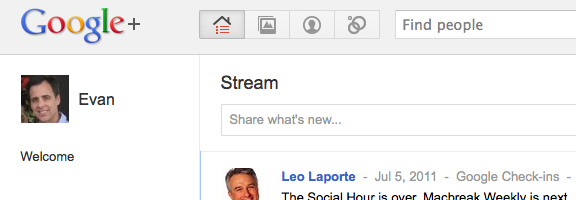
9/20/11 UPDATE: Invites are no longer needed, as Google has opened up Google+ to everyone, as of September 20, 2011. If you’re looking for someone to follow, you can follow Evan Kline or Bobby Travis from 40Tech.
We’re on Google+, and invites seem to be working – at least for now. If you’d like an invite, post your Gmail credentials here. You can mask it to avoid the spambots (for example, yourname[at]gmail.com), or you can use our contact form to get in touch with us (but that might take longer for us to approve). Fill out the comment form with the email address you want to use with G+ (might have to be a Gmail address), along with a request to be added, and we can add you. If there are many requests, we’ll do our best to keep up. There’s no telling how long Google will keep the invites open, so this might not last for long. If you want to thank us, please consider following us on Twitter or Facebook, or subscribing to the RSS feed.
UPDATE: I’ve gotten word that the invite links are once again not working, so I’m closing this thread for now. Invites appear to be open again, so I’m reopening this thread. Add a comment with your address if you want an invite. As long as you add your address to the email field in the form box, I can send you an invitation. Invites might not be instantaneous, though, depending on whether we’re by our computers when you request an invite.



 One piece of software that Microsoft got right was Windows Live Writer. If you’re a blogger, and don’t want to dig around in HTML (and arguably even if you do), Windows Live Writer is the software that we recommend for your drafting needs. One flaw with Live Writer, though, is that it doesn’t offer a setting to change where your blog posts get saved on your machine. By default, your drafts and recent posts get saved to your user folder, in the \Documents\My Weblog Posts\ directory. What if you want to save your posts elsewhere? You can do this, with a registry hack.