

Most email services place a limit on the size of attachments, which can make sending larger files a bit difficult. File sending services abound to get around this limit. One of the easier ones we’ve seen – as long as you don’t mind registering for an account – is Kicksend. Kicksend allows you to send large files for free, although the limitations are different depending on whether you use the web client or the desktop client. While you have to register for an account to use Kicksend, your recipients do not.
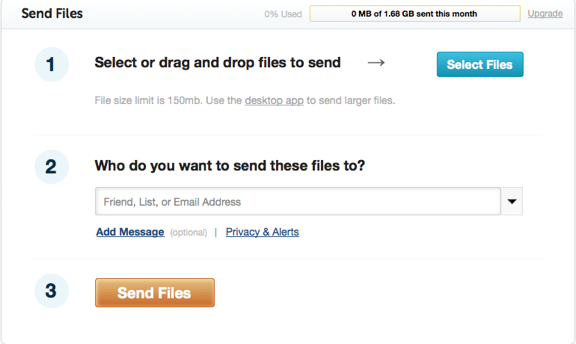
With the Kicksend web client, you can send files up to 150 MB in size. The desktop client has no file size limit. There is however, a limit on the total size of files you can send in a one month period, depending on the plan you have. If you have the Basic (free) plan, that limit is 5 GB per month, and your file is accessible for 10 days. The Plus plan ($10/month) has a 10 GB limit, with your file being stored for 90 days. Finally, the Pro plan ($20/month) has a 30 GB per month limit, with you files accessible for 120 days. The web client uploader does seem to suggest a 1.69 GB monthly sending limit, so Kicksend could do a better job of explaining the pricing options and sending limits.
One other difference between the free and paid plans is that the paid plans provide for private URLs, although I couldn’t find any description explaining the difference between a normal URL and a private one. I assume that it means that a shared file on a paid plan can only be accessed by the intended recipient, while anyone who knows the URL can access the file on the free plan. That’s just a guess, though.
With Kicksend, your recipients aren’t actually sent the file (because they probably have file size limits on their end, too). Instead, they receive an email message with a link. Clicking that link will take them to a page with a prominent download button on it.
The web client is simple, and uses a straightforward, uncluttered interface.
.
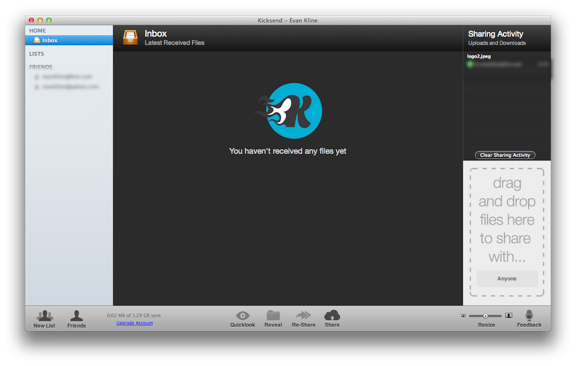
The desktop client isn’t quite as simple, but still looks nice. (Note that the screenshot below is from the Mac client, but there is a Windows client as well).
A service like Kicksend isn’t something most people would use every day, but it is good for the occasional time where you need to send a large file, and don’t want your recipients to have to jump through hoops.
How do you send large files?

Tobias W. says:
I put it in my dropbox, which is very convenient for me.
November 21, 2011 — 5:00 am
Evan Kline says:
We love Dropbox, too, although if your Dropbox account is close to maxed out, this is a nice choice.
November 21, 2011 — 9:56 am
Kosmo @ The Soap Boxers says:
I send my large files by throwing them onto the web server and sending the URL to the recipient. Old school.
Generally, the large files don’t have private info, so there hasn’t been a need to add security other than security by obscurity.
November 21, 2011 — 12:08 pm
Evan Kline says:
I’ve done that before too, although a more automated system can be nice.
November 24, 2011 — 7:53 am
Shannon says:
Binfer is a great option to send large files directly from person to person, without uploading to a server. You can send hundreds of files of any size with a simple drag and drop. Binfer will manage the transfers with auto resumes, encryption, notifications etc. Check it out: http://www.binfer.com
November 21, 2011 — 4:40 pm
Manish M. Shah says:
Another favorite option is File Apartment (http://www.fileapartment.com). Easy to use, no software to download or registration, up to 1 GB, safe, and secure.
November 21, 2011 — 7:37 pm
Evan Kline says:
Thanks for the suggestions Shannon and Manish. I’ll check those two out.
November 24, 2011 — 7:52 am
Sytern says:
Here is the most populare online large file transfer service. With Sytern I can send large files very quickly.
December 7, 2011 — 1:54 pm
Hal Miller says:
There is another way to transfer big files over the internet. Binfer makes it quite easy to transfer big files. The link is http://www.binfer.com
September 7, 2012 — 10:58 am