

Traveling around the Internet, it is impossible to miss Tweet buttons on websites. You know what Tweet buttons are – those buttons that say “Retweet” or “Tweet This” at the beginning or end of posts. The big player in Tweet buttons was, until last week, TweetMeme. Now, though, Twitter itself has thrown its hat into the ring, teaming with TweetMeme to create an official Tweet Button. In fact, the official Tweet Button works much the same way that the TweetMeme button works.
With a little bit of elbow grease, you can get the Tweet Button up and running on your WordPress site in a way that allows you to have a button for each post on your front page. On its site, Twitter sets forth three different methods for setting up the Tweet button. These methods involve using javascript, using an iframe, or building your own. We’re going to focus on the javascript method, and use a tool offered by Twitter to do it. Let’s get to work.
Generating the Button Code
Start by going to Twitter’s Tweet Button generator, which will do all of the magic for us. The generator includes only two steps, but if you don’t look closely, you might not notice that there are actually four tabs in step 1: “Button,” “Tweet text,” “URL,” and “Language.” Here is what you need to fill in to get the right code for the button:
STEP 1
Tab 1
In the first tab, Button, choose the appearance that suits your tastes. You can choose between a vertical count of tweets, a horizontal count, or no count, as demonstrated in the image below.

Tab 2
Next, go to the “Tweet text” tab, select the radio button next to the blank entry box, and enter the following code into the box:
<?php echo the_title(”,”,false); ?>
This piece of code is what WordPress uses to fetch the title for each post on your front page. Without it, you could only Tweet the title of the front page of your blog. You want the button to be able to Tweet the title for whatever post it appears with. Here is what the Tweet text box will look like, after you input the code:

Tab 3
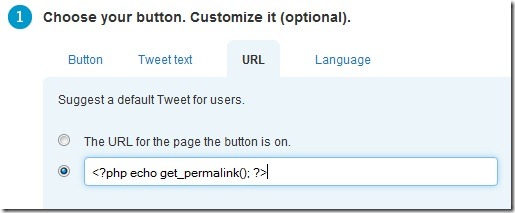
Now go to the URL tab, select the radio button next to the blank box, and enter this code into the box:
<?php echo get_permalink(); ?>
This piece of code is what WordPress uses to fetch the URL (i.e., link) for each post on your front page. Without it, you could only Tweet a link to the front page of your blog. Here is what the URL box will look like after you enter the code:
Tab 4
Choose the language that you want to use. You can choose between English, French, German, Japanese, and Spanish.
STEP 2
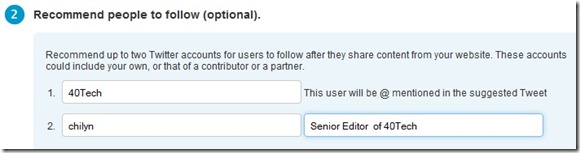
Step 2 is optional, and is used if you want your Twitter account mentioned in the Tweet, and also want Twitter to suggest your account and one other account to the user, after they submit their tweet. In this step, enter your site’s Twitter account name, along with a second recommended account. Unfortunately, only two accounts can be set. So, here at 40Tech for example, we currently recommend our official Twitter feed, along with that of Bobby Travis, our senior editor. We’ll have to manually change this in the future to rotate through other suggested feeds (that’s you, Josh).
Placing the Code on Your Site
You’ll need to copy the code that the generator gives you, and paste this code into what is known as the WordPress Loop in your theme’s index.php file. Your index.php file is the theme file that generates the posts (or excerpts of posts) on your front page. The Loop typically starts with a piece of code in index.php similar to this:
<?php if ( have_posts() ) : while ( have_posts() ) : the_post(); ?>
and ends with a piece of code similar to this:
<?php endwhile; else: ?>
<p><?php _e(‘Sorry, no posts matched your criteria.’); ?></p>
<?php endif; ?>
If you place your Tweet button javacript within the Loop, the magical WordPress engine that powers your site will go through and generate each post, along with a Tweet Button for each post. A user who presses a button for a post will be able to Tweet the title for that post, along with the post’s URL. If you mess up and place it outside your Loop, users will only be able to Tweet a link to the front page of your site, not to each post on the front page.
The tricky part is formatting your site’s stylesheet to get the buttons placed exactly how you want them to be. There’s no one rule or tip for this, as it will depend on your site.
An Example That Ties it All Together
At times, the easiest way to understand some code is to see it in action. Here is the code that we use for 40Tech:
<a href=”http://twitter.com/share” class=”twitter-share-button” data-url=”<?php echo get_permalink(); ?>” data-text=”<?php echo the_title(”,”,false); ?>” data-count=”horizontal” data-via=”40Tech” data-related=”chilyn:Senior editor of 40Tech”>Tweet</a><script type=”text/javascript” src=”http://platform.twitter.com/widgets.js”></script>
That will generate a button with a horizontal tweet count, that credits 40Tech for the Tweet, and that recommends chilyn, which is the Twitter account of Bobby Travis, our senior editor. It will also tweet the proper title and link for each post on the front page.
And that is it! If you have any questions, let us know in the comments. What do you think of the new Tweet Button? Overkill? Or do you like it, and plan to use it?

Michelle says:
Thank you so much for this. It’s mind boggling that Twitter didn’t take the time to add the codes you need to tweet the exact page. I really appreciate that you took the time to explain it so well.
August 26, 2010 — 2:10 pm
Evan Kline says:
Thanks for the nice words, Michelle. I hope that it helped you out.
August 26, 2010 — 8:08 pm
Andy says:
awesome, this worked perfectly. thanks again.
June 17, 2011 — 3:30 pm
Evan Kline says:
Great! I’m glad it worked out for you, Andy.
June 21, 2011 — 7:20 am