
 There are many reasons why you might want to access your home computer while away from home. You may need to access a program or file on that machine, or you may need to browse to a website that is blocked in your current location. Fortunately, there are free options available that let you access your home PC. Today, we look at two of them- LogMeIn Free, and TeamViewer. The two applications have similar functionality, but go about things differently. Read on for a comparison between LogMeIn Free and TeamViewer.
TeamViewer
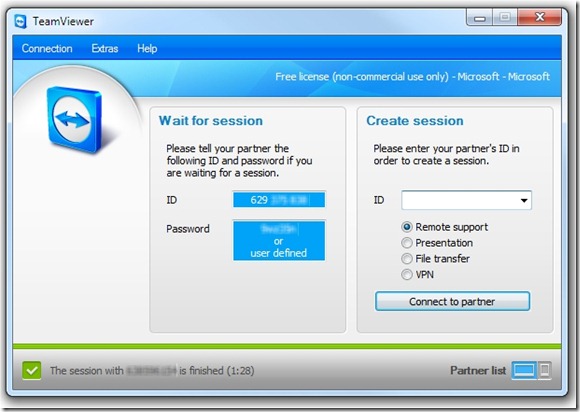
TeamViewer requires a piece of software on both ends of the connection- at the remote (host) machine, and at the local machine that you have at your fingertips. You can run the TeamViewe client from an executable file, however, and don’t need to install it. If you do choose to install TeamViewer, it can be set to load in the background at startup, so that the computer is always available for remote access.
Once the app is running on both machines, it is a simple matter of inputting the ID of the remote machine, along with a password. TeamViewer gives you a few connection options, depending on what you want to do when connected, as the above image illustrates. You can control the remote machine as if you were sitting at it, you can display your local desktop on the remote machine, you can transfer files, or you can connect via VPN.
If you choose the “File transfer” option, you are presented with a window that displays the directory structure on both machines. You browse to the file you want to transfer on either machine, click “send” or “receive” depending on where the file resides, and the transfer begins.
The “VPN” option allows you to share files via Explorer, or send a test ping. I couldn’t, however, get either VPN feature to work.
With the control option, I found the TeamViewer connection to be very smooth, with almost no lag. The connection interface is simple, and I haven’t run into any glitches yet.
Just like the desktop app, the TeamViewer iPhone app is free for personal use. It actually displays your remote desktop on your iPhone screen. The iPhone app is $99.99 otherwise, while the desktop app starts at $749 for commercial use.
TeamViewer Summary
Pros: Free for non-commercial use. Runs from executable- no install needed. Smooth connection. Supports file transfer.
Cons: Client must be present on both machines.
LogMeIn Free

With LogMeIn Free, you must install an application on the host (remote) machine, but not on the client machine that you have with you. Instead, you create an account at logmein.com, which allows you to connect from any browser by logging into the logmein.com site. I did find that when I logged in via Firefox, I was prompted to install a plugin.
LogMeIn doesn’t provide some of the options that Teamviewer provides, such as file transfer, or presentation of your local machine to the remote machine. It is a bit more simple, however. Once it is installed on the host machine, you log in to the logmein site from your browser, and are presented with a screen similar to the one displayed above. Click the “Remote Control” button, enter the remote computer’s Windows’ password, and you’ll be controlling it in no time.
LogMeIn does have some other features, such as chat, whiteboard, and laser pointer, but I haven’t found a use for any of them yet.
LogMeIn is free for personal use. LogMeIn also has an iPhone app, but not a free one. It is called LogMeIn Ignition, and will set you back $29.99.
LogMeIn Free Summary
Pros: Simple. No client needed on the connecting end.
Cons: No remote file transfer.
The Verdict
Which of the two apps is better? That really depends on what features you need. If you just need a quick and easy login, without any file transfers, or if you won’t be able to download an application to the computer that you have with you, then go with LogMeIn. If you want more advanced features, including file transfers, and are able to download an app on both computers, go with TeamViewer. Personally, I prefer TeamViewer, as it seems a bit more elegant, and offers more features. Both work as advertised, however, and will get you connected remotely.
Do you access any computers remotely? Do you use an app not mentioned here, such as Gbridge? Let us know in the comments how your solution works out for you.

Stanislav Jonak says:
LogMeIn is the one of the best solution if you want to build the whole it infrastructure in company. Is not only tool for remote desktop, who can you read on http://www.start2cloud.com/application/logmein.aspx?ApplicationId=206
October 7, 2012 — 3:19 am
NTSUX says:
One more plus for TeamViewer is the “Random Connection Password”.
In the scenario where you connect to a remote host, say a friend or family member, and they don’t necessarily want you connecting to their system whenever you want…
… they can easily assign a random connection password (this password is distinct from the administrative password) for you to connect.
Then, once you finish your session, they can immediately randomize the connection password to prevent you from connecting again without an invitation.
This is a fantastic feature – simple and effective.
October 11, 2012 — 12:12 pm
Don says:
Evan – I’ve been using Windows Remote Desktop for a few years without any real issues for a VPN connection to my office from home. Other than being slow, things work fine. I recently had to replace my home computer and am now having difficulty getting things set up again. After reading a couple years worth of comments, I’m seriously considering just using TV for my connection. I’ve downloaded TV before for our IT guys to help with the VPN setup but I’ve never used it for my access. Security is not my highest priority but I am worried about affecting the business network. Do you have an opinion about the security vulnerabilities of the two options?
November 29, 2012 — 9:51 am
Dave Russell says:
Suggest that you update or delete this post. TeamViewer is not free for commercial use. I believe LogMeIn Pro does file transfer. Believe LogMeIn Pro works out to be the cheaper of the two for commercial use
February 10, 2013 — 10:47 pm
Evan Kline says:
Thanks for catching the typo, Dave. It should have read “free for non-commercial use.” I’ve made the change.
February 11, 2013 — 10:13 am
Eugene says:
You may try ammyy admin which is also good alternative.
July 26, 2013 — 9:05 am
Aliasgar Babat (@aliasgar_babat) says:
You may even try on premise RHUB remote support appliances for remotely accessing computers.
October 17, 2013 — 2:22 am
Oleg11 says:
Try, http://www.radmin.com/ I like, I use more than three years. Fast, and most importantly safe program for remote control of computers. Advantages, high speed, reliable security system.
June 24, 2014 — 8:22 am