Windows 7 is likely the best operating system Microsoft has ever put out. Oh, I’m sure some of you die-hards out there will still swear up and down that it’s Windows 98, 2000, or even 3.1 — and you Mac folk can just go ahead and tamp down on those comments bubbling to the surface of your elitist brains right about now — but when you consider the mix of power, beauty, and function, Billy Gates and crew have finally hit the sweet-spot with their latest OS.
One of the greatest things about Windows 7 is the customizability; there are a lot of different things that you can do with it to improve your overall user experience. Some of those things are fairly obvious, and some are a bit of a surprise, but many can be done quickly and easily, even by the non-techie, sometimes with the help of a handy tool or two. This series focuses on some tweaks for personalizing your own Windows 7 setup with as little fuss as possible. Let’s start off with the hidden themes that are just hanging about in your Windows folder.
Hidden Themes
You probably already know that there are several theme-sets that you can apply in Windows 7 with little more than a click, but on the off-chance that you didn’t, head into the Control Panel, look for Appearance and Personalization, and select “Change the theme.” You can also right-click on the desktop and select Personalize from the context menu.
Once inside, you’ll find all of your pre-installed themes, and you can even create and save your own. What you may not have realized is that, depending on your Windows version, you could have anywhere from five to a dozen or more other themes hidden on your system, just waiting for you to find and install them!

You may have noted that, in the pre-installed themes, one of the ones under Aero Themes is named for your country — I have one called Canada. What most don’t realize is that, skulking about in a hidden folder, are themes from other countries as well. Some of them are quite nice, too, containing wallpapers that have beautiful scenes from each respective country. Here’s how you find them:
- Open up a folder and click on the white space in the address bar to select and delete the text there, and then copy and paste the following and hit enter: Windows\Globalization\MCT
- If you find you can’t access the folder or its files, you may need to follow the steps below to unlock hidden files and folders (otherwise please skip to the next main point):
- Open your Control Panel and click on Appearance and Personalization.
- Near the bottom of the list, you should see Folder Options, and just below it, the link “Show hidden files and folders” — click it.
- In the little pop-up window, be sure that the the radio button for “Show hidden files, folder, and drives” is selected. If you don’t see it right away, double click the “Hidden files and folders” folder — it should expand and you will find the button.
- Click Apply and OK to close the window. If you are given any warnings by Windows that you could severely screw up your system, acknowledge them — see the next point to learn how to not make such warnings a reality…
- You will now be able to see files and folders that you couldn’t see before, and they will have a slightly translucent or “greyed-out” look to them. Leave them alone, where possible, and for the timeframe that you are able to access these files, for the love of all that keeps you sane, DO NOT DELETE ANY OF THEM!!! They are generally hidden for a reason — that reason being so that you don’t muck up your system.
- To save yourself from accidents when you are done with the theme-getting, just repeat the above steps and re-select “Don’t show hidden files, folders, and drives,” hit Apply, OK, etc.
- You could also try to browse directly to the folder via the C: drive, but I found that I couldn’t find the folder that way, even with hidden files and folders available.
- In MCT, you will find several other folders with the name format MCT-XX. Click on any one of these and you will find a folder with the name of a country, a folder called RSSFeed, sometimes one titled “Websites for X”, and one called Theme. For example, the folder MCT-AU contains the country of Australia.
- In the folder named after the country, you will find six wallpapers, which you can use to get a feel for what the theme is about, and can do with as you will — but head over to the Theme folder for easy setup.
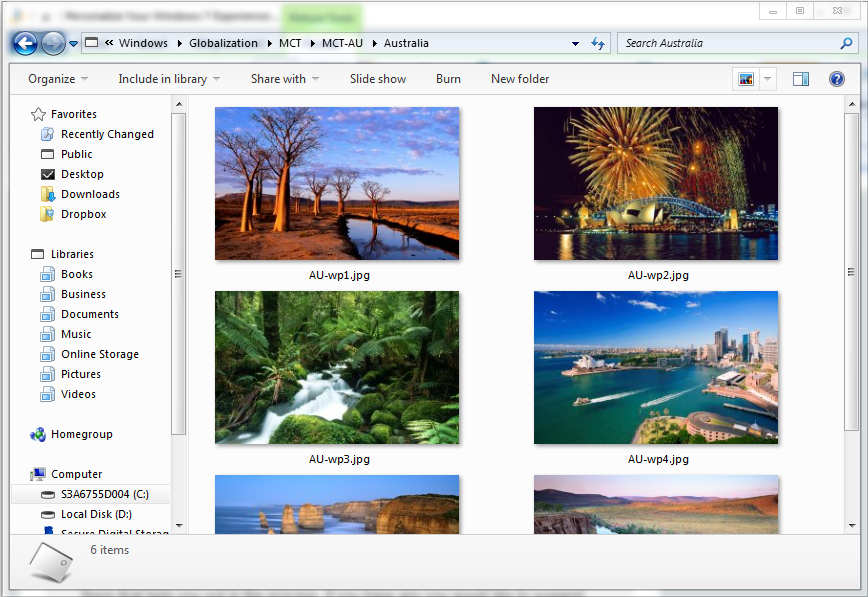
- In the Theme folder you will see XX.theme. If you want to install that theme, click on it. At this point, you will get a chime from Windows, and your desktop will fade behind a Please Wait sign. After a moment, the sign will fade away and your new theme will be applied — rinse, lather, repeat as necessary!
As the theme is installed, your Control Panel will also open up to the Appearance and Personalization settings, and you will notice the new country theme under your My Themes section. If you want to change away from the new theme, simply click on a different one or install one for a different country. Once the theme you just installed is inactive, if you want to get rid of it, simply right-click on it and select delete. You can always reinstall it later.
Over the next few weeks, we will be posting other simple tweaks and tricks for personalizing your Windows 7 installation, as well as looking at some of the tools out there that help you out in the process. If you have any you would like to suggest, leave a comment, catch me on Twitter (@bobby_travis), or send me an email from my 40Tech contact page.
What countries were in your hidden themes folder?

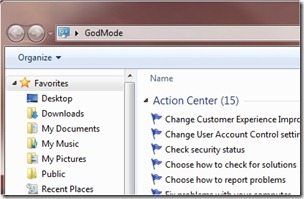 We tech geeks love to discover hidden features in our tech toys. And we love it even more those hidden features are actually useful. An Easter egg that has been making the rounds among Windows 7 users is Windows 7 "God Mode." At its simplest level, what Windows 7 God Mode does is simple – it puts a myriad of configuration options at your fingertips, in one list. Beyond that, users have discovered additional "god modes" that open up more Windows 7 configuration options. Read on for more on God Mode.
 Earlier, we discussed