
 Unlike Bobby, the other writer here at 40Tech, I wasn’t brave enough to install the Windows 7 Release Candidate or Beta. As a result, I’ve only been using Windows 7 for about 5 days now (unlike Bobby, who has been using it and loving it for quite some time). So far, I’m impressed. Here are the five features that I’ve enjoyed the most, and have made me pleased with my decision to upgrade from Vista, at least at this early stage. Later in the week, we’ll take a look at a few features that could use some improvement.
Image of thumb from Wikipedia.
1. Taskbar
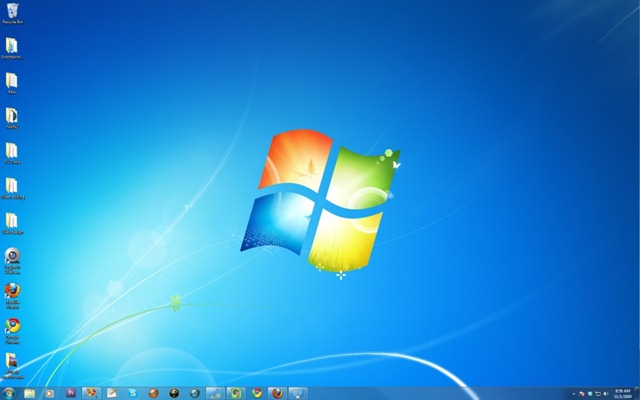
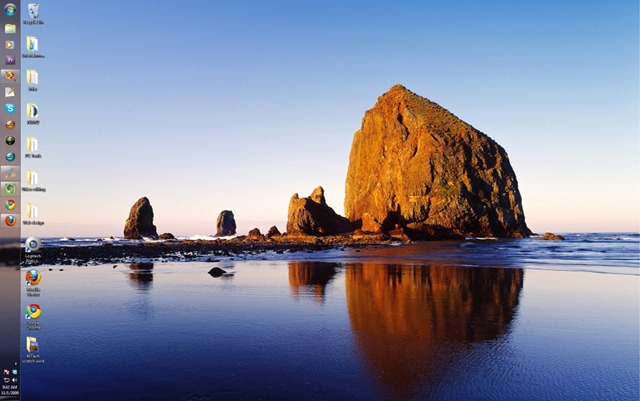
The Windows 7 taskbar is, in one word, awesome. Unlike the taskbar in XP and Vista, where only running programs were displayed on the taskbar, you can "pin" program icons to the taskbar in Windows 7. A pinned program icon remains permanently in the taskbar, whether the program is running or not. If the program is running, then the icon is highlighted. You can also rearrange icons on the taskbar, dragging them to the desired position. In addition, you can reposition the entire taskbar itself, moving it from the bottom of your screen to the top, left, or right of the screen. Given the dimensions of a widescreen monitor, I’ve moved my taskbar to the left of the screen. The images below show the full desktop with the taskbar in the default position on the bottom, and the taskbar on the left side of the monitor (along with one of the alternate desktop themes).
2. Aero peek
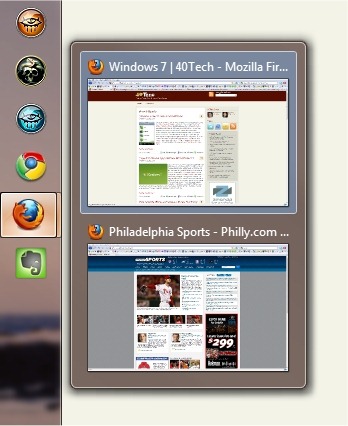
Aero Peek allows you to point your cursor to the icon in your taskbar of a running app, view a thumbnail of the app, and jump to it by clicking on the thumbnail. This is handy if you have multiple instances of program running, as you can quickly jump to the desired instance. The image above shows this, using a left-positioned taskbar. You can also close a program by mousing over its thumbnail, and clicking the "close" button. Aero peek also allows you to move your cursor to the right edge of the taskbar (or bottom edge, if your taskbar is positioned on the left of the screen), and watch open windows instantly turn transparent, revealing all your hidden icons and gadgets.
3. Aero Snap
I have quite a bit of wasted space on my 24 inch monitor. Aero Snap makes it easy to utilize that space, helping you to easily arrange multiple windows on your screen. Drag a window to the left or right edge of the screen, and it snaps into place, filling that half of the screen. Drag a window to the top of the screen, and it fills the entire screen. Drag it down from the top, and it restores the Window to its smaller size. The two images below show Aero Snap in action, first with my browser Window being dragged to the edge of the screen and a resulting transparent window appearing, and next with that browser Window expanding to fill half of the screen.
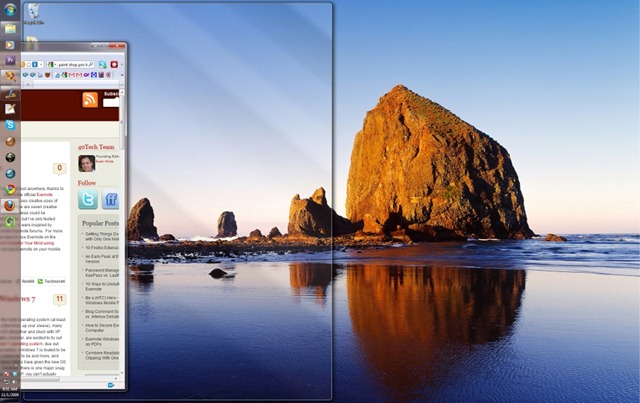
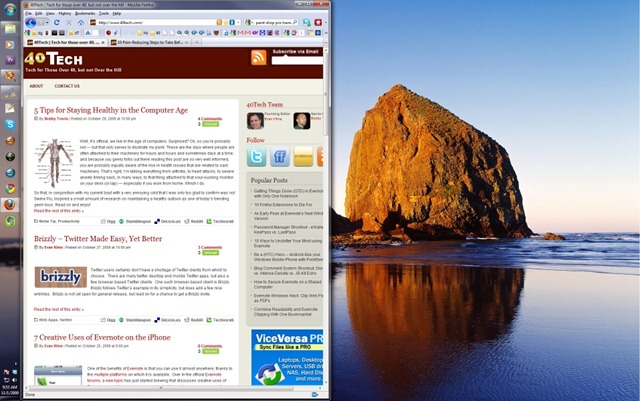
4. System tray
Kudos to Microsoft for the improvements to the system tray. The tray now has a "customize" link, which opens a Window with settings to control the behavior of each item in the system tray. For each item, you can "Show icon and notifications," "Hide icon and notifications," or "Only show notifications." You can also drag icons around in the system tray.
5. Performance
I hesitate to mention Windows 7’s performance as a plus, because I did do a custom install, which wipes out the prior Vista install (after first setting it aside in a backup Windows.old folder). Any new install will generally run faster than a computer that has had many programs installed, and that has programs in startup and/or running in the background, etc. That said, I don’t remember Vista ever running this fast on the same computer. I know that’s not scientific, but Windows 7 has been speedy and stable in the few days that I’ve used it (which should be expected, given the seven to eight million beta testers). Windows 7 also feels more streamlined, and easier to use.
Have you been using Windows 7? What do you like? Later this week, we’ll take a look at a few parts of Windows 7 that could use some improvement.
Note: The Windows 7 link, above, uses our Amazon Associates link. This means that if you purchase the Windows 7 upgrade using that link, we’ll get a very small portion of the sale. As always, we only use these links for products that we’ve tried and liked.


christie says:
It does sound cool – I think I’d like to try it just for the Aero Peek and Aero Snap! I don’t think I’ve ever bought an OS before though, except for getting it included on a PC. Might be worth it to get Vista out of my house. ;)
.-= christie´s last blog ..Introvert: Hold a moment while I’m processing… =-.
November 2, 2009 — 8:00 pm
Evan Kline says:
This is the first time I’ve bought an OS that didn’t come with a new computer, too. So far, I’m not regretting it at all. I wasn’t one of the Vista haters, but 7 really is that good.
November 4, 2009 — 12:33 pm
Kosmo @ The Casual Observer says:
“Unlike the taskbar in XP and Vista, where only running programs were displayed on the taskbar, you can “pin” program icons to the taskbar in Windows 7.”
You can pin things to the QuickLaunch part of the XP task bar. You can also reposition the task bar. I have my task bar at the top of the screen (where it righly belongs). My eyes could never adjust to a menu that popped up from the bottom of the screen.
.-= Kosmo @ The Casual Observer´s last blog ..Member Exclusive: The Cell Window =-.
November 3, 2009 — 4:21 pm
Bobby says:
It’s really not even close to the same. The XP pin is not as easy to work with or nearly as functional overall.
And I like the task bar at the top as well — that’s about as close as I get to Mac-fanboydom. :)
November 3, 2009 — 8:07 pm
Kosmo @ The Casual Observer says:
Oh, so it’s more like pinning to the dock? ;)
The task bar at the top completely messes some people up. I’m IT, but sometimes I need help, too … and when the person accesses my desktop remotely, it takes them a few seconds to figure out where “Start” went.
.-= Kosmo @ The Casual Observer´s last blog ..All That Glitters Isn’t Gold =-.
November 3, 2009 — 9:38 pm
Evan Kline says:
The taskbar really is like a gateway to the programs, and let’s you do things with them much more than in XP. In XP, I did use the QuickLaunch, but only to start programs. Think of the Windows 7 taskbar as QuickLaunch and the part of the XP program that showed running programs, combined into one with extra features added. It is just very intuitive (huh, Microsoft intuitive?) and has made my work more streamlined. And now that the Firefox Beta will show all open tabs in Aero Peek when you mouse over the Firefox icon on the taskbar, one of my complaints will be going away.
November 4, 2009 — 12:37 pm
Sanjeev says:
Windows 7 is no doubt a milestone for Microsoft after the release of Windows XP. Taskbar feature is awesome and helpful in many ways, apart from that as you mentioned the new system with fresh installation would be faster. I totally agree with you on that as I am using a fresh installation of 7 and it is doing great.
.-= Sanjeev´s last blog ..Get Free Skins for Windows Media Player to Change the Look of the Player =-.
November 5, 2009 — 4:41 am
Evan Kline says:
For a while, one thing that confused me was whether the “Custom Install” option was as good as wiping the drive and installing fresh. After reading and hearing a good bit, I think it pretty much does the same thing. The only “non-fresh” part of it, is that it does copy your old install into a folder, but I think that it is otherwise wiping the disk, which would explain why it runs so fast.
November 5, 2009 — 1:34 pm