Menu Close

Tag: Tips (page 3 of 5)

How to Avoid Scammy Android Apps

How to Avoid Scammy Android Apps | 40Tech

The beautiful thing about Android OS, over iOS,  is the open platform. The annoying (and potentially dangerous) thing about Android OS, over iOS, is… wait for it… the open platform. It’s a double-edged sword. Say what you want about Apple’s proprietary madness, but the likelihood of a scam or malware app making it through to the iOS App Store is pretty slim — at least in comparison to Google’s Android Market. Does this mean you should never buy Android and jump headfirst into Apple products? By no means! According to the learned fellows over at Tested.com, with a little common sense, some permissions checking, and a dose of healthy skepticism, you can avoid the sneaky apps. Here are the main points:

Check the user reviews on Android Market. Go deeper than the first page. Read them — if there are a ton of positive reviews and they have the same sort of feel to them (like they were written by the same person, for instance), there is probably something up. If there are a ton of negative reviews, there is probably a reason — no matter who wrote them.

View the other apps submitted to the Market by the developer. If there are a string of oddities and things that make you raise a brow or two, you might want to avoid the app you are researching.

Check the developer’s website and support site. If the sites leave you feeling uneasy or that the developer lacks professionalism, you may wish to think twice before purchasing anything by them.

Check the app permissions. This is the big one. If an app has the ability to modify/delete SD card contents, to send a text message or MMS, or to access the internet all willy-nilly and you don’t know why, treat it in the same way you would a Windows application that is trying to do things that don’t make sense: don’t install/remove it, research it, and find out exactly what it’s doing. If the developer isn’t completely clear and forthcoming, get rid of it.

You can research permissions before you install an app by going to the app’s Market page and selecting menu, then security. Once an app is installed, check the permissions in Manage Application Settings.

There are more details of what you can look for via the link below.

How do you keep yourself safe from malware apps and scams on the Android Market?

How to Spot Scams and Malware Apps on Android [Tested]


How to Search By Tag in Evernote for iPhone

How to Search By Tag in Evernote for iPhone | 40Tech

For long-time Evernote for iPhone users, searching your notes by tag is probably not an issue. However, the email I received last night from one of our own Grown-up Geeks made me realize that new users to the iPhone version of Evernote might be in for a bit of frustration. In light of this, I decided to put together a quick how-to post based on the email response I sent our reader. Check it out below.

In order to browse by tag in Evernote for iPhone, you just need to follow these steps:

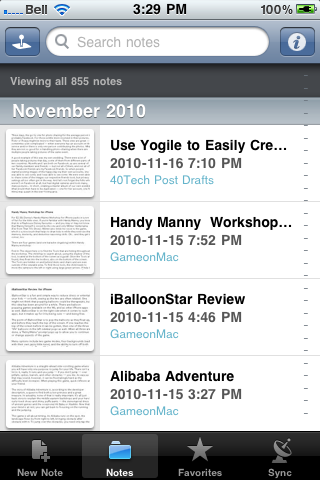
Open Evernote and tap Notes from the bottom menu

IMG_1751


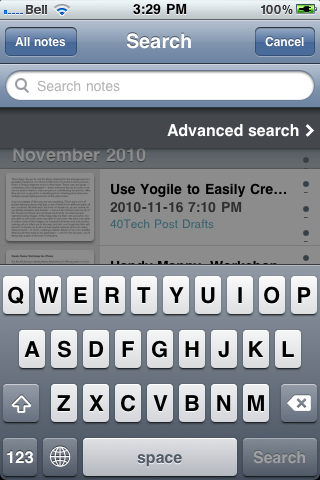
Tap the search bar up top (where it says Search Notes)

IMG_1752


As the search bar is activated, it will expand and just below it you see “Advanced search” — tap that

IMG_1753


In the next screen, you will see the Tags button — tap it

Note: You can add several other search filters from this screen, as well!

IMG_1754


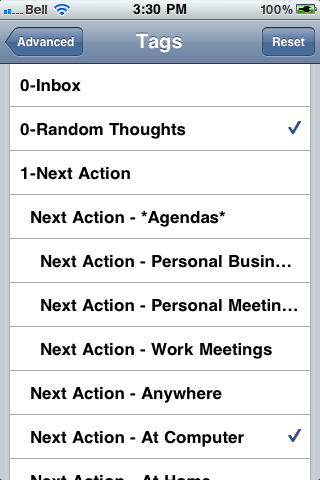
Tap the tag you want to sort by

Once selected the tag will have a checkmark. To search within multiple tag, select more than one.

IMG_1755 IMG_1756


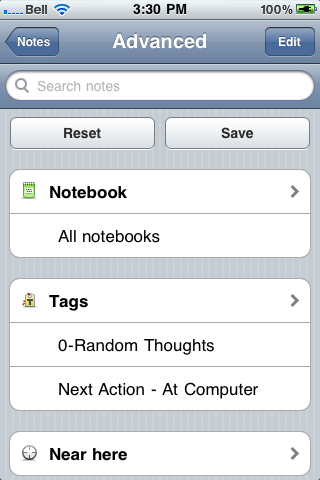
Tap “Advanced” in the top left corner, to go back to the advanced menu

You will be able to see a list of the tags and other search criteria you chose here.

IMG_1757


Tap “Notes” in the top left corner, to go back to the notes list

Your notes will now be sorted by the selected tags — to get back to general note view, tap the “All notes” button.

IMG_1758


Hopefully, this post will help some iPhone Evernote newbies out. If you’re reading this and it seems too convoluted to you — and you haven’t bought an iPhone yet — you might want to consider Evernote for Android. The new version puts tags right upfront – and there are a few other Android-only features that kick the iPhone’s Evernote squarely in the pants.

Evernote 2.0 for Android Screenshot

Have other Evernote questions? Post them in the comments, and we’ll do our best to answer them.


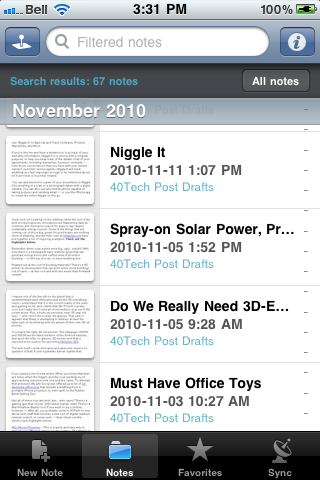
Use “Niggle It” to Back Up and Track Contracts, Product Warranties, and More

Niggle It Backs Up, Tracks Contracts, Product Warranties, More | 40Tech

If you’re like me and have a tendency to lose track of your warranty information, Niggle It is a service with a singular purpose: to help you keep track of the details of all of your agreements, including warranties, business contracts — even those conversations that you have with your mobile carrier’s customer service agents. Niggle It will track anything you feel important enough to be reminded about, be it personal or business related.

You can add electronic copies of your documents to Niggle It by emailing in a scan or a photograph taken with a digital camera. You can also use any mobile phone capable of taking pictures and sending email — or use the iPhone app to create the entire Niggle on the go.

The value of Niggle It is the ability to create reminders based on contract dates, and to add additional information and documents to the file (Niggle) that is dedicated to that one item/contract. You have a dedicated, always on hand back up of the documents you need if something goes wrong, and a tool that is able to remind you to, say, get that last full service in on your car before the warranty runs out — just in case.

Niggle It guarantees that your information is always available from anywhere you can access the internet, and that everything is private and secure, with no personal information ever shared with a third party.

Niggle It is free up to five Niggles, and also includes the following pricing plans:

  • Basic: 70 Niggles, 300 MB, 5 MB filesize limit –> $24.95/year
  • Household: 200 Niggles, 800 MB, 10 MB filesize limit, and a Tax Deduction report –> $29.95/year

What do you use to track your warranties and contracts? [Niggle It]


UPDATE: The pricing page for Niggle It is somewhat unclear. I assumed it was per month, but it could, in fact, be $25 and $30 per year — much more reasonably priced.

UPDATE 2: The price is yearly — not monthly — and has been corrected.


7 Tips to Protect Your Email from Hackers

7 Tips to Protect Your Email from Hackers | 40Tech

In the spirit of yesterday’s security-focused post, I wanted to share with you some tips on how to protect your email account from getting hacked. This list was originally put together by the folks at MakeTechEasier and was focused on Gmail, but many of the items are relevant to any web email client, and many other services besides. I’ve reworked the concepts for general use – if you want the just-for-Gmail step by step details, please visit the original post.

original photo by Don Hankins

1. Always check the URL before logging in.

Fake login pages are a problem with any site that hosts sensitive information. Even Craigslist was having this problem just last month. Tread carefully before you log in.

2. Avoid checking emails at public places

This may be a bit much for anyone in this mobile-focused world, but this is geared more toward avoiding checking email (or any private account) from a public computer. You never do know what sort of spyware has been installed on someone else’s machine.

3. Create a secondary email account

If you absolutely must login to your email account on a machine other than your own, create a secondary email account (with different login credentials, of course) and forward a copy of all emails from your original account to the secondary. This way, if you get hacked, your original account should remain uncompromised. Be sure to empty this account regularly – don’t use it as a backup for your sensitive messages. Also, don’t use it for your password recovery account…

4. If you are able, regularly check the IP of the last login

This is a nice Gmail feature, and is offered by some other webmail email providers as well. If you don’t recognize the IP that last logged in to your account – especially if it comes up often – you may have been hacked.

5. Check for bad filters

If your email service allows custom filters, there is always the possibility that one of them could be forwarding your messages to someone else. Regularly check your filters to see if there are any that you don’t recognize.

6. Don’t click on suspicious links

This one should be highlighted in bold, flash, and emit dangerous beeping noises. If you don’t know what it is – even if it is from a friend – don’t click on it. If it came from a friend, send them an email or call them to ask if it was really sent by them. This applies to email, Facebook, Twitter, a sticky note, or any other way a link might have been sent to you.

7. Choose a strong alphanumeric password (and add other characters too)

Some services don’t allow capitals or special characters in your password – avoid these services if you can. Use of funky characters is a great way to increase password strength. If you can get a password up to 16 characters, all the better. I know that these are a pain to remember, but you can always create a password base to help with that, or use a tool like LastPass or KeyPass to remember the password for you.

As a final note, remember what Evan suggested in yesterday’s post on Firesheep and Blacksheep: the only real way to be sure you are at least as safe as you can be when you login is to use services that require https and/or to connect via a Virtual Private Network. The TOR network is a great service if you want a free VPN, and there is even a TOR toggle extension for Google Chrome called Proxy Switchy!.

How do you protect yourself when you login to your email (or other) accounts?


Two Free Android Apps to Control Your Computer (Windows, Mac, Linux)

Two Free Android Apps to Control Your Computer Windows, Mac, Linux | 40Tech

If you have an Android device and want to use it to control your desktop’s (or laptop’s) mouse and keyboard, two of your best free options are RemoteDroid and Gmote.

RemoteDroid is a minimalist’s dream — nothing fancy to its wireframe trackpad/button look — and is a little light on the feature side of things, but it is a great way to control a presentation or media PC. It also handles multitouch gestures, such as the two-fingered scrolling option of multitouch trackpads.

Gmote does a little bit more than RemoteDroid, such as allowing you to serve media content from your PC to your Android device. No multitouch trackpad support here, and there are some media playback issues when streaming, but playback to devices is still a beta feature, and the developer seems to be active with updates.

Both of these remote control apps require you to download a server program to your Windows, Mac or Linux machine, and both are available for free. If you need a way to generally control your desktop or laptop remotely, or want a convenient media centre remote control, then give these two a try.

Have you tried any alternative remote control apps for Android? How do they stack up?

RemoteDroid vs Gmote: Remote Control Your PC with Android [Tested.com]