

- Easy Access to US, UK Streaming Services From Anywhere - August 18, 2012
- 5 Fresh Android Games Released in 2012 - July 5, 2012
- Google Chrome Explodes On To iOS, Puts Desktop Experience In Your Pocket - June 30, 2012

For long-time Evernote for iPhone users, searching your notes by tag is probably not an issue. However, the email I received last night from one of our own Grown-up Geeks made me realize that new users to the iPhone version of Evernote might be in for a bit of frustration. In light of this, I decided to put together a quick how-to post based on the email response I sent our reader. Check it out below.
In order to browse by tag in Evernote for iPhone, you just need to follow these steps:
Open Evernote and tap Notes from the bottom menu

Tap the search bar up top (where it says Search Notes)

As the search bar is activated, it will expand and just below it you see “Advanced search” — tap that

In the next screen, you will see the Tags button — tap it
Note: You can add several other search filters from this screen, as well!

Tap the tag you want to sort by
Once selected the tag will have a checkmark. To search within multiple tag, select more than one.

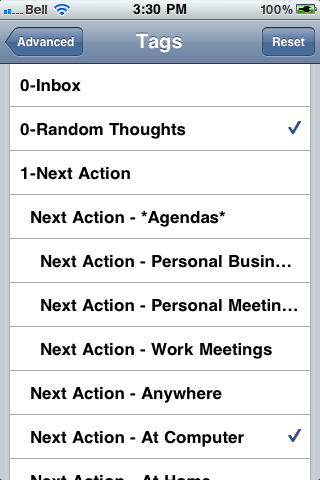
Tap “Advanced” in the top left corner, to go back to the advanced menu
You will be able to see a list of the tags and other search criteria you chose here.
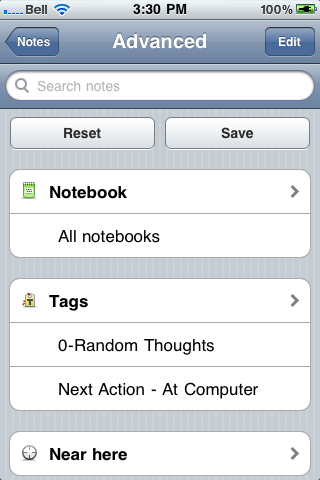
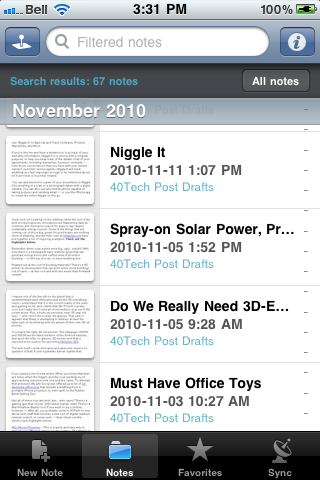
Tap “Notes” in the top left corner, to go back to the notes list
Your notes will now be sorted by the selected tags — to get back to general note view, tap the “All notes” button.
Hopefully, this post will help some iPhone Evernote newbies out. If you’re reading this and it seems too convoluted to you — and you haven’t bought an iPhone yet — you might want to consider Evernote for Android. The new version puts tags right upfront – and there are a few other Android-only features that kick the iPhone’s Evernote squarely in the pants.

Have other Evernote questions? Post them in the comments, and we’ll do our best to answer them.

Don Ramm says:
Evernote on IOS has changed from whenever this was posted (when? I can’t tell): There is no “Advanced Search” that he describes in the third step.
I am using Evernote 8.2.2.353110 on IOS 10.3.2. Today is July 10, 2017.
I stumbled upon a way to show me notes associated with a tag. Instead of sorting by tags, you filter by tags.
1. Touch “Notes” in bottom left corner of Evernote
2. To the right of the “Search in All Notes” field at the top of the screen touch the tag icon
The screen changes: It says “Filter” at the top.
3. Touch the tag that you are interested in and all of the other tag names disappear
4. Touch “Done” in upper right corner
Now the notes you see are only those that have the selected tag associated with them.
Near the top of the window you will see this “Filtered by: XXXX” — where “XXXX” is the tag that you selected. There is an “x” at the far right end of that row which allows you to remove that filter.
July 10, 2017 — 5:45 pm