Menu Close

Tag: Problem solving (page 3 of 5)

Credit Card Sized Tech Tells You if You Have HIV in 15 Minutes, for $1

Credit Card Sized Tech Tells You if You Have HIV in 15 Minutes, for $1 | 40Tech

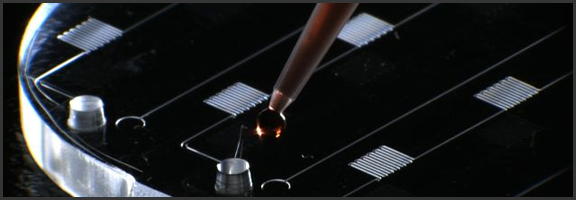
This is one time when downscaling technology isn’t a cliché. None of that “cell phone implanted in your tooth” malarkey– the mChip is serious business. Serious, potentially game (and life) changing business.

Once upon a time, getting tested for HIV involved a trip to the doctor, a bit of blood-letting, and a rather tense wait. It was months, at first, then weeks, then days, and eventually it worked its way down to minutes. That’s all fine and dandy if you live in a developed country, but if you happen to live in Africa, where HIV is running rampant, then visiting your local doctor’s office could involve something of a trek. A trek you may not be able to afford or, due to fear of results, lack of time, or whatever other reason, may not be inclined to make.

Researchers at Columbia University have found a way to help.

Using nanoparticles and microfluidics, they have taken an entire laboratory and miniaturized it in the mChip. All it takes is a drop of blood and a cheap optical sensor and the chip gives results in 15 minutes that are plain as day and require no interpretation. It can test for HIV and/or syphilis and has a 100% detection rate. There is a 4-6% chance of a false positive, as well, but that is the same margin in a traditional lab test. A false positive may be scary, but it beats the hell out of a false negative.

The best part about the mChip is the price. It only costs $1, which is amazing for a new piece of technology meant to help people. Or maybe I’m just a wee bit cynical… Either way, the price is fantastic.

The mChip also has the potential to be instantly actionable. If the user has a digital medical file, the mChip can reportedly use cellphone or satellite technology to interface with medical files and include the new record.

This is a fantastic step forward in the fight against HIV in undeveloped countries, but it’s possible technology like this will find its way into your local Wal-Mart pharmacy at some point. It would only make sense, wouldn’t it? And dating could get just a bit safer — if a bit awkward: “Just put a drop of your blood here, please. If all goes well, we can get started in about 15 minutes.”

Side Note: There is also an mChip that diagnoses prostate cancer that has been approved for use in Europe.

What are your thoughts on the mChip?


(via engadget, DVICE, FastCompany, Nature Medicine)


Memolane Finds Elusive Social Updates From Your Past

Memolane Finds Elusive Social Updates From Your Past | 40Tech

Have you ever tried looking backwards in Twitter or Facebook? It’s not easy. There was that funny conversation, link, or photo that one time that you suddenly feet the need to take a look at again, but when you tried to find it, you were faced with over a year’s worth of scrolling, waiting, scrolling, waiting, and then yet more scrolling? That’s one of the downsides of a world run by micro-updates — there are a lot of them. You could try using the built in search, or even Google, but it’ll probably be a chilly day down south before you find that elusive memory. That’s where Memolane comes in.

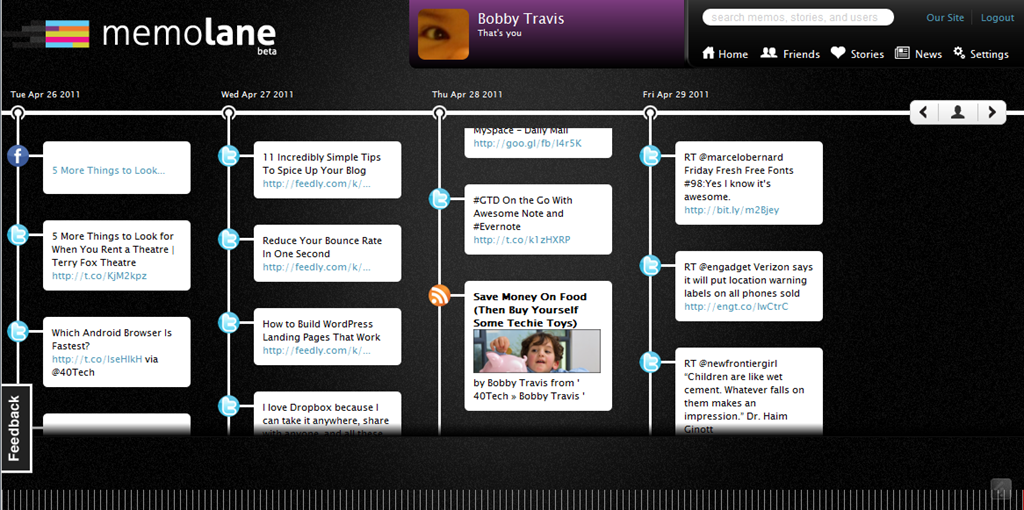
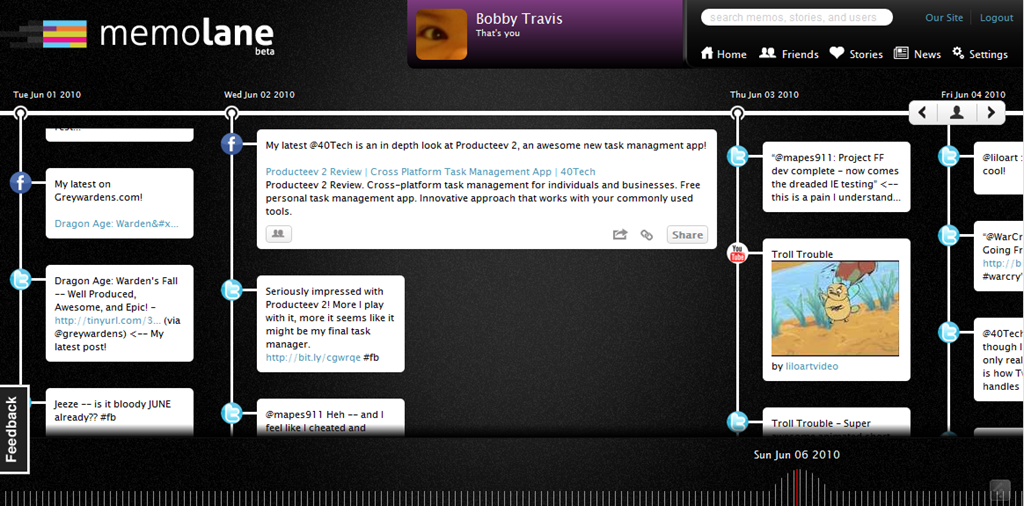
Memolane is a new web app that allows you to view content from multiple social media services in a single timeline that is easy on the eyes, and easy to search through. The timeline is scrollable and broken down into days, with the tweets, photos, updates, et al, that you posted online each day listed vertically in expandable memo bubbles. You can connect Facebook, Twitter, Flickr, YouTube, Last.fm, Trip.it, and more — and you can even add in RSS feeds to pull in custom content. I found that I was able to access Twitter updates as far back as February 2010, and Facebook updates, especially photos, all the way back to 2007. Clicking the timeline bar on the bottom of the window made for quick trips to the dates I was looking for, and the search is actually pretty powerful, so long as you don’t enter hash-tag symbols (#).

Memolane | Scrapbook for Online Life - 40Tech Memolane - Expanded | 40Tech

An easy way to find your old online memories isn’t all that Memolane is good for, however. You can also embed lanes into web pages (see it in action below), and connect with friends to create stories together around shared experiences. It’s a bit like an online scrapbook, really. In fact, Memolane may be adding a print aspect that will allow for real scrapbooking — digital life making it full circle back to the real world.

I like Memolane. It’s easy to set up and use, it allows me to find things that I may have never found otherwise, and it has per-memo and per-service privacy settings that make the sharing bit worry-free. I did find that, the further I went back in time, the more sparse the updates became, but it is entirely possible that that has more to do with the connected services than with Memolane itself. Also, it’s free — and awesome. That’s a good combination in my books.

http://vimeo.com/16474788

What do you think of Memolane?


Simplify Your Desktop for Peaceful Productivity

image

This post continues our Personalize Your Windows 7 Experience series, but much of what’s in here can be applied to any PC operating system.

Lately, I’ve been upping my productivity game. I love GTD, and I’ve been pretty successful at making tech like Evernote, Springpad, and Producteev work for me, but I still find that I have a tendency to get bogged down by clutter and distraction. A cluttered desktop doesn’t support a creative or efficient mindset very well, so I spent a little time sorting hiding the clutter with a tool Evan introduced to me called Fences. That helped, but something was missing — and I had absolutely no idea what that was. I tweaked, I fiddled, and messed about with different settings, but nothing seemed ring that proverbial gong for me. Nothing, that is, until I discovered Minimal Wall.

Minimal Wall is the ultimate place to begin simplifying your desktop experience. It’s  more than just a collection of minimalist wallpapers, though. They actually help you to get set up for the optimal desktop in just a few steps. You start out by losing the clutter and icons on your desktop, and you end by choosing a very cool background, but the most intriguing thing about their set up process is the Grid Wallpaper.

Minimal Wall | Simplify Your Desktop

The Grid Wallpaper uses simple graphic design principles to help you set up your windows for a better — and uncluttered — user experience. All you do is set the Grid as your desktop background, and then align your most commonly used windows to the yellow borders. When I first did it, I wasn’t quite sure what to expect, but I was surprised at how looking at my new desktop made me feel. It resonated with me. I was more relaxed, and I found it much easier to focus, even with several windows open at once.

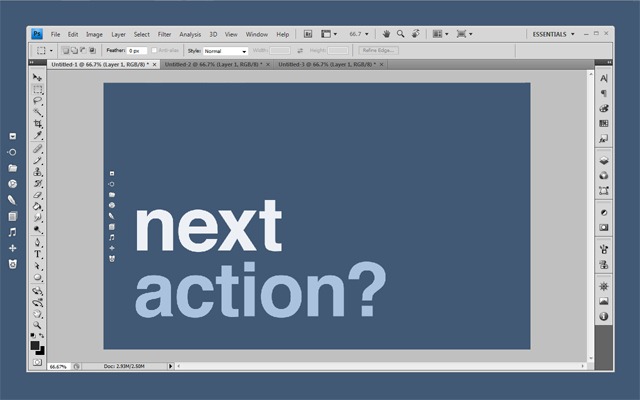
After your windows are aligned, start looking at Minimal Wall’s wallpapers. I have no doubt that you’ll find them very easy on the eyes. I chose some of the Mindful Words backgrounds; nice reminders to move on to my next action, and keep focused. I even created one of my own in Photoshop — my little girl’s name –using their work as a base. It reminds me why I am sitting at the computer in the first place, and why I need to get off it again as soon as I can.

Lifehacker has a great post featuring a Minimal Wall based desktop, combined with Rainmeter, Launchy, and Rocketdock with some nice icons. Personally, I find Rainmeter to be annoying to set up and modify, so I won’t put you all through that. I did use some of the other ideas, however, such as installing Launchy (which I find I rarely use) and Rocketdock. Rocketdock, especially with the nice iconset, provides an easy to look at quick-launch that fits the theme. I won’t go to far into customizing Rocketdock here, but if you try it out and have trouble getting it to do what you want, hit me up in the comments and I’ll do my best to help you out.

So here’s the process so far:

  • I gathered all of my clutter into Fences — then I double-clicked the desktop to make the Fences hide themselves. Another double-click brings them back when you need them.
  • I used the Grid Wallpaper to line up and size my windows (and the Fences as well).
  • I selected the four wallpapers I wanted to use and put them in a folder to create a desktop slideshow (go to Control Panel, choose “Change desktop background” under Appearance and Personalization, then browse to the folder and select the images, configuring how they should change — I shuffle them every hour).
  • I installed and configured RocketDock with the new icons (add the folder of new icons into the Icons folder in Program Files (x86), then right-click on the dock and choose Icon Settings, then the icon set).

I also moved my Windows taskbar to the top of the screen and set it to auto-hide. I had originally used a tool called Taskbar Eliminator to make the taskbar vanish altogether, but I found that it was unreliable, and discovered that — since I was now rarely working in full screen — having the taskbar hidden at the top was actually quite useful for quick access to its functions.

Finally, I right clicked on the desktop and went to Personalize and saved my wallpapers as a custom theme. Doing this makes it so you can reclaim your desktop slideshow with a click, should you change it to something else and find you want it back again. To round everything out, I changed my logon screen to match the theme. Here’s how you do that:

Here’s a Few Shots of the End Result

wall-actionwall-focuswall-windowswall-windows-2wall-fences

Since adopting this new look and feel for my desktop and workflow, I’ve found that I’m more focused, productive, and generally more relaxed while I work. The basic setup took me less than a half-hour to implement, and it’s paid that time back in spades. Hell, I was so inspired that I added a customized version of the wallpapers to my iPad, too, and then hunted down and killed my next big PC distraction: keeping Gmail open in my browser while I work. If you want a little more peace and productivity while you’re sitting in front of the multi-task machine, give this a try — I sincerely hope it helps you as much as it has me!

Let me know your thoughts in the comments!


Cure Your Angry Birds Addiction — with Mike Tyson

Cure Your Angry Birds Addiction -- with Mike Tyson | 40Tech

Ok, I know this has been my only post this week, and that it’s light and fluffy — but bear with me, the flu sucks and the chuckles are making me feel better. Besides, who doesn’t want to see Mike Tyson slap something? And I don’t care how angry those crazy red birds are, even a mild slap from Tyson is a good bet to get them to hang up their sling shots…

The video is actually a roundabout plug for SportsNation, an attempt at viral marketing. Make sure you watch the second one, as well — it’s a bonus outtakes reel, and I actually found it to be funnier.

http://www.youtube.com/watch?v=jC5lFMu2Qak


http://www.youtube.com/watch?v=C5igeAB43Dk


Enjoy your weekend — and guard your tech from helpful heavyweights!


Google’s Cloud Connect Syncs MS Office with Google Docs

Google’s Cloud Connect Syncs MS Office with Google Docs | 40Tech

There are several ways to sync Microsoft Office documents to the cloud (we covered three here), but until now, not one of them was made by Google. Whether that statement sparks feelings of warm and fuzzy quality in you, or makes you shudder in fear as Google officially digs its fingers into your Office docs, Google Cloud Connect has taken off the training wheels and been released to the world at large. Besides, if you are of the latter persuasion, chances are you haven’t bothered with the Google account that the service requires.

Cloud Connect adds a toolbar to the Microsoft Office interface that effectively accomplishes two things:

  1. Giving MS Office the online capabilities of Google Docs — and this is a good thing, as Microsoft’s cut-down web offering of Office can be somewhat unwieldy by comparison.
  2. Finally gives Google Docs the offline capability it has always needed to make it truly relevant in today’s workplace, which is still a few years away from going fully to the cloud.

Google Cloud Connect works on Windows XP, Vista, and Windows 7, and is available for Office 2003, 2007, and 2010. Check out the video below for more information on its capabilities.

http://www.youtube.com/watch?v=H12teRzulW0

New Ways to Experience Better Collaboration with Google Apps [Google Blog]