40Tech has a serious interest in productivity technology, especially as related to GTD (Getting Things Done). We love talking about workflows with our readers, sharing our own techniques as well as learning how you use technology to keep your life on track. As we’ve come to expect, grown-up geeks are fonts of information, and you’ve inspired us to invite you to post your genius here on 40Tech. The first to step up was Chase Mann with his combination of OneNote, Evernote, and Outlook for GTD, and now we are pleased to bring you the first of three posts by Nina Kefer. Nina is often mobile, and has put together three systems that she has tested extensively, using some of the prettier iPhone and web apps out there as her GTD hub.
First up: GTD in Awesome Note with a side of Evernote!
Beauty and Brains: Getting Things Done™ In Style
I have always been a firm believer in the principle of “Form Follows Function”. However, I do not believe that “Ornament is Crime”, as is often extrapolated by proponents of FFF. As long as eye candy isn’t at the expense of functionality I can’t see anything wrong with it. On the contrary, it actually helps me to Get Things Done because a pretty user interface makes me want to look at my to-dos and makes taking care of them fun. If my to-dos look bland or, God forbid, ugly, I avoid looking at them until I forget that they even exist. Thus began my quest to find a to-do system that is as beautiful as it is powerful. As a frequent international traveller, I often rely on my smartphone to keep my life organised, so I needed a system that was built around an iPhone app that stays in sync with the web and/or desktop of my netbook.
Part 1: Awesome Note
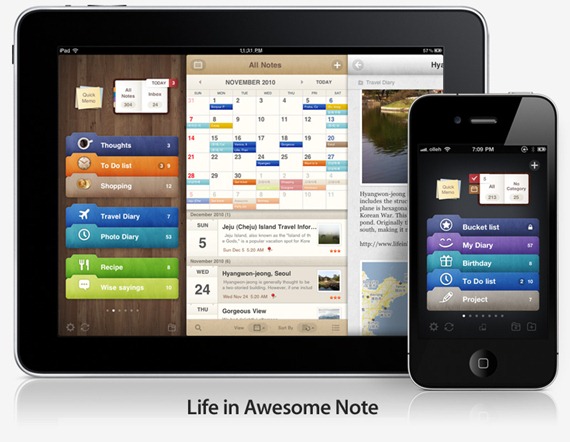
The first app I explored was Awesome Note, a note-taking-cum-to-do app that syncs with Evernote and Google docs. Notes created with Awesome Note are designed to look like real life paper notes that are kept in colourful manila folders. By default, the app randomly assigns one of fifteen available background patterns and a default font to each new note, but backgrounds and fonts are customisable, as are the colour, icon and default theme of each folder. You are limited to five folders per screen, but you can create as many folders as you like, arrange them in whatever order suits you best and then simply swipe through them from screen to screen. It’s a pity that GTD doesn’t offer more opportunities to sample the neat animation, like “turning pages” while browsing from note to note within a folder.
Being an Evernote front-end, Awesome Note’s functions, are very flexible. Every note can be transformed into a to-do, a check list, a calendar item, a page in a diary or photo album, or a birthday or anniversary reminder, simply by changing the view or type of note or by assigning a due date. You can also tag your notes and to-dos and use the built-in search function to look up tags or keywords. To help you keep on top of all the notes inside your folders, there’s a little notebook at the top of each screen that shows how many notes there are in total, how many to-dos are due today and if there are any unassigned notes waiting to be processed. Next to it, there’s a quick memo pad where you can jot down ideas, via keyboard or handwriting input, or draw a sketch. Lastly, you can share your notes and to-dos via SMS or email, send them to a compatible printer or lock your folders with a passcode. This may sound a bit overwhelming, but everything can be done with just a few quick taps.
GTD Setup in Awesome Note
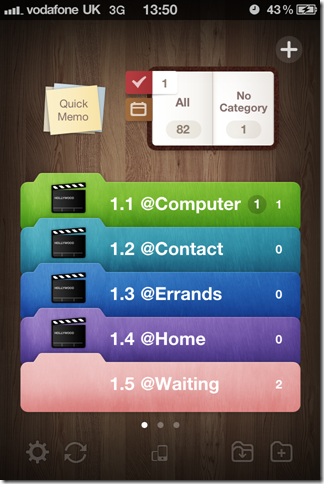
Awesome Note comes with pre-installed folders, but they can easily be renamed or replaced and new ones can be created as necessary. For my GTD setup I created ten folders, five for each screen. Since the sync of tags between Awesome Note and Evernote is limited (more on that in a moment), I combined Next Action and Context to create five Action folders that I review daily. I placed those on the first screen, so I can see them as soon as I open the app:
- 1.1 @Computer
- 1.2 @Contact
- 1.3 @Errands
- 1.4 @Home
- 1.5 @Waiting
On the second screen I placed the folders I review weekly or less often:
- 2.1 Projects
- 2.2 Someday
- 2.3 Goals
- 2.4 Reference
- 2.5 Wishlist
Working With Evernote
As my back-end I chose Evernote because it has both web and desktop versions and is generally more versatile than Google docs. Sync between the apps is speedy, but due to their different functionalities not really tight enough to use phone, web and desktop interchangeably. For example, Awesome Note’s folders appear in Evernote as notebooks that are easily identifiable by the prefix [aNote], but while Awesome Note allows you to arrange the folders in whatever order you want, Evernote automatically puts the notebooks in alphabetical order.
You can attach up to nine pictures to a note, but they will only sync from Awesome Note to Evernote, not vice versa, and due dates, status, font and background formatting don’t sync at all.
Finally, although both apps use tags, tags added in Evernote don’t sync to Awesome Note and tags added in Awesome Note are merely included as a footnote in Evernote. Fortunately, the powerful Evernote search finds them there, so there’s no need to double-tag. Since I do most of my GTD in Awesome Note and use Evernote web and desktop only for convenient text entry and backup, none of the above was a deal breaker for me. I just numbered my folders so they would appear in the same order on all three platforms and didn’t worry too much about the order of the notes inside.
The “No Category” Inbox
The “No Category” folder at the top of the screen is my inbox where I collect emails, tasks and ideas that come to me during the day, things that I need to buy or adverts I see on my way to work and want to follow up later. This is easy since notes that aren’t assigned to a specific folder automatically get dumped in there, no matter what screen you are in when the note is created.
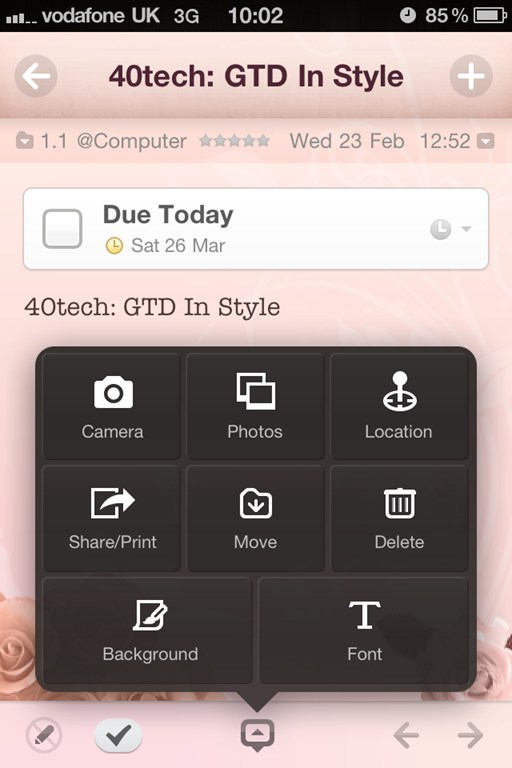
Emails and URLs can be copied/pasted into the body of a note, photos can be attached from the camera roll or taken from within the app, and Google maps can be added. Alternatively, you can forward emails to Evernote and then sync with Awesome Note. Making a note read-only makes URLs, email addresses and phone numbers clickable, but unfortunately there is no option to link notes to contacts in the iPhone’s address book, so they have to be copied over manually. Quick memos that are saved as notes also end up in “No Category” (whatever you scribble down on the memo pad stays there until you either save or clear it). These are great for basic drawing. For example, you can ask someone how to get from A to B and then take the sketch with you or email it to a friend.
I review my inbox daily and process its contents according to David Allen’s GTD methodology:
- If a task takes less than 2 minutes, I do it right away
- If it takes longer or I can’t do it where I am I move it to the appropriate Next Action folder
- If it takes more than two steps to complete I move it to Projects and create a to-do for the Next Action in the appropriate folder
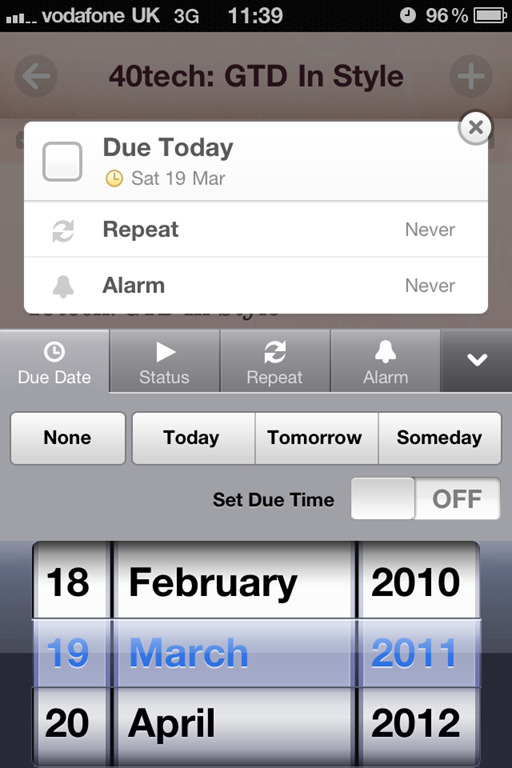
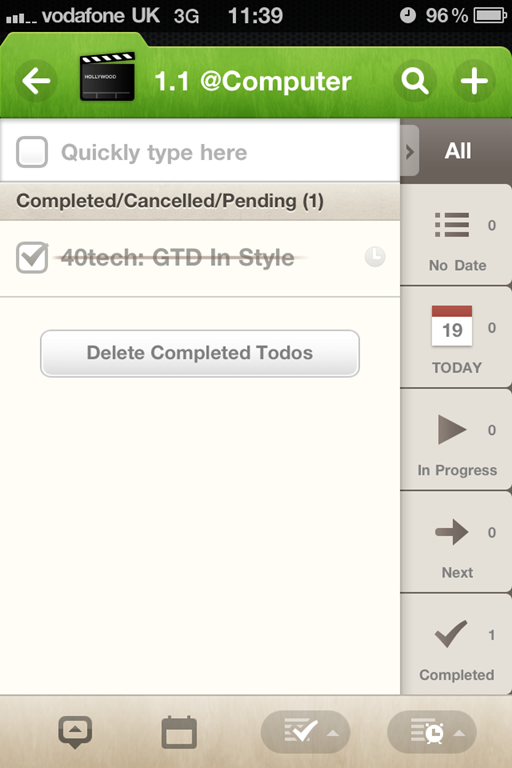
Time sensitive to-dos can be assigned alarms. Awesome Notes uses local alarms, so you will be reminded even if data roaming is disabled or the phone is in airplane mode. If a task should be delegated to someone else it goes into @Waiting with a review date to remind me to check up on and, if necessary, chase the person I have delegated the task to. Lastly, things I may want to do at some point in the future are parked in Someday and anything that doesn’t require action is either archived in Reference or deleted. If a note is moved into one of the Next Action folders it is converted to a to-do and, if possible, assigned a due date. Additionally, while Awesome Note doesn’t sync with any third party calendar, every folder, including “All”, has a calendar view that displays the to-dos within that folder, marked with the folder’s colour.
Next Actions
Next Actions that have been assigned a due date pop up automatically as they become due. A red badge on the app icon shows how many to-dos are due or overdue; within the app this is shown next to the red tick box at the top of the screen. Additionally, I check the Next Action folders whenever I have a spare moment. For example, when I sit down at my PC I check if there’s anything else I could do while I’m at it.
In order to make my tags more prominent in Evernote, I start the title of a to-do that I want to be searchable with the appropriate place, person or project name. This has the added benefit of being able to search tasks alphabetically in Awesome Note. Usually I sort by due date, but if I’m going to contact person ABC I can alpha-sort the to-dos in my @Contact folder to make sure I cover everything “tagged” ABC. One tag per to-do is usually enough for me – a place tag for to-dos in @Errands, a person tag for @Contact, a project tag for @Computer and so on – and it only takes two taps to sort. Awesome Note does have a search function for both tags and keywords, but no saved searches, so this doubles as a quick-and-dirty search.
The project folder is reviewed weekly, or more often if I have extra time. Awesome Note doesn’t support sub-tasks or checklists, so I list the sub-tasks of each project in the body of the parent note, e.g. Project XYZ, and then cut/paste them into individual to-dos as I work through that project. I do the same for checklists or shopping lists. Alternatively, if you want to be able to check off each item individually, you can make a dedicated folder and create a to-do for each item.
Awesome Note may have been created primarily as a note taking app, but its to-do capabilities are powerful and lend themselves well to GTD. The limited sync with Evernote forces me to keep my setup simple and fuss-free and the cheerful design makes Getting Things Done fun. I just wish that tags would sync properly with Evernote, as they do with Egretlist, and that tasks would sync with the iPhone calendar.
Let me know what you think of Awesome Note’s GTD capabilities in the comments!
Nina lives in the UK and works in Financial Services. A frequent international traveller, she has extensive experience of managing life on the go. A trip to Japan opened her eyes to the possibilities of mobile phone technology and she has been attempting to achieve a similar level of connectivity ever since. This is her first technology article.
Nina’s next iPhone GTD setup: GTD with 2Do and Toodledo.