Menu Close

Tag: iOS (page 17 of 19)

App of the Week: Noteshelf Handwriting App for iPad

App of the Week: Noteshelf Handwriting App for iPad | 40Tech

When I got my iPad back in December, I mostly used it as a means to surf the web, watch Netflix, read, and play the occasional game. Oh, I blogged on it a bit, too, and I figured it would be great for taking notes and the like, but I quickly found that extended typing on the glass surface led to aching fingertips. Besides, when trying to work things out and get creative, there is something very powerful about the old fashioned pen and paper approach. Determined to see if I could get the same power out of my iPad, I started researching handwriting apps.

After going through several, I was largely disappointed by what was out there — until I discovered Noteshelf.

Now, to be fair, I originally went with Penultimate, which has an excellent natural feel when you write — and gets extra awesome points for it’s freeness. However, I still felt like I was missing something. So, when my friend and colleague Daniel Gold recommended Noteshelf to me, I grudgingly gave it a shot, despite it’s $4.99 price tag. I’m cheap when it comes to app purchases, but I figured I could hold him responsible if it sucked.

It didn’t.

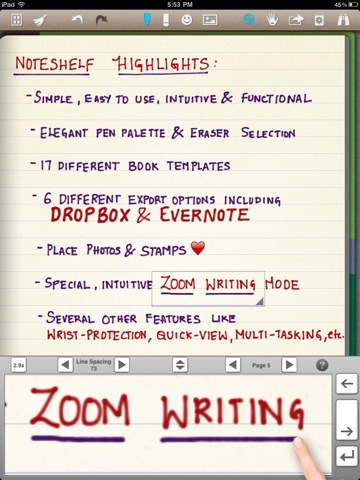
In fact, it rocked so much that I use it all the time, even though my handwriting is absolutely atrocious. Noteshelf has all of the features I could want or need:

  • Excellent natural feel when writing
  • Different pen sizes and colours
  • Wrist protection that works
  • Zoom writing
  • Just as functional in landscape mode as portrait mode
  • Unlimited undo and redo (until you leave the page, anyway)
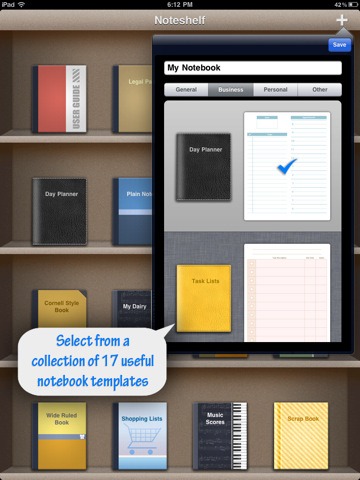
  • Notebook templates for writing, drawing, task and day planning, meeting notes, shopping lists, journal writing, graphing, and music
  • A bookshelf view to easily organize notebooks
  • Dynamic line-sizing for easy and clean jumps to the next line on a page
  • Photo embedding and annotation
  • Backup and restore functionality

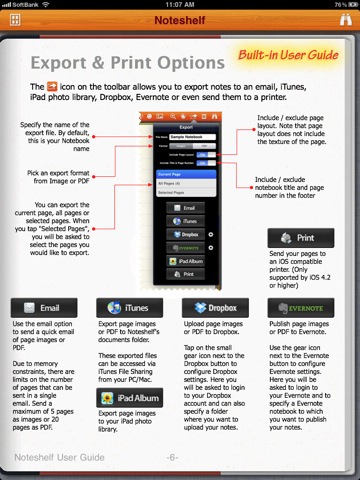
The kicker, though, is Noteshelf’s sharing capabilities. You can print and export notes as .jpegs and .pdfs, configuring by page or as an entire notebook — by email, iTunes, your iPad photo album, and (Yay!!) Dropbox and Evernote! That’s all kinds of awesome, right there! Nothing quite like being able to quickly scrawl down several pages worth of ideas, and then send them to your out-of-brain-brain for easy searching with Evernote’s OCR. Even writing as bad as mine gets picked up. Mostly…

Noteshelf Natural Handwriting App for iPadNoteshelf Notebook Templates Noteshelf Export to Dropbox, Evernote

I can’t say enough that’s good about Noteshelf. If you have an iPad, and have a want or need to use it as a notebook that will get you on the path to being well and truly paperless, you need to go and get it. Right now.

What’s your favourite handwriting app for tablets?


App of the Week: Atomic Web Browser [iOS]

App of the Week : Atomic Web Browser | 40Tech

Mobile Safari has it’s good points, but there are several places where it leaves a lot to be desired. There are speed issues when loading, the lack of any real multitasking (resulting in windows constantly reloading when you exit the app and return), no background tab or window loading, etc., etc., etc. To compound these issues, the last few iPad versions of Safari (including the current one) are unstable at the best of times, their regular crashes making browsing a chore.

There are several Safari alternatives for iOS, all if them trying to overcome the shortcomings of the stock iPhone and iPad browser. The best of the lot, however, considering features, usability, and price, is Atomic Web Browser.

Atomic Web Browser has been around since December of 2009 and while it has floated back and forth between $0.99 and $1.99, it has held steady at $0.99 for nearly a year. It also has a Lite version which has nearly all of the same features, but for $0.99, getting niceties like the ability to set a homepage isn’t a bad deal. Anyone who’s read my work on 40Tech before knows that’s high praise, too. It takes a lot to get me to shell out money if I don’t have to, and I’ve found it to be completely worth my while so far.

Features

It used to be that Atomic and other mobile Safari alternatives were sought after for real tabbed browsing and the ability to switch User Agents and view mobile pages as if they were served on a full-sized computer. Those are minor features these days, and Atomic has become useful for so much more. Here are the highlights (go here for the full list):

  • Load tabs in background
  • True multitasking
  • Add JavaScript as bookmarks
  • Share links on Facebook and Twitter
  • Configurable swipe and tap gestures
  • Save pages for offline viewing
  • Download manager with Dropbox, iTunes and email support
  • Import/Export bookmarks
  • Jump to top/bottom of web pages
  • Change and lock font-size for specific sites
  • Full-screen browsing with configurable buttons
  • Launch homepage, last session, or last viewed
  • Bookmarklet that sends pages to Atomic Web Browser from Safari

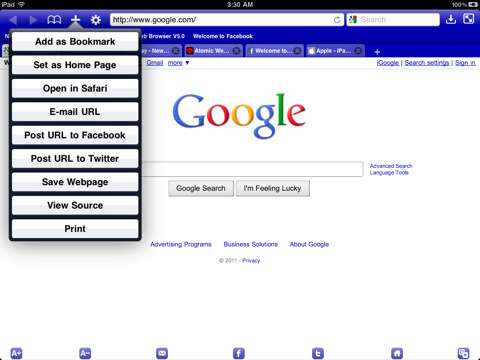
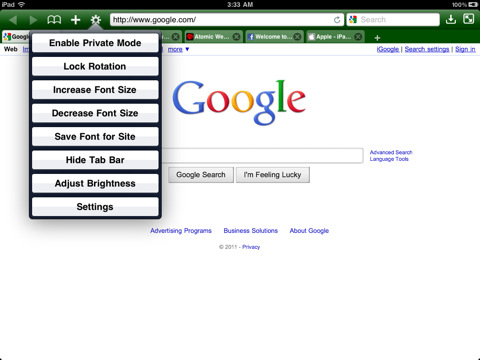
There are a ton of other features as well, such as setting the colour of the browser, ad block, private mode, air print, web compression (for faster browsing), search engine plugins, on-page search, view page source code, and more.

Atomic Web Browser Background Tabs Atomic Web Browser Download ManagerAtomic Web Browser Action ButtonsAtomic Web Browser Options

There are a few other browsers that compare with Atomic, the closest in both price and features being Mercury Browser, which I have been using on my iPhone for the past while. Mercury Browser is almost identical in features and has a few interesting possibilities like a library of common bookmarklets that can be installed (which is a bit buggy), a bookmarks springboard, and speed-dial-like dashboard for your favourite sites.

Mercury Browser’s extra features are great, and combine well with an interesting and pretty interface to make for fantastic browser, but I find that Atomic is easier to navigate. The Atomic Web Browser’s look and feel is more minimalist and straightforward in its approach, and for me — and more importantly, my wife — that translates into a better overall experience. Both have free and very functional Lite versions, though, so you should give them a try to see what suits you better.

Your turn:

What’s your favourite browser for iOS?


App of the Week: Planets, Free Stargazing App for iPhone, iPad [iOS]

40Tech App of the Week: Stargazing App Planets for iPhone, iPad, iPod Touch

When I was a kid, I was an astronomy nut. I was in love with the planets, the stars, nebulae, constellations, you name it. I read everything I could get my hands on. I even did a science project presentation in grade five (I think) on black holes. Somehow or other, though, as I grew older and the whirlwind of life, family and general stuff caught me up, I lost a lot of what I knew and never found the time to pick it up again. What bothered me especially was that I couldn’t identify more than four or five constellations any more — and that’s the sort of fun star gazing that I really wanted to share with my little girl.

Belatedly, it hit me: I own a GPS-capable, compass-packing smartphone. Somebody must have created a stargazing app for the iPhone and/or iPad. There’s an app for everything, or some other such marketing phrase, right? Of course, it turned out that there were several apps of varying costs and degrees of complexity — and the one that struck the balance with me was simple, free app (with over 5 million downloads) called Planets.

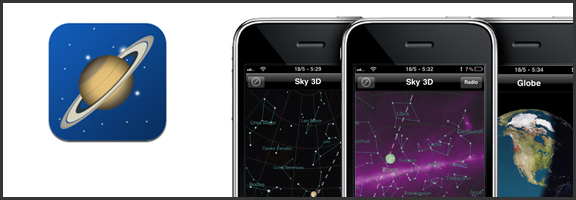
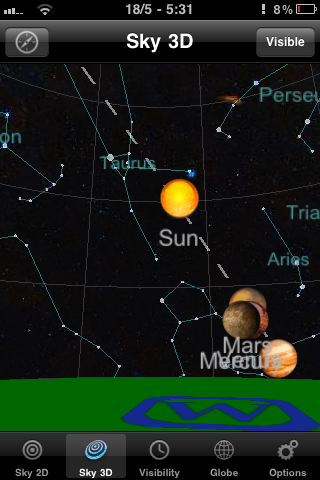
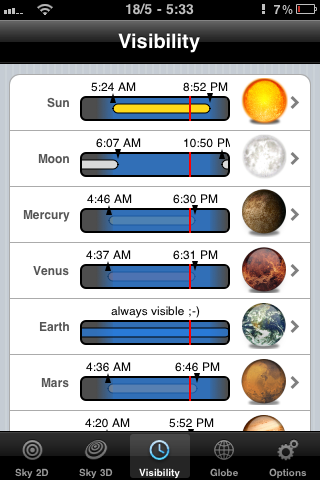
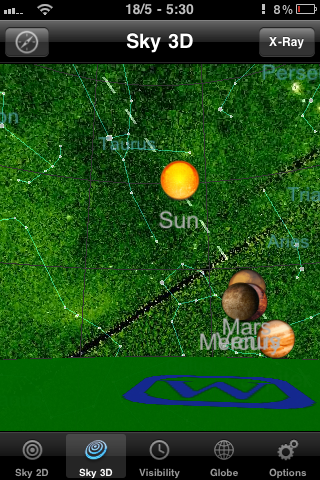
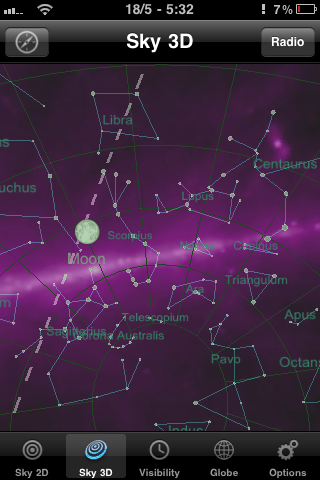
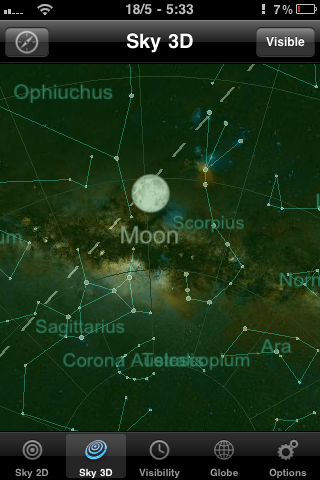
Planets doesn’t compare to the feature-sets of some of the paid apps like Starwalk for iPad, but it isn’t bogged down by complications either. It’s a straightforward 2D or 3D view of the heavens, augmented by some location-based gyroscope action. This is especially useful in the 3D view, as it allows you to get a look at the constellations and planets as you turn and point your iPhone or iPad. The 2D view provides a some useful information at a touch, such as rising and setting times of planets, the sun, and the like, but it’s the 3D virtual planetarium that gets me.

Constellations on the iPhone with Planets for iPhone, iPad | 40TechView planets, stars on the iPhone with Planets for iPhone, iPad | 40TechPlanet rise, sunrise, visibility of planets with the naked eye on iPhone, iPad | 40Tech

While Planets for iPhone and iPad could benefit from providing more information about specific stars and planets, and I wouldn’t mind a bit of interactivity and a photo of a nebula or two, I love the fact that me and my kid can quickly identify artwork in the sky and can even see where things should be if there wasn’t so much light pollution or the sometimes perpetual cloud cover we get on the Northwest coast – or if pesky things like daylight hours or the plane of the Earth get in the way. I also like that the Planets app actually tells you where the planets of our solar system happen to be hanging out, and at what times they might be visible to the naked eye. I found Saturn outside my door the other day. I’ve always loved Saturn. It’s pretty.

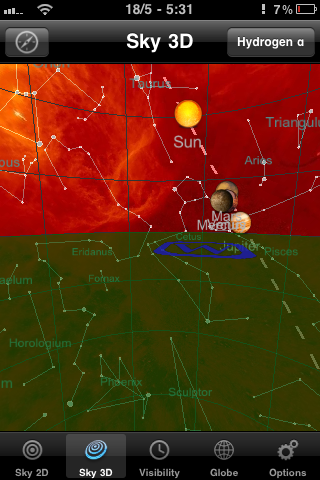
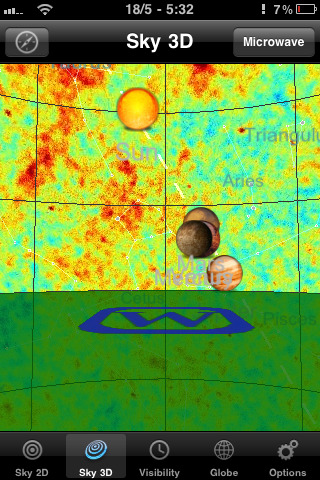
Photo May 18, 5 30 06 PMPhoto May 18, 5 30 59 PMPhoto May 18, 5 31 31 PMPhoto May 18, 5 32 11 PMPhoto May 18, 5 32 30 PMPhoto May 18, 5 33 03 PM

If the regular planetarium view doesn’t cut it for you, Planets also has several other views that make the sky look impressively colourful, including X-ray, Radio, Infrared, Microwave and Hydrogen-a. There are also some twirling shots of the planets in the globe section, but that part of the Planets app definitely needs more information and other bells and whistles to be interesting. Still, for a free app, it’s a great little stargazing assistant, and one that I get regular use out of.

You can pick up Planets for free at the iTunes App Store.

What’s your favourite stargazing app for your mobile device?


GTD With 2Do and Toodledo [Reader Workflow]

GTD With 2Do and Toodledo [Reader Workflow] | 40Tech

Continuing with our Reader Workflow showcase, we’re proud to present Nina Kefer’s second post in her GTD experiments series, Beauty and Brains: Getting Things Done™ In Style. In her last article, she showed us a particularly awesome GTD setup with Awesome Note and Evernote; focused on the iPhone, overall. This time around, she delves into a mobile frontend for Toodledo. Read on for Nina’s GTD workflow with the iPhone app, 2Do.

For an additional take on Toodledo and GTD, also check out our post on Getting Things Done with Toodledo using pseudo-GTD methodologies.


Beauty & Brains: Getting Things Done™ In Style, Part 2 – 2Do

In my last article I described my GTD system for Awesome Note synced with Evernote. If you prefer a tighter sync between front and back end, however, you’ll want to give 2Do a try. 2Do is an award winning productivity app that syncs with the task management website Toodledo as well as iCal and Outlook (via a sync helper). I use a PC, so iCal is not an option and I don’t use Outlook because it doesn’t doesn’t play well with Gmail, so unfortunately I had to make do without a desktop client.

The sync with Toodledo is pretty tight, albeit with some peculiarities. 2Do’s interface is designed to look like a colourful Filofax and comes with several pre-installed “calendars” or tabs, which are basically to-dos, projects and check lists that are pulled together in the “Today” and “All” tabs. 2Do’s tabs appear in Toodledo as folders and, as with Awesome Note, they can be easily renamed or replaced to suit GTD. They can also be moved up or down and assigned custom colours – I basically think of them as dividers in a lever arch file or personal organiser.

While Toodledo supports contexts, 2Do doesn’t out of the box, but this can easily be set up by creating tags for each context and then searching for each tag using the excellent built-in search function. These searches can be saved as tabs which will then sync to Toodledo as folders. Just like “normal” tabs, they can be moved up or down to whichever position fits best with your GTD setup. Note that tags cannot be created from scratch; you first need to create a task, then you can create the tags to tag it with.


The Setup

For my to-do system I use a similar setup as in Awesome Note. Since 2Do doesn’t have a dedicated inbox, I first created a new tab called Inbox. I then created a Next Action tab as well as saved searches for all my context tags. That way I can collect all next actions in one tab, but filter them by context using the saved searches. Since these are the folders I check most often I moved them to the top of the list, so they are immediately visible on my screen when I open the app. Alternatively, you can create a dedicated “normal” tab for each context. Finally, I created Project, Someday and Reference tabs and moved all tabs in an order that suited me best. I then manually arranged the corresponding folders in Toodledo in the same order:

  • Inbox
  • @PC
  • @Contact
  • @Errands
  • @Home
  • @Waiting (these appear as tags in Toodledo)
  • Next Action
  • Projects
  • Someday
  • Reference

Setup GTD in 2Do for iPhone | 40Tech


Using 2Do

2Do offers an almost bewildering array of features, but they are elegantly tucked away in hidden menus, so the interface never looks cluttered. When creating your tasks you have the choice between three different types – to-do, checklist and project – that can be assigned six different actions: call, SMS, email, browse, visit and Google. Call, SMS, email and visit actions can be linked to the contacts in the iPhone’s address book and a tap on a task containing such an action will bring up the contact’s phone number or email address or show the postal address in Google maps. You can then call, text or email them directly from within the app.

A long tap on a task brings up a menu that shows what you can do with that particular task: mark as done, defer to another day, copy, share (via email, SMS or Twitter), delete, add note, take or attach a photo, record and attach an audio file or assign a due date and alarm. There is a choice between email alerts and local alerts, i.e. a notification on the phone lock screen that works even if data roaming is disabled or the phone is in airplane mode. For local alerts, you can choose between receiving a push message only or a message plus sound, with a choice of different alarm sounds. A red badge on the app icon shows how many to-dos are due or overdue and within the app overdue tasks appear in red font instead of black.

2Do uses two types of tags – word tags and people tags, the latter linked to contacts in the iPhone’s phone book – which make tasks easily traceable via the search function. You can also search by key word and date range, and searches you do frequently can again be saved as new calendar tabs, so in the future you only have to tap on the tab to bring up a search result.

Tasks can be sorted by status, priority (none, low, medium, high, star), due date, note, URL, alphabetical or manually. As in Awesome Note, you can sort each folder in a different way. The Today tab shows all tasks due today and additionally there is a focus button that can filter out to-dos that don’t fulfil certain requirements, e.g. due date or level of priority. Individual tasks can be moved from one tab to another with a few quick taps. Switching to landscape view in any tab brings up a calendar showing all tasks that are due in the current month. Finally, there is a nearby tab that alerts you when you approach a location connected with your task, but I don’t use it since it uses GPS and therefore guzzles battery.

2Do for iPhone, iPad, iOS | Task Management App


Tasks, Subtasks, and Sync with Toodledo

I Get Things Done in 2Do in pretty much the same way as in Awesome Note: my Inbox and Next Action (and context) tabs are reviewed daily and Project tab weekly. As with Evernote, you send emails to Toodledo to create a task; you can specify folder, priority, due date and time, tag, repeat, and attach the body of the email as a note.

2Do supports subtasks, so there is no need for workaround like there is in Awesome Note. Each subtask can be given its own tag, due date, alarm, action and attachment and can be moved out of the project and into the appropriate Next Action folder, right from within the main task menu (parent and subtask can’t be in different folders). Alternatively, if you have created contexts tabs from saved searches, adding the appropriate context tag (@PC, @Contact, @Errands and so on) will make the subtask appear in that tab, with the project and folder name still visible. Finally, if you assign a due date, the task will eventually pop up in the Today tab. However, be aware that subtasks are a premium feature in Toodledo and in order for them to sync between 2Do and Toodledo together with their parent task you need a (paid) Pro account. In free accounts, subtasks sync separately from the parent task.

Tags, due dates and notes sync to Toodledo, but photos, location maps and audio files remain locally in 2Do as Toodledo only supports notes. However, this has the advantage that these files are available for offline use on the iPhone.


There is a reason why 2Do was voted Best iPhone Productivity app: in combination with Toodledo it offers pretty much everything one could wish for, except the option to sync your tasks with the iPhone calendar. It is quick and easy enough that you barely have to use the web, yet the sync with Toodledo is tight enough to be able to use both apps more or less interchangeably. Don’t be put off by Toodledo’s less than slick appearance either. It is a powerful and highly customisable task manager and there are a number of Stylish and Greasemonkey themes to pretty it up.

What are your thoughts on GTD in 2Do and Toodledo?

Nina lives in the UK and works in Financial Services. A frequent international traveller, she has extensive experience of managing life on the go. A trip to Japan opened her eyes to the possibilities of mobile phone technology and she has been attempting to achieve a similar level of connectivity ever since. This is her first technology article.

Up Next: Part 3 – Springpad


App of the Week: Feedly [iOS, Android, Web]

Feedly RSS Reader for iPad, iPhone, Android, Tablet, Web | 40Tech App of the Week

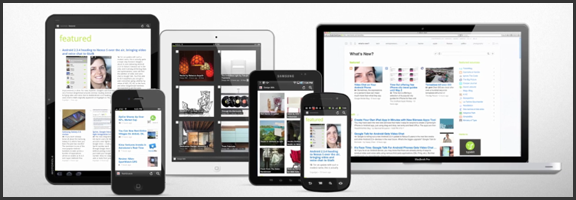
We’ve covered Feedly before (and we thought it was great!) but the RSS feed reader to smack all others is now much-improved. The web app has seen several updates in functionality and sharing features, and the recently released and updated mobile apps have been generating a lot of positive attention. And why not? The experience is nearly identical on both iOS and Android phones and tablets, and Feedly Mobile 2.0 easily competes with the likes of Pulse, Flipboard, and Zite. With an update or two, it might even blow those apps away completely.

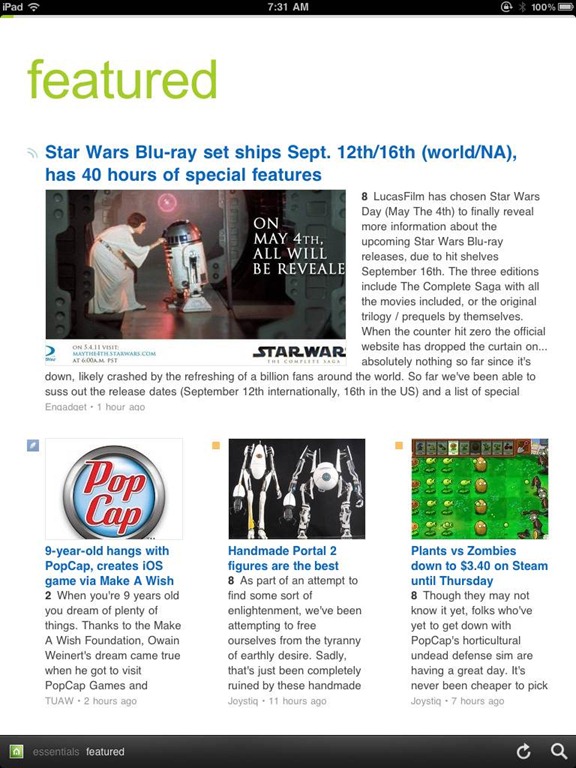
Feedly’s minimalist magazine design focuses on the content, presenting it in an easy to read format that is complemented by the app’s simplistic navigation. The mobile apps are especially barebones, keeping the effects to a minimum, and the overall presentation is extremely appealing. The toolbar on the bottom of the screen allows you to like (on Google Reader), bookmark, email, and share articles on Twitter. You can also enable saving to Instapaper and Read It Later. The web app has several more options for sharing content, but the basics are available in Feedly Mobile 2.0, with the exception of one service: Facebook. That seemed like a bit of an oversight to me (and that’s me understating the obvious), but the developers assure us that Facebook functionality will be available in version 3.

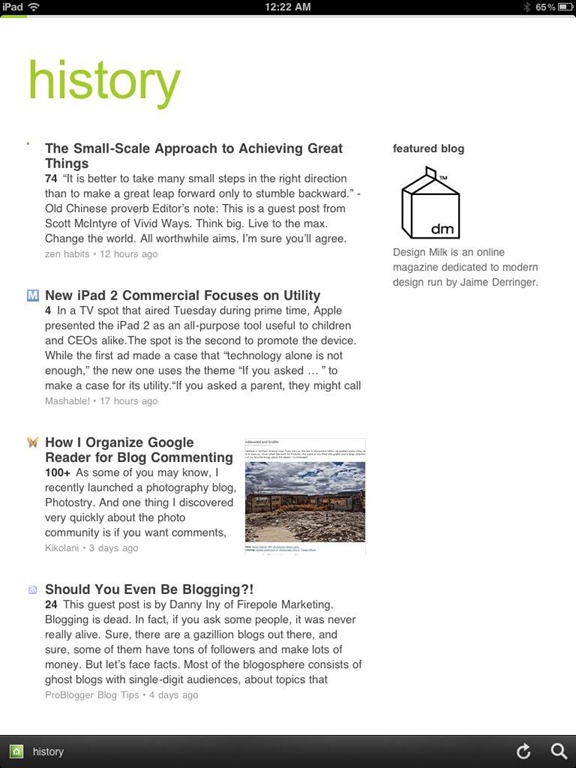
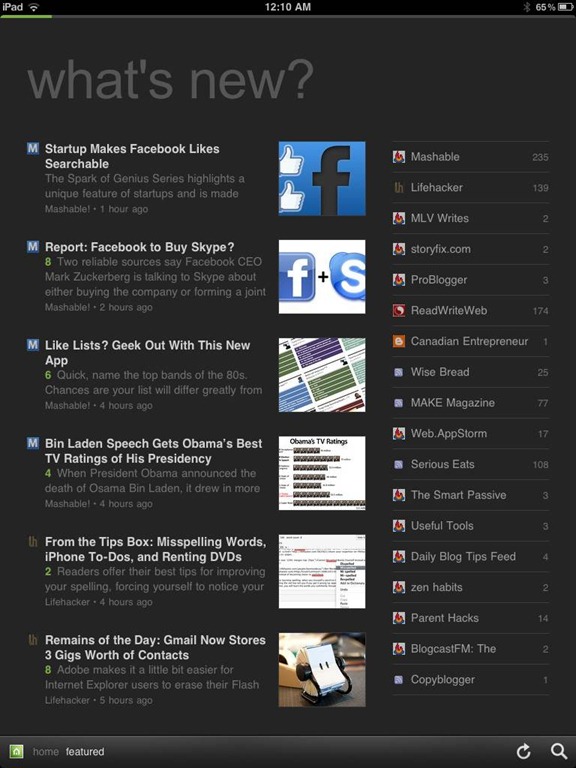
Feedly Mobile 2.0 iPad RSS Reader | 40TechFeedly Mobile 2.0 | Google Reader Magazine | 40TechFeedly Mobile 2.0 | Find Already Read Posts in History | 40Tech

One of the best things about Feedly is its learning algorithm. While you read, the app learns about the topics that interest you most, and does a great job configuring your personal magazine around those interests, bringing your favourite types of content to the forefront. You can always go through your sources one at a time, if you like, but taking advantage of Feedly’s different sections — each one tailored just for you — really helps to keep your reading moving and you engaged. Feedly also offers suggestions, periodically, of other sites that may suit your interests, which is helpful.

If you don’t feel like connecting with Google Reader, Feedly does have a host of content already available for you to sort through, but it works best when you are logged in.

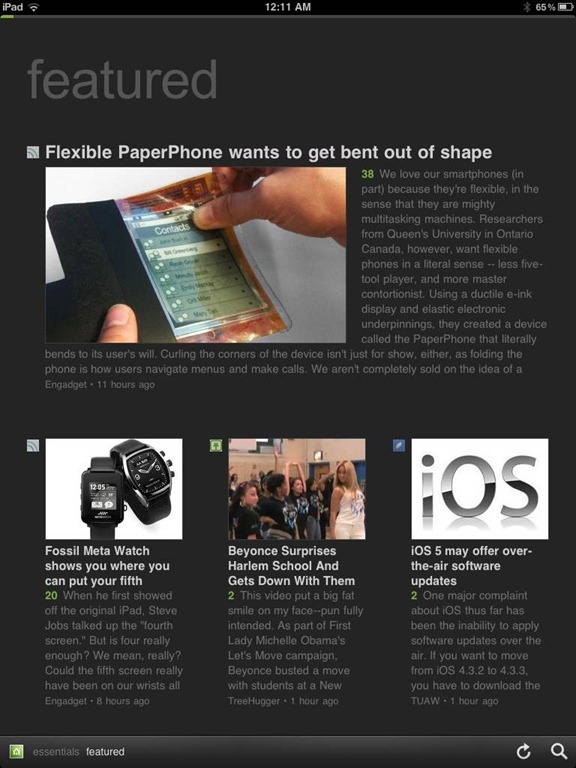
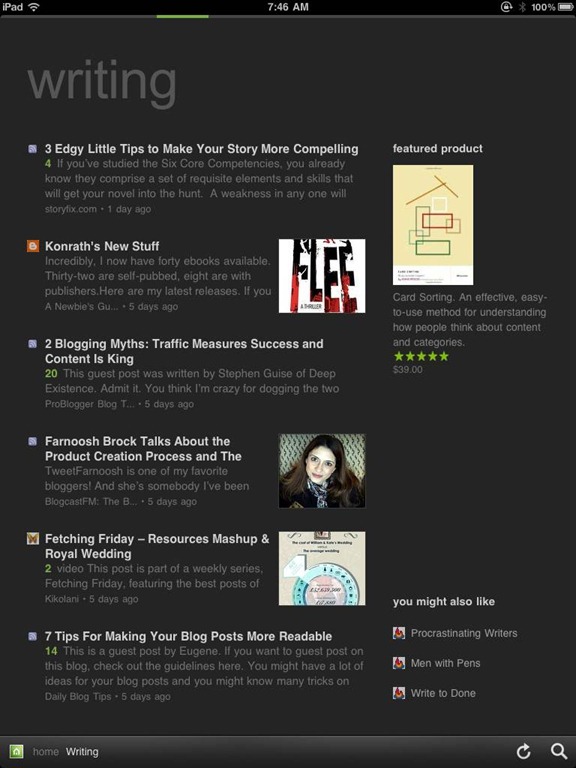
Feedly Mobile 2.0 Dark Theme | 40TechFeedly Mobile 2.0 iPad RSS Reader Magazine | 40TechFeedly Mobile 2.0 RSS Feed Reader | 40Tech

Feedly Mobile 2.0 is every bit as fantastic as the web app. It’s incredibly responsive, and is beautiful to look at on all platforms, including iPhones and Android phones, the iPad, and Android tablets of different sizes (both 7″ and 10″). There are a few niceties packed into the HTML5 goodness, as well, such as an instant search bar, a black or white theme (which helps with night reading and can be changed with a shake), a history section, and the ability to start on the magazine layout or category of your choice. There are still a few kinks that need to be ironed out of the mobile apps, however, such as the lack of Facebook sharing, and that the app only works in portrait mode. Hopefully these issues will be resolved in an update or two. I’d also like to see some of the additional sharing options in the web app find their way to mobile as well, especially sharing on LinkedIn and Evernote.

Feedly is free, and it kicks butt. Get it.

Now you know I love it — what about you?