
 If you’re like us, you spend most of your computing time in the cloud, using online applications. And, if anything, the trend towards online apps is gaining momentum as time passes. The days of desktop applications aren’t gone, but they sure are diminished as more and more web-based applications catch on. There are some apps that we use more than others, though. As 2009 draws to a close, we take a look at the five web applications that we used the most this year.
Tag: Evernote (page 8 of 10)
This is an update to an earlier post, How to Secure Evernote on a Shared Computer, and shows an easier way to open an encrypted version of Evernote data with a simple desktop shortcut.
 A few months ago, we explained how to use Evernote and TrueCrypt to secure Evernote on your computer. This was in response to one of the loudest gripes about Evernote – its inability to natively secure your data, short of locking your user account every time you stepped away from your computer. One of the commenters to that post, Barry, shared with us a batch file (a text file that runs a series of commands) to make this process even easier to use. Once set up, it is a two step process: click on an icon, and enter your password. Doing so automatically opens TrueCrypt, decrypts your data, and then opens Evernote. The batch file even closes TrueCrypt when you exit Evernote. Read on for updated instructions that include Barry’s batch file. Thanks to Barry for sharing this with us.
 One of the benefits of Evernote is that you can use it almost anywhere, thanks to the multiple platforms on which it is available. Over in the official Evernote forums, a new topic has just started brewing that discusses creative uses of Evernote on mobile devices. Inspired by that thread, here are seven creative uses of Evernote on the iPhone. Really, most of these ideas could be implemented using any mobile device with web access, but I’ve only tested these on the iPhone. These are either my own ideas, or were inspired by elsewhere, such as the aforementioned post in the Evernote forums. For more ideas on how to use Evernote (including some ways to use Evernote on the iPhone), check out our earlier article, 10 Ways to Unclutter Your Mind using Evernote. In the comments, let us know how you use Evernote on your mobile device.
 A while back, I was working a job that required much more effort and responsibility than was reflected in my pay grade — familiar story? Well, combined with multiple side-projects, keeping up with my wife, newborn daughter, two dogs and a plethora of other things that required my time and energy, I was drowning. I started researching ways to get things done more efficiently. That’s how I first came across the cultural phenomena (some would just say cult…) that is GTD. A friend of mine who was “in the know” about such things was nice enough to lend me an audio version of a GTD seminar by David Allen. After about 2 weeks of listening (on the train, before bed, whenever I could), and an attempted implementation, I realized that I needed a system that was less file cabinets and paper and more suited to my digital life.
Enter Evernote…
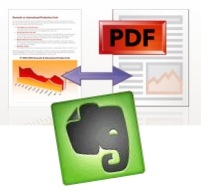 One of the big differences between Evernote on the Windows and Mac platforms is that Mac users have the ability to clip web pages from Safari, and send those pages into Evernote as PDF files. Windows users can clip pages to Evernote, but those pages aren’t sent as PDF files. As a result, the pages often lose important formatting in the transition.
Firefox users on Windows can get similar functionality to their Mac counterparts by installing the PDF Download add-on, and then, when downloading a page as a PDF, selecting Evernote as the default program to open the file. Read on for more detailed instructions.
Read more