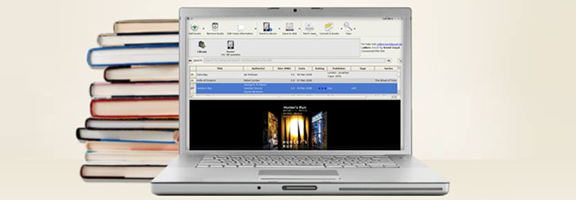
Calibre is, hands down, the best eBook manager out there. It can help you organize your entire library across devices, convert books from one format to another as needed or desired, and even use the built in server for over-the-air access to your books, from anywhere. In theory, anyway. In practise, there are many things that will get in the way of the “anywhere” part. Software and router firewalls, for example, may prove too complicated to overcome easily, leaving over-the-air book transfer dreams confined within the walls of home networks.
An easy way to mitigate these problems is to set up your Calibre library to be accessible from multiple computers — and the best way to do that is with Dropbox.
You will need:
- At least two separate installations of Calibre eBook Manager
- At least one Dropbox Account (free should be fine, but you can upgrade to a paid plan if you need more space)
Setting Up Your Library in Dropbox
In order to use Calibre with Dropbox, you first need to either start or move the library folder into your computer’s Dropbox folder. This can be accomplished by clicking on the Library button (it looks like a small shelf of five books) and selecting the new location. If you are starting anew library, select “Create an empty library at the new location.” If you are moving your current library, select “Move current library to new location.” Continue forward and wait for the library to be created/books transferred.
Connecting Your Library to Another Computer
Once your library is set up in Dropbox, install Calibre and Dropbox on a second computer. When Dropbox is installed, login and wait for the library folder you installed to sync fully over to the new computer. Soon there should be green checkmark icons all ’round and indicating readiness. Uthe Library button on this computer’s Calibre installation to once again set the location of your Calibre library in your Dropbox folder. This is the same as before, but this time you will need to select “Use existing library at the new location.” Again, wait until the folder is completely synced, otherwise you may get an error.
That’s it. You’re done! You should now have full access to your eBook library on two computers — more, if you were so inclined as to repeat the last steps a few times. Any changes you make in any of your Calibre installations (or in Dropbox itself) should be reflected in all, and you will be able to use the server for local WiFi transfers to your devices (if supported), without having to worry about complications that may cause you to pull your hair out.
If you happen to have been wondering, the answer is yes: you can also use this method across multiple Dropbox accounts using shared folders. This can be handy when you are using separate accounts among family computers or for work. I’m sure it could be used for other things as well, but we obviously don’t condone that at 40Tech.
Things to Remember
As you are working with the same library across multiple installations, it is a good idea to only work in Calibre on one computer at a time as doing otherwise may cause problems with the database.
It is possible that using this method across different operating systems (Windows, Mac, Linux) will cause issues with case-sensitivity in filenames and metadata. As I understand it, this is due to more to how Dropbox must interact with the host OS’s file system. Recent versions of Calibre attempt to mitigate this problem, but according to the creator of the software, it does not solve it. In a thread about this on the mobilereads forum he says: “If you have multiple books by the same author and you change the case of the author name for one of the books on a case insensitive filesystem, then on a case sensitive filesystem, calibre will lose track of the other books.” Bottom line? Be careful changing information when working across OS’s.
So far, this method has proven to be a very effective way to manage and access an eBook library from multiple computers and locations. As an added bonus, you will have access to your eBooks from any computer or device capable of accessing Dropbox, even when Calibre is not present. On the Dropbox iPhone app, for example, you can find the book file you want and open it directly in an eReader application, including iBooks and Stanza, allowing you to bypass Calibre transfers altogether. As long as you have an internet connection, your library is with you — even when space on your device is at a premium.
How do you manage your eBooks?



The No.1 Reason I Won’t Be Using Amazon Cloud Drive
Amazon recently launched its Cloud Drive service offering users 5 GB of free online storage, with very competitive plans that essentially amount to yearly subscriptions of $1/GB, going up as high as 1000 GB. When combined with the Amazon Cloud Player (US-only), which allows you stream your music files from any computer or Android device, and doesn’t count Amazon MP3 purchases against your subscription limit, the Amazon Cloud Drive seems like one hell of a deal! The Amazon servers are some of the best out there, and unlike services like Microsoft’s SkyDrive, there are no limitations as to what can be uploaded as long as you own the files and their contents, don’t violate any laws by storing them, and agree not to upload anything that could be potentially dangerous.
All very reasonable and expected, no? Be a law-abiding and conscientious citizen, use the service responsibly, and you’re golden, right? Right — unless you enjoy the possibility of your privacy being infringed upon at the whim of a large corporation.
My problem with the Amazon Cloud Drive service, no matter how good it might be, all boils down to a single clause in their terms of service — which I hope that everyone who signed up for the service (or any service) read thoroughly. In section 5.2 of the Terms of Use, Amazon clearly states the following:
Giving a corporation and its designated appointees the right to access, keep, use, and share both my account information and my personal and business files is something that I’m simply not comfortable with. I understand the concept of limited access to files for the purposes of technical support, and I even get holding them on the order of a court of law or government body, but the use of the phrase “as we determine is necessary to provide the Service” is playing a bit too fast and loose for me. I have no idea what they might determine is necessary — it’s completely arbitrary. I am reasonably certain that, if there were victims of some sort of foul play resulting from that phrase, a court of law would be able to find in favour of those victims, but who wants to be a victim, even potentially? Don’t we have enough problems with digital privacy already?
The Amazon Cloud Drive is promising, but for a service that is fending off criticisms from the music industry by touting itself as a personal hard drive, they certainly don’t provide the end-user with anything even close to resembling the right to privacy that is inherent in a true personal hard drive. I hope that users read and thoroughly understand the fine print before they decide to upload their lives to this service!
What do you think of the Amazon Cloud Drive and its terms of use?