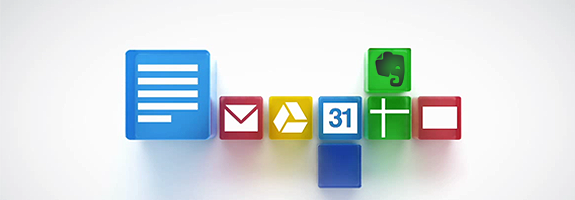
So let’s talk. There’s been a lot of conversation around the web — and on this site — about possible alternatives for Evernote. Springpad was the goto app for many, though the most recent update has pulled them further away from that comparison, and drawn the ire of many users in the process. If you look at Springpad, though, as well as several other apps that offer services that are considered comparable to Evernote (Shelfster, Thinkery, OneNote and Catch, for example), you can define a general criteria for a note taking application that I think — no matter how odd it may sound — could also be met by Google’s latest cloud offering and the new face of Google Docs: Google Drive.
Stick with me. I’d love to have a conversation with you all about this.
First: What is Google Drive?
Google Drive is the latest cloud drive offering to hit the web jungle. It came out just this past week and has already been cited as a direct threat to Dropbox, Skydrive, Box, and all the rest. On the flip-side, it’s also received the standard Ahhhhh, Their Stealing My Private Information!!!!! treatment by the web media, as well — in this case, somewhat unfairly (more below).
Google Drive Features
Once you start using drive, you can say goodbye to the docs.google.com url. Your docs shall forever become a part of Google Drive. You’ll still be able to revert to the old Google Docs interface, for a limited time, but the default new dashboard is where you will start, and eventually end up.

Here’s the feature-set, in a nutshell:
Storage is low cost and in abundance. And it can take crazy large files, and allows you to view files most other services don’t. Sync with your computers and mobile devices (iOS coming soon) in the same manner as Dropbox.
- 5GB of free storage space — and Gmail goes up to 10GB
- Additional space starting at $2.49/month for 25GB, $4.99 for 100GB — all the way up to 16TB (these also up your Gmail to 25GB)
- Google Docs don’t count against your storage
- 10GB filesize limit per file
- Upload up to 30 types of files –this includes Photoshop, Illustrator, movies, photos and more, as well as viewing of those files (graphic designers, rejoice! — and yes, this means movie and music playback, too)
- Add and manage files from your desktop environment
- Google Docs files (.gdoc, .gsheet, etc.) are actually shortcuts to their respective web editors, so don’t take up additional hard drive space on your PC
- Offline viewing (offline editing is in the works, too)
Sharing, sharing, sharing! Collaborate! Individual files, folders, or your entire Drive…
- Add a person, go public, or share a link — you can even give people without Google accounts editing capability
- Send Drive links in Gmail to make sure everyone always has the updated version — no attachment worries
- Or send Drive files as attachments, or even in the body of the email (classic Google Docs features)
- Share photos and videos right from Google+
- Easily view and manage files and folder shared with you
- Collaborate on any type of file — comment and chat on any of your files, in real time
- 30 days of revision history

Search — including including OCR and Google Goggles
- Filter by keyword, file type, file owner, and more
- Search text in scanned documents
- Find a photo using the search bar — Goggles can recognise objects in your images
Third-party apps. There are already several available on the Chrome Web Store, many of them free or freemium services. These apps will plug right in to your Google Drive allowing you to do all kinds of fun things. Some examples:
- HelloFax lets you send free faxes right from Google Drive — it also has signature signing capability, as do a couple of other Google Drive apps like DocuSign
- Pixlr and Aviary for Google Drive let you edit uploaded photos
- SlideRocket can be set up to be your default presentation app
- Revisu lets you share designs for feedback and track version history
- Lots more available and lots more coming via Google Drive > Settings > Manage apps > Get more apps

Any of you starting to see why I couldn’t help but compare it to Evernote? More on that, below.
What About My Privacy?
Google Drive’s privacy policy and terms of use came under fire almost the moment it launched. I have this picture in my mind of writers hearing about the launch and rubbing their hands together with glee as they consider all the readers they will be able to draw in with negative Google headlines. Don’t get me wrong, I still think Google may be the sweet face of Evil, and many of the concerns were and are valid — they’re just out of context.
Google’s Terms of Service states:
“You retain ownership of any intellectual property rights that you hold in that content. In short, what belongs to you stays yours.”
This is a good thing. But here’s where the confusion comes in:
“…you give Google (and those we work with) a worldwide license to use, host, store, reproduce, modify, create derivative works (such as those resulting from translations, adaptations or other changes we make so that your content works better with our Services), communicate, publish, publicly perform, publicly display and distribute such content. The rights you grant in this license are for the limited purpose of operating, promoting, and improving our Services, and to develop new ones.”
At first glance, this is freaky — but the reality is that this is used so that Google can integrate Drive with its other services — for you, of course — and to provide the other functions of the service, such as OCR and image recognition. Of course, this also means they can use the content to better provide you with more accurate advertising, but this is something they do with their services already.
Bear in mind that they can also be compelled to give up your information to government bodies or law enforcement agencies if required to by law. This is a standard thing that applies to every online service that houses its servers in the United States.
All of these things can be found in similar fashion in the Dropbox terms of service — and even the Evernote terms of service, though some may find Google to be a bit more ambiguous. Personally, I find the Amazon Cloud Drive terms of service much more frightening.
What does this all mean? Only this: Google’s scary privacy points are, in this instance, not so different than any other online drive’s terms of service. Does this mean there aren’t potentially frightening possibilities; that it’s all really candy and roses? No. Not unless you consider that the candy and roses could be laced with Rohypnol, that is. But these privacy issues are simply the risk you take when you put your files and personal information online. That doesn’t mean that you shouldn’t be concerned, just that you need to make the same decision, no matter what cloud service you use.
Next: Google Docs vs Evernote
| Evernote | Google Drive |
| Sync between devices (including mobile) | Yes |
| Offline viewing | Yes |
| Offline editing | Not Yet |
| Collaboration | Yes |
| Sharing | Yes |
| Keyboard shortcuts for quick launch | With tweaks (custom shortcuts) |
| Rich text editing | Yes |
| Easy organization by notebooks and tags | Yes, but with folders (no more tags) |
| Powerful search | Yes |
| OCR | Yes |
| Add attachments | Yes |
| Search within attachments | Yes |
| Third party integrations | Yes, with more on the way |
| Add content by email | Not at the moment |
| Web clipping | Only manual copy and paste works at the moment |
| Low cost | Yes |
| Upgradeable storage | Yes |
NOTE: You can create desktop shortcuts to open new Google Docs files, and then add custom hotkeys to those shortcuts to easily open new “notes”. The same urls used for the shortcuts can be used to create a dropdown in your browser’s bookmarks bar, although one bookmark, loaded in the browser sidebar is a great option for Firefox. The URLs you need are in this Google Document: http://bit.ly/IIiHAo. I’ve also added the shortcuts I decided to use, while testing. If there’s interest, I’ll do a full how-to on this.

NOTE: You can also add Google Drive to the Windows Send To context menu by typing %APPDATA%/Microsoft/Windows/SendTo to a Windows Explorer window – press enter. Then open another Explorer window, create a shortcut of your Google Drive, then drag it to the Send To folder you just opened. Now, when you right click on a file, you will be able to send it right to your Google Drive (this is based on the Windows 7 OS and also works for Skydrive and Dropbox).
Where Google Drive Wins
Google Drive allows you access to a full office suite, from full document and spreadsheet creation to presentations. It will also allow you to handle files more easily, as well as have real-time, collaborative conversations within the files/notes themselves. For people who want to have a powerful suite that they can leverage in nearly the same way as Evernote, then Google Drive could be a very good option. The same goes for people who don’t like the new Springpad, but find that Evernote just isn’t enough for them.
Where Google Drive Lacks
The lack of speedy clipping is an issue for me. This can be overcome with some simple copy and paste, or with extensions like Send to Google Docs (turns a whole web page into a PDF and sends it to Google Docs), and will likely no longer be an issue once some enterprising person or business creates an app for just that, but for the moment it is a bit of an annoyance. Not a deal breaker, though.

The other thing is that it is just not as straightforward as Evernote. The workarounds I put together make it easier to get going, but I find that the keyboard shortcuts I created sometimes fail until I remake them in the shortcut’s properties. And as I’ve mentioned in posts before, Evernote is really good at the simple things it does: taking and organizing notes. Once you add all the extra power and options of Google Drive, then you run into the potential of it becoming unwieldy, unless you manage it really well.
So there it is, my curiosity and thought process laid out before you. Your turn now! I want to know what you think — feasibility, practicality of application, pure ridiculousness, et al. Let’s chat about it and see what we can come up with as a group!