Menu Close

Category: Springpad (page 3 of 4)

Springpad Android Update Adds New Widgets, Save From Apps Feature, & More

Springpad Android Update Adds New Widgets, Save From Apps Feature | 40Tech

Springpad, one of our the favourite memory management platforms on 40Tech, launched a major update to its Android app yesterday. The update includes a new widget set for easier capture and customizable homescreen access, more ways to sort, filter, and view your notes, and the ability to save information directly from other Android apps. If you’re an Android user you’ll definitely want to check this out — especially if you’re interested in using Springpad for GTD (getting things done). See below for details!

UPDATE: 40Tech reader and regular commenter Daniel Gold has just put up a video post documenting the Springpad Android update. Check it out below, and don’t forget to visit his blog or his Evernote and Springpad e-Books [affiliate link] for more awesome!

Enhanced Sorting Options

Springpad’s new sorting options address several user requests, such as the ability to hide completed tasks, passed alarms, and passed events from any view (including All My Stuff). Users can also now sort by Due Date, Type, or Tag from any view. On the Springpad blog, Katin assures web app and iOS users that these features are on the way for them as well.

Awesome New Widgets

Springpad’s new customizable list and capture widgets will make the lives of both the general user and the power user much easier. The list widget can be configured to show you a list of your most important saved items. This is a fantastic way to have quick access to incomplete tasks, flagged items, recent alerts, favourite bookmarks, or whatever it is that you need to keep on hand.

Springpad Android Widget Configuration | From Springpad Blog Springpad Android Configurable List Widget | From Springpad Blog

The small and large capture widgets can now be configured to feature your favourite Quick Add options. If you are big on voice memos or barcode scans, or if you need fast access to the photo capture or text add features of Springpad, you can set up the widgets to be on hand for quick access to exactly what you need.

Share Content From Other Apps

If you were ever in the Yelp app and thought “Gee, I wish I could save this restaurant info right into my Springpad,” — now you can. This is a fantastic feature, as it makes saving the things you want to remember just a little more universal, and has the added benefit of Springpad enhancing that information with potential deals, coupons, and other pertinent information.

Aside from adding cross-app sharing, and these other fancy features, Springpad’s Android app also includes multiple bug-fixes. Check it out on the Android Market, or Amazon’s new Android Appstore.

Dan’s Video Review


Not an Android user? Head to Springpadit.com or hit this iTunes link. Also available on the Chrome Web Store.


GTD in Springpad

GTD in Springpad | 40Tech | Bobby Travis

I’m a GTD enthusiast. Rather, I’m a make-tech-work-for-GTD enthusiast, as is evidenced by previous posts showing how to incorporate GTD in Evernote and GTD in Producteev. Springpad always seemed like a good candidate for the GTD treatment as well, but, truth be told, the concept was a bit daunting. Springpad is a powerful tool. Over the last several months, the service has honed its user interface and focused its purpose, but there is still a lot going on under that pretty exterior. As such, a GTD in Springpad method required a certain level of commitment. Time, testing, that sort of thing. Don’t be scared, though — it’s the sort of commitment that tends to lead to really good things.

GTD Basics

For those of you unfamiliar with the particulars of GTD, the GTD in Evernote post gives a very thorough breakdown of the concepts and how to use them. I won’t leave you hanging completely, though. If you need or want a quick rundown of GTD basics, read the next two paragraphs. If you already know everything you need to and want to jump right into the Springpad method, skip down a bit to the Springpad Setup section.

David Allen’s GTD — Getting Things Done — methodology is essentially the process of collecting the information that is thrown at you throughout your day and shoving it in a box so you can ignore it until a scheduled processing time. This maximizes your in-the-moment effectiveness. At processing time, everything that takes longer than two minutes to accomplish is broken down into an actionable next step. If an item requires more than one step, it becomes a project, is added to your projects list, and the next reasonable step goes into your next action lists.

Next actions are where GTD actually happens, as they are broken down into contexts that relate to where you are and what you need to do — @home, @work, @computer, @errands, @meetings, @calls, etc. These contexts allow you to “set it and forget it,” freeing your mind to focus on what you are doing now, not what you need to do later. Anything that is not a next action is either something you are waiting for, something that you need to be tickled about at a later date, a reference item, a someday/maybe, or useless junk that should be expunged from your reality. Following these concepts with a little discipline, and a weekly review to check the status of your projects and tie up loose ends, can potentially bring your entire life into a smooth, much less stressful sort of harmony.
 

Springpad iPad

Springpad Setup

Now that the background’s out of the way, we get into the meat of how to make GTD work in Springpad. Depending on how you work best, there are several ways you could go about adapting the service to suit you. Daniel Gold, a frequent and very helpful commenter here at 40Tech, put together a system that does most of the processing right in the “All My Stuff” area of Springpad, utilizing the built in task items and their categories, as well as flags to highlight his next actions — check it out on his blog. He’s also written a Springpad E-Book [affiliate link]. Another system, by Marcel Chaudron, takes Dan’s method and expands upon it, opening several notebooks to get a clearer visual of where items need to go. Both systems are viable and will work well, depending on your needs and the way you process information.

I had to take things in a slightly different direction for four reasons:

  1. A lot of what I need to get done comes in from various sources, including the camera on my iPhone, the web clipper bookmarklet/extension, manual entry, and especially email.
  2. There is currently no way to change a type (note, task, event, bookmark, etc.) in Springpad.
  3. Springpad does not allow filtering by the categories functionality built into the task item.
  4. I use Springpad, at times, for many different things that I’m interested in or researching, and find that too many things in the All My Stuff area is overwhelming. For me, any system that involves visual overwhelm is a system that I conveniently forget about — in a hurry.

GTD Notebooks & Context Tags

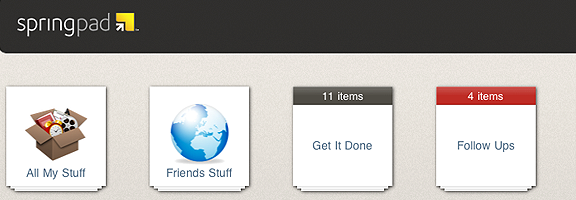
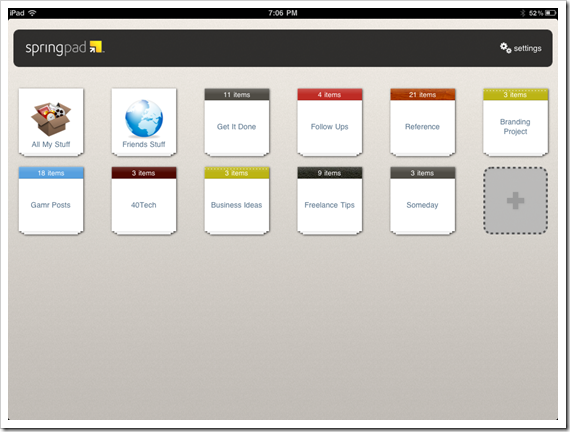
To solve these problems, I opened four notebooks: Get It Done, Follow Ups, Reference, and Someday. I then did away with task categories completely and started to creatively use the nuances of Springpad’s dynamic tagging system.

Tags start out in alphabetical order, but the ones with the largest number of items bubble up to the top of the list. This makes any sort of alphabetic reference system impossible — but when the tags are used for contexts, you suddenly have a means to see, at a glance, which context has the most tasks, and therefore requires the most attention! It also helps that, aside from in the All My Stuff area, tags only appear in the notebook(s) that the tagged item belongs to. The downside of this is that you have to be careful when attaching items to multiple notebooks.

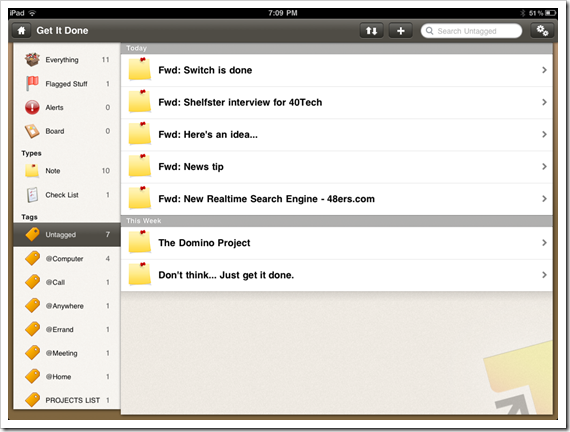
Once your notebooks are created, open up Get It Done (or whatever you decide to call it) and create the contexts that best suit your particular needs (mine were @home, @computer (the equivalent of @work for me), @anywhere, @call, @meeting, @errand). The Get It Done notebook will serve as both your inbox and next action area.

Note: If there is nothing in a tag, the tag ceases to exist. To create a list of tags that never dies, use a dummy item in your notebook — I chose one with an inspirational message — and add every tag that you plan to use to that one note.

Getting the information into the Get It Done inbox is as easy as the click of a button in most cases; sending by email is currently the exception, as all emails go directly to All My Stuff. This will change in the next couple weeks, when Springpad adds the ability to set type and notebook (and possibly tags) when you send an email into the web app. In the meantime, take advantage of the “sort by date added” feature in All My Stuff.
Springpad GTD iPad | 40Tech | Bobby Travis

This next step is completely optional, but I recommend it if you are like me and freak out when you see long task lists. Create a tag called something like [untagged] and attach it to all incoming items. This will allow one-click access to sort your GTD notebook into inbox only items. This step works well for me because I like things in one spot as much as possible. If that’s not your thing, create a separate notebook for next actions, using the tags, and create one that is just meant to be an inbox. Springpad makes it very easy to move items from notebook to notebook, so the extra step will hardly be noticeable.

Everything Else

As you process your items into their respective contexts, you will to use some of the other functions of Springpad:

  • Reminders – Great way to set up an alert for a time-sensitive item. These can be configured to send to multiple email addresses and SMS. At this time, however, reminders can only be set in the web app, and on Android devices.
  • Events – Events allow you to sync an item from your Springpad to Google Calendar. You can’t change item types, so events will need to be created from scratch as you process the items in your inbox.
  • Tasks – In this GTD system, everything added to a context tag is treated as a task, so the Task item is somewhat redundant. If you like the task item’s format, and the ability to check a big checkbox when you are done makes you happy, then add tasks as you see fit. They will likely need to be created from scratch until Springpad implements type-switching (no ETA).
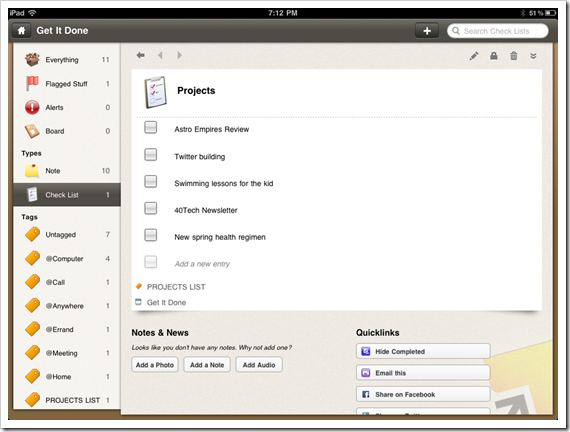
  • Checklists – Another way to satisfy the need to check off check boxes, checklists are a great way to maintain your projects list. As your small and large projects are completed, check them off. Remember, anything that takes more than one step to accomplish is considered a project. Checklists are also a good place to track your goals and other listable things.
  • Flagged Stuff – Clicking the little flag button in the web app (the command is in the upper right dropdown menu on the iPad and iPhone) will add the item to the Flagged Stuff area. This is a perfect way to highlight those next actions that need special attention.
Springpad GTD | 40Tech | Bobby Travis

If an item doesn’t fit any of the contexts, it will either go into the Follow Ups notebook, which has tags for Waiting For and Tickler items, the Someday notebook (tag it as suits you), be deleted entirely, or sent to the Reference notebook. In the GTD in Evernote post, Evernote had a tag set up that used tags for every letter of the alphabet. This doesn’t work in Springpad due to the dynamic nature of the tags. If you plan to keep reference notes and items in Springpad then I suggest you use category tags to group those items. You can also use specific keywords in subject lines or elsewhere and take advantage of Springpad’s search function. Notebooks that are specific to subjects or large projects are also a good idea. In fact, I encourage you to keep notebooks for large projects, as you can have next actions that ride in more than one notebook. This allows you to not only keep track of next actions that are specific to large projects, but also gives you use of the Board for those items, which may help you in your planning processes.

GTD in Springpad | 40Tech | Bobby Travis

Another option for reference items is to export them individually by email. You could send them to whatever email-enabled organization tool you have, including Evernote and your email client. Each email contains a link back to the original Springpad item, making it easy to get right to it, and it also has a link for people to spring it into their own Springpad account. That last is fantastic for collaboration and backup purposes — though you can also collaborate by sending out a share link, or simply making the item or notebook public and sharing it on Facebook and Twitter.


Conclusions

The strength of Springpad as a GTD system is its flexibility. It is so easy to get information into Springpad and to change an item from one context or GTD state to another, including jumping around from notebook to notebook or even keeping one item in multiple notebooks. Combine that with the ability to access the app offline from all platforms, to bulk-edit items, enhance information on items that are related to products (mostly in the US at this point), and add events to Google Calendar — one place where Springpad will always have it over Evernote for me — and you can create and use a very solid GTD system.

I do wish that Springpad allowed for changing types, as that would cut out a step at times and just make things easier. I also wish that the iOS apps had the ability to add and edit reminders — Android does, as I understand it. With the way Springpad has been updating lately, though, I’m sure these features are only a matter of time.

UPDATE: Springpad adds autosave, backup, and export features! You can also add Types, Notebooks, and Tags directly to subject lines when sending in items via email. Oh, and viewing Springpad via RSS readers and full API access are also available. Check out the Springpad Blog for details!

Tell us about your experiences with GTD in Springpad.


Springpad Gets Even Better — Again

image

Less than two months after our last update on Springpad — one of our hottest topics on 40Tech — the tool to save and organize pretty much anything has sent out another press release full of updated goodness. Goodness to the tune of more than 250,000 new users in the month of January alone, 4 million new bookmarks via the Delicious bookmark importer, new saved-search filters, delete and archive support, and an overhaul to what was already one of the better Google Chrome extensions out there.

From the press release:

Faster Ways to Get Organized with Springpad on the Web

  • New Filters: Springpad structures the data you save to make it easy for you to search and filter through your items. Search through your recipes or restaurants by cuisine; filter your movies by actor or genre. Once you’ve created your filters, you can easily save them to make the next search faster than ever.
  • Delete and Archive Support: Springpad now has a “trash” button on the home screen so you can quickly recover an item you may have archived or inadvertently deleted.

Enhanced Springpad Extension

Springpad’s upgraded Chrome Browser Extension makes it fast and easy to add a note, create a task or look up something without leaving the site you’re browsing. When you use the extension to clip content, the new item is automatically categorized (recipe, movie, restaurant, book, etc.) and you can create or select a notebook for more efficient organization. To install the extension, click here.

Springpad has been moving in leaps and bounds lately, and its progress is impressive. If you’re looking for a tool to help you organize your life on the web, you should check it out. You can get a feel for the product here, check out their massive overhaul update here (with promo video, if you don’t feel like reading), and get all kinds of tips on how best to use Springpad from the Springpad Blog.

How are you liking the new Springpad?

Springpad Ends Record-Breaking Month with Over 250,000 New Subscribers [CEO Jeff Janer’s Springpad]


Springpad: Easier Than Ever to Save and Organize Everything

New Springpad Features | 40Tech

There’s been a lot of buzz surrounding Springpad lately, both here at 40Tech and around the web. For good reason, too. The app’s new features and interface improvements have put it strongly in the running for one of the best save-everything-and-get-organized apps out there. People are loving it! According to CEO Jeff Janer, the new Springpad has seen a huge spike in usage. After playing with it for a while, I can see why.

When I first reviewed Springpad, back in April of this year, I compared it directly to Evernote, and pointed out why some of Springpad’s features were actually superior to our favorite note-taking app. The downside of Springpad was that there was simply too much going on, and that some of the different functions, like the internal apps, didn’t always play seamlessly with one another. Springpad’s development team listened to their users, and the new interface appears to have brought about feelings of peace, harmony, and general bliss amongst the Springpadians.

There have been several major updates to Springpad in the past months, the most notable taking place in September, November, and on Tuesday.

If you’re new to Springpad and don’t want to read my (very large) previous post, or just want a quick overview of some of the new features, watch the video at the bottom of this post.

September: Mobile Alerts, Chrome Extension

September brought about custom reminders and mobile alerts that helped to keep you aware of things on the go, like price drops and coupons for items you saved to your Springpad. It also brought about their most excellent Google Chrome extension.

November: All New Interface, Notebooks and the Board

November saw a huge shift in the interface, paring it down, making it easier to navigate, and generally making it prettier. Along with the new look and feel, better tagging functionality, and bulk editing capability, a lot of potential clutter and confusion was removed by taking all of the internal apps (for GTD, blog planning, and many other things) and giving them their own playground. Users that really wanted to keep the information stored in those apps tied in a neat bundle in the main Springpad app were given the option to port the notes into what is likely the most significant improvement to the service: new, easy to add and use notebooks.

Springpad Notebooks

Adding notebooks to Springpad has done a marvelous job of giving you control over how you organize your information. It used to be in one big list, that could be broken down over the large lot of internal apps — which was good in theory, but overwhelming in practice. Now, you have full control over what buckets you want to dump your saved information into, and it is nicely black-boxed in a very clean new interface that looks and feels like a desktop app. To make things even better, each notebook can have it’s own theme, which you can customize with personal images and photos, if you like.

Springpad Interface, Themes

The final hurrah for November was the introduction of the Board. The Board is an awesome use of HTML5, and there is one in every notebook. It gives you a visual approach to organizing your information that works like an old fashioned cork board, or laying out flashcards and sticky notes on a table. For the visual among us, myself included, this was a sweet miracle! The gift that keeps on giving, the Board also automatically adds items with address information to a handy, interactive Google map that can also be moved about. The Board is especially cool on the iPad, which allows you to move the items about with a finger, adding a tactile element that only improves upon the experience.

Springpad Board, Visual Organization | 40Tech

December: Chrome Web Store, Drag & Drop File Attachments, Keyboard Shortcuts and More

As if all that wasn’t enough, December’s updates brought about several more nice additions to Springpad, including the ability to drag and drop outside files onto the Board as file attachments. This is a fantastic improvement to on the other way to add files to Springpad which is to add a note, then add a ‘note to the note’ that has an attachment. You can even add multiple files at once (10mb/file).

The file-dropping feature only works in Google Chrome, which Springpad has entered into a nice marriage with. The web app was even featured in the launch of the Google Chrome Web Store on Tuesday. Chrome users can now install a shortcut of the Springpad app right into their start page, as well as sign up or login with Google’s OpenID, which allows easy access to the app. Once installed, you can open Springpad in a new tab, as a pinned tab, in full screen (which really makes it feel like a desktop app), and — if you use a Google Chrome developer version — as it’s own application. When combined with the Chrome extension, the installed Springpad is an information saving and organizing powerhouse. In my installation, and I’m not sure if it is a result of the extension or using a developer version of Chrome, I can even save a page to Springpad simply by right clicking and selecting the option from my context menu (if you happen to know which is the proper reason, let me know in the comments).

Springpad, Chrome Web Store Install

The final additions in the barrage of new features are keyboard shortcuts, like the ability to Shift+Tab between notebooks (see the complete list below), a search box and alert notifications on the home-screen, and the ability to share private items via a link (public items can already be shared to a gazillion services).

Springpad Keyboard Shortcuts

What’s to Come

The single thing that most longtime Springpad users were hoping for would be a desktop app. Unfortunately, that’s still a ways out, but I give Springpad credit for focusing on making their service a hell of a lot more functional on the web side of things first, before committing themselves to a desktop undertaking. According to Jeff, the desktop app will probably come in a windows flavour, first, but he didn’t have a date for me. What he could tell me, thought, was that the web version will make use of HTML5 to enable offline access to Springpad in and around the first quarter of next year. This is something the mobile versions of Springpad already do, and with the new web interface it will likely be almost as good as a desktop app by itself.

Some other pending features include the Board on the iPhone, as well as on Android OS (once it supports tables), and some interesting Facebook and other integrations that will enable you to do things like pull friends’ likes into the recommendation engine and filter them by subject. They are also looking into the possibility of a universal app for Facebook, and potentially, .doc and .PDF scanning.

In just a few months, Springpad has moved in leaps and bounds that blue tights-wearing, red-underwear-on-the-outside super beings might be jealous of. I am thoroughly impressed and actively considering new ways to implement the service into my day to day workflows. I actually did research and planned this post in Springpad. It was a good process. I’m also using it to track potential Christmas gift ideas for family members, and I can see the Board and me becoming great friends — especially if Springpad adds some connectors and other customization features to it in the near future. To be perfectly honest, though, they had me at “HTML5 offline access!”

What do you think of Springpad’s new features? How Will they affect how you use the app?


UPDATE: Springpad just got named one of Time Magazine’s Top 10 iPhone apps of 2010!


Springpad Beats Evernote – At Least on Android

logo.springpad.40h

A few months ago, we compared Springpad to Evernote.  In that post, we highlighted Springpad's many great features, but discussed why we weren't ready to give up Evernote in favor of Springpad.  One of Springpad's drawbacks is its lack of a desktop app.  What about on Android, though?  As it turns out, Evernote's lead on the desktop evaporates on an Android device.  

Regular readers know that we're not afraid to profess our undying love for Evernote.  Kosmo, you can tease about it being required software to write for 40Tech, but Evernote's image and PDF OCR function alone is worth the premium account.  The recent Voice2Note add-on from the Trunk is just icing on the cake.  I, like others, was a little disappointed with Evernote's Trunk offerings, with the exception of Voice2Note.  Perhaps the hype leading up to the announcement was just too built-up.  I was really hoping for task management and some other goodies, but regardless of any disappointment, Evernote has been, and continues to be, the one place where I put every piece of information in my life.

It's no surprise, then, that when I transitioned from Apple to Android, Evernote was the first app I installed, even before Paper Toss.  I had high hopes!  What I found was a great deal of disappointment with Evernote on Android. 

The problem with Evernote for Android involves getting to your notes, which is kind of a big deal in a note taking app.  As many of you probably know, the Evernote iPhone app allows you to scroll through notes by folder, tag, saved searches and a ton of other ways.  The Android Evernote client, however, does not.  It consists of a search box and a way to create new notes.

The Evernote blog indicates that iPhone-like features, and more, are coming to Android, but the Evernote folks have been saying that for a while.  I can't wait for my external brain to catch up with my internal one.  My whole reason for using Evernote for everything is that I have a terrible memory.  If I had a better memory I would remember the name of the book I’m trying to find, or the tag or folder I put it in.  While I’m standing in a bookstore with Evernote for Android, my internal dialog goes something like: “OK brain, it had a picture of a man on the cover, it was a Russian author I think, or at least his name may have sounded Russian, my mom suggested it, did I tag it as 'books,' 'stuff to buy,' 'stuff to check out' or something else, or did I even tag it at all..what was that search trick to search for untagged notes that I have as a saved search…?" 

As you can see the only difference between having Evernote for Android and not using Evernote at all is that I wouldn’t have to wonder how I tagged the mystery book.  The result is the same- I buy a hot chocolate and head home with no book.  Yes, this problem could be fixed if I took the time to reduce the number of tags I have, and better organized my tags and folders and stuck more strictly to it (in fact, we've written a post on doing just that with Evernote).  However, my life is controlled chaos, so that is never happening.  So I panicked and turned to Springpad.

I have to admit I tried Springpad about 8 months ago, and abruptly stopped.  In fact upon signing in recently, I looked at the Springs I had made back then and they included things like "To Do: Stop using Springpad forever," and "WTF, no desktop client?"  However, Springpad has been under furious development and is a totally different app from the one I used before, and even much improved from the overall positive review Bobby wrote in April.  So with the combination of improvements made and my new desperation to find a program that is Evernote-like and usable on an Android device, I decided to give Springpad another try.

I want to stress from the outset that Springpad is not perfect.  Aside from the shortcomings easily recognized, like the fact that I can’t rearrange, add or modify categories available, or change the category of an existing Spring, there are other issues.  The Springpad app will periodically close without explanation, and occasionally will not be able to reach the server.  To be fair, I have experienced similar events on my iPod Touch with Evernote, but with Evernote there is an offline copy of the notes for those times, whereas Springpad does not offer such comforts.  However, if you are willing to deal with these rare inconveniences, what you get is in a lot of ways what I wish Evernote would be.  For now, I’ll just quickly touch on three.


PERSONAL INFORMATION MANAGEMENT

Our previous review covered all of Springpad's task and event capabilities, so I won’t go into it more than to ask, why can’t this be done in Evernote?  I want to be able to store everything in one place.  “Everything” includes tasks, reminders, and a calendar that syncs with Google calendar.  Springpad can, Evernote can’t. 


PERSONAL SHOPPER

Like most people, I research on-line what I think I want to buy, but I often learn when I get to a store that there is another product that I like better, or I find something totally different that seems pretty cool.  For instance, if I need to buy a computer, by the time I get to the store I will generally know which one I want and where the best price is.  I wasn’t counting on a one-day manager’s special on a different computer and an external hard-drive for half-off sitting right next to it, but are these good deals?  Springpad can tell me.

There are a ton of barcode scanner apps for Android, but Springpad is the only one I’ve seen that finds the product, tells you who else is selling it and for how much, stores the information in a program I already use everyday, tracks the price, notifies me of price changes, and suggests coupons.  To make it a truly comprehensive shopping tool it would be great to see some reviews scraped from Amazon or CNET to tell me if the computer and hard-drive are being sold inexpensively or are just cheap, but short of that it really does make me almost tolerate shopping.  Almost.


MEDIA

The Springpad WOW moment came when I saw a video on Big Think's website that I really liked.  I clipped the site into Evernote and assigned a tag.  I then tried it with Springpad.  I clicked on Springpad's bookmarklet and added a bookmark to the page (same as Evernote) but with Springpad after two more mouse clicks, I embedded the video into the Spring and could watch it on my phone.  To do the same with Evernote, I would have had to find a program that could grab the video from the site, install it, restart my computer, run the program, save the resulting file and then upload it to my note.  Evernote is great at storage and search, but Springpad just blew my mind. 

As I said, these are just some of the benefits of Springpad.  They are rolling out new features all the time, and keep improving on the technical side.  Until Springpad gets OCR technology for pictures and PDF's, the ability to import Evernote notes, and some added flexibility around how the information is stored and displayed, it won't be replacing my Evernote account.  To be honest, if Evernote just gave me on my Droid what I had on my iPod Touch, I would probably drop Springpad altogether and continue to hope that Evernote would pick up the above features.  Until Evernote improves their Android app, though, I’ll have to use both.  This leaves the door open for Springpad to completely pull me away from Evernote.


Springpad for Android

Pros: Cons:
  • Has full functionality on Android devices with an active development team
  • Limits the number and type of categories
  • Has tasks and events that sync with Google calendar
  • Communication errors with the servers and unexplained app closures will happen
  • Has a lot of ways to be reminded of what you have upcoming
  • No off-line capabilities on desktop or phone
  • A lot of unique features that will make your lists and items smart including tie-ins for shopping


Have you tried Springpad or Evernote on Android?  What was your take?