
Menu Close

Category: Productivity (page 6 of 15)

My Conversion from iCal to Google Calendar

My conversion from iCal to Google Calendar | 40Tech

40Tech is pleased to present a guest post by Michael Carper.

When I began college, I was determined to keep track of all my homework, papers, tests, and scheduled activities. A staple of college scheduling is the syllabus, which lays out the due dates and assigned readings and homework for each class. However, syllabuses are just pieces of paper. I realized that it would be a huge pain to look up daily, from four or five different sources, what the assignments were for that day. I wanted to look at a single source and grasp all the work I had to do for that day, and for that week. More importantly, I wanted to keep in mind upcoming tests and papers several weeks ahead of time, in order to prepare time to work on them.

With this predilection for planning, I looked to my built-in OS calendar, iCal. There were many advantages to using it. I didn’t have to boot up Chrome or worry about web browsing. I could organize by color, assigning one to events, one to assignments, and another to work. I actually put my entire class schedule, as well as ordinary things like “lunch,” into iCal. I put not only due dates, but little reminders when certain benchmarks should be met in prep for those due dates. It was my lifeline.

However, little problems grew to be big annoyances. The most striking was the way iCal handled longer titles. I copied entire reading assignments into iCal. For some single class periods, this could include multiple texts or several page selections. Shorter entries would be completely displayed in the month-long calendar view, which I always used. I didn’t need to see my days broken down in the traditional week-long format, but I did want to see the tests and papers on the horizons. However, in this view, longer entries were simply abridged. There was no indication that an entry was actually much longer than it appeared, since they always stuck to a single line. On several instances, this lack of informative UI actually led to ignored homework assignments, since the entry was actually much longer than appeared and contained more readings than it appeared to. Ironically, in those instances, my calendar made me less prepared.

image

Fall of my freshman year

There were other little things, as well. Entry of events was very manual; you had to put all details in only their specific field. Once made, you could not edit an event after clicking on it, but instead had to go to its “edit” page. The tethering of iCal to my Mac turned out to be a disadvantage, since I often ended up with hours to spare, homework to do, and no personal computer at my fingertips. I couldn’t sync it in any way with my iPod Touch, either.

So beginning of my junior, I finally took a look at Google Calendar. Since I had been a loyal Gmail user for many years, it only seemed natural. Immediately I noticed where GCal improved over iCal. The most prominent was the ease of creating events. I no longer had to cycle through different boxes to mark the date and time. Instead, I could simply jot down, “meeting 12-1” as an entry name for a certain day, and there it appeared, from the 12:00 PM to 1:00 PM slot. And if I felt like changing it, I could edit the entry title from the pop-up that appeared when I clicked it the first time, unlike iCal.

It wasn’t just the cleaner, more pleasing UI that won me over. Accessing my calendar outside my room was as simple as accessing my email–just log in to Google. I could access it on my iPod as well, albeit not with an official Google app. School events were always announced via email. I could either copy and paste the location and time details from one tab to another, or I could even click “More” in Gmail and create an event based on the email. If viewing an online calendar, such as the one published by my college, I could even import all the events into mine.

image

December of my junior year

Six months later, I still haven’t taken advantage of everything Google Calendar has to offer, like sharing my calendar with others or inviting them to scheduled meetings. Those two functionalities are so amazingly useful, it’s a pity I’ve only encountered them at places I’ve interned. The rest of my fellow students, unfortunately, are still stuck in the Stone Age, with their paper syllabuses and calendar. Some of them may have progressed to iCal, marking their progress into the Bronze Age. They, and everyone else, should wise up and join those of us with our Google Calendars in the Golden Age.

I will add that I’ve tried the Fantastical Calendar app. Fantastical syncs with iCal or Outlook, but not Google Calendar, so I had to export from Google Calendar to iCal and then sync Fantastical with iCal. It’s UI is very nice. The recognition of event details is more intuitive than Google Calendar’s, expanding its recognition to location details and invitees whose address you have in your Contacts as well. You can read more about it in Evan’s review. My judgment is that although it has the best user interface, the ability of Google Calendar to sync with other Google apps, especially through email, is invaluable. Since I always have a web browser opened anyway, leaving a tab for Google Calendar is hardly cumbersome. $20 is a lot for calendar software, but, in my opinion, is something that would be used everyday. So if I spent less time on Google, Fantastical would be my go-to calendar.

Michael is a student at Wabash College and writer for the Reading Glasses Shopper blog. He realizes that actually the Iron Age, not the Golden Age, followed the Bronze Age.


Get the Most of TextExpander With Snippets From a Public Repository [Mac]

Textexpander snippets repository

A few months ago, we wrote about five ways to increase your productivity using text expansion software. With text expansion software, you create snippets of text, and then set up abbreviations to trigger the typing of those snippets. TextExpander is our favorite text expansion app on the Mac, because of its ability to sync via Dropbox with Breevy, a Windows text expansion app. If you don’t want to cook up your own snippets, or are just looking for some inspiration for snippets, then TE-Snippets has you covered.

Read more


3 Somewhat Expensive Investments that Increase Efficiency and Workflow

investment

Today, 40Tech is pleased to present you with a guest post from Anthony Benedict.

Do you work on the computer a lot? If you do, there are some simple things that you can do that will eliminate mountains of stress.

Of course buying the newest and fastest computer out there will definitely help increase your daily efficiency, but this article isn’t going to give you tips that are that expensive. Here are a few “somewhat” expensive upgrades that you can give your workstation.

Read more


Toodledo Gets an Official Makeover

toodledo new UI.jpeg

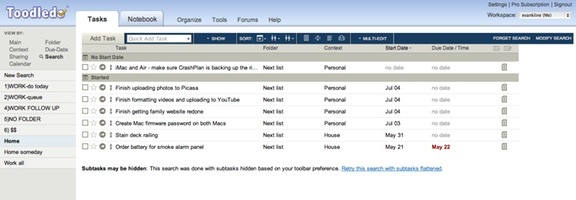
No sooner do we write about how to spruce up Toodledo with User Styles, than Toodledo goes out and spruces itself up with a new user interface. Earlier today, the interface was rolled out. The bad news? The interface conflicts with the user style I was using, and probably others as well. The good news? The default user interface is pretty nice on its own.

Read more


GTD, Producteev, Evernote — Bridged!

GTD, Producteev, Evernote -- Bridged! | 40Tech

As you probably already know, GTD and Productivity are creatures that live somewhere deep in my bones. They speak to me, manipulate me, and generally run my life. Not in a bad way, you understand — even if they come across as a little obsessive, the little monsters really do have my best interests at heart. They’re the reason I’m always looking for new and inventive ways to refine and apply workflows. They’re also the reason that I’ve met some cool people who have their own little creatures that bitch and nag them into action.

During a recent conversation on Google+, with a circle of those people, we were discussing the benefits of both Producteev and Evernote as GTD tools, and how it would be great if they worked together. We decided to test out a means of making that happen, with Evernote as the ultimate collection tool, and Producteev as the magic task management/Google Calendar integrator.

Here’s what I proposed (have a read and tell me what you think):


The Gist of the Idea

The first thing to do is make Evernote able to send email directly to task@producteev.com. To do this, you need to register the email address that your Evernote uses (to email out a note) in your Producteev workspace(s). Now, any tasks in Evernote that you want to process into Producteev can be done directly from within EN.

The next thing you need to do is make sure your Evernote notes get to the right place in your Producteev setup. Producteev’s email2task functionality is fantastic. It incorporates a lot of simple language that allows you to easily do things like schedule a task from email by writing “Do this task tomorrow at 2pm” in the subject line (more on syntax below). If you are working in the Evernote desktop app, you can easily send out an email by selecting that option under Share, and then changing the subject line to reflect the appropriate email2task syntax. If you are in a mobile app, or unable to change the subject line for some reason, then you can simply change the title of your note to reflect what you want the email subject line to say.

These two steps make it possible to collect information in Evernote and share it with Producteev quickly and easily. Producteev can connect to Google Calendar, as well, for two-way sync (coming first week of February, 2012), which gives you the opportunity to finally connect Evernote to Google Calendar, if only by proxy.

Finally, using the Copy Note Link or Copy URL to Clipboard features found under the Note and Share buttons in Evernote, you can add the note’s own link to the email or note body, and leave an easy to follow link back to Evernote in any Producteev task you create.


GTD Use Cases for a Evernote-Producteev Bridge

  • You could manage your GTD system in Evernote, doing everything from collecting to archiving, but use Producteev during processing to set up automated reminders and Google Calendar events. You could also add in email or IM Producteev functionality to easily close and update tasks, including sharing and delegating without ever logging in to the tool itself.
  • You could also manage your GTD in Producteev and simply use Evernote as your main collection tool, as well as for keeping all of your reference material and archives in one easily searchable place. Producteev has many ways of inputting tasks, but Evernote can utilize voice, image, and text entry, as well as the clipper, and a crazy number of integrations, to collect and organize information.


Why Bother?

  1. Evernote has superior collection capability but no true task management functionality.
  2. Producteev’s notes system and ability to add attachments simply can’t compare to Evernote.


Notes

  1. When you send an Evernote item into Producteev, the body is converted to a note. Actually, you end up with several notes, as any images that Evernote uses in the background of the note are added as separate (and useless) note items in Producteev. HTML is stripped out entirely, and this will sometimes leave garbage code in the text of the Producteev note. See the image below (thanks to Daniel Gold for doing the first test run!).
  2. Even though the Producteev notes are in plain text, the note itself is still in both tools. In Producteev, the notes system can be used to conduct a conversation around the task with others who have access to the workspace, or to leave additional notes for yourself if you are using Producteev as your main management system.

GTD in Producteev Evernote Bridge | 40Tech    pdtv-en2.

GTD in Producteev, Evernote | 40Tech


General Workflow & Syntax

  • Collect in Evernote
  • Process to Producteev via Evernote email-out and Producteev email2task syntax (with scheduled items going to Gcal, as well, for the visual calendar)
  • Manage tasks in  Evernote with Producteev used only for scheduling and reminders OR
  • Manage tasks in Producteev and/or email with Evernote for archival reference


Syntax tips can be found here, but the basics are as follows:

  • today, tomorrow, days of the week, next week, specific dates (today 8pm, August 10 8pm, 8pm August 10 when combining date and time)
  • done (to register a task as being completed)
  • @ to assign a task to a workspace collaborator (@Michael, @Michael Lewis, @Lewis, @ML)
  • * to indicate a priority level using our 1-5 starring system (4* or ****)
  • # to indicate workspace name (#Personal)
  • ## to indicate the appropriate label (##Marketing)
  • “” to add task notes (“follow up” or ‘follow up’)
  • / to have the beaver run searches for you (/today for a list of all of your tasks due by the end of the day)


Your Turn!

So what do you think of the possibilities of integrating Producteev and Evernote into one system that is relatively seamless? Thoughts? Concerns? Is this worthwhile? Let us know in the comments!