Menu Close

Category: Photography (page 2 of 2)

Easily Back Up Your Google+, Picasa Data With Takeout

Easily Back Up Your Google+, Picasa Data With Takeout | 40Tech

If you have invested yourself into Google+ at all, you will be happy to know that, whether you stick with the service or not, there is an easy way to get a copy of all of your data (profile, contacts and circles, your stream, Picasa pics — even Buzz and +1s). It’s called Takeout, and it’s built right into your Google+ settings as a part of Google’s “Data Liberation Front.”

There’s no tricks to it, no caveats, and no amount of hacking genius required. It’s all a matter of a few points and clicks and a bit of hard drive space. Here’s how to do it:

There are two ways to get started:

1.) Head to this link to visit the Takeout page directly

2.) Go to Google+ settings (little gear, top right corner of the page) and select Data Liberation

If you choose the second option, you can either click on one of the services to jump to the services selection page, or can click the “Download your data” button to get to the Takeout page. Once on the Takeout page, you can click create archive to backup everything. You will find the archive available under the Downloads page, available by a three-button menu at the top of the page.
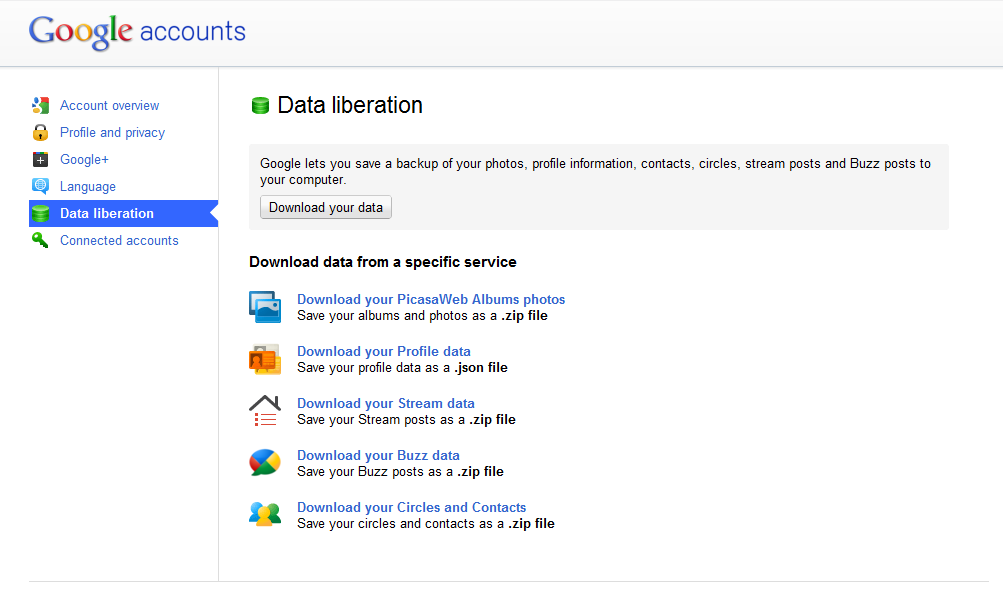
Google+ Data Liberation | Takeout | 40Tech

If you wish to be selective about what data you want to back up, then you want the Choose Services page (via step two or the three-button menu). Here, you can select one or all of the Google+ related services mentioned previously and create a custom archive. I suggest you head here, anyway, as this section of Takeout shows you not only the size of the archive, but the percentage each service takes up in the total download (this information is mostly available on the Downloads page as well).
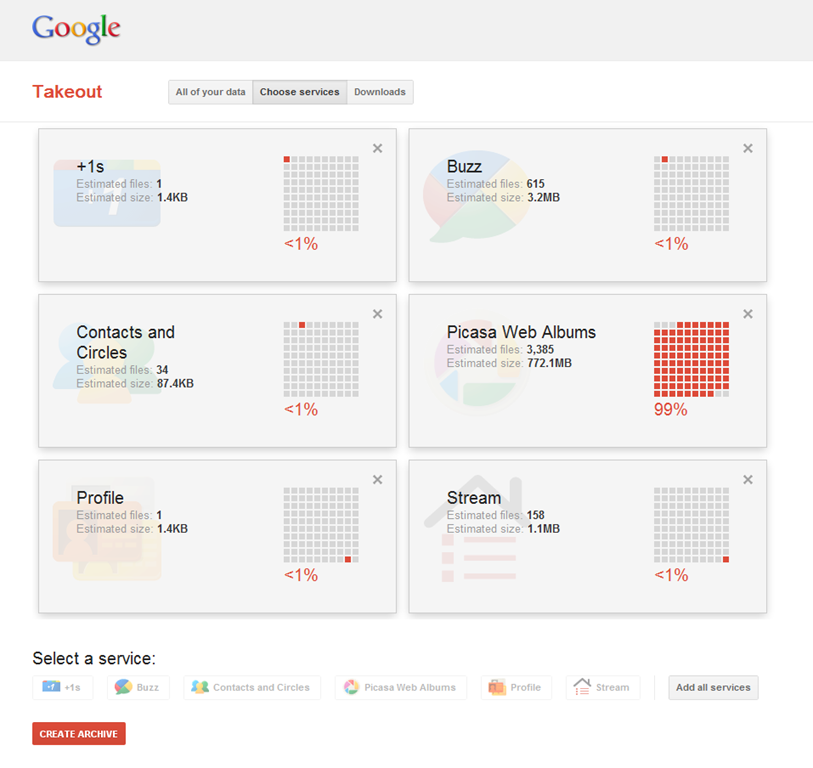
Use Google Takeout to Backup Your Google+, Picasa Data | 40Tech

The services will download as the following file-types:

  • Picasa Web Albums photos: .zip
  • Profile Data: .json
  • Stream data: .zip
  • Buzz data: .zip
  • Circles and Contacts: .zip

Photos are organized by Album or Post Date, and Contacts are individual .vcf files that are organized by Circles. Your Stream data is delivered as a functional, standalone website complete with comments, images, as well as anything you have reshared.

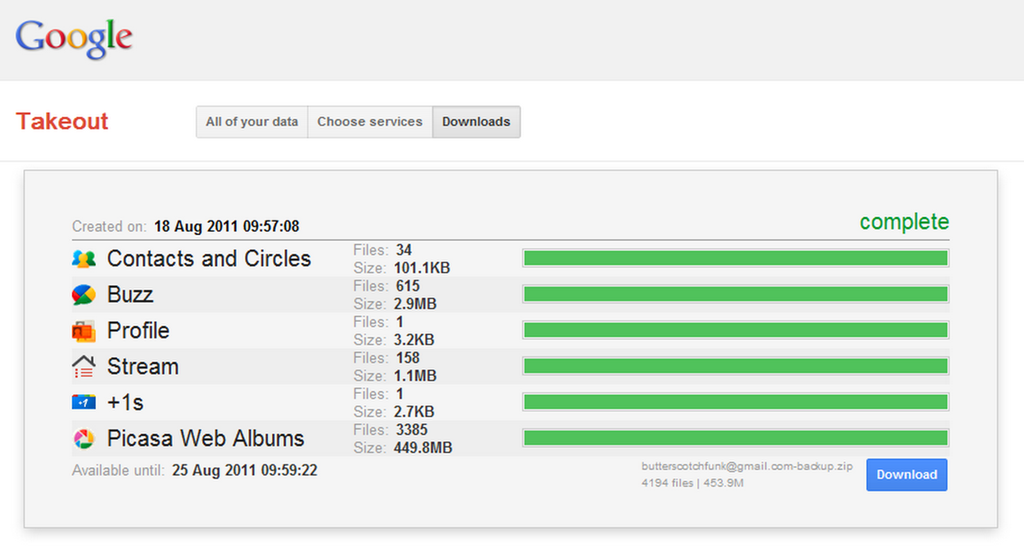
Overall, I find Takeout to be fairly impressive as a means of manual backups or to walk away from Google+ with all of your data. The compression rate is pretty good, as well — Over 3,000 pictures in Picasa (I imported my Facebook photos, and have uploaded many more taken with my iPhone) and the total download size was under 500mb. Not bad at all!
Google Takeout | Download, Back Up Google+ Data | 40Tech

Note: There was once small inconsistency in file size information for my photos. The Choose Sevices section said the download would be 778MB, while the downloads page said 449.8MB.

Have you used Takeout? What are your impressions? What do you think of Google’s Data Liberation initiative?

Want the Best Instagram Web App? Get Extragram!

Want the Best Instagram Web App? Get Extragram! | 40Tech

For some of our posts, we do like Lifehacker and other sites, finding articles about tech that interests us and then creating a summary post that links to the original article — replete with our own opinions, of course. :) One of my favourite sites is Web.AppStorm.net, which is part of the Envato network, and a great resource for web app reviews and articles. For this particular Web AppStorm-related summary post, I’m going to talk about Extragram, a fantastic web app interface for social photo-sharing service Instagram.

So why did I bother with that odd intro? Well, this time around, I have the pleasure of linking to none other than… well… me! My first article went live on Web AppStorm on Monday, and I didn’t want you guys to miss out. Read on for a summary of the sweetness that is Extragram!

Extragram - Best Instagam Web App | 40Tech

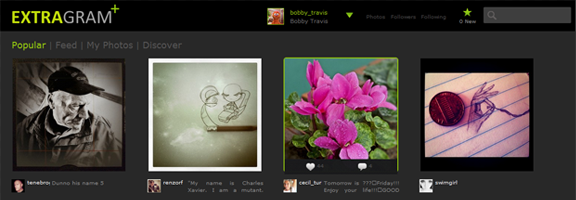
If you’ve had the chance to use Instagram at all, you will have noticed that it is more than just another photo-app that has a few fancy filters. It not only makes your pictures look cool, it also has its own very Twitter-like social network. You can follow users’ photo-streams, they can follow yours, there’s commenting, conversation, @mentions, the whole deal. You can even share your photos on the big social networks and microblog sites. What you can’t do with Instagram is view or interact with your social account — or even your own photos — outside of your mobile device. That changed rather quickly once Instagram released its API in February.

Since then, there have been several web apps that have popped up with the sole purpose of creating a comparable, or even better user experience on a screen that doesn’t fit into the palm of your hand. Some other notables are Gramfeed, Instgre.at, and Webstagram, but for a slick and fully-featured user experience, the web app you want is Extragram.

Extragram stands out from the other web apps by doing two things: getting out of its own way, and adding extra features that compliment the Instagram experience.

Here are the highlights:

  • Content-focused, consistent user experience
  • Easy commenting and photo liking
  • Navigation with mouse or keyboard
  • Grid and Filmstrip views
  • Map View to discover great photos and users near to you or anywhere in the world
  • Tag-based and “what’s hot” discovery
  • Sharing your own photos on Twitter, Facebook, Flickr, and Tumblr
  • Allowing other users to share your photos (opt-in, configurable)

The keyboard navigation is a nice touch, and works reasonably well — though it could be a bit tighter, overall. Other than that, Extragram is a great all ’round experience and the perfect compliment to Instagram. I highly recommend giving it a shot.

Check out my in-depth review here.

Some of my own Instagram Photos are here.

Get Extragram.

Get Instagram.

I’ll be writing for Web AppStorm fairly regularly over the next while, and am considering doing more summary posts here on 40Tech to make sure the readers here don’t miss out on the cool web apps I’ll be talking about. Before I commit to that, though, I would love some opinions from you about it. Let me know in the comments or send me a message via my contact form, Twitter, LinkedIn, or my personal site.


Create a Cool New Custom Facebook Layout in Less than 5 Minutes

Create a Cool New Custom Facebook Layout in Less than 5 Minutes | 40Tech

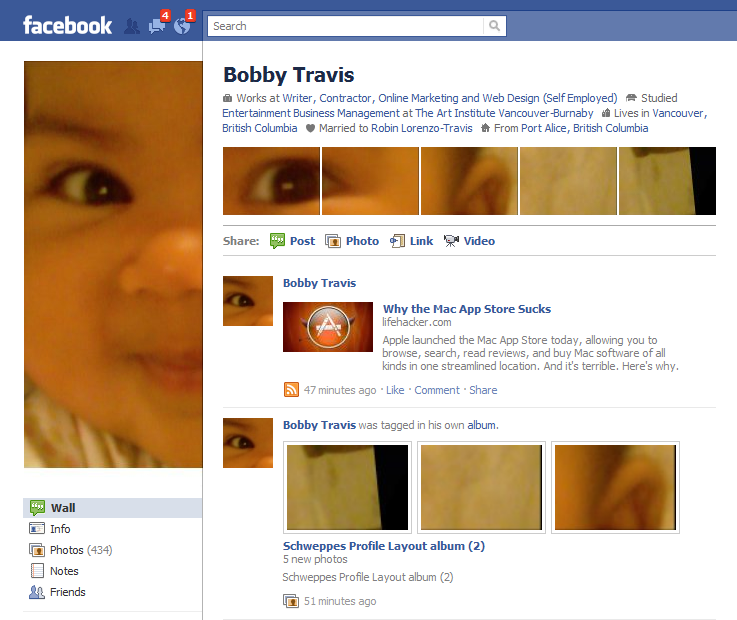
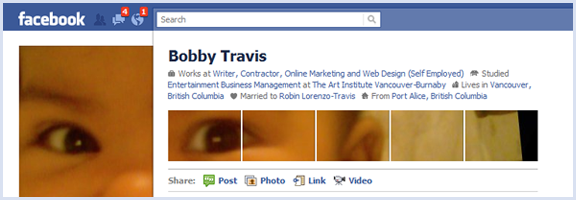
You might have seen posts floating about the web about creative uses of the new Facebook profile page’s photo layout. If it seems like a bit of work, there is a way you, too, can be ultra cool and trendy — but with little to no effort on your part. This is the best sort of trendiness, in my opinion, and all you have to do is fall for a rather clever marketing scheme by Schweppes.

Bobby Travis Facebook Page Custom Layout

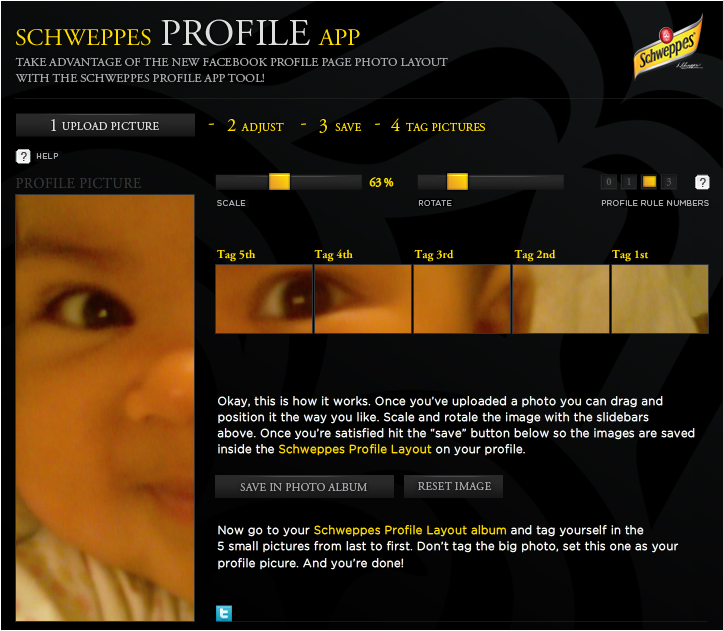
Schweppes — yes, the ginger-ale company — has put together a very simple to use app that will walk you through the process of creating your custom six part image with only a few clicks. I created mine in about three minutes, and most of that time was taken up in finding the picture I wanted. The only catch is that you have to Like the Schweppes fan page to get access to the app, which not only makes them look good, but also opens your Facebook stream up to Schweppes-related information. As a marketer, myself, I appreciate the cleverness of this approach — but if you don’t want to be subjected to beverage propaganda, there are several Facebook options you can employ to rid yourself of it.

Schweppes Facebook Cutsom Profile App | Schweppes Fan Page

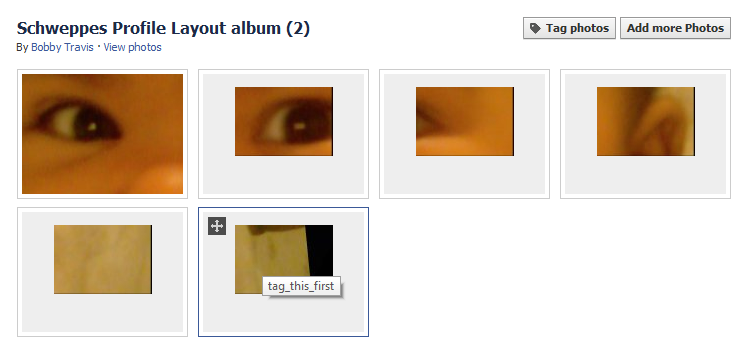
The Schweppes Profile App allows you to upload a picture, drag it about to get the ideal visible area, resize and rotate the image via sliders, and adjust the height of the line of five images that appear below your info at the top of your Facebook profile page. Once you’re ready to go, you save and upload the now-sliced images to Facebook, then click a button to be taken to the automatically created album, so that you can tag the small images and add the large one as your profile picture. The images are even named in such a way as to give you instructions about which one to tag first (they have to be done in the proper order).

Schweppes Facebook Cutsom Profile App Album

I had fun with this app, and can see myself playing with all sorts of pictures to see what interesting special me-ness I can add to my Facebook page. Click here to try it out. You can always get rid of Schweppes when you’re done.

Post links to your screenshots if you dare!


Photos: International Space Station with a Lunar and Solar Backdrop

International Space Station with a Lunar, Solar Backdrop | 40Tech

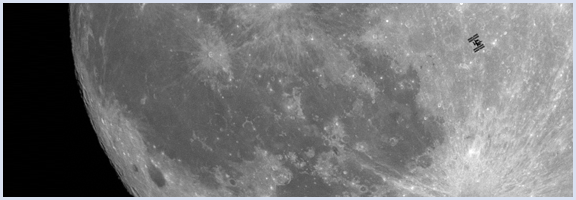
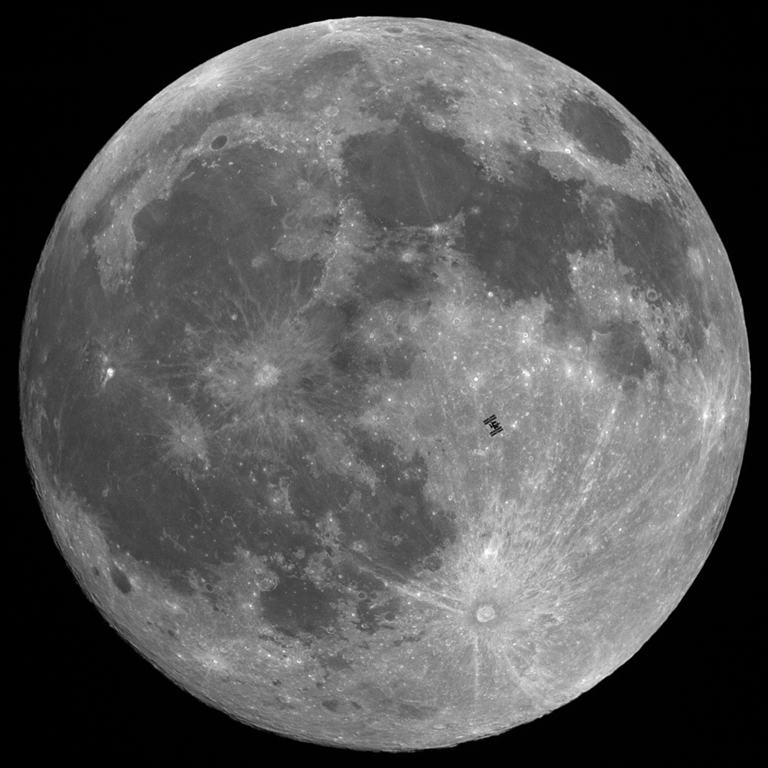
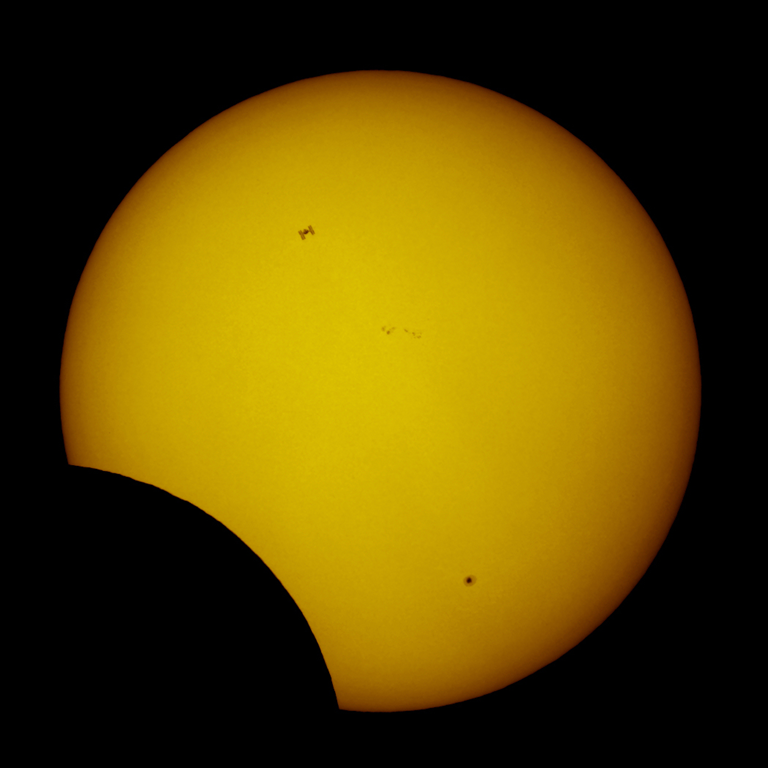
Hall of Fame French astrophotographer, Thierry Legault, is obviously a man who is big on planning. If not, it is highly unlikely that he would have been in just the right place, at just he right time to take photographs of the International Space Station as it passed across the faces of the sun and the moon.

The images below both had an action window of less than one second, and though obviously tiny in comparison to the heavenly bodies, the International Space Station comes across incredibly clearly. The one of the sun is particularly interesting, as it takes place during a partial solar eclipse, and the space station shares the spotlight with a small black dot in the lower right corner of the sun — that is actually a sun spot that is larger than our entire planet.

Photo of International Space Station as it Passes Across the Moon | Thierry Legault

Photo of International Space Station as it Passes Across the Sun During Partial Solar Eclipse | Thierry Legault

If you are into what’s really going on in the sky, you should check out Thierry Legault’s website. It’s a terrible site, in point of fact, but the photographic content on it is amazing!

Amazingly well-timed photos of ISS silhouetted against moon, sun [Make]


Use Yogile to Easily Create Group Photo Albums

Use Yogile to Easily Create Group Photo Albums | 40Tech

These days, the go-to site for photo sharing for the average person is probably Facebook. For those a little more involved in their pictures, Flickr or Picasa might be more to their taste. These sites are great — if sometimes a bit complicated — when everyone has an account on the service and/or there is only one person contributing the photos. What they are not so good for is handling photo-sharing when there are multiple people taking pictures of the same event.

A good example of this was my own wedding. There were a lot of people taking pictures that day, some of them from different parts of two countries. My wife and I are both on Facebook, as are several of our family members and friends — but not all of them, and not all of her Facebook friends are my Facebook friends. So when people started posting images of the happy day via their own accounts, she was able to see some, and I was able to see some. We were even able to share some of the images our respective friends took, but privacy settings all too often got in the way. And let’s not forget the folks who weren’t on Facebook at all, but had digital cameras and took many, many pictures… In short, creating a master album of our own wedding (that would then have to be duplicated — one for her account, one for mine) was a pain in the ever-loving arse.

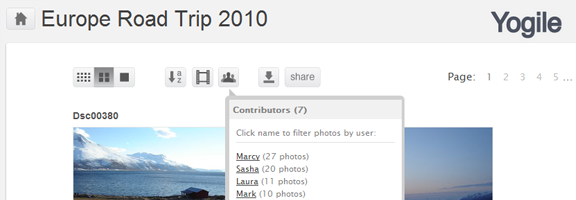
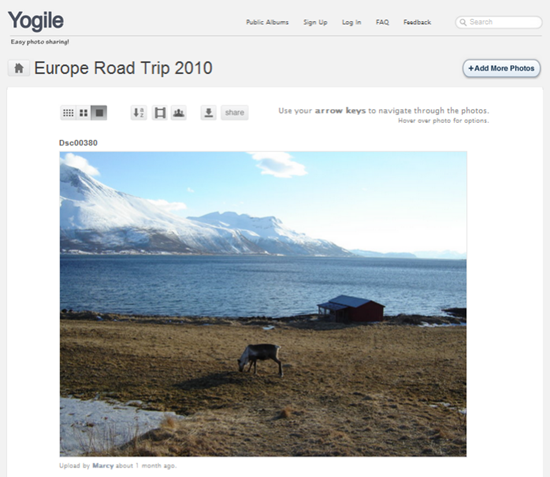
Yogile offers a dead-simple solution to this kind of problem. All you need is the one account, and to pass around an album’s email address to everyone involved. Photos can then be sent in to that album as email attachments. It’s that easy — and you can also upload photos via the website, if need be. Send a link to the photo album to whomever you want to view the files, add a password if you want, or set the entire thing as public and go to. Twitter, Facebook and email sharing of an album’s link are also possible.

Yogile Easy Photo Sharing for Groups | 40Tech

Yogile isn’t complicated by an extensive feature-set, and doesn’t require everyone to register (unless they want to comment). It costs nothing up to 100 MB/month, and can go unlimited for $24.95/year. You can even download an entire album in a handy zip file.

Like I said… easy.

What do you use to corral and share event photos?

Easily Create and Share Photo Albums with Yogile [Digitizd]