Menu Close

Category: Microsoft (page 8 of 12)

Restore Abandoned Windows Features With Classic Shell

LittleSnapper.png


Do you miss the “up” button in Windows Explorer, now that you’ve moved on to Vista or Windows 7? Or maybe you just appreciate the look and feel of the Windows XP start menu? If you want to bring back a long-lost Windows feature, chances are that you can restore it with Classic Shell.

Classic Shell restores features that were present in older versions of Windows, but are missing from Vista and Windows 7. The two main components of Classic Shell are Classic Explorer and Classic Start Menu.

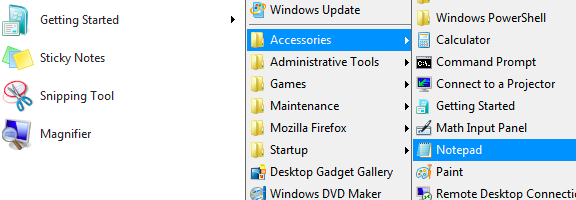
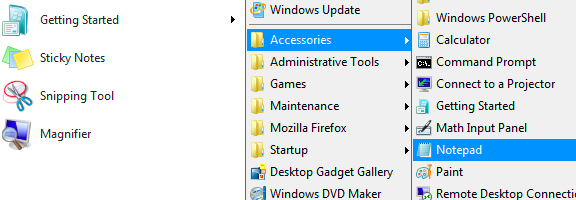
Classic Start Menu has a long list of features. For example, after installing it, you can drag and drop to organize your applications, display recently used documents, and right-click an item in the menu to delete, rename, sort, or perform other actions. You can select from several skins, download ore from the Internet, or, if you’re handy, make your own.

The Classic Explorer adds a toolbar to Explorer. This toolbar adds several operations, such as Go to parent folder, Cut, Copy, Paste, Properties, and Email. Classic Explorer also replaces Vista and Windows 7’s copy UI with a version similar to XP’s version. You also can restore the “Up” button to the toolbar.

For a full list of features of Classic Shell, check out the Classic Shell site. Classic Shell is free and open-source software.

Are there any classic Windows features that you miss in Vista or Windows 7?

Classic Shell [via Geek Tonic]


Extend Your Taskbar to Multiple Monitors With ZBar

zbar

The Windows taskbar is a bit like the command center for your computing experience.  At its most basic level you can use it to quickly launch applications, and also to toggle between open programs with one click.  One shortcoming of the native Windows taskbar, though, is in its support for multiple monitors.  While there are some paid options available to remedy this, check out ZBar for a free solution. Read more


Figure Out That File Extension

filext

Today, 40Tech is pleased to present a guest post by Keith from Computer Repair Vancouver.

File extensions have become a mainstay in the current computing landscape. Those two or three letter codes that follow a file name allow you as well as your operating system to determine what type of file is being dealt with as well as which programs should be used to deal with it.

Read more


Tidy Up Your PC With FileMenu

FileMenu

If you’re like me, you let your computer – and particularly your PC’s desktop – become a complete mess before you dive in to tidy it up.  One way to speed up the cleaning process is by filing away all that mess.  If you want a fast way to dump files into predetermined folders, take a look at FileMenu.  FileMenu is simple in concept, but it is like the Swiss Army Knife of file management. Read more


Check Your Windows Apps For Updates in One Fell Swoop

FileHippo App Updater

One nice feature of Ubuntu, a slick Linux build, is the way that it handles application updates with a unified app.  For a similar experience in Windows, try out FileHippo Update Checker.  Once you install it, you can direct FileHippo Update Checker to scan your system, and return a list of apps on your system that need an update.  It runs in seconds, and requires the Microsoft .NET Framework 2.0 (which it will download for you, if you don’t have it).

Update Checker isn’t quite as slick as Ubuntu’s solution, as it downloads each update separately, and requires you to install them.  Ubuntu does this in a unified manner, with downloads and installs occurring right in the update app.  Still, Update Checker can save you considerable time, as you won’t have to open multiple apps or check multiple sites for updates.  Update Checker’s site does warn that it doesn’t check ALL apps, which is understandable considering the nearly endless number of Windows apps out there.

When I decided to hunt for a unified app updater, I did check out a couple of other alternatives, SUMo and Update Notifier.  I scratched Update Notifier off of my list, as, best I can tell, its database doesn’t seem to be up to date.  It told me that all the apps on my system were up to date, when they were not.  I didn’t get past the installation screen of SUMo, as I noticed that it asked to install a “marketing research” app during the installation process.  You can decline to install this app, but if you’re not paying attention, it would be easy to end up with some spyware on your system.

For these reasons, FileHippo’s app was the winner for me.  If you know of any other solutions, let us know in the comments.

FileHippo Update Checker