Menu Close

Category: Microsoft (page 6 of 12)

Magically Send Files to the Right Location On Your PC, With DropIt [Windows]

dropit header

Is your PC’s desktop or downloads folder cluttered with files? If so, and you’re feeling overwhelmed with the thought of getting your system organized, check out DropIt. DropIt is a free program that creates a big icon on your desktop, that can be thought of as a drop zone. When you drop a file onto the icon, actions will be performed on it depending on how you’ve configured DropIt. DropIt can help you quickly move files to the proper place on your PC, without having to manually select a folder for each file.

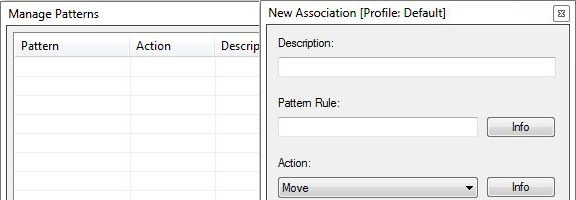
The filters that you can set up with DropIt are fairly basic, so you would be better off with something like Belvedere on Windows or Hazel on the Mac if you want advanced features for PC organization and cleaning. With DropIt, you can filter a file based on name or file type. For each such file, you can preset DropIt for one of the following options: Move, Copy, Compress, Extract, Open With, Delete, Exclude.
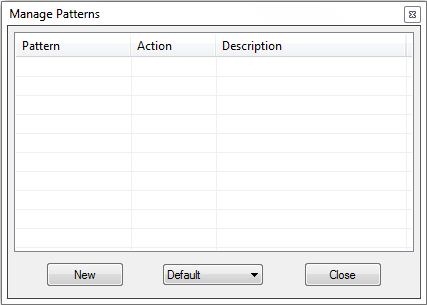
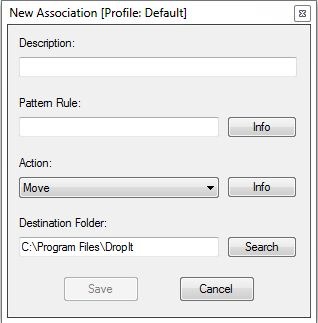
dropit manage patterns dropit new association

DropIt doesn’t seem to be intended to be a comprehensive organization utility, but does seem ideal for quickly going through your desktop or other folders, and moving files to preset locations. For example, you could quickly go through your desktop, and drop all of your image, video, and audio files onto your DropIt drop zone, and have them moved to your picture, video, or music folders, without taking the time to place each file in the proper location.

Do you have any apps that you use to organize your system? Let us know in the comments.

DropIt [via Cybernet News]


Free Up Space By Deleting Windows 7 SP1 Backup Files

service pack backup removal

Yesterday, we asked you how much disk space you’ve used up on your system. On a Windows 7 PC, some of that space can be taken up by Service Pack 1 backup files that you might never need. When you install Service Pack 1 for Windows 7, it creates backup files in case you have problems and ever need to uninstall the service pack. You can remove them, though, if you want to. Here’s how.


Read more


Move Programs, Settings and All, To a New PC With PickMeApp [Windows]

pickmeapp full

Ahh, a new computer. Kind of makes you tingle with excitement, right? Perhaps, but you’re probably also thinking about all the work that you have ahead of you when installing all of your apps. We’ve previously talked about ways to download several apps in one bundled download, to help speed along the process, and we’ve covered some tips for upgrading to Windows 7 in a couple of posts. If you want to get even more streamlined, you can move programs, settings and all, from your old PC to your new PC using PickMeApp. Read more


Mac vs. PC: Maybe There’s Something To Those Sterotypes After All

pc vs mac survey.jpeg

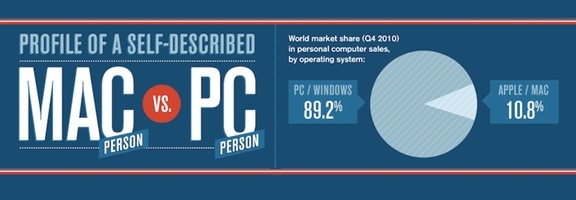
You know the stereotypes: Mac users are young, progressive, city-dwelling hipsters, while Windows users are more conservative, and live in rural areas. Hogwash, right? Well, maybe not. Hunch recently released results of a study of user data, comparing preferences and tendencies of PC and Mac users. The data pool was pretty massive, using more than 80 million aggregated and anonymous responses to questions from 700,000 Hunch users over an almost two year period. The study results do reinforce some stereotypes.

Read more


102 Free Programs Worth the Download [Windows]

102 Free Programs Worth the Download [Windows] | 40Tech

There are a lot of free programs for Windows, and while many of them may have you running for the nearest anti-virus or spyware scanner, there are some that are not only useful and safe, but awesome beyond words. The trouble, of course, is sorting through the volumes of crap – I know it’s not a task I enjoy… Thankfully, neither you nor I will have to worry about it, because the good folks over at MakeUseOf have done the work for us! They have gathered, sorted, sifted, and otherwise separated the good freebies from the bad, and compiled them into a very well organized and easy to navigate list. Bless their gigantic hearts!

The list, which can be found here on their site, is broken down into 21 categories, each containing three to nine applications. They cover everything from free anti-virus software to CD/DVD tools, productivity tools, photo/image editors, file recovery software and more. Several on the list are ones I’ve heard of and tried, such as Microsoft Security Essentials, Evernote, LastPass, and Recuva — but there are a lot that I am not familiar with, and the stamp of approval MakeUseOf gives them makes them a lot easier to consider.

The list of the best 102 Free Windows programs is worth a view for any computer owner, and a look through is nearly a must for the geeky set. Check it out — I’d love to know what you think of it, and if there are any you think should or shouldn’t be there.

The Best Of: Windows Software [MakeUseOf]