

Yesterday, we asked you how much disk space you’ve used up on your system. On a Windows 7 PC, some of that space can be taken up by Service Pack 1 backup files that you might never need. When you install Service Pack 1 for Windows 7, it creates backup files in case you have problems and ever need to uninstall the service pack. You can remove them, though, if you want to. Here’s how.
Should you do it?
Should you remove the Service Pack 1 backup files, though? Once you remove the backups, there’s no turning back. You won’t be able to undo the service pack at that point. There’s no hard and fast rule, but I’d make sure that my system is running well, and probably wait a few weeks, before removing the backup files.
How to Remove the Backup Files
Lost in Technology recently ran down the steps for removing the backup files. You need to run a command prompt, as the administrator (type cmd in the run box of the start menu, and type CTRL + SHIFT + Enter). When the black box comes up, type the following, and then hit Enter:
dism /online /cleanup-image /spsuperseded
You then just need to wait, as the process will take some time.
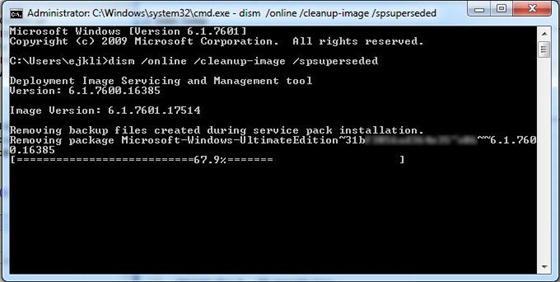
On my machine, it took about 10 minutes. When it is done, you’ll be greeted with a “Service Pack Cleanup operation completed” message in the command box.
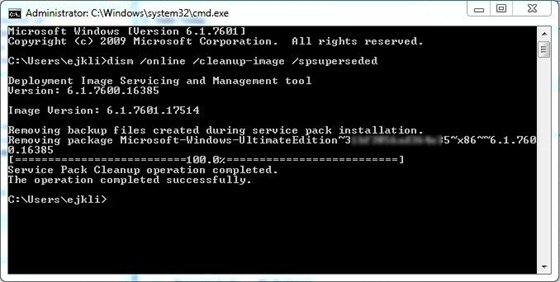
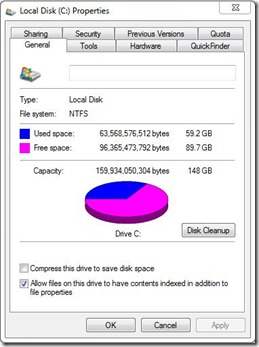
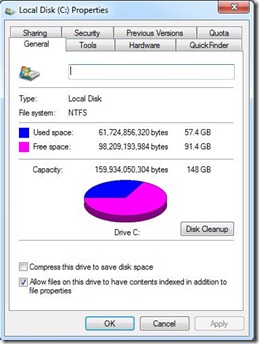
You can see from the image below that the process freed up 1.7 GB of space on my computer running Windows 7 Professional. Your mileage may vary, depending on what version of Windows you’re running.
Is It Worth It?
This process might really beg a bigger question: in today’s age of enormous and inexpensive hard drives, is it really necessary to worry about a gig or two of space? I’d say that if you wait long enough after installing Service Pack 1 to be sure that you’ll never need it, then yes. Every time I buy a computer, I think I’ll never use all that space (I remember thinking that I was set for life with my 17 GB Compaq Pressario, years ago). Invariably, I do. Plus, SSD drives aren’t as large as spinning drives, so space becomes more of a premium if you go that route.
Do you worry about space on your PC?

Shawn says:
CTRL + SHIFT + Enter to run command prompt as Administrator
May 21, 2011 — 2:27 am
Evan Kline says:
Thanks for catching that, Shawn. I’ve made the change.
May 23, 2011 — 1:16 pm