Menu Close

Category: iPhone (page 13 of 19)

Let Google Goggles Do Your Thinking For You

Let Google Goggles Do YOur Thinking For You | 40Tech

If you own an Android or iOS device – at least one with a camera – you can now regale all of your friends with how insanely smart you are. The new version of Google Goggles has been ripping up the web in the past few days, as people buzz about the ridiculously fast barcode scanning of the Android client, print ad recognition in (popular) magazines and newspapers, and – perhaps most importantly – the ability to solve even the most difficult Sudoku puzzles in barely more than a blink.

Why would Google Goggles need the ability solve Sudoku? Frankly… who cares? As with many of the things in this world that don’t make you any smarter, it’s fun! If you don’t believe me, check out the cute promo video below, courtesy of the Google clan.

If you decide to test the new Goggles’ Sudoku prowess, make sure you get a clear shot of the puzzle without any of the extra bits you might find on, say, a webpage. If you don’t you will most likely be presented with search results over the solve puzzle button. I was never able to make it work with shots of my iPad app, either. Ahh well. It’s good to apply your brain sometimes, yes?

Happy puzzling!

Google Goggles Gets Faster, Smarter, and Solves Sudoku [Google Mobile Blog]


How to Search By Tag in Evernote for iPhone

How to Search By Tag in Evernote for iPhone | 40Tech

For long-time Evernote for iPhone users, searching your notes by tag is probably not an issue. However, the email I received last night from one of our own Grown-up Geeks made me realize that new users to the iPhone version of Evernote might be in for a bit of frustration. In light of this, I decided to put together a quick how-to post based on the email response I sent our reader. Check it out below.

In order to browse by tag in Evernote for iPhone, you just need to follow these steps:

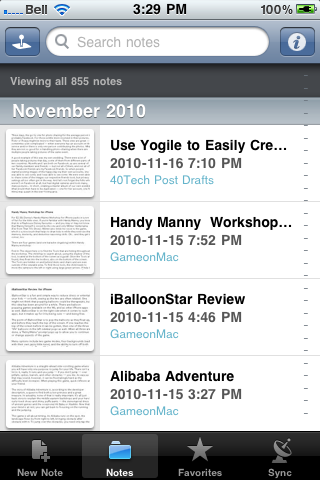
Open Evernote and tap Notes from the bottom menu

IMG_1751


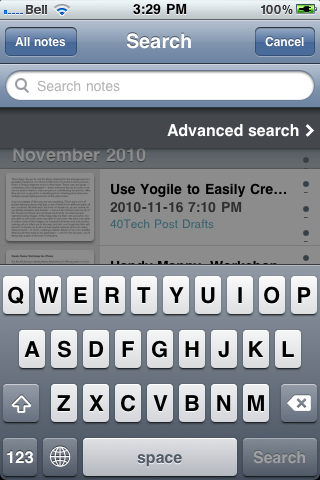
Tap the search bar up top (where it says Search Notes)

IMG_1752


As the search bar is activated, it will expand and just below it you see “Advanced search” — tap that

IMG_1753


In the next screen, you will see the Tags button — tap it

Note: You can add several other search filters from this screen, as well!

IMG_1754


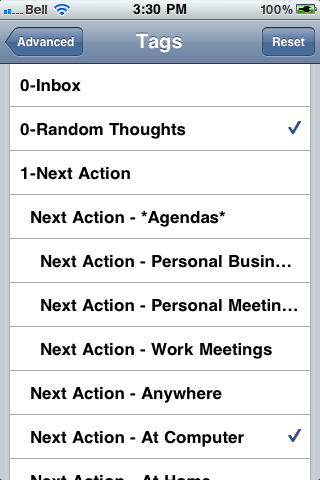
Tap the tag you want to sort by

Once selected the tag will have a checkmark. To search within multiple tag, select more than one.

IMG_1755 IMG_1756


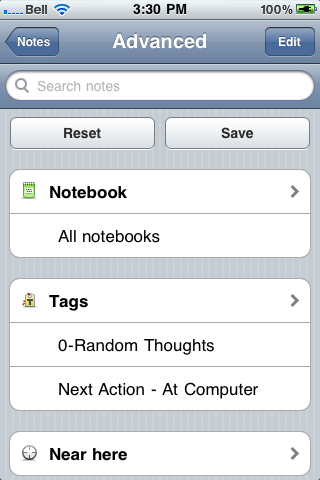
Tap “Advanced” in the top left corner, to go back to the advanced menu

You will be able to see a list of the tags and other search criteria you chose here.

IMG_1757


Tap “Notes” in the top left corner, to go back to the notes list

Your notes will now be sorted by the selected tags — to get back to general note view, tap the “All notes” button.

IMG_1758


Hopefully, this post will help some iPhone Evernote newbies out. If you’re reading this and it seems too convoluted to you — and you haven’t bought an iPhone yet — you might want to consider Evernote for Android. The new version puts tags right upfront – and there are a few other Android-only features that kick the iPhone’s Evernote squarely in the pants.

Evernote 2.0 for Android Screenshot

Have other Evernote questions? Post them in the comments, and we’ll do our best to answer them.


Get Creative Date Ideas with DateBank

Get Creative Date Ideas with DateBank for iPhone | 40Tech

Whether you are single and dating or have been married for years, it is always a challenge to come up with interesting date ideas. Sometimes “dinner and a movie” just isn’t enough, you know? Thankfully, some folks up in Canada — in the Greater Vancouver area, just like l’il ol’ me — have taken the time to create an iPhone app that helps solve that problem.

DateBank is a simple, slot-machine style app. There is a slot for Style, one for Budget, and one fore Time of day. Select from a range of style entries like Playful, Chatty, Artsy and, Outdoorsy, pick a price range and a time of day, hit “Show Results” and voila! A list of interesting date options will appear, each with a fun description and some tips on how to take it up a notch. If you’re unsure of what to select from the slots, there is an option for that, as well, along with some tips, a ranking/sharing element, and the ability to submit your own ideas for inclusion.

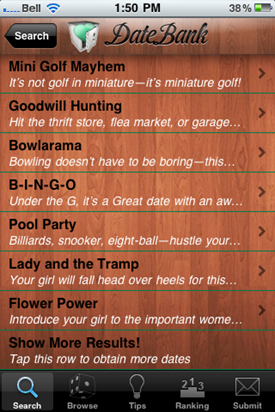
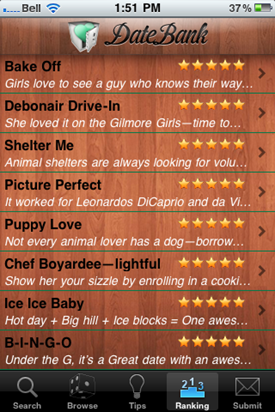
Here are a few results from a search for Playful/$20-60/Afternoon, as well as the top-ranked dates on the app, currently:

Some Date Ideas form DateBank for iPhone | 40TechTop-Ranked Date Ideas from DateBank for iPhone | 40Tech

DateBank costs $0.99 and is a fun and useful app. There are a few things I hope to see in the near future, however, such as a local component (which ought to work well with the suggestions area), and the “shake for a random idea” function to start working. Other mobile apps and a web app for the mobile-impaired would also be useful, as would a social element that allows people to give a brief description of how the date went.

In fact, I think it would be very cool if some of you grown up geeks out there were to try DateBank and let us know how it worked out for you! I’ll show you mine, if you show me yours…


Use “Niggle It” to Back Up and Track Contracts, Product Warranties, and More

Niggle It Backs Up, Tracks Contracts, Product Warranties, More | 40Tech

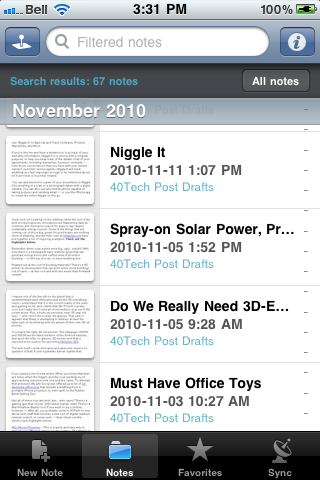
If you’re like me and have a tendency to lose track of your warranty information, Niggle It is a service with a singular purpose: to help you keep track of the details of all of your agreements, including warranties, business contracts — even those conversations that you have with your mobile carrier’s customer service agents. Niggle It will track anything you feel important enough to be reminded about, be it personal or business related.

You can add electronic copies of your documents to Niggle It by emailing in a scan or a photograph taken with a digital camera. You can also use any mobile phone capable of taking pictures and sending email — or use the iPhone app to create the entire Niggle on the go.

The value of Niggle It is the ability to create reminders based on contract dates, and to add additional information and documents to the file (Niggle) that is dedicated to that one item/contract. You have a dedicated, always on hand back up of the documents you need if something goes wrong, and a tool that is able to remind you to, say, get that last full service in on your car before the warranty runs out — just in case.

Niggle It guarantees that your information is always available from anywhere you can access the internet, and that everything is private and secure, with no personal information ever shared with a third party.

Niggle It is free up to five Niggles, and also includes the following pricing plans:

  • Basic: 70 Niggles, 300 MB, 5 MB filesize limit –> $24.95/year
  • Household: 200 Niggles, 800 MB, 10 MB filesize limit, and a Tax Deduction report –> $29.95/year

What do you use to track your warranties and contracts? [Niggle It]


UPDATE: The pricing page for Niggle It is somewhat unclear. I assumed it was per month, but it could, in fact, be $25 and $30 per year — much more reasonably priced.

UPDATE 2: The price is yearly — not monthly — and has been corrected.


Homemade Spacecraft: Awesome Family Tech!

Homemade Spacecraft: Awesome Family Tech! | 40Tech

This is about the coolest thing I have ever seen. I know I’ve said that before, but it’s a graduating scale — and this made my geek-self tingle and grin like a fool!

Father and son Luke and Max Geissbühler, from out Brooklyn way, popped an iPhone and an HD camcorder into a polystyrene container, wrapped it up in hand warmers to keep it alive in the upper stratosphere, attached it to a giant helium balloon and let it fly. Lack of atmospheric pressure causes the balloon to grow and burst, and the camera was on all the way up. It took a good look at the Earth from the outside, and then stayed on for most of the trip down — a plummet, really, at about 150mph even with its parachute. The iPhone got a GPS lock on the way down and was used to locate the “payload”.

The video footage is amazing and of incredible quality, especially for a civilian effort. The video is only a few minutes long — watch it. It’s awesome!

I think I may do this with my kid someday.


Homemade Spacecraft [Make Magazine]