Have you ever worried that your email account was hacked? I had a scare recently that turned out to be unfounded, but it got me looking into ways to further secure my Gmail account. I had heard of Gmail’s two-factor authentication before, but had only dabbled in it. I now have two-factor authentication activated on both of my accounts, and it is pretty unobtrusive, and adds significant security to my account.
With all of the information, files and, well… stuff we have stored online, it can be a bit complicated to sift through it all when you need to go back and find something. Greplin makes that sort of search a whole lot easier. It indexes several of your online accounts, not the least of which are Facebook, Dropbox, and Gmail, and works like your own personal Google.
Greplin has been around since the latter part of 2010, and entered public beta in February of this year. Since then, they have been adding more and more services, and have even developed a Chrome extension that plugs them right into your Gmail — for a search experience that is arguably better than Google’s built in functionality.
Greplin is free to use for the most part, indexing up to 10GB worth of data from services like Twitter, Gmail, and other personal Google services like Gcal, Docs and Contacts, as well as Facebook, LinkedIn, and Dropbox. If you want to index accounts like Evernote, Google Apps, and business-related services like Basecamp and Salesforce, however, you will need a premium subscription — which is only $4.99 per month ($49.99/year). There are also a few services that are unlockable via recommendations to friends, such as Tumblr, Google Reader, and Del.icio.us.
If you have a need to search through your online files and life in general, it doesn’t get better than Greplin. The interface is fantastic, the instant search feature saves time, and it actually performs better and faster than Google even in the search giant’s own services. The Chrome extension is a nice touch, as well, as it also plugs into the Omnibar, allowing you to search your data by simply typing the letter g, followed by a space and your search term.
Producteev won me over a while back with the smooth way they integrate into your already established workflow. The pretty helped too — pretty is a necessity for me when looking at a task list — but it was the Google Calendar integration, and the ability to interact with and create tasks from email, IM, and more that clinched it for me. As a Gmail user, I have access to a nifty widget, and Google Apps users get even tighter integration.
Enough about me and my Google services, though! We’re here to talk about you — and did you know that Producteev has just launched an Outlook plugin that let’s you single-click emails directly to tasks? And that’s not all… they’ve also announced a two-way sync with Google Tasks, and have some native apps on the way! You like? Read on for details!
Outlook Plugin
Outlook is powerful software, but it lacks mobility, which is a tough thing when you use it as your main task manager in this day and age. Producteev makes Outlook tasks portable by allowing you to take them to the cloud by way of a tightly integrated Outlook plugin. With the plugin, you can add emails to tasks in Producteev with a single click of the flag button, and with the integrated Producteev tab, you can assign it to others, add priority stars, etc. The plugin only allows you to sync with one workspace at a time, but you can choose for the sync to be two-way, Outlook to Producteev, or Producteev to Outlook only, and you can change workspaces right from Outlook, as well.
I was honestly under the impression that people cared about Google Tasks about as much as they do about Buzz, Wave and Sidewiki. Or Orkut. Apparently, I was gravely mistaken, as Google is invested enough in Tasks that they went through the trouble of launching a Tasks API at Google I/O this month. Producteev was right there with them, and has created a two-way revolving door with the in-Gmail task manager.
It’s a pretty cool integration, actually. It allows you to create tasks in Google and have them sync to your Producteev workspace where they will have their own label (the list’s name) automatically assigned. It also works the other way, bringing your workspace’s tasks into Google where you can quickly check on them and interact with them without leaving your email. Yayy efficiency!
Check out the quick screencast on the integration, below:
I advise you to be careful when using Google Tasks sync, however. It is, at this point, only designed to handle a connection from one Producteev workspace. If you use several workspaces concurrently, like I do in my Producteeev GTD setup, and you, say, I don’t know… connect them all… at once — well, let’s just say you will end up with an ever-growing and duplicating list of tasks as the workspaces sync them, and then re-sync them, one after the other, after the other, after the other. *grins* Thankfully, they all show up under one label and so were easy to delete.
If you do use multiple workspaces in your productivity setup, I recommend using only your most important workspace in Google Tasks sync. You could also use it for a priority tasks list, or to keep your Projects workspace handy at a glance.
Native Apps
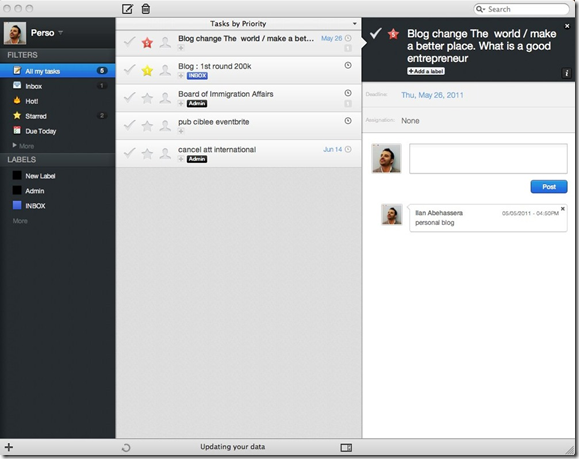
Producteev hasn’t forgotten about the users out there who prefer native apps. They have had them in the works for some time now, and that awesome little tree is about to bear its fruit. A Mac app is due to hit the mainstream by the end of this month, and Windows will get a native app in mid-June. That’s straight out of the mouth (well… email) of Producteev founder Ilan Abehassera, so doubt me at your peril! Ilan also said that a fancy new Android app will be available in early June, as well.
Here’s a look at the Mac app (from the Producteev Blog):
What do you think of Producteev’s new integrations?

Last week we conducted a survey, asking you whether you preferred your apps in the cloud, or on your desktop. I’ve been a big fan of the cloud, but lately I’ve gone retro, enjoying a few desktop apps. One of the apps that has fostered my growing love of desktop apps is Sparrow, a desktop email app for Mac OS X. The beauty of Sparrow is how well it integrates with Gmail, and how fast it operates.
When thousands of Gmail users opened their inboxes last weekend and discovered, to their horror, that even the servers at the Great and Powerful Google are fallible, the word “backup” started flying around like a hummingbird drunk on one too many cups of coffee. We all know that we should regularly back up our Gmail — or anything that contains important information — but I have to wonder how many of us heard the news of the big disaster that might have been (if Google had been unable to restore the accounts) and quietly thanked our makers when we found that it hadn’t hit us. I suspect that the count in favour would be high, and that many of that group might like to take a moment to do that backup in case it happens again.
What’s the best way to back up your Gmail, though? Can it be done for free? Yep! Read on for two methods, below.
Desktop Email Clients
Using a desktop email client is one of the best ways to get a backup of your Gmail account that you control. It is fairly straightforward to set up either POP or IMAP access to a webmail account in any of them, but if you are set on free and don’t have Outlook already, then download and install Thunderbird or Windows Live Mail for Windows users, or use Apple Mail on OS X. Linux users can also install Thunderbird or use one of the other Linux email clients. If you plan on using the client for all of your email needs, then you should connect via IMAP, but if you want it only for backup purposes, POP will do just fine. Setting these email clients up with Gmail is fairly intuitive, but Google has extensive tutorials on both IMAP and POP setup and troubleshooting if you run into problems.
Once you have your entire Gmail account downloaded to the desktop client of your choice, don’t stop there. Look under file to see if there is an Export option. Exporting your email to .eml format and then backing it up on a separate hard drive or three is the next logical step in a true backup process. You can also export your Contacts from the desktop client, or right from the Gmail/Contacts interface. Set a reminder series on your calendar, and do the “physical” backup regularly. If you need some tips on good file backup services, check out Evan’s post on a comprehensive backup solution.
Hotmail
If you don’t want to go through the hassle of periodically opening up a desktop client just to download your Gmail messages, or are just looking for yet another backup channel, then take advantage of the war for your services that Microsoft and Google are engaged in. Why shouldn’t you benefit from their attempts to draw you in? That’s the core of capitalism and free enterprise, right?
Open up a Hotmail account and and then set it up to import all of your Gmail messages. This is more than just forwarding, this is the inclusion of all of your archives, done with TrueSwitch for Hotmail. The unfortunate thing is that it stops after it imports what is in your Gmail, with no facility to continue drawing in your messages after the fact. In order to do that, you will need to open up your Gmail settings and click on “Forwarding and IMAP”. Once in there, you can set up your Hotmail as a forwarding address, and choose the option to “keep Gmail’s copy in the Inbox.” Don’t forget to schedule yourself to login to that new Hotmail address once per month, just to make sure that everything is going well, and that Hotmail doesn’t shut it down on you.
This method is also a great way to clear space in your Gmail account if you happen to (somehow) be running low on your 7+GB. The only downside is that you are backing up one cloud service to another, but the likelihood of both Hotmail and Gmail going down at the same time is not very high — chances are if it does happen, you will be worried about more important things than a few emails. Like survival — or the freezing cold suddenly emanating up from the depths of Hell.
Both of these methods are easy to implement and require very little maintenance on your part. If you are looking for even less hassle, though, and want to put your backups in the hands of someone who does such things for a living, check out Backupify (we covered it here). Backupify gives you 2GB of backup storage for free, and has paid plans besides. It can also backup many of your other services, like Facebook, Twitter, Flickr, and more, and is compatible with Google Apps.
Your turn! What methods do you use to backup your Gmail account?