Menu Close

Category: Internet (page 4 of 10)

How to Find Out if Your Account Was Hacked at a Gawker Site (Lifehacker, Gizmodo, etc.)

gawker accounts hacked

One of the big news stories last week was the hacking of Gawker Media’s servers. As part of the attack, user accounts were compromised on Gawker sites, including Lifehacker and Gizmodo. More than 500,000 user emails and 185,000 decrypted passwords were posted online.  If you’re not sure which account you used on a Gawker site, and want to determine if your account might have been compromised, there’s a tool for that.

Slate has created a widget that lets you input your username or email address to see if your account was hacked.  All that you need to do is input your username or email address that you used on a Gawker site, and hit the “Check” button.  You’ll get one of two messages back:

1. “Your account data has been released. If your account had a password, it has also been released in an encrypted form. Change it.”

2. “The e-mail account or user name does not appear to be in the released database.”

If you get the first message, you should not only change your Gawker password, but if you used that email/password combination on any other sites, you should change your password on those sites, too.

To avoid a problem like this in the future, make sure that you use unique passwords on all sites.  Check out one of our favorite tools, LastPass, for an easy way to generate and remember all of those passwords.

Does a hack like this make you trust Gawker sites less?  Or trust the Internet less? Our take: this could happen to any site out there. Protect yourself by using unique passwords on all sites.

Gawker Media account check widget [Slate]


The Cloud Explained — by Kids

The Cloud Explained -- by Kids | 40Tech

photo by zakwitnij

It was my birthday the other day. I turned 35. Yep, 35, and I write for a blog called 40Tech. I’m mature for my age, ok? Either way, I was feeling pretty good about myself that day. 35 years old is young, right? Well, that’s what I thought until I saw this video by Accenture that has little kids explaining cloud computing.

I now feel positively ancient.

The video, called “Cloud Computing Here and Now — Our Youngest Experts Explain the Cloud,” features a whole bunch of cute, smarty-pants little rug rats that make websites and are working on video games that feature super-spies with heads made out of cheese puffs. They were born with the internet — broadband, even — and it’s as second nature to them as hair bands are to the rest of us. I mean the music variety, by the way, not the hold up your hair type — but I digress.

Watch this video. It may make you feel like somebody’s grandparent, or even great grandparent — but it is a very clear look into the future of tech. Well, the future from the point of view of a high-end consulting company that is obviously convinced of the impending takeover of cloud computing — and trying to sell people on it — but that’s not saying they’re wrong.

Watch the video below — What do you think?

http://www.youtube.com/watch?v=_eq3Sj1GGs8&feature=player_embedded


How 10 Year Olds Explain Cloud Computing [ReadWriteWeb]


Uncluttered Visual Search for Craigslist and Other Online Shops With Spotli

Uncluttered Visual Search for Craigslist, Other Online Shops | 40Tech

I don’t know about you, but I rarely even look at a Craigslist post that doesn’t have a photo of the product attached to it. I don’t see the point. If someone doesn’t take the time to take a photo of what they’re selling, I simply don’t trust it — and I really don’t want to drive to wherever that person lives for a first look at my potential purchase, you know? Spotli has made my life easier by providing a visual search tool for Craigslist and other places to buy online.

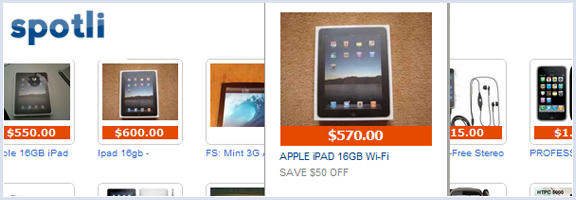
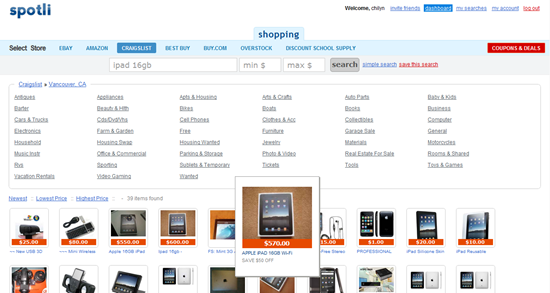
I know that you can already filter Craigslist to only show items with photos, but searching Craigslist is not a pretty experience. At all. It’s uglier than Google — and that’s saying something. Spotli will take your search, even narrowed down to city-level, and display an eye-pleasing grid of images, complete with title and pricing information. Hover over the image that catches your eye and it will expand to a slightly larger size for easier viewing. Click on the image and you will go directly to the listing.

Spotli Visual Craigslist Search | 40Tech

You might wonder what the point is of some of the other online shops (Ebay, Amazon, Best Buy, Buy.com, Overstock.com, Discount School Supply) — after all, they are already visual sites. I find that I like the interface of Spotli much better, however, and highly recommend that you give it a try. I would actually like to see even more stores added, as well as a Canadian option.

Spotli is fully usable without registration, even the Coupons & Deals section, but registering does give a little back, such as saved searches, minor Facebook Connect (to invite friends), and the possibility of more tools in future — maybe sharing functionality for found items?

My only wish for Spotli would be the ability to have my search term be persistent across all stores, so that I don’t need to type it in repeatedly when price-matching. If that were also integrated into the saved search functionality, Spotli could become the perfect shopping companion for me. How about you? What are your thoughts on Spotli? Know of any similar services?

Check out Spotli


5 Methods (and 12 Tools) for Making Websites More Readable

squint at monitor 576

Whether due to failing eyesight or website clutter, some websites can be difficult to read.  If you find yourself in that situation, here are some tools and methods for making a site easier to read.  Some of these tools work by stripping away extraneous material, others make the text of a site larger, and some do a combination of the two.


1. Magnify the Text, With Either Your Hardware or a Browser Extension

The most obvious way to make a site easier to read is to magnify the text on the site.  One way to do this in Windows is by holding down the CTRL keying, and then rotating your mouse wheel.  You need to do this for any site where you want a larger font.  For a more permanent solution, across all sites, you can try a browser extension, like No Squint for Firefox, or Zoomy for Chrome.

Tools:


2.  Reformat the Page with a Bookmarklet

A bookmarklet is a bookmark that, instead of loading a web site, runs some javascript.  A few competing services offer bookmarklets that will reformat pages for you.  Place the bookmarklet on your bookmarks bar, click on it, and a site will be reformatted, with ads and extraneous text removed, margins altered, and fonts made more readable.  We love Readability, which we use to send formatted pages right into Evernote with one click, but there are a few other choices out there.

Tools:


3. Reformat the Page With a Browser Extension

If you don’t want to mess with a javascript bookmarklet, you can achieve the same results by using one of a few browser extensions.  We’ve previously professed our love for iReader, an extension for Firefox and Chrome. iReader installs a button in your browser’s address bar that appears when you are on an article-style page of a website.  When you click this button, iReader strips out all of the ads and other extraneous layout elements of the web page, re-displaying it in a lightbox-style overlay that is incredibly easy to read.  iReader also presents additional interaction buttons in the overlay.  These buttons give you the option to tweet about the page, send it to Facebook, remove images completely, change the background opacity, and more.

If you’re a Readability or TidyRead fan, and don’t want to install one of the bookmarklets mentioned above, you can install a browser extension instead.

Tool:


4. Selectively Remove Objects or Selections from a Page

There are some situations where you don’t want to reformat an entire page, but only hide objects that are interfering with your ability to enjoy the page.  Nuke Everything Enhanced is a Firefox add-on that allows you hide almost anything on a page via a context menu that allows you to select “Remove Object” or “Remove Selection.”  You also can select text or an object, and choose “Remove everything else” from the context menu.  This leaves behind only your selection.  This is especially handy when you only want to print part of a page.

Tool


5. Use Safari Reader

If you like using Safari, Apple’s web browser, then you don’t need to bother with any of the above-mentioned tools.  As of Safari 5, Safari comes with the built-in ability to make sites more readable.  This works much the same way that a tool like Readability works.  After a page loads, click the “Reader” button in the address bar, and the page will be formatted and displayed in a lightbox-style overlay.

Tool:


Do you have any tools to suggest, that you use to make sites easier to read?


Are the Days of Remote Access Software Numbered?

cloud killing remote access software

Are we approaching the day where remote access software will be meeting its grim reaper – the cloud?  A few months ago, we compared LogMeIn and Teamviewer, two popular choices for accessing your PC when away from home or the office.  How often do you need to access your PC remotely, though?  Futurelawyer discussed this recently, pointing out that we now live in a cloud-based world, where we let third parties manage our data.

That got me to thinking about my usage of remote access software.  While I’ve never been a heavy user, there once was a time where I would connect to my home PC about once a week, often to retrieve a file.  Aside from playing with different remote access options, though, I can’t remember the last time I connected remotely.  Thanks to my comprehensive backup solution, my documents get synced to Google Docs, and my files are backed up online to Carbonite.  I can always reach them.  Both my work and personal email are accessible via web apps.

Some people worry about the security and reliability of their information in the cloud.  We’ve previously addressed these concerns as well.  The bottom line – if you use a service that makes sure that you have local copies, your information will always be available to you.  And, no offense, but if you’re not dedicated to keeping your system secure, your data is more secure in the hands of many online services than it is on your PC.

How has your usage of remote access tools changed over time?

Will Cloud Computing Make Remote Access Software Obsolete? [Futurelawyer]