Whether due to failing eyesight or website clutter, some websites can be difficult to read. If you find yourself in that situation, here are some tools and methods for making a site easier to read. Some of these tools work by stripping away extraneous material, others make the text of a site larger, and some do a combination of the two.
1. Magnify the Text, With Either Your Hardware or a Browser Extension
The most obvious way to make a site easier to read is to magnify the text on the site. One way to do this in Windows is by holding down the CTRL keying, and then rotating your mouse wheel. You need to do this for any site where you want a larger font. For a more permanent solution, across all sites, you can try a browser extension, like No Squint for Firefox, or Zoomy for Chrome.
Tools:
2. Reformat the Page with a Bookmarklet
A bookmarklet is a bookmark that, instead of loading a web site, runs some javascript. A few competing services offer bookmarklets that will reformat pages for you. Place the bookmarklet on your bookmarks bar, click on it, and a site will be reformatted, with ads and extraneous text removed, margins altered, and fonts made more readable. We love Readability, which we use to send formatted pages right into Evernote with one click, but there are a few other choices out there.
Tools:
3. Reformat the Page With a Browser Extension
If you don’t want to mess with a javascript bookmarklet, you can achieve the same results by using one of a few browser extensions. We’ve previously professed our love for iReader, an extension for Firefox and Chrome. iReader installs a button in your browser’s address bar that appears when you are on an article-style page of a website. When you click this button, iReader strips out all of the ads and other extraneous layout elements of the web page, re-displaying it in a lightbox-style overlay that is incredibly easy to read. iReader also presents additional interaction buttons in the overlay. These buttons give you the option to tweet about the page, send it to Facebook, remove images completely, change the background opacity, and more.
If you’re a Readability or TidyRead fan, and don’t want to install one of the bookmarklets mentioned above, you can install a browser extension instead.
Tool:
- iReader (Chrome or Firefox)
- Readability (Firefox)
- Readability Redux (Chrome)
- TidyRead (Chrome or Firefox)
4. Selectively Remove Objects or Selections from a Page
There are some situations where you don’t want to reformat an entire page, but only hide objects that are interfering with your ability to enjoy the page. Nuke Everything Enhanced is a Firefox add-on that allows you hide almost anything on a page via a context menu that allows you to select “Remove Object” or “Remove Selection.” You also can select text or an object, and choose “Remove everything else” from the context menu. This leaves behind only your selection. This is especially handy when you only want to print part of a page.
Tool
5. Use Safari Reader
If you like using Safari, Apple’s web browser, then you don’t need to bother with any of the above-mentioned tools. As of Safari 5, Safari comes with the built-in ability to make sites more readable. This works much the same way that a tool like Readability works. After a page loads, click the “Reader” button in the address bar, and the page will be formatted and displayed in a lightbox-style overlay.
Tool:
- Safari browser
Do you have any tools to suggest, that you use to make sites easier to read?


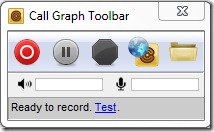 There are a few reasons that you might need to record your Skype audio calls. Perhaps you want to cherish and save all those calls that you make with loved ones, or maybe you conduct interviews for a podcast. Whatever the reason,