Menu Close

Category: Applications (page 22 of 29)

Hey, Power Users: Believe It or Not, You May Love Internet Explorer 9

ie9 beta

Over at Technologizer, Harry McCracken took a look at the first beta of Internet Explorer today, and his opinions may surprise you. He believes that IE9 has finally caught up with the competition in most respects, and in some ways it has surpassed it. Among the highlights:

  • In testing, the IE9 beta blows through animation-rich HTML5 that some other browsers can barely run at all;
  • Like in Chrome, the address bar also doubles as a search field;
  • The Address Bar shares space with tabs, and shrinks to free up space as tabs are opened;
  • IE9 has tight integration with Windows 7 (for example, tabs can be pinned to the Taskbar).

Head on over to Technologizer for a thorough rundown, including a look at how Microsoft seems to be cautious about extensions. If you’re brave, you can also go get the beta.

Is there any chance you’d ever switch to Internet Explorer 9 when it is out of beta?

Internet Explorer 9: Microsoft’s Browser Gets Back in the Game [Technologizer]


How to Quickly Switch Audio Between Speakers and a Headset [Windows]

headset speaker switch

If you don’t want to plug or unplug your headset, you typically need to go through a multistep process to switch your computer’s audio output from your speakers to your headset, or vice versa.  There’s a quicker way, though, using a free software solution.  This is great for those times when you want to listen to audio over your speakers, but quickly switch to your headset to make a Skype call.

Soundswitch is a free program that allows you to set a hotkey to switch between audio output devices.  Soundswitch is pretty simple.  After you download the file and extract its contents to a location of your choosing, you then open up an .ini file (sound_switch.ini) to configure the program.  The configuration step is important – if you don’t do it, Soundswitch won’t work (unless your device setup happens to mirror the app developer’s setup).

To configure the .ini file, open your audio properties by right-clicking on the speaker icon in your system tray and selecting “Playback Devices.”  You then need to count the order in which your audio devices appear in the listings.  For example, in the image below, my headset (the “Speakers” device described as “C-Media USB Audio Device”) is device #1, and my external speakers (“High Definition Audio Device”) are device #2.  Before ascertaining your device order, make sure that you’ve right-clicked anywhere in the window, and chosen to show disabled and disconnected devices.

switching between audio sources in windows


Once you have a number for each device, take those numbers and plug them into the .ini file.   My .ini file ended up as depicted in the image below, and happened to match the default settings.  The two entries under “Sound Devices” are my headset and my speakers, respectively.

sound_switch ini

Once you’ve set up the configuration file and saved it, you’re all set.  The default hotkey combo to switch audio devices is CTRL-ALT-F12, although you can change this in the configuration file.  Soundswitch offers some other features as well.  You can set hotkeys to scroll between devices, to hide the tray icon, to switch your currently selected device between two different speaker configurations, and to terminate the program.

Soundswitch’s developer (who we can thank for generously providing this program for free) has tested it in Windows 7 64 bit, and Vista 32 bit.  I’m using it in Windows 7 64, and it works fine.  There’s also an older version that works in Windows XP.

If easy audio switching entices you, head on over to the developer’s site to grab Soundswitch, and to read his configuration instructions.

Soundswitch [via Contriving]

Headset photo by Stephan Ridgway


Sync Tool Comparison: Dropbox vs. Syncplicity vs. SugarSync

synchronize

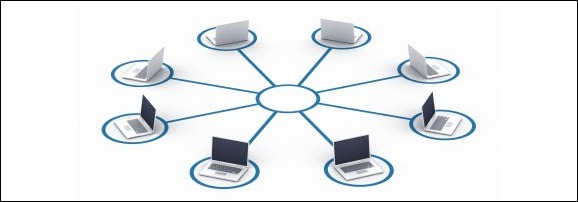
Last year, we wrote about 5 Tools to Keep You Synchronized Everywhere.  That post covered not just tools to sync files, but tools to sync your workflow (such as using a tool like Lastpass to get your passwords everywhere).  How about different options that can be used to keep your files in sync, with no effort on your part?  Here are three options that are "fire and forget," meaning that once you configure them, your files will be continuously synced between computers, with no effort on your part.  Read on for our take on which ones come out on top.


Read more


Evernote Trunk: Less Than Hoped For, But A Nice Addition

Evernote Trunk: Less Than Hoped For, But A Nice Addition | 40Tech

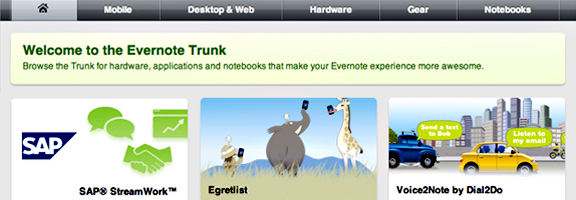
Last Wednesday, Evernote made the BIG ANNOUNCEMENT they had been marketing for July 14th — it came with a party and everything. Unfortunately, none of what I was hoping would be in the latest release has come about yet; namely the ability to share notebooks via the desktop and mobile apps (and social sharing!). What Evernote did announce was Evernote Trunk, a central repository for API-connected services and devices. While this is not exactly as awesome as what I felt the hype promised, it is a very useful way to find other great services to work into your workflow — and it may well be another revenue stream for Evernote.

Read more


Giveaway! Win GTDagenda Premium: Free for Life – Just Read and Comment On Josh’s Take

Win a Premium Subscriptions to GTDagenda, Free for Life | 40Tech

A few weeks back we announced a writers’ contest. The folks at GTDagenda, a Getting Things Done app, offered us two free-for-life premium subscriptions to their task (and life) management service ($69.95/year value, each), and we decided to give one of those subscriptions away to the winning writer of an impartial review of the app. The winner of this phase of the contest is Josh, for his exuberant and well rounded take on GTDagenda as a service (congrats Josh!). Check out his review — and how you can win the second part of the giveaway — below!

Read more