Menu Close

Category: Applications (page 13 of 29)

App of the Week: BetterTouchTool [Mac]

bettertouchtool.jpeg

Mac’s latest update to OS X, Lion, is geared toward trackpads. You can use your trackpad to launch Mission Control, to swipe between full screen apps, and even to navigate in Safari. If you want, though, you don’t have to stop there. With a free tool, you can assign even more gestures to perform certain actions.

Read more


App of the Week: PressReader [Mobile]

App of the Week: PressReader [Mobile] | 40Tech

Traditional newspapers are struggling. We’ve all heard this, time and again, and know that they are having the same problem that the music and other “olde world” industries have: namely, that the people in charge don’t truly understand the medium of the internet, and are too wrapped up in either complaining about it, trying to figure out how to control it, and suing people to recoup their perceived losses to take advantage of it. Some newspapers have embraced the web, openly or behind paywalls, and some of these websites and mobile apps are actually good, presenting their content well, and occasionally adding a bell or whistle here and there.

What if you have simpler tastes, though? What if, all you want to do is read your favourite newspapers, in their full, original, cover-to-cover glory, from the comfort of your iOS or Android device? How about from your Blackberry? If this is a dream of yours, then Newspaper Direct’s PressReader is your new best friend. Hell, you and your new buddy might even save a tree or 10.

PressReader is fantastic. If I had to use one word to describe it, that would be the one — that or awesome. There are over 1900 newspapers (though the app still says 1700) from around the world available (92 countries, 48 languages) for your reading pleasure, updated daily. These are, as I said, available in full, just the way you would pick them up from the news stands, including all ads, classifieds, the funnies, sections and stories. They are downloaded directly to your device (you can choose download by Wi-Fi only, if you like) so that they are available even when offline.

PressReader Downloads Full Newspapers to Your Device | 40Tech

Newspaper Direct, who are also the purveyors of PressDisplay (the web version and precursor to PressReader), have license agreements in place with all of these newspapers, receiving daily .PDF scans which Newspaper Direct then process to add all sorts of fun interactivity.


An Interactive Newspaper (the Really-Real One)

What sort of interactivity, you say? Well, for starters, all headlines are clickable. You can swipe through the pages as you like, in portrait or landscape mode, and can double-tap, pinch, and zoom to your heart’s content to read the stories — but if you want to see something that’s formatted for easy reading, then tap any headline and you will get a pop up version of only that story. While in the pop-up, you can change the text size and move to the next and previous story, as well, making for a customizable reading experience.

imageIMG_0861IMG_0863IMG_0865IMG_0859

The story pop-up also allows you to print the story in plain text or with full graphics, and has sharing features as well. At the moment, you can share a story via email, Twitter, and Facebook. The Facebook share is a bit ugly with it’s long, title-less hyperlink, but all three methods link you to the full article on PressDisplay.com. In my tests, I was able to access the shared article on the web and mobile safari (the mobile web app is pretty cool, too), without having to log in, or pay for access. That could be the case for all, or just for the papers I was using.


Newspapers That Read to You

The best feature, by far, of PressReader (and PressDisplay) is yet another gem that’s available in the pop-up when you touch a headline. It’s not the ability to search within nearly 2000 papers, and it’s not the Top Stories or Favourites feature (all available from the main menu-bar, not the pop-up) — it’s the cute little headphones icon in the bottom right. Touch this button, and PressReader’s built in text to speech functionality will read the story to you! This is a beautiful thing! If you are on the go, driving, or busily working, your newspaper story can be read to you, keeping your hands and eyes free for more important things — like not killing yourself while driving. I’ve seen more than one moron on the road that was reading a newspaper while in motion — and I’ve called the cops on the idiots, too. I’m no snitch/narc/derogatory tell-tale word of the day, but I’m on the road with my kid and you are not going to cause an accident that hurts her. If you like the paper while driving… get PressReader and save us all the trouble.

Slight digressions about morons aside, I highly recommend PressReader to anyone who enjoys the full newspaper experience (plus more) while on the go, or is interested in saving a few trees (NewsDirect claims to have saved 173,824 trees, and counting). You can get it on the iPhone, iPad, and iPod Touch, as well as on Android (Gingerbread and Honeycomb devices), Blackberry (no Playbook yet, but it’s on the way), Windows 7 Slate, and even Windows Mobile 5 (go figure). No mention of Windows Mobile 6 (5 should still work) or 7 yet, but it is likely on the way. You can also download Pressreader for your PC or Mac, iRex Digital, WebOS is on the way, and you can access PressDisplay via the web or even on your Kindle and other eReaders.


What it Costs

The PressReader app itself is free, but newspapers cost $0.99 each, or you can get an unlimited subscription to everything (all 1900 papers) for $29.95 per month. If you want to try before you buy, PressReader comes with seven free newspaper downloads of your choice, and you can give the Top News feature a whirl as well. If you want to try and offset the cost a bit, head over to your account on PressDisplay and check out the referral widget. This is a beta tool that can get you 10% of each subscription that comes through you.

NOTE: My only problem with PressReader, is that the papers you choose to subscribe to don’t sync in your account and therefore have to be re-downloaded for each device. What I am not certain of, as I am using a trial of an unlimited account, is whether or not you would have to pay for that paper on each device. I’ve asked the people at News Direct and expect them to get back to me shortly.

UPDATE: According to my contact at NewsDirect, as well as a comment by Gayle, who also appears to work for them, you can download your newspaper issues on up to six different devices, unless there is something that precludes that in NewsDirect’s licensing deal with a particular publisher.

Also, for those worried about download size and data on your mobile, go into settings to change how long you want PressReader to keep a paper, and to set your PressReader app to download via WiFi only.


PressReader


App of the Week: Move2Picasa (now called Move Your Photos) [Chrome]

App of the Week: Move2Picasa [Chrome] | 40Tech

Our last post on Google+ was a question on what you thought of the hype surrounding it. We’ve had a chance to play with it now, and so have many of you — and all in all, we like it. That’s not what this post is about though. This post is about taking advantage of Google opening up unlimited storage in Picasa as a result of Google Plus, and how you can use that, and a handy migration tool called Move2Picasa to backup your Facebook photos — whether you plan to use Google’s new social network or not.

UPDATE: The creator of Move2Picasa has changed the URL to the Chrome extension (the correct one is now in the post), and has changed the name of the Move2Picasa extension to Move Your Photos.  Thanks to Peter Pawlak on Plus for catching that!

Note on Unlimited Storage: Google has opened up storage in Picasa, in general. Plus users have free, unlimited storage for photos that are a maximum resolution of 2048X2048 pixels (and videos that are a maximum of 15 minutes), and 1GB of free storage for larger resolution photos. Anything over the 1GB (or whatever you have paid for additional storage) will be automatically resized down to the maximum free resolution. Non-Plus users get basically the same service, but their maximum resolution for photos is only 800X800 pixels.

Move2Picasa started as a website-based tool put together by Aman Kumar Jain, a web developer from Pune, India. It was leapt upon immediately by many of the early adopters of Plus, and the servers were quickly overloaded to the point that the site wouldn’t even load. Aman worked to solve the issues, and has now migrated Move2Picasa to a Google Chrome Extension .

The extension works beautifully! I copied over 1600 photos from Facebook to Picasa in less than an hour, and I barely had to lift a finger.

Here’s how it works:

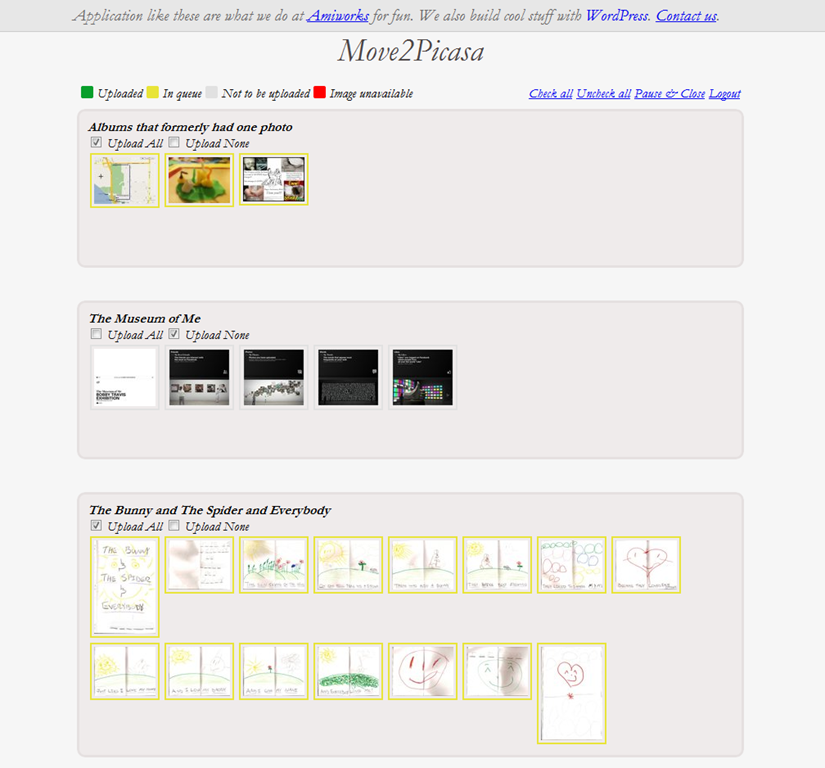
After installing the extension from the Web Store, click on it to log in to Facebook. You will be presented with a page that, after a minor load time, has all of your Facebook photos broken down into albums. The top left of the page shows a legend that identifies the coloured boxes surrounding the photos, which are yellow for “In queue,” by default. The top right of the page provides some simple tools to select or deselect all, pause and close to come back later, and to logout from the tool completely.

Each album has check boxes directly below the album name that allows you to make quick choices to Upload All or Upload None of the photos of that album. You can also click on individual photos to select or deselect them for uploading, which is handy, because you may have certain photos that you want to weed out before they are copied to Picasa. Like the yellow boxes, Upload All is selected by default.

Move2Picasa | Copy Facebook Photos to Picasa, Google Plus | 40Tech

NOTE: At this point you may notice one weirdness: some of your albums may not be showing any pictures. Don’t panic. This is either because there are no pictures in that album, or because the albums have only one photo. Hopefully, this minor bug will be fixed soon — in the meantime, you may want to head to Facebook and add those errant solo photos to a combined album (you may have to log out and log back in to Move2Picasa to see the changes), or simply download them manually from Facebook and upload them to Picasa without the tool.

Once you have chosen the photos you want to copy over to Picasa, click the Upload button on the bottom of the page, and sit back and let Move2Picasa do all the heavy lifting for you!

When I did it, I didn’t notice any extra load on my computer, and had no problem doing whatever else I needed to do while it ran in the background. Some people have reported the occasional error pop-up that breaks the operation (this happened to me, too), but Aman posted to my thread on Google+ (find me here, we can add each other to our respective circles and you can read it) that the issue had been fixed. It was barely a problem, in any case, as all I and the other users who had the problem needed to do was click the upload button again, and the handy countdown picked up right where it had left off.

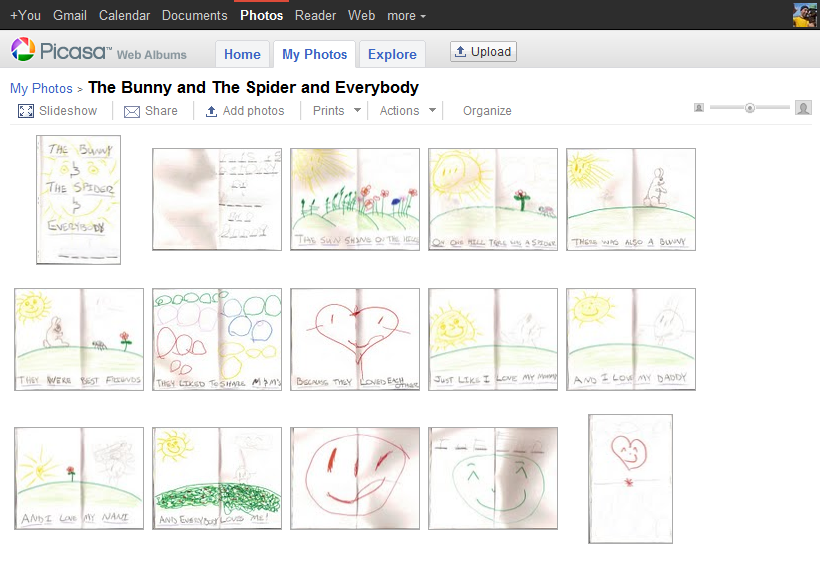
Before you know it, you will have complete duplicates of your Facebook albums living in Picasa, ready to do with as you please. The only caveats I have discovered so far is that the images appear to be the Facebook-resized versions only, as opposed to the full-res photos Facebook supports now (though I would love for someone to confirm otherwise), and that Move2Picasa does not support caption importing. That last bit is too bad, but hopefully will change at some point in the future. Move2Picasa as a Chrome Extension is only a couple of days old, after all.

Facebook Photos Moved to Picasa, Google+ with Move2Picasa | 40Tech


Why Bother?

Some of you may wonder why you should care. You may have no use for Google+, or Plus, or whatever people want to call it, and think that it is just another hyped Google product that will crash and burn. And it might; you never know. The fact that Plus has already surpassed 10 million users (though many are probably not active — but then, neither are bulk of Facebook’s hundreds of millions) indicates otherwise, however. The efforts that Google is putting into design and to integrate Plus into its overall offerings — possibly making it the connecting flagship of Google’s main products — is another strong reason to think Google+ may be around for a while yet.

Whichever way Google’s social efforts go this time, it is unlikely Picasa is going to fizzle away anytime soon. Take it from someone who lost the entire first year of photos with the lovely lady who is now my wife (due to a backup hard drive falling off of a bloody coffee table!), it never hurts to have another backup of your precious photos. The fact that this is an online backup with practically unlimited storage, an interface that allows easy viewing and sharing, and a built-in photo editor doesn’t hurt either. So why not use it?

If you still don’t want any part of Plus, Picasa does offer unlimited storage for everyone, now, but, as mentioned in the note at the beginning of the article, you will only be allowed to upload photos that are 800X800 pixel resolution, as opposed to the 2048X2048 resolution offered to Plus users. If you go that route, though, I’m not entirely sure Move2Picasa will work for you. I don’t see why it wouldn’t, but I haven’t tried it that way. Why would I? Whether I stick with Google+ or not, I’m definitely ok with having dust bunnies swarm over my account if the trade off is the unlimited storage and backup of higher resolution photos.

How about you?


App of the Week: Easily Switch Between Audio Sources with SoundSource [Mac]

soundsource

We’ve previously covered how to quickly switch audio sources if you’re on Windows. The tool that we covered comes in handy, for example, if you want to switch your audio and mic input over to your headset to make a Skype call. But what if you’re on a Mac, and want to do the same? A free app, SoundSource, has you covered.

SoundSource can be installed to your menu bar, and from there it is a simple matter of clicking it, and selecting your input or output source from the menu that drops down. SoundSource also lets you adjust volume, and gives you a quick link to sound preferences and MIDI setup.

If you’re constrained for space on your menu bar, you can get much of the same functionality by holding down the option key and then clicking on the Sound icon on your menu bar. You won’t get the granular volume control offered by SoundSource, but you will be able to switch devices. Credit to TUAW for this native OS X tip.

If you find that you’re switching your audio source on a Mac with any regularity, check out SoundSource. The link at the end of this article takes you to the free apps by Rogue Amoeba, the developer. SoundSource is at the bottom of the page.

SoundSource [Rouge Amoeba]


App of the Week: Noteshelf Handwriting App for iPad

App of the Week: Noteshelf Handwriting App for iPad | 40Tech

When I got my iPad back in December, I mostly used it as a means to surf the web, watch Netflix, read, and play the occasional game. Oh, I blogged on it a bit, too, and I figured it would be great for taking notes and the like, but I quickly found that extended typing on the glass surface led to aching fingertips. Besides, when trying to work things out and get creative, there is something very powerful about the old fashioned pen and paper approach. Determined to see if I could get the same power out of my iPad, I started researching handwriting apps.

After going through several, I was largely disappointed by what was out there — until I discovered Noteshelf.

Now, to be fair, I originally went with Penultimate, which has an excellent natural feel when you write — and gets extra awesome points for it’s freeness. However, I still felt like I was missing something. So, when my friend and colleague Daniel Gold recommended Noteshelf to me, I grudgingly gave it a shot, despite it’s $4.99 price tag. I’m cheap when it comes to app purchases, but I figured I could hold him responsible if it sucked.

It didn’t.

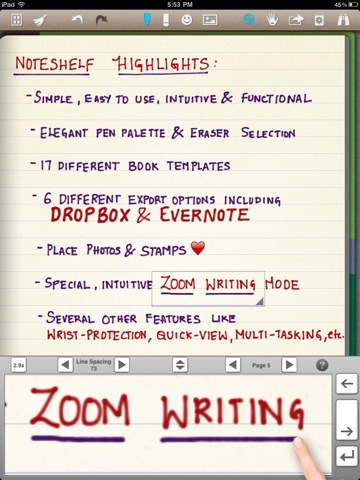
In fact, it rocked so much that I use it all the time, even though my handwriting is absolutely atrocious. Noteshelf has all of the features I could want or need:

  • Excellent natural feel when writing
  • Different pen sizes and colours
  • Wrist protection that works
  • Zoom writing
  • Just as functional in landscape mode as portrait mode
  • Unlimited undo and redo (until you leave the page, anyway)
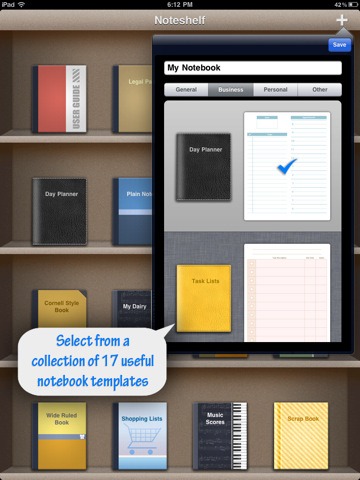
  • Notebook templates for writing, drawing, task and day planning, meeting notes, shopping lists, journal writing, graphing, and music
  • A bookshelf view to easily organize notebooks
  • Dynamic line-sizing for easy and clean jumps to the next line on a page
  • Photo embedding and annotation
  • Backup and restore functionality

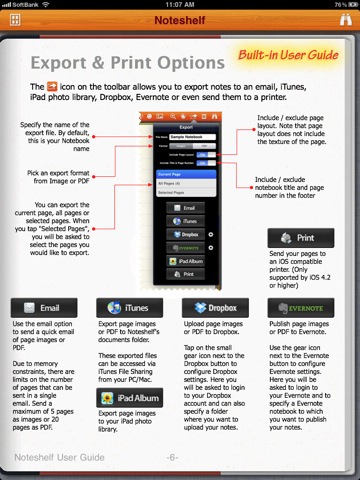
The kicker, though, is Noteshelf’s sharing capabilities. You can print and export notes as .jpegs and .pdfs, configuring by page or as an entire notebook — by email, iTunes, your iPad photo album, and (Yay!!) Dropbox and Evernote! That’s all kinds of awesome, right there! Nothing quite like being able to quickly scrawl down several pages worth of ideas, and then send them to your out-of-brain-brain for easy searching with Evernote’s OCR. Even writing as bad as mine gets picked up. Mostly…

Noteshelf Natural Handwriting App for iPadNoteshelf Notebook Templates Noteshelf Export to Dropbox, Evernote

I can’t say enough that’s good about Noteshelf. If you have an iPad, and have a want or need to use it as a notebook that will get you on the path to being well and truly paperless, you need to go and get it. Right now.

What’s your favourite handwriting app for tablets?