Menu Close

Category: Apple (page 27 of 38)

How to Add Folders to the Finder Sidebar [Mac]

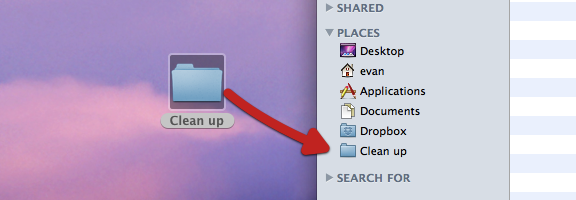
Finder1.png

If, like me, you’re relatively new to the Mac world, you stumble across tips that are both incredibly useful, and incredibly simple. One such tip concerns how to add folders to your Finder sidebar. There are several reasons you might want to do this. Perhaps you have a folder that you access all of the time, and don’t want to go digging for it. Or perhaps you’re in the middle of a project, and want to temporarily access your project folders with one click. Getting those folders into the Places section of your Finder sidebar is easy, using either of two methods.

Read more


How to Sync Your Text Expansion Snippets Between Windows and Mac

breevy and textexpander.jpg

Yesterday we covered five ways to boost your productivity using a text expansion program. If we’ve sold you on the value of a text expansion program, your next question may concern which program to get. We previously mentioned how to use text expansion for free on Windows using Texter, an app that we identified as one of five tech tools to increase your productivity in a non-tech job. Texter was the first text expander that I used. When I added a Mac to my repertoire, though, one problem that I ran into was that Texter is a Windows-only app. I started using TypeIt4Me on the Mac, but then I had to manually enter my expansion snippets to keep them in sync between Mac and Windows. Recently I discovered a better solution – two separate apps (one on each platform) that can use the same snippet file, synchronized over Dropbox. I’ve been in text expansion heaven ever since.

Read more


Relive Your Childhood, and Play the King’s Quest Series, For Free [Windows, Mac]

kings quest

If you grew up in the 80’s, do you remember games like Space Quest, Leisure Suit Larry, and perhaps the best of them all, King’s Quest? They were games from the legendary, and now defunct, Sierra Entertainment. If you long for the fun of yesteryear, then you’re in luck. You can now play the first three King’s Quest Games if you own a Mac or PC. The best part? They’re free.

AGD Interactive is a non-profit fan company that was given a fan license to remake the King’s Quest series. King’s Quest I was released back in 2001, and has seen a few revamps since then, mostly recently in September 2010. King’s Quest II followed in 2002.

The games aren’t just conversions of the originals to support modern operating systems, but rather are complete overhauls of the games. Compare the type of graphics, below, from the original (left) and the remake (right), and you’ll see what I mean. Also, the remakes include additions to the storyline, deeper plots, enhanced puzzles, and fleshed out characters.

image image

In February 2011, the King’s Quest III remake was completed. This one included a digital music score, as well as voice acting. I’ve only just started playing the King’s Quest I remake, but I was very tempted to jump to the third in the series, as it looks to be the most refined. Of course, half the charm of these older games is that they feel unrefined and retro.

image

Have you gotten through all three? Do you know of any other retro adventure games that are available for true geeks at heart?


King’s Quest I: Quest for the Crown

King’s Quest 2: Romancing the Stones

King’s Quest 3: To Heir Is Human

Original King’s Quest screenshot from Wikipedia.

Thanks to OS X Daily for helping me find these games.


App of the Week: Check Your Battery Health With coconutBattery [Mac]

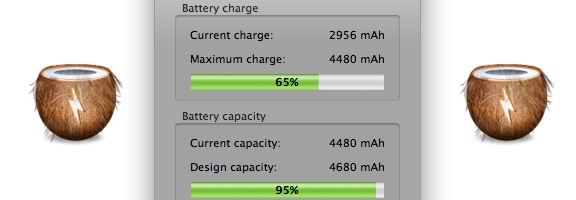
In the spirit of simplicity on the Mac, the App of the Week this week serves one function: it tells you the status and health of your Mac laptop’s battery. CoconutBattery doesn’t require any sort of fancy or complicated configuration. Just install it, and go. The screenshot in this post demonstrates exactly what information it gives you.

Read more


Tell At a Glance Whether Your Current Document Has Unsaved Changes [Mac]

mac file saved indicator.jpeg

Sometimes, the simplest tips are the most handy. Such was the case with a recent tip over at OS X Daily, a site chock-full of Mac tips. This one was real simple, pointing out how you can tell when a document that you’re working on has unsaved changes, regardless of the app. See the two images below? The first one has unsaved changes, while the second one does not. What is the difference?

Check out the red circle in the title bar. If there is a dot in the title bar, the document has unsaved changes. If the dot is solid, the document hasn’t been changed since the last save.

Read more